
 Free Edition
 Endpoint Central's tools feature allows administrators to remotely access end-user devices' files. They can also transfer files to users without any hassle using the remote file transfer feature. To Check out how to transfer files remotely from local machine or PC to another remote computer in a network using ManageEngine Endpoint Central!
To transfer files to remote computers, follow the steps given below:
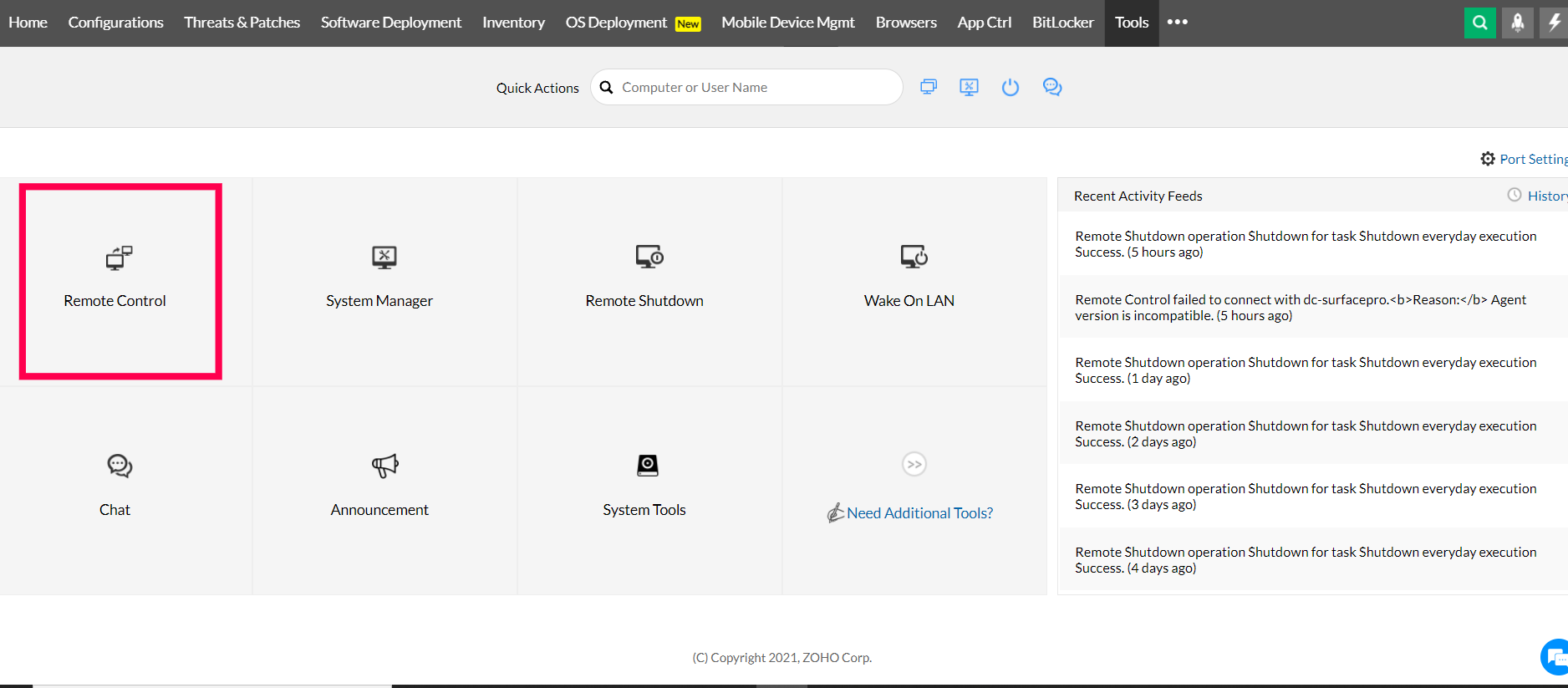
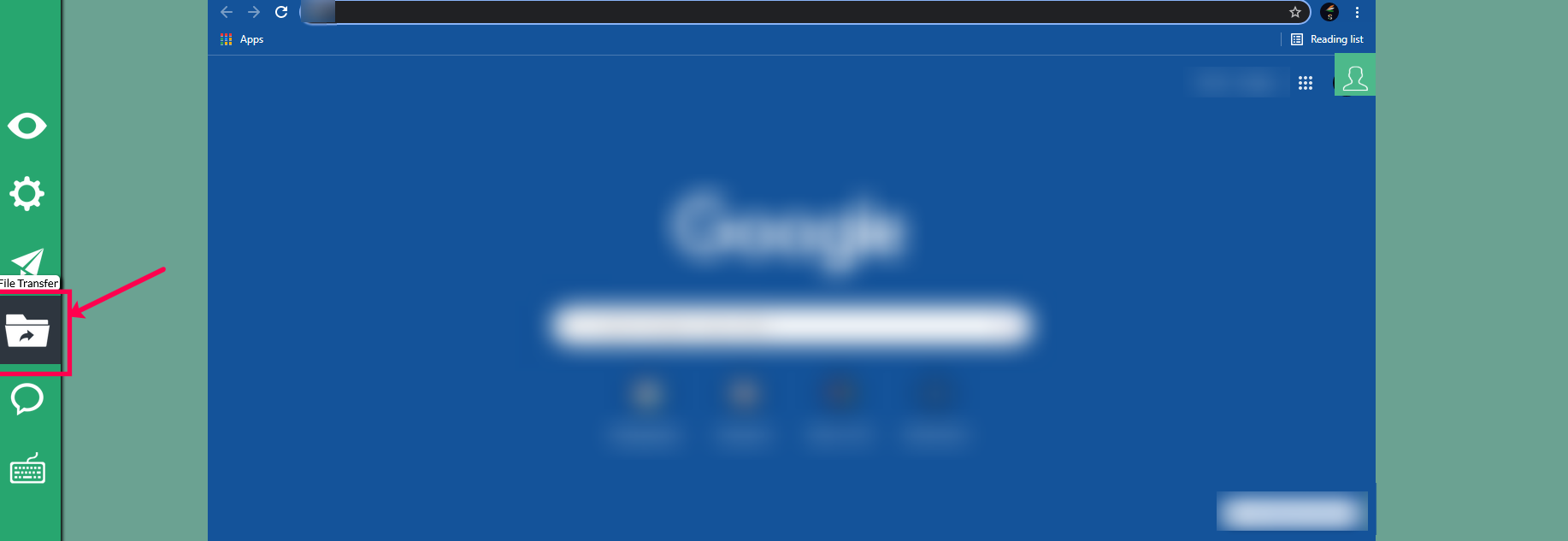
 to transfer it to a folder in the remote computer
You have transferred files to a remote computer.
Our remote file access feature allows administrators to quickly connect with any computer in their domain/workgroup and access files remotely. The remote file transfer process offers convenience and efficiency to administrators as they can work from anywhere.
For instance, in the middle of a troubleshooting session an administrator can remotely transfer files that are necessary to fix the problem to the target computer. Thus remote file access and transfer can be a valuable feature for any administrator.
Frequently Asked Questions
How to transfer files from pc to remote desktop?