Advanced Filter in Policy Overview | Firewall Analyzer
The Advanced Filter in the Policy Overview page of Firewall Analyzer provides a flexible way to perform granular, rule-level searches across firewall policies. It enables users to define multiple conditions across various rule attributes such as IP addresses, objects, interfaces, and services and combine them using logical operators like AND and OR. This allows precise identification and analysis of firewall rules based on specific traffic or policy requirements.
Additionally, the feature includes a Save Filter capability, allowing users to store and reuse frequently used filter configurations. This helps streamline repetitive analysis tasks, improves consistency, and reduces the effort required during audits, troubleshooting, and compliance checks.
What this page covers
- How the Advanced Filter helps
- Where to use Advanced Filter
- Supported Filter Criteria
- Supported Operators
- Criteria Pattern
- How to Configure Advanced Filter
- Saving and Reusing Filters
- Scope of Availability
- Advantages of using Advanced Filter
How the Advanced Filter Helps
The Advanced Filter is supported at both the device level and device group level, making it suitable for environments of all sizes.
For instance, an administrator troubleshooting an issue in a specific device can apply filters at the device level to quickly identify rules matching a particular source IP and action. In larger environments, the same capability can be used at the device group level to analyze rules across multiple firewalls simultaneously, such as identifying all disabled rules allowing HTTPS traffic across a branch network.
Where to use Advanced Filter
- Identify rules associated with specific source or destination IPs
- Perform inclusion or exclusion-based filtering (e.g., find rules not matching a condition)
- Analyze rules across multiple parameters (e.g., IP + port + action)
- Audit firewall rules based on status, zones, or last modified time
- Save and reuse commonly used filter combinations
Supported Filter Criteria
You can filter rules based on:
- Source IP / Destination IP
- Source Object / Destination Object
- Source Interface / Destination Interface
- Service Port / Service Object
- Action
- Log Status
- Rule Status
- Source Zone / Destination Zone
- Rule Direction
- Last Modified Time
Supported Operators
| Operator | Description |
|---|---|
| Equals | Matches exact value |
| Not Equals | Excludes exact value |
| In | Matches any value in a list |
| Not In | Excludes values in a list |
| Range | Matches values within a specified range |
| Contains | Matches objects containing the specified value |
| Not Contains | Excludes objects containing the specified value |
Criteria Pattern
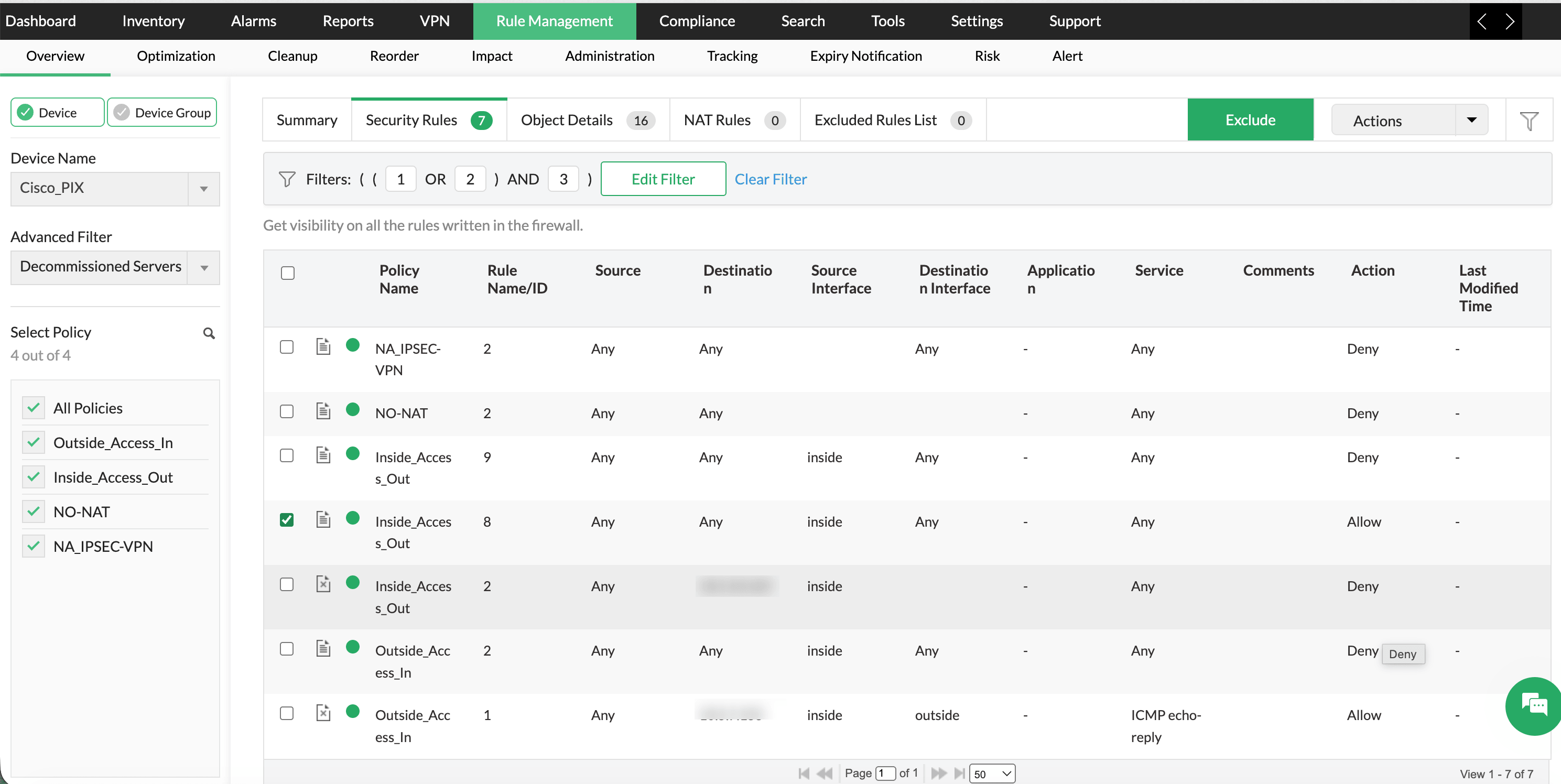
The Criteria Pattern represents how multiple conditions are logically grouped. Each condition can be configured using operators such as Equals, In, Range, or Contains, supporting both exact and pattern-based searches. The filter provides clear visibility into how multiple conditions are applied.
Example:(1 OR 2) AND 3
- Condition 1 OR Condition 2 must match
- AND Condition 3 must also match
How to configure Advanced Filter
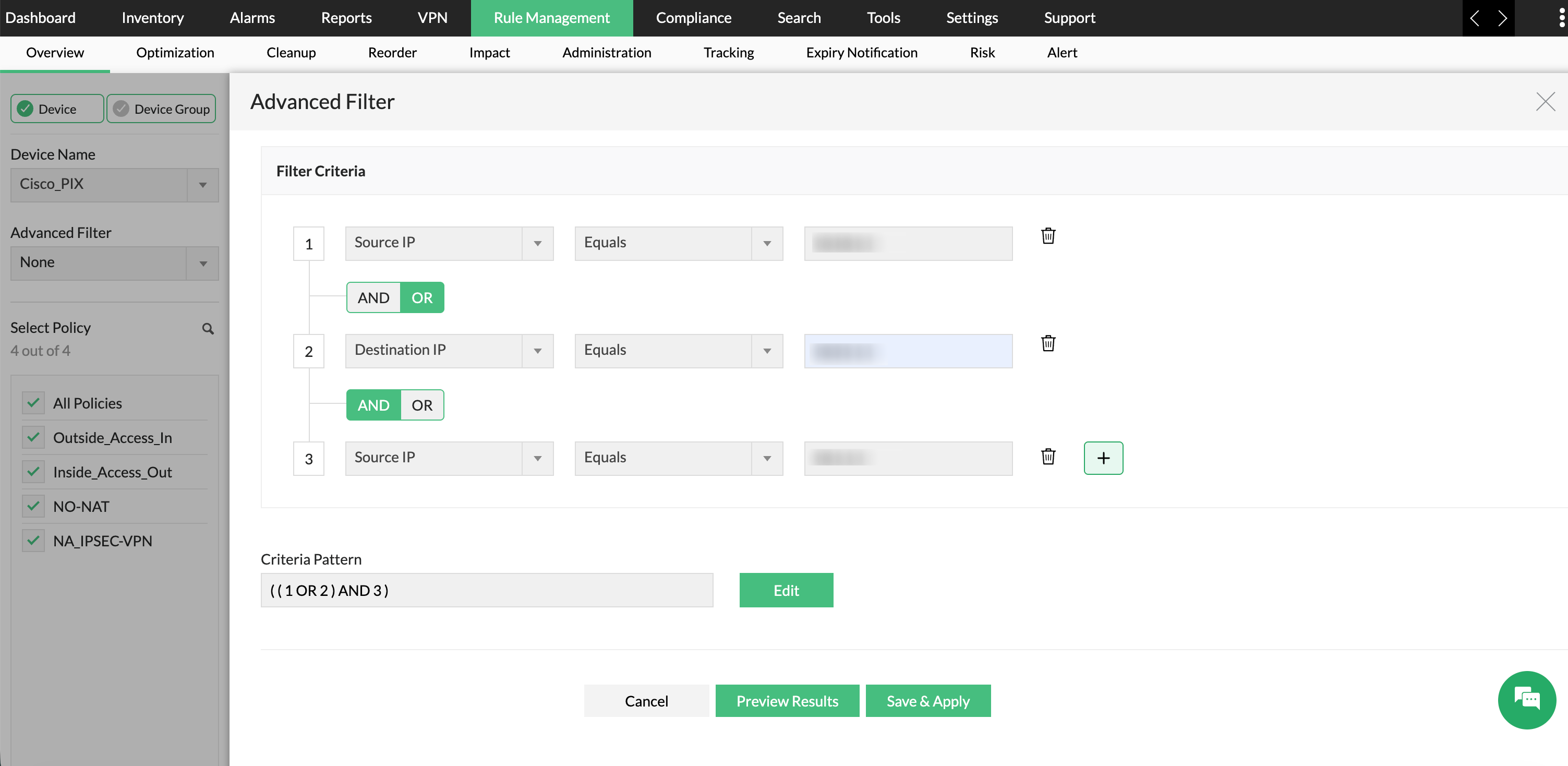
- Navigate to Policy Overview under Rule Management.
- Click on Advanced Filter.
- In the Filter Criteria section:
- Select a field (e.g., Source IP, Destination Object).
- Choose an operator (e.g., Equals, In, Range).
- Enter the required value.
- Click the + icon to add additional conditions.
- Use AND / OR options to define logical relationships between conditions.
- Review the Criteria Pattern displayed (e.g.,
(1 OR 2) AND 3) to understand how conditions are combined. - Click Preview Results to validate the filter output.
- Click Save & Apply to apply the filter.
Saving and Reusing Filters
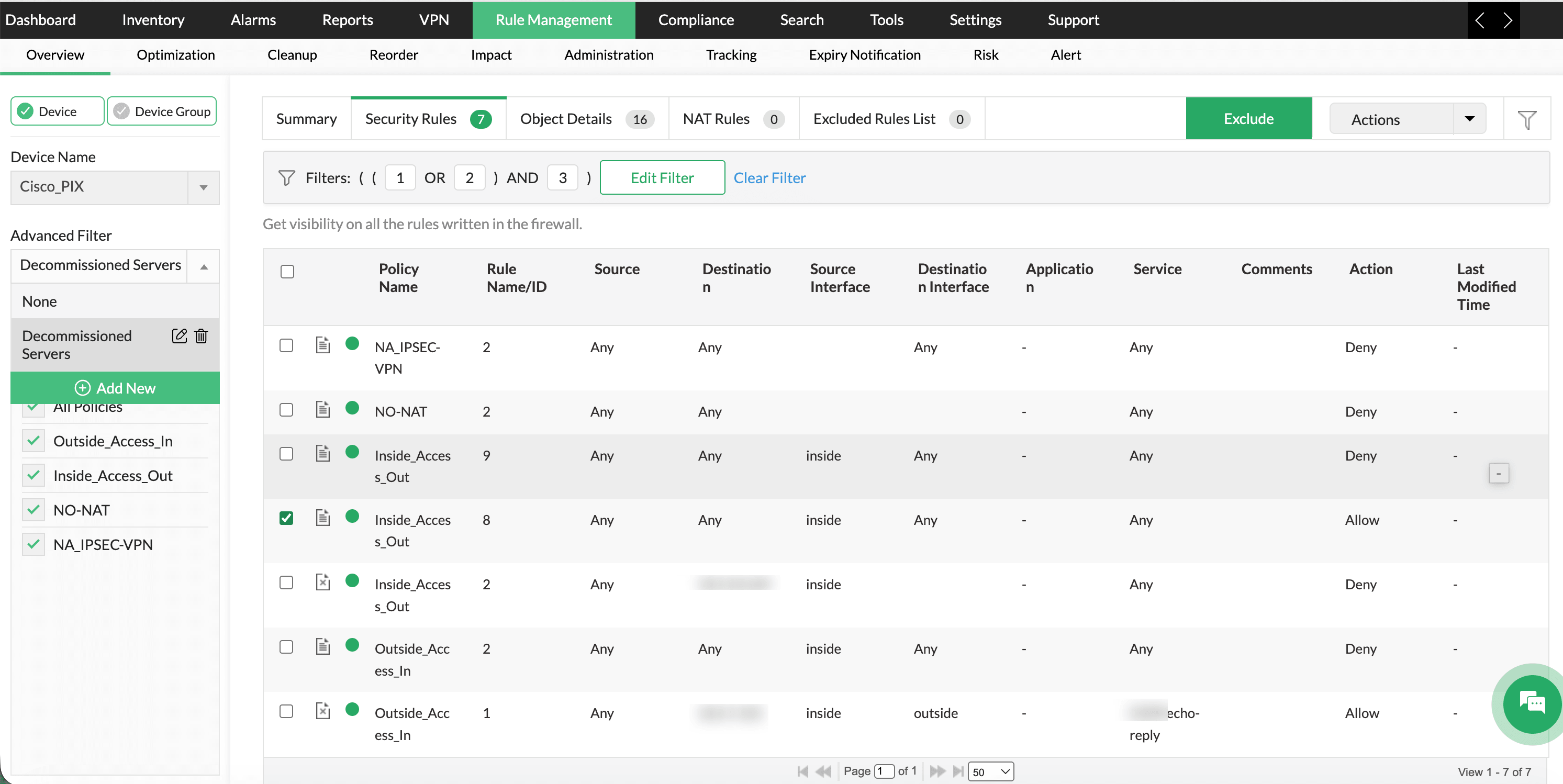
- After configuring the filter, use the Save Filter option to store the criteria.
- Saved filters can be reused later without reconfiguring conditions.
- This is useful for recurring analysis or audits.
Scope of Availability
The Advanced Filter works at both Device level and Device Group level, allowing flexibility depending on how your firewall environment is organized.
Device Level Use Case
Consider a firewall administrator troubleshooting an issue in a specific firewall device (e.g., Palo-01).
- The admin wants to find all rules where:
- Source IP = 10.10.1.1
- Action = Deny
Using Advanced Filter at the device level, they can quickly narrow down rules affecting only that device, making troubleshooting faster and more focused.
Device Group Level Use Case
Now consider a large enterprise where multiple firewalls are grouped (e.g., branch offices or regions).
- The admin wants to identify rules across a device group where:
- Destination Port = 443
- Rule Status = Disabled
Using Advanced Filter at the device group level, they can analyze rules across multiple devices at once, instead of checking each device individually.
Advantages of using Advanced Filter
- Enables precise rule analysis using multiple conditions
Combine multiple attributes like IPs, ports, and rule status to quickly pinpoint the exact rules you need, instead of manually scanning large rule sets. - Simplifies complex searches with logical grouping
Use AND / OR conditions to group criteria and handle complex scenarios in a single filter, reducing the need for multiple searches. - Improves efficiency with reusable filters
Save frequently used filter combinations and apply them anytime, avoiding the need to recreate the same conditions repeatedly. - Provides better visibility through criteria pattern expressions
View how conditions are logically structured using criteria patterns, making it easier to understand and verify the applied filter logic.