Rule Tracking in ManageEngine Firewall Analyzer
The Tracking feature in Firewall Analyzer helps you monitor and compare firewall rule changes across different configuration versions. It identifies rules that have been added, deleted, or modified, ensuring that every change in your firewall policy is visible and auditable.
Why Tracking is Important
Firewall rules directly impact what traffic is allowed or denied in your network. Any change—intentional or accidental—can:
- Open a security hole
- Block critical services
- Violate compliance policies
How Tracking Works
- Configuration File Fetching
Firewall Analyzer fetches configuration files in two ways:
- On-demand – Manually triggered by the administrator whenever required.
- Scheduled – Automatically executed at predefined intervals.
- Real-time file fetch: Fetches file configuration through CLI
Each fetched configuration is securely stored and becomes available for rule comparison.
- Rule Comparison
Once a new configuration is fetched, Firewall Analyzer compares it with the previously stored version. The differences are highlighted and categorized as:
- Added Rules – Newly introduced policies.
- Deleted Rules – Policies that have been removed.
- Modified Rules – Existing rules that were updated (e.g., changes in source, destination, port, service, or action).
Tracking in Firewall Analyzer is divided into four key modules:
Summary
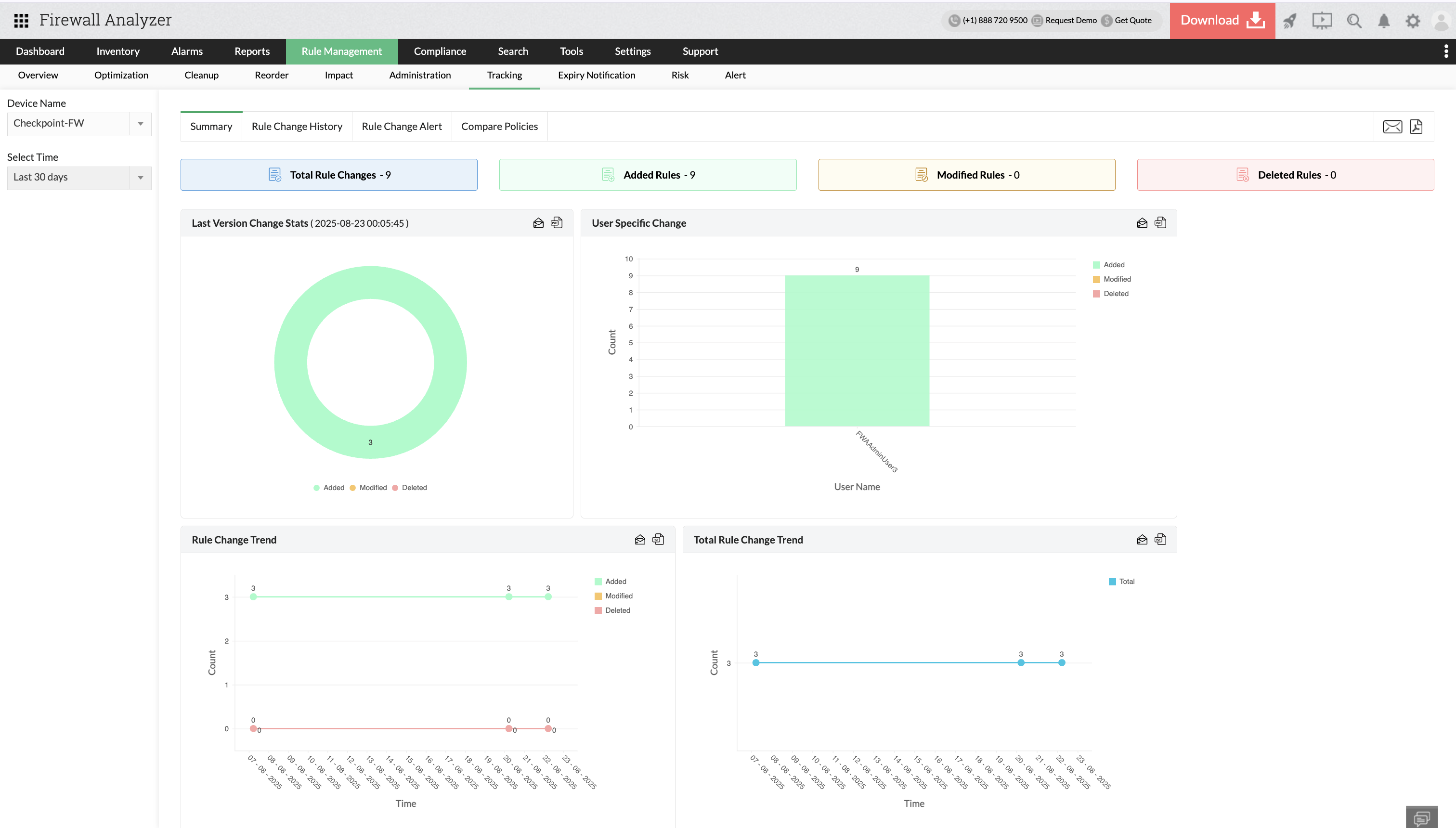
The Summary tab under Rule Management → Tracking provides a consolidated view of all firewall rule changes within the selected device and time range. This dashboard helps admins:
- Quickly understand the volume and type of changes made.
- Identify who made the changes (user attribution).
- Spot patterns or spikes in changes over time.
- Verify if changes align with security policies and governance rules.
Rule Change History
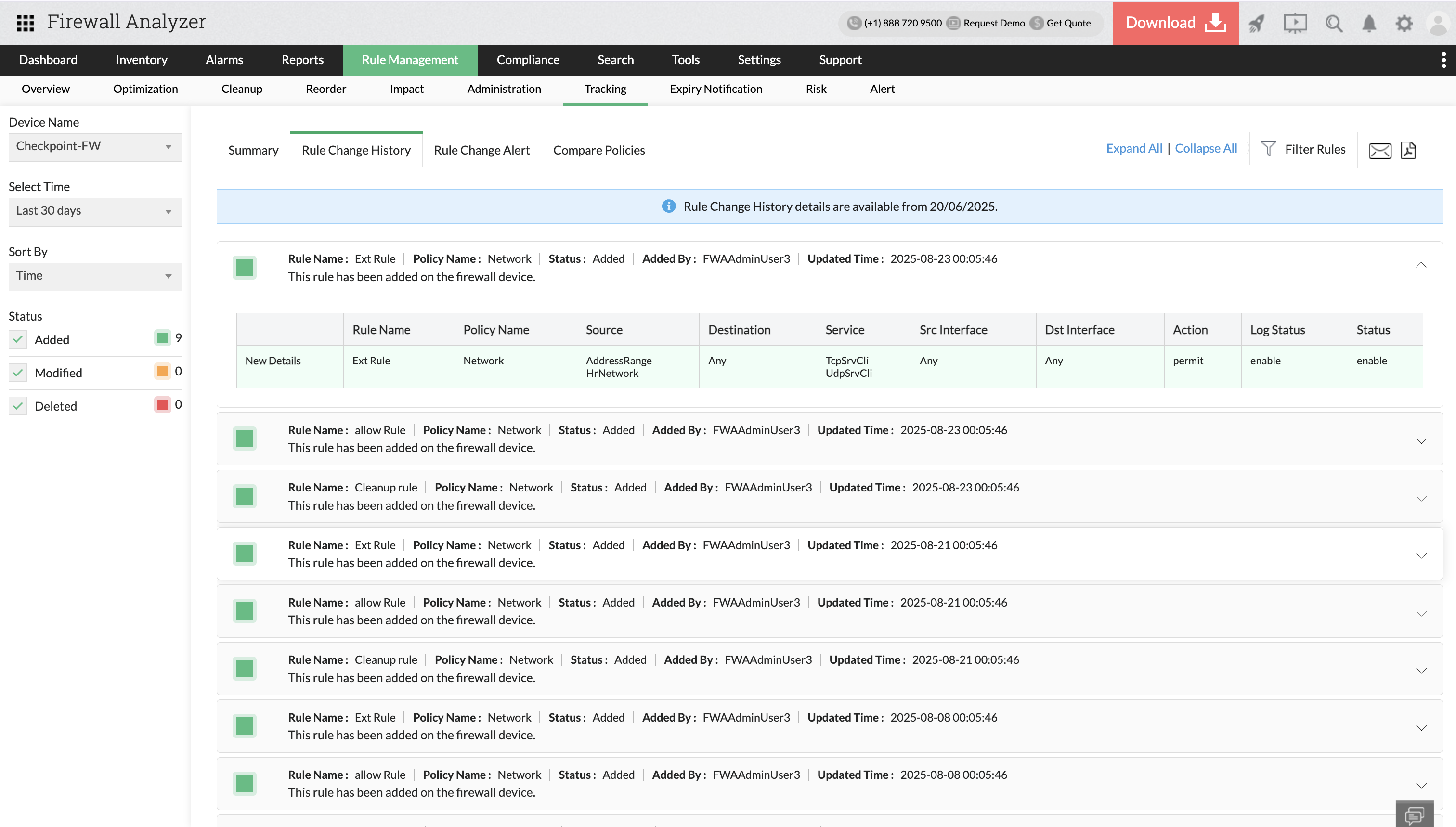
The Rule Change History feature provides administrators with a chronological record of all firewall rule modifications. This ensures that every policy update is captured and remains available for review, auditing, and troubleshooting.
How It Works
Chronological Tracking
Firewall Analyzer maintains a complete timeline of configuration changes:
- Every configuration fetch is timestamped and securely stored.
- Rule changes are displayed in sequential order, making it easy to trace how policies have evolved over time.
Automatic Updates
Updates happen seamlessly with each new configuration fetch:
- Whenever a configuration is fetched (manually or on schedule), Firewall Analyzer automatically compares it with the previously stored version.
- Detected changes — including added, modified, or deleted rules — are immediately recorded in the Rule Change History.
How to Access Rule Change History
- Go to Rule Management > Tracking > Rule Change History.
- Select the desired device from the list.
- Review the complete list of configuration changes, including timestamps and details of what was added, modified, or deleted.
Rule Change Alert
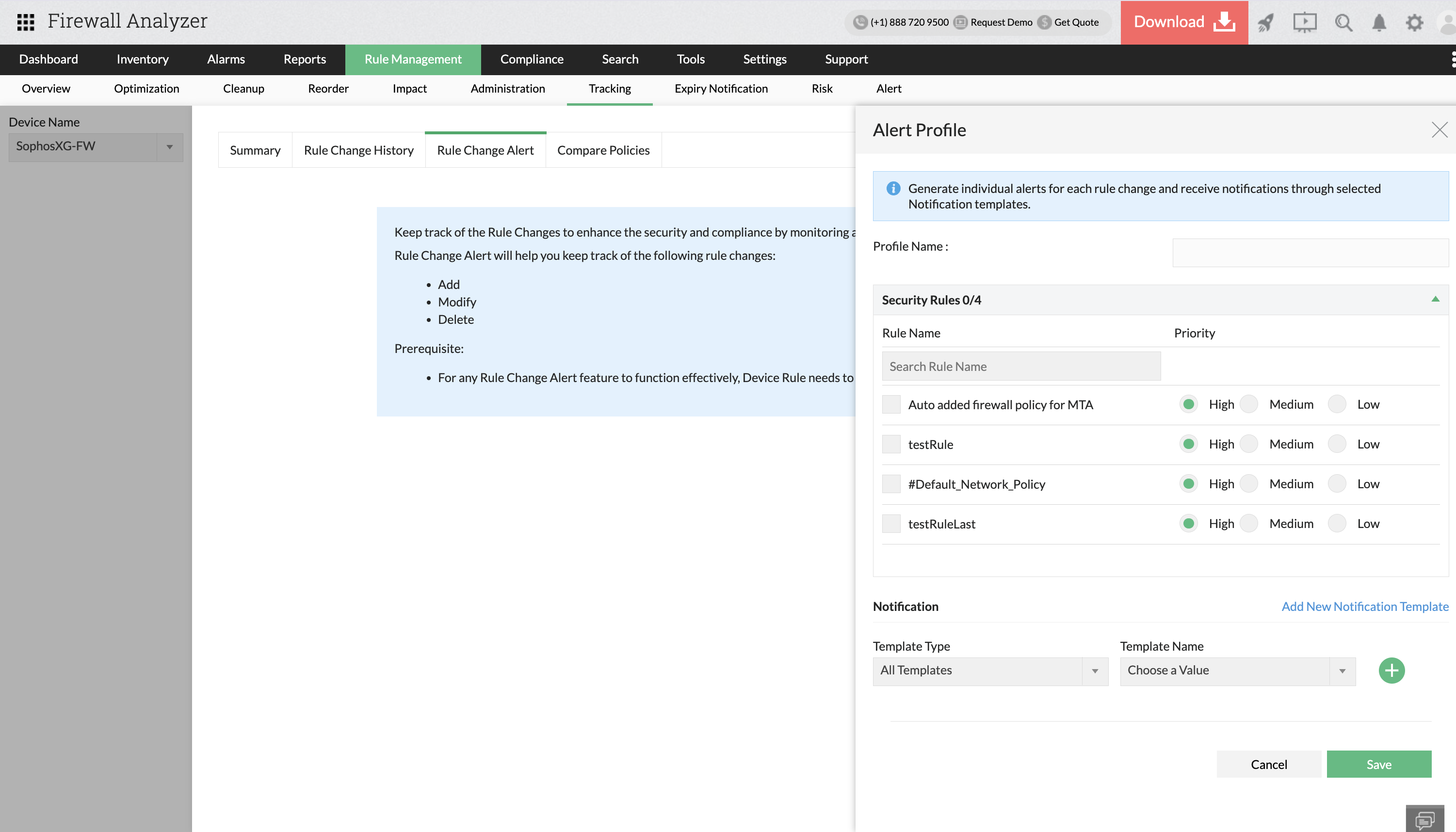
The Rule Change Alert feature in Firewall Analyzer allows administrators to monitor and respond to specific firewall rule modifications. When a tracked rule is altered or deleted, the system immediately triggers a notification based on the configured template. This ensures that critical rule changes are detected in real-time,helping security teams act quickly and maintain policy integrity.
How to Create a Rule Change Alert
- Navigate to the Tracking section and open the Rule Change Alert tab.
- From the left panel, select the relevant Device Name (e.g., SophosXG-FW).
- In the Alert Profile section (right pane):
- Enter a descriptive Profile Name.
- Under Security Rules, search for or select the rules you want to monitor.
- Assign a Priority Level (High, Medium, or Low) for each selected rule.
- Scroll down to the Notification section:
- Choose a Template Type.
- Select an existing Template Name, or create a new notification template if required.
- Click Save to finalize and activate the Rule Change Alert profile.
Compare Policies
The Compare Policies feature in Firewall Analyzer helps administrators analyze and track changes between firewall configurations. It identifies rules that have been added, deleted, or modified, and also pinpoints which specific fields within a rule (e.g., source, destination, service, action) have been updated.
How to Compare Policies in Firewall Analyzer
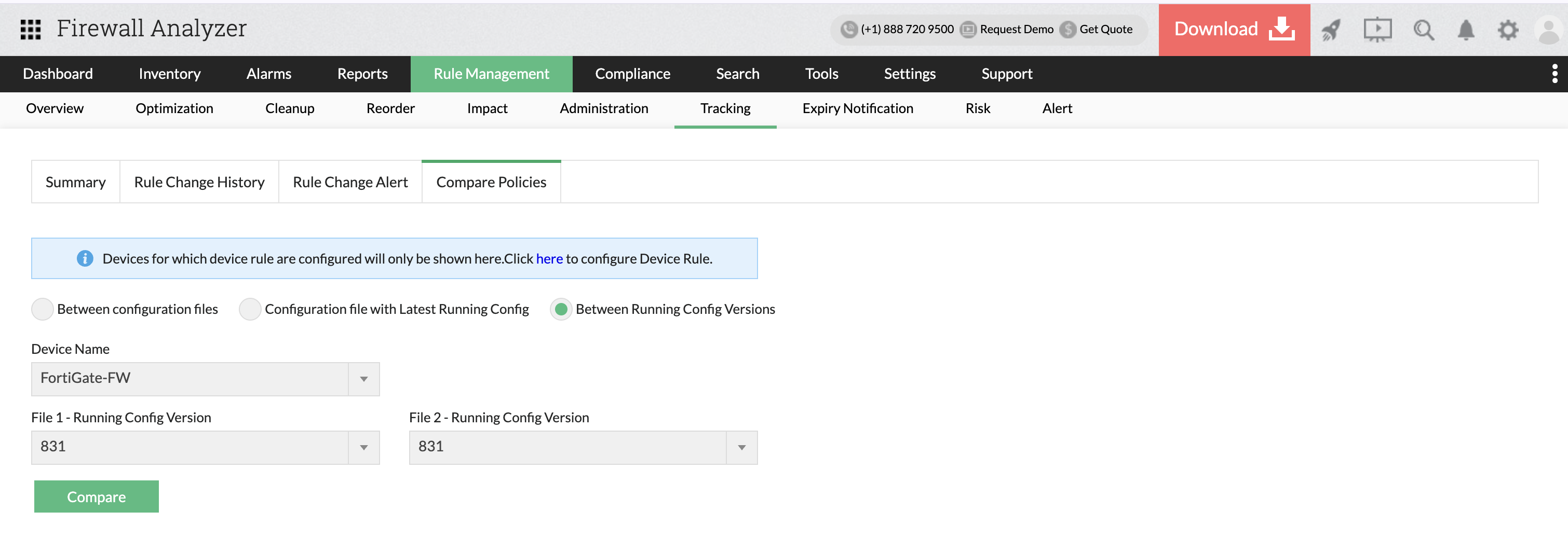
- Navigate to Rule Management > Tracking > Compare Policies.
- Select one of the available tracking options:
- Between Configuration Files – Import and compare two configuration files from the same device/vendor.
- Configuration File with Latest Running Config – Compare an older configuration file with the latest running config.
- Between Running Config Versions – Compare two stored running config versions of the same device.
- Select the device in the Vendor Name drop-down.
- Select the configuration files (or versions) for comparison.
- Click Compare to generate the rule tracking reports.