High Availability Monitoring in Firewall Analyzer
Firewall Analyzer enables centralized monitoring and reporting for firewalls deployed in High Availability (HA) environments. By logically grouping redundant firewall devices, Firewall Analyzer ensures uninterrupted log collection and consistent reporting even during failover events.
What is High Availability in a Firewall context?
High Availability (HA) is a deployment model in which two or more firewall appliances operate as a redundant pair to eliminate single points of failure and maintain continuous network security.
A typical HA configuration consists of:
- Primary (Active) Firewall
The firewall currently processing network traffic and generating logs. - Secondary (Passive) Firewall
A synchronized backup device that remains in standby mode and automatically takes over if the primary firewall becomes unavailable.
During a failover event caused by hardware failure, network interruption, or software issues, the secondary firewall seamlessly assumes the active role, ensuring minimal downtime and uninterrupted protection.
Note:
- Firewall Analyzer processes syslog data using a single device license for HA monitoring. Since Active-Active deployments generate logs from multiple active devices simultaneously, they are not supported as a single HA entity. In such environments, each firewall must be added and licensed individually using separate device licenses.
- Active—Passive HA pairs are supported in Firewall Analyzer, allowing both HA devices to be managed under a single license.
Prerequisites
- Both devices forming an HA pair must belong to the same firewall vendor.
Before configuring High Availability, ensure that both firewalls are fully synchronized, including:
- Device configurations
- Security policies
- Rulesets
Any configuration mismatch may result in inconsistent monitoring behavior.
- If the HA pair operates using a shared virtual IP address, use each device’s unique Device ID instead of the IP address during HA configuration.
Internally, Firewall Analyzer maintains different device states. The Primary device remains in a Managed state, while the Secondary device is set to an Unmanaged state. Historical logs from secondary devices are not merged or consolidated with the primary device’s existing data.
Methods to configure High Availability
High Availability can be configured using either of the following methods:
- Configure HA with existing Devices — Map already discovered firewall devices as Primary and Secondary devices.
- Configure HA using Manual IP Mapping — Provide the IP addresses of the Primary and Secondary devices manually during configuration.
Note:
- For Fortigate firewalls, if the primary and secondary devices share the same IP address, use their unique Device ID instead of the IP address when configuring High Availability.
- Click here to know more about the supported devices and vendors for HA monitoring,
Steps to Import HA Devices
Before configuring HA, devices can be imported in bulk.
- Navigate to Settings.
- Go to Discovery → High Availability.
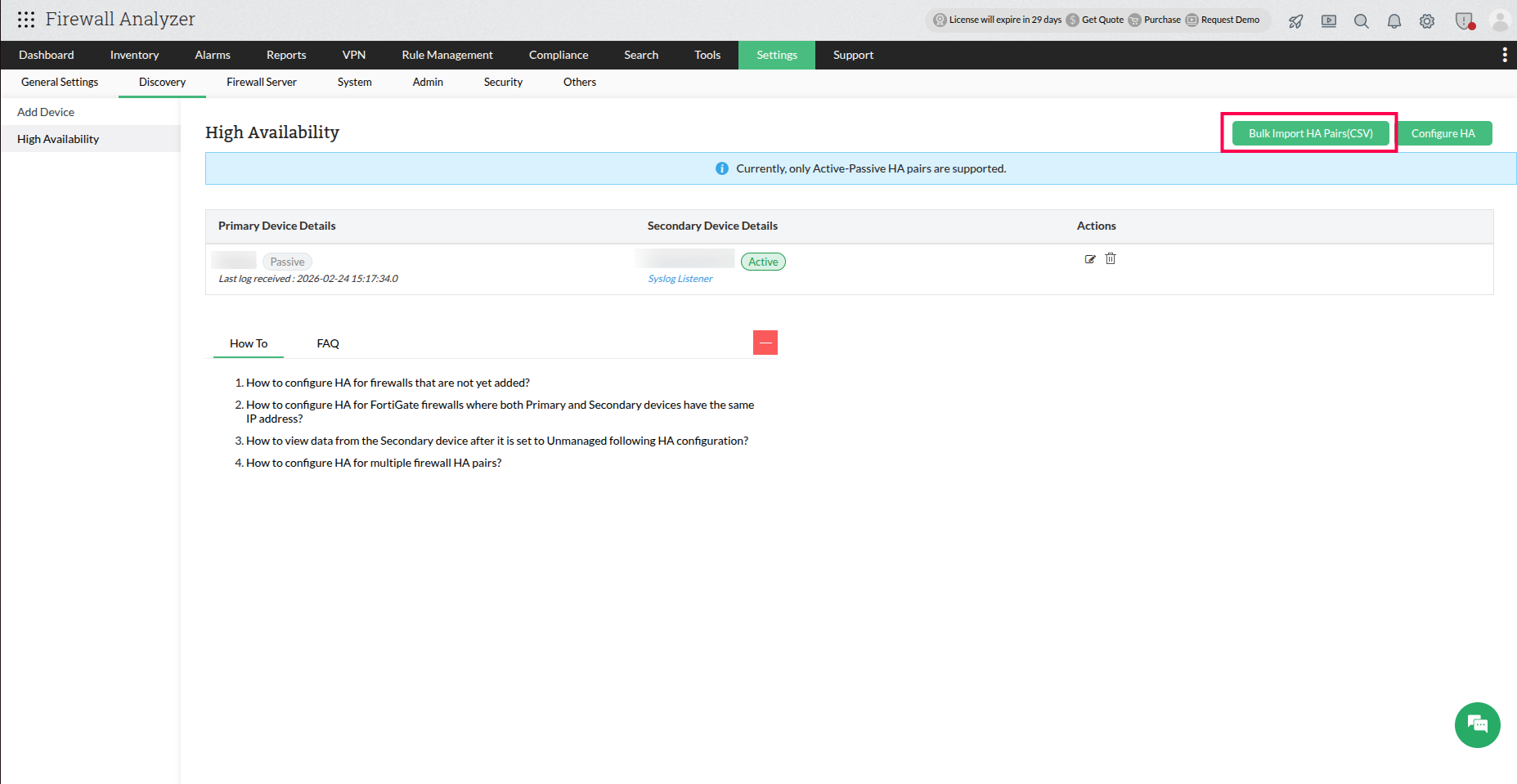
- Click Bulk Import HA Pairs (CSV).
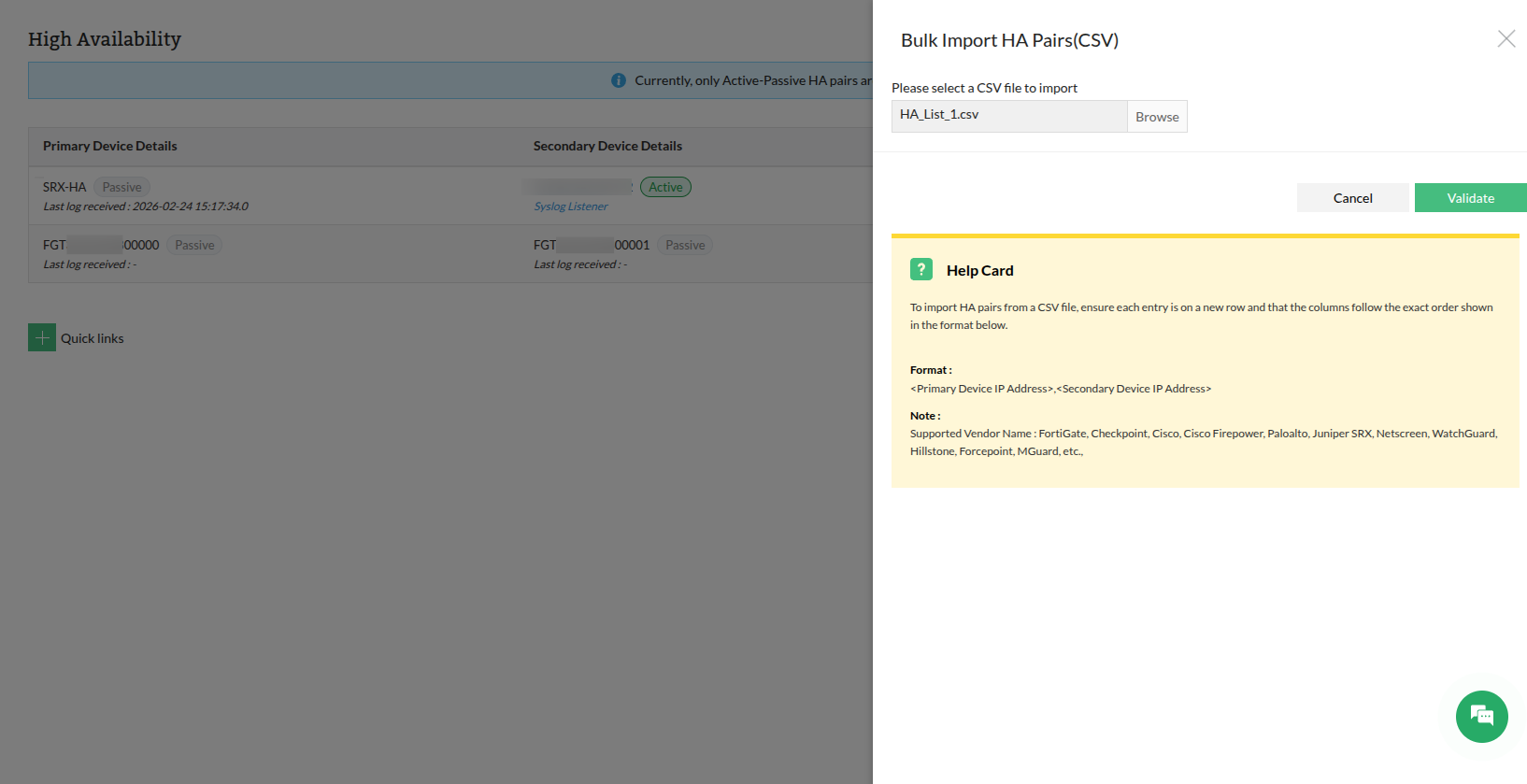
- Upload the CSV file containing HA device details.
- Click Validate to import the device pairs.
Steps to Configure High Availability Monitoring
Configure High Availability using existing devices
Use this option when both firewall devices are already discovered or added in Firewall Analyzer.
- Navigate to Settings → Discovery → High Availability.
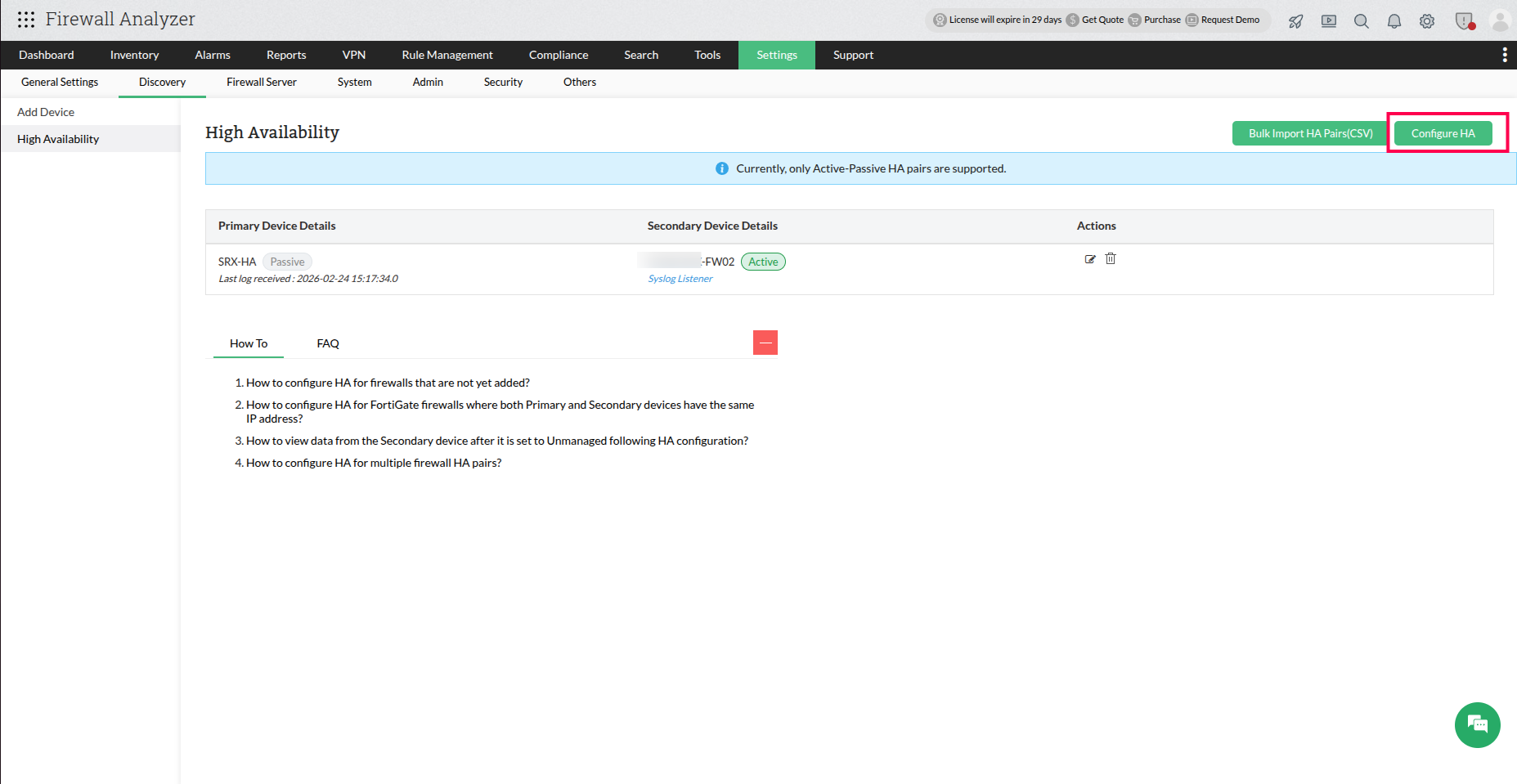
- Click Configure HA.
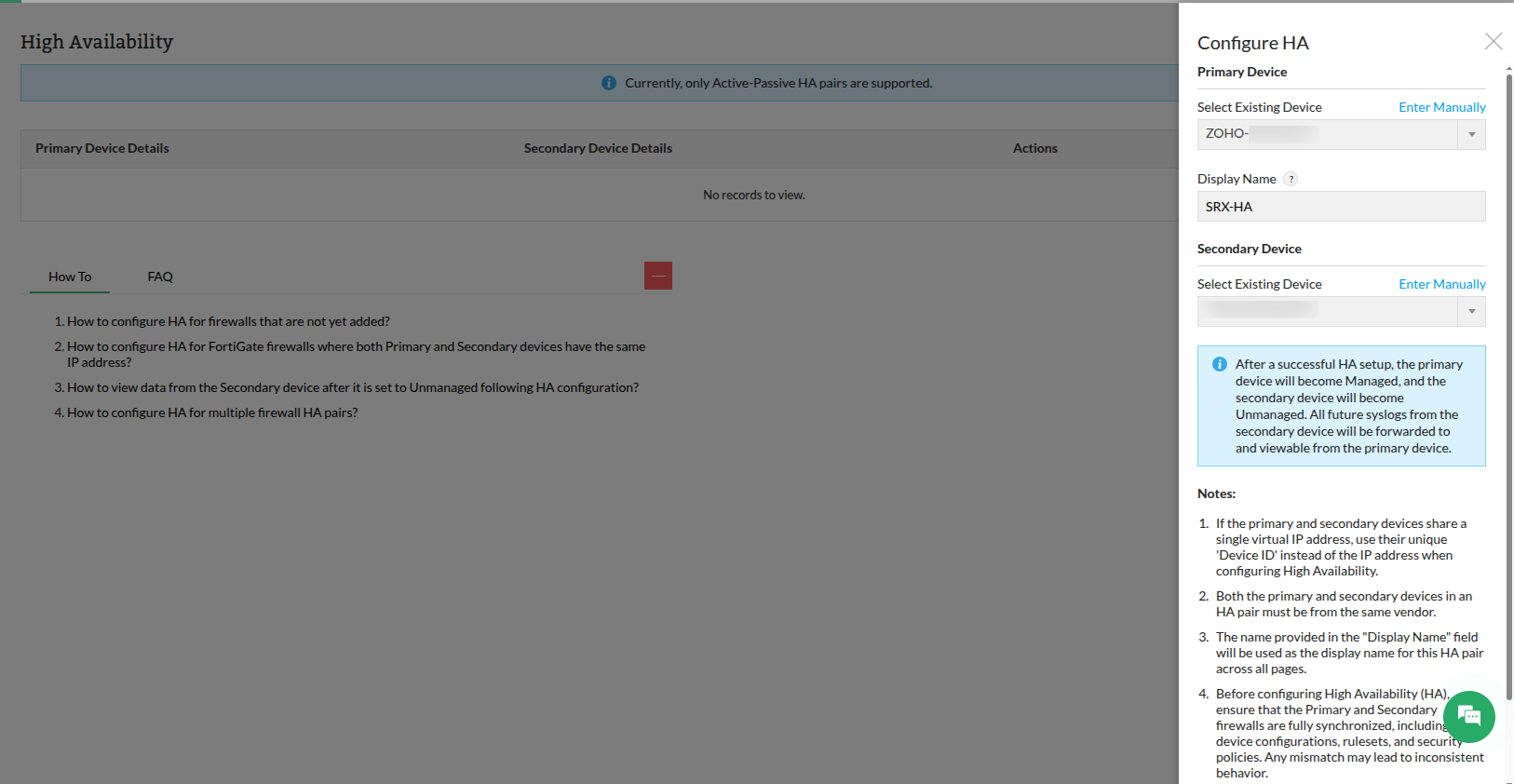
- In the Configure HA panel, under Primary Device, ensure Select Existing Device is chosen.
- Select the required firewall from the device drop-down list.
- Enter a Display Name for the HA pair. This name will be used as the logical identifier for the HA pair across all Firewall Analyzer pages.
- Under Secondary Device, select the corresponding firewall from the device drop-down list.
- Verify that both devices belong to the same vendor and represent the correct HA pair.
- Click Save.
Configure High Availability using Manual IP Address entry
Use this option when the firewall devices are not already added in Firewall Analyzer or when you want to configure the HA pair by directly specifying device IP addresses.
- Navigate to Settings → Discovery → High Availability.
- Click Configure HA.
- In the Configure HA panel, under Primary Device, click Enter Manually.
- Enter the Primary Device IP Address.
- Specify a Display Name for the HA pair. This name will be used to identify the HA pair across Firewall Analyzer.
- Under Secondary Device, click Enter Manually.
- Enter the Secondary Device IP Address.
- Verify the entered device details.
- Click Save.
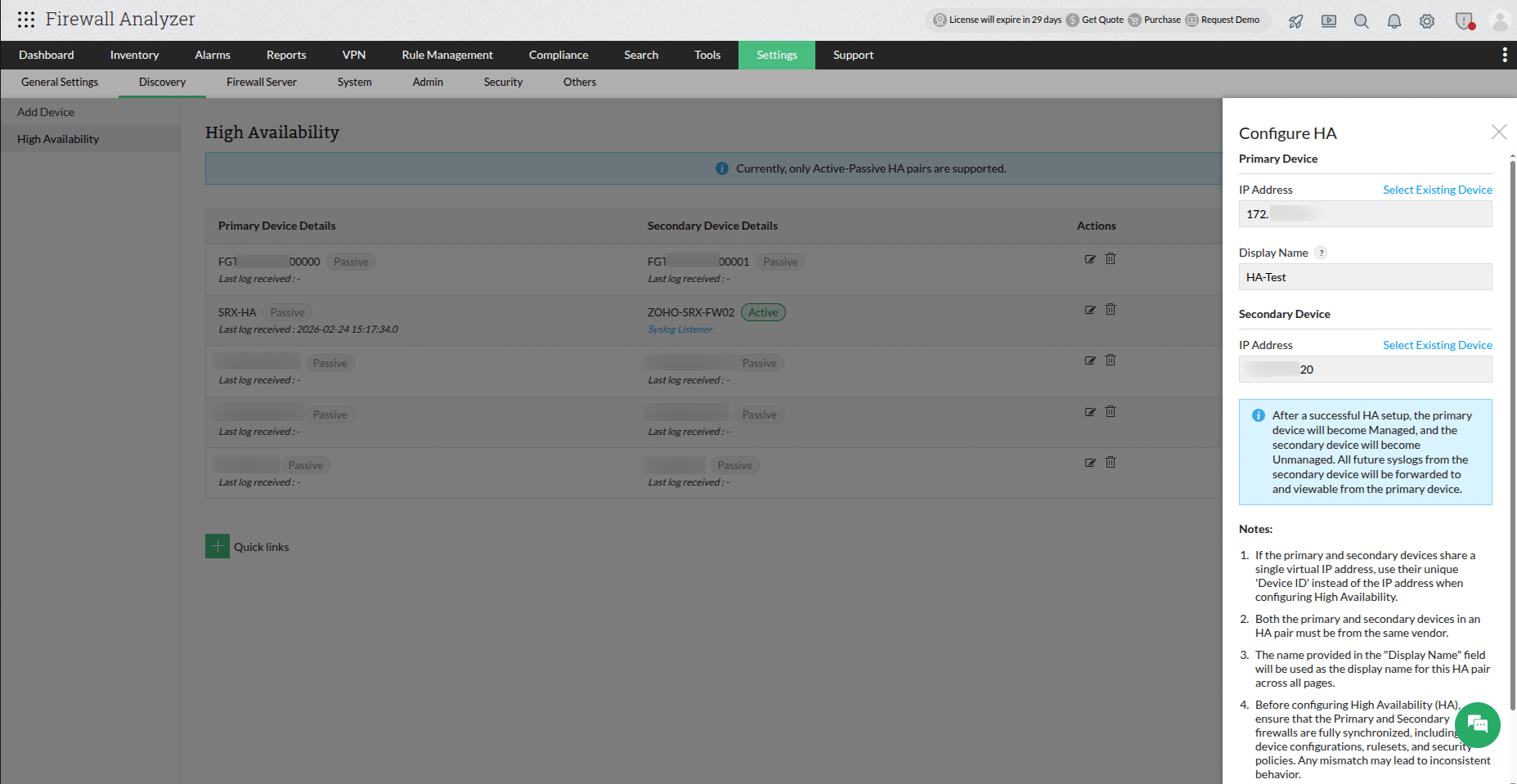
After clicking Save:
- The HA pair is created successfully.
- The primary device becomes Managed, and the secondary device becomes Unmanaged.
- All logs received from the secondary firewall are forwarded to and viewable from the primary device.
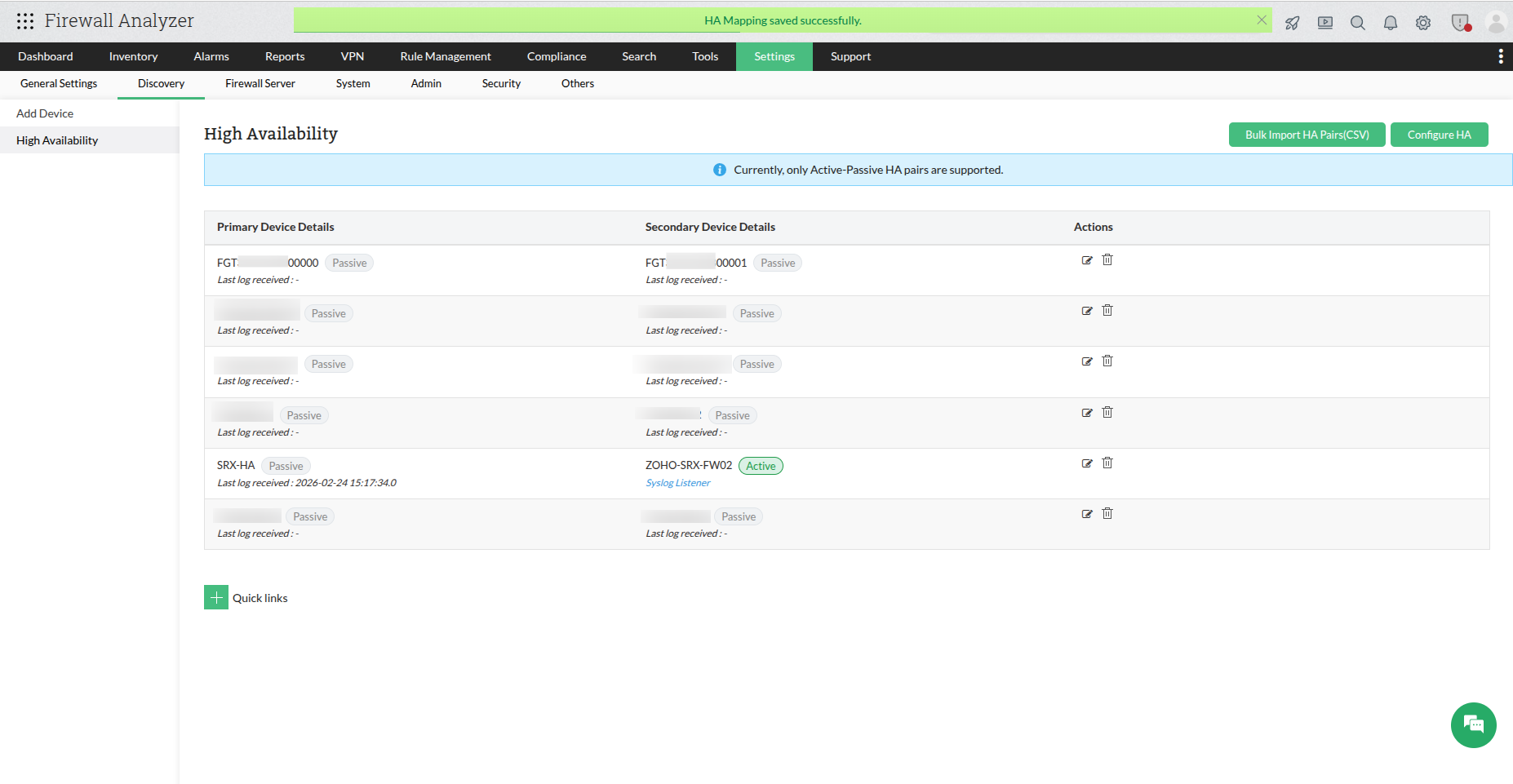
- The Display Name is used as the identifier for the HA pair across all Firewall Analyzer pages and reports.
- Future syslog data received from the secondary device is mapped to the primary device.
- If the secondary device was not previously added, incoming syslog data is mapped directly to the primary device, and the secondary device will not be created as a separate device entry.
Internally, Firewall Analyzer maintains the primary firewall as the monitored entity while transparently associating logs from the secondary firewall during failover.
Viewing reports for the Secondary (Unmanaged) device
After High Availability (HA) configuration is completed, the secondary device is moved to anUnmanaged state and its future syslog data is mapped to the primary device.
However, the historical data collected before HA configuration is not merged with the
primary device’s data.
To view reports generated from the secondary device’s historical data, navigate to theReports section and select the secondary device from the device selection list.
This allows previously collected logs and reports for the secondary firewall to be accessed
independently even after HA configuration.
How Firewall Analyzer monitors High Availability environments
Firewall Analyzer monitors High Availability (HA) deployments by logically grouping the primary and secondary firewalls into a single monitoring entity. Syslog data received from both devices is correlated and mapped under one unified firewall view, ensuring continuous monitoring even during failover events.
With HA monitoring enabled:
- Logs from both primary and secondary devices are associated with a single firewall instance.
- Log collection continues seamlessly during device failover.
- Reports, alerts, and analytics remain unified without duplicate device entries.
- Device visibility stays consistent regardless of which firewall is currently active.
This unified monitoring approach helps maintain uninterrupted security visibility while simplifying management of HA firewall deployments.