Integrate Firewall Analyzer with DeepSeek
Firewall Analyzer integrates with DeepSeek to provide AI-powered analysis directly within your network monitoring workflow. Once configured, Firewall Analyzer evaluates device statuses, active alarms, and important performance metrics using DeepSeek’s language models — delivering consolidated summaries and actionable insights directly within the platform. This helps IT teams troubleshoot issues faster, reduce alert noise, and make better-informed decisions using one of the most efficient and cost-effective AI models available.
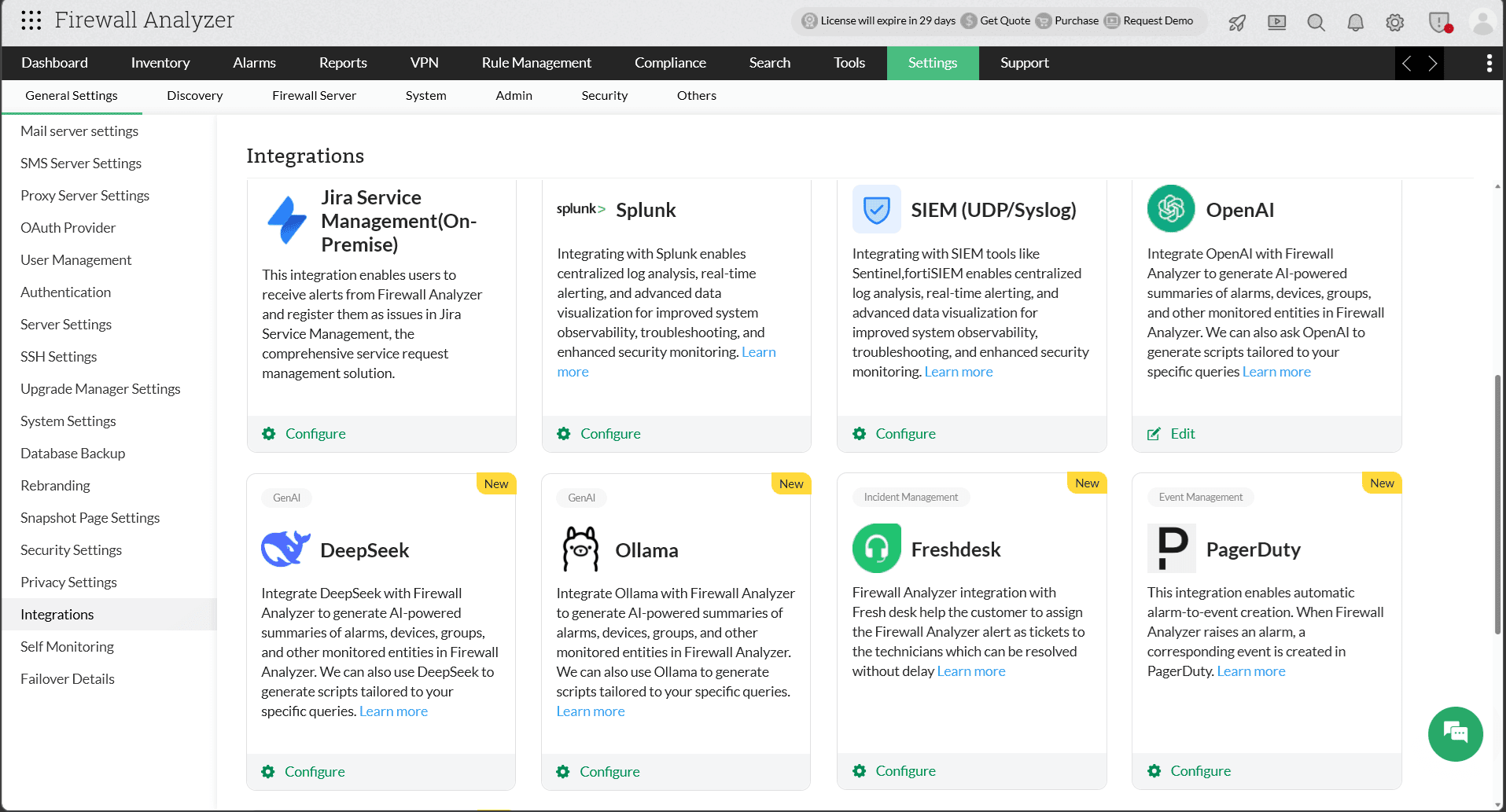
Configuration in Firewall Analyzer
To enable AI-generated summaries in Firewall Analyzer, you must first configure the DeepSeek integration. This involves generating an API key from the DeepSeek platform and adding it to Firewall Analyzer to establish a secure connection between the two platforms.
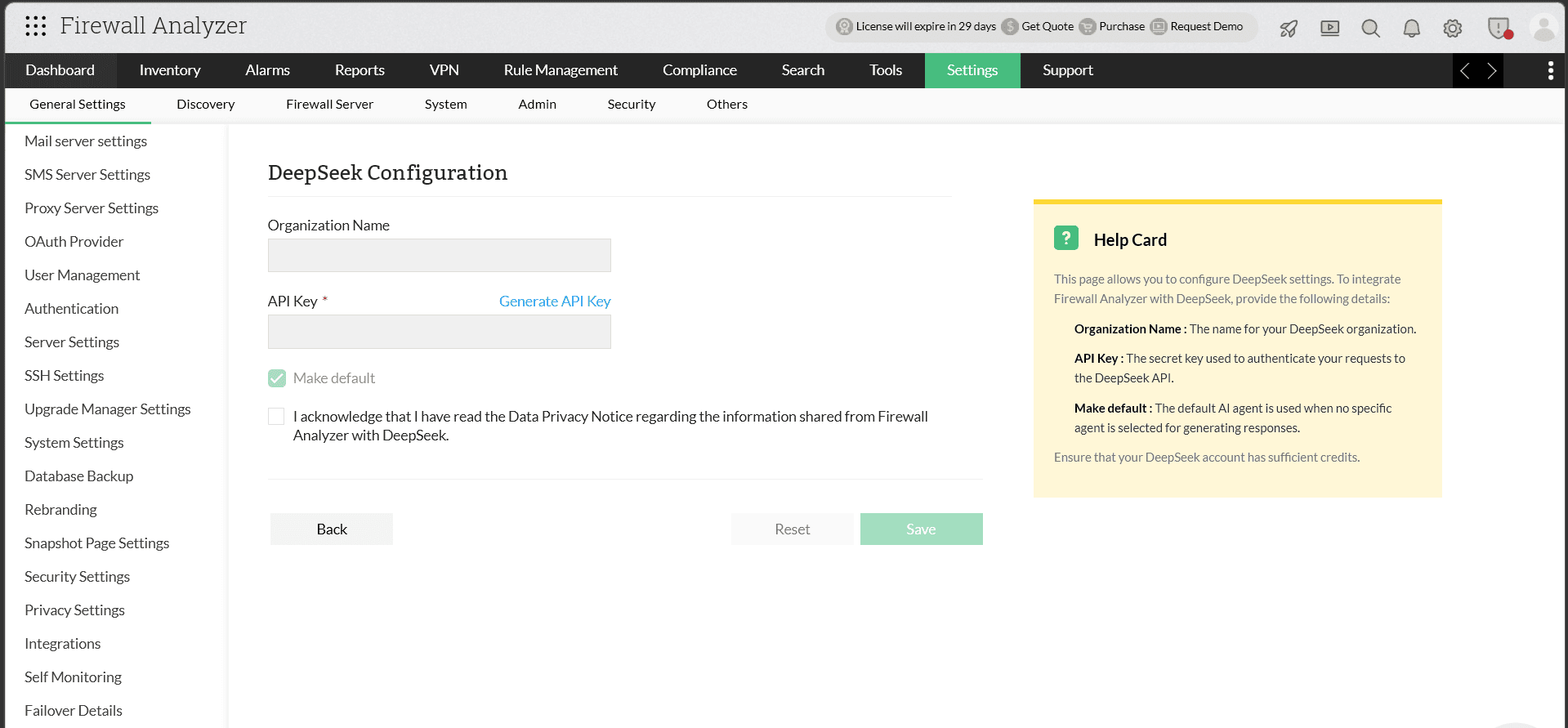
- Go to Settings -> General Settings -> Integrations -> DeepSeek.
- Enter your Organization Name.
- In the API Key field, paste the API key copied from your DeepSeek account. If you have not generated one yet, click Generate API Key, generate the key, and paste it into the field.
- Accept the displayed data privacy notice and click Proceed.
- Click Save.
DeepSeek has now been successfully integrated with Firewall Analyzer.
AI-generated summaries in Firewall Analyzer
With the DeepSeek integration enabled, users can generate summaries for various monitored entities, including:
- All alarms summary
- Individual alarm summary
- Executive Report
- Risky Rules Reports
- Policy Anomaly Reports
All Alarms Summary
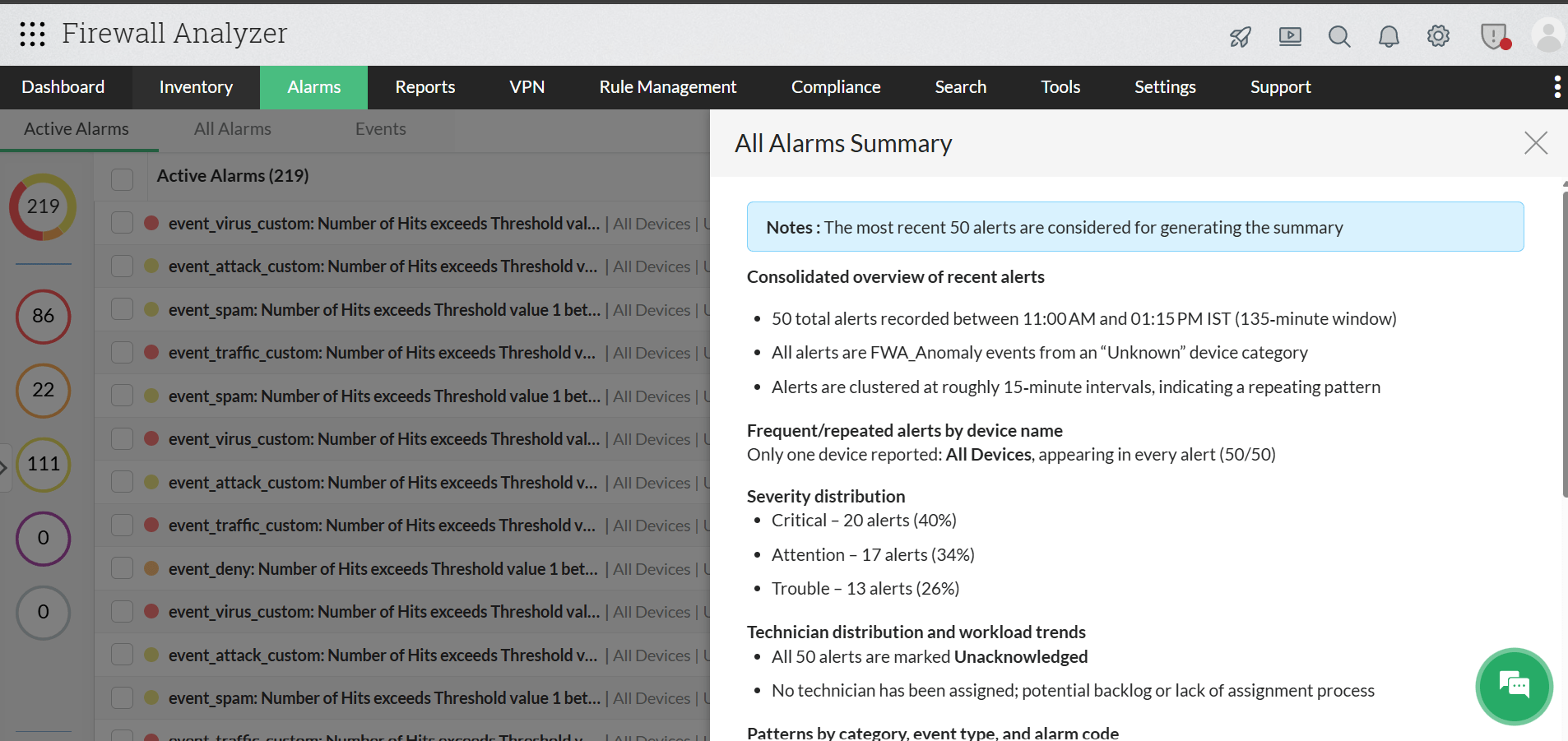
Firewall Analyzer can combine all active alarms into a single, simplified summary that highlights the most important information.
- Navigate to Alarms and click the Summarize tab in the top-right corner.
- Firewall Analyzer will automatically generate the summary without requiring any additional input.
Individual Alarm Summary
Firewall Analyzer’s DeepSeek integration can also perform detailed analysis of individual alarms by identifying the alarm category, listing potential causes, and generating a comprehensive actionable summary.
- Navigate to Alarms and open any alarm.
- Click the Summarize tab to generate a detailed summary for the selected alarm.
The Firewall Analyzer—DeepSeek integration combines AI-powered summaries, real-time insights, and automated script generation within a unified workflow — significantly reducing manual effort and enabling faster, more effective decision-making across network operations.
Executive Report Summary
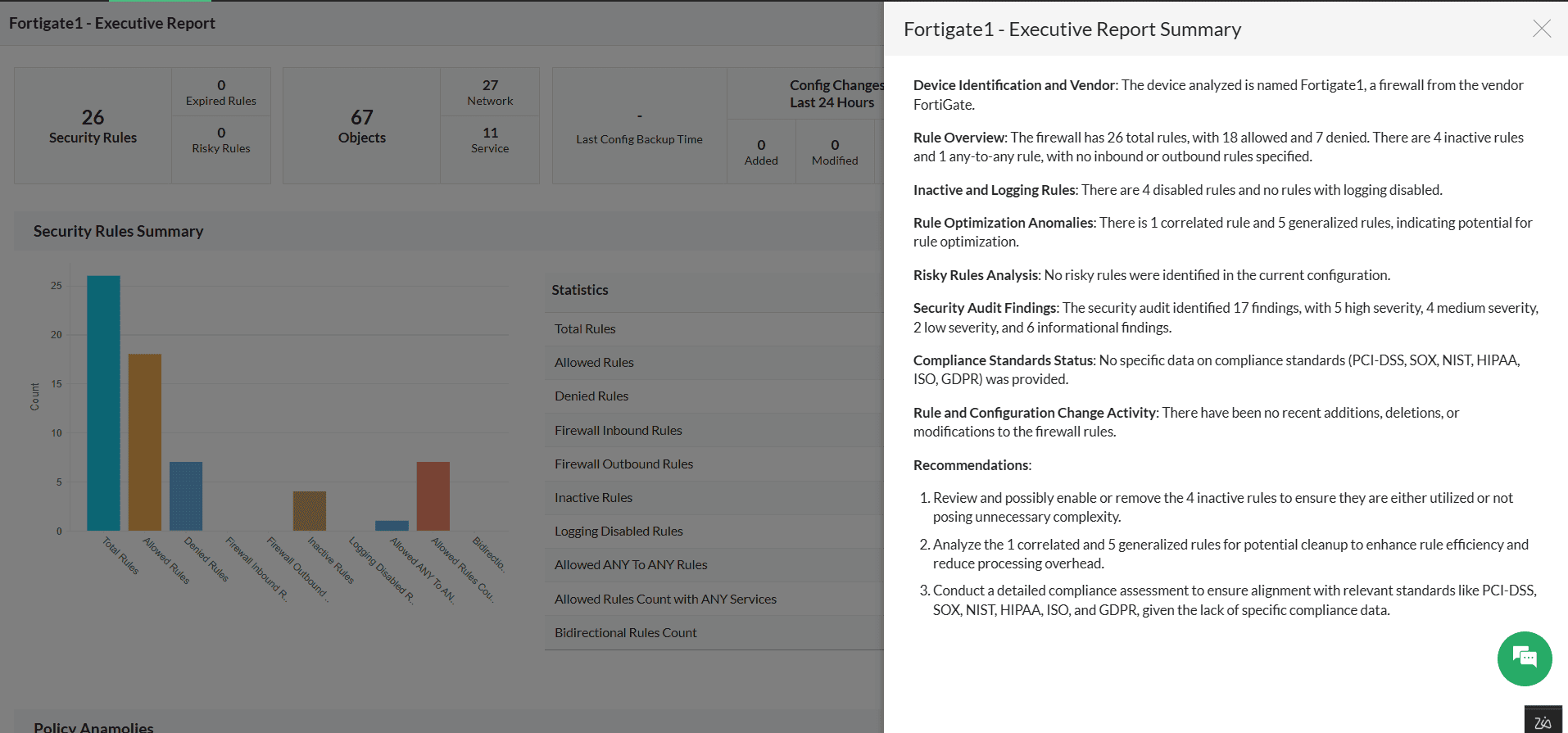
Firewall Analyzer’s DeepSeek integration also extends to Executive Report summaries, enabling users to quickly understand firewall policy posture, audit findings, and configuration health through AI-generated insights. Instead of manually reviewing large executive reports, DeepSeek analyzes the available report data and generates a concise summary with key observations and recommendations.
- Go to Inventory > Device Rule tab, then select the required firewall device.
- Open the Executive Report for the selected device.
- Click the Summarize tab available in the Executive Report view.
- Firewall Analyzer will process the report data using DeepSeek and automatically generate the Executive Report Summary.
- Review the generated summary, audit findings, policy insights, and recommendations for further analysis and remediation.
Risky Rules Report Summary
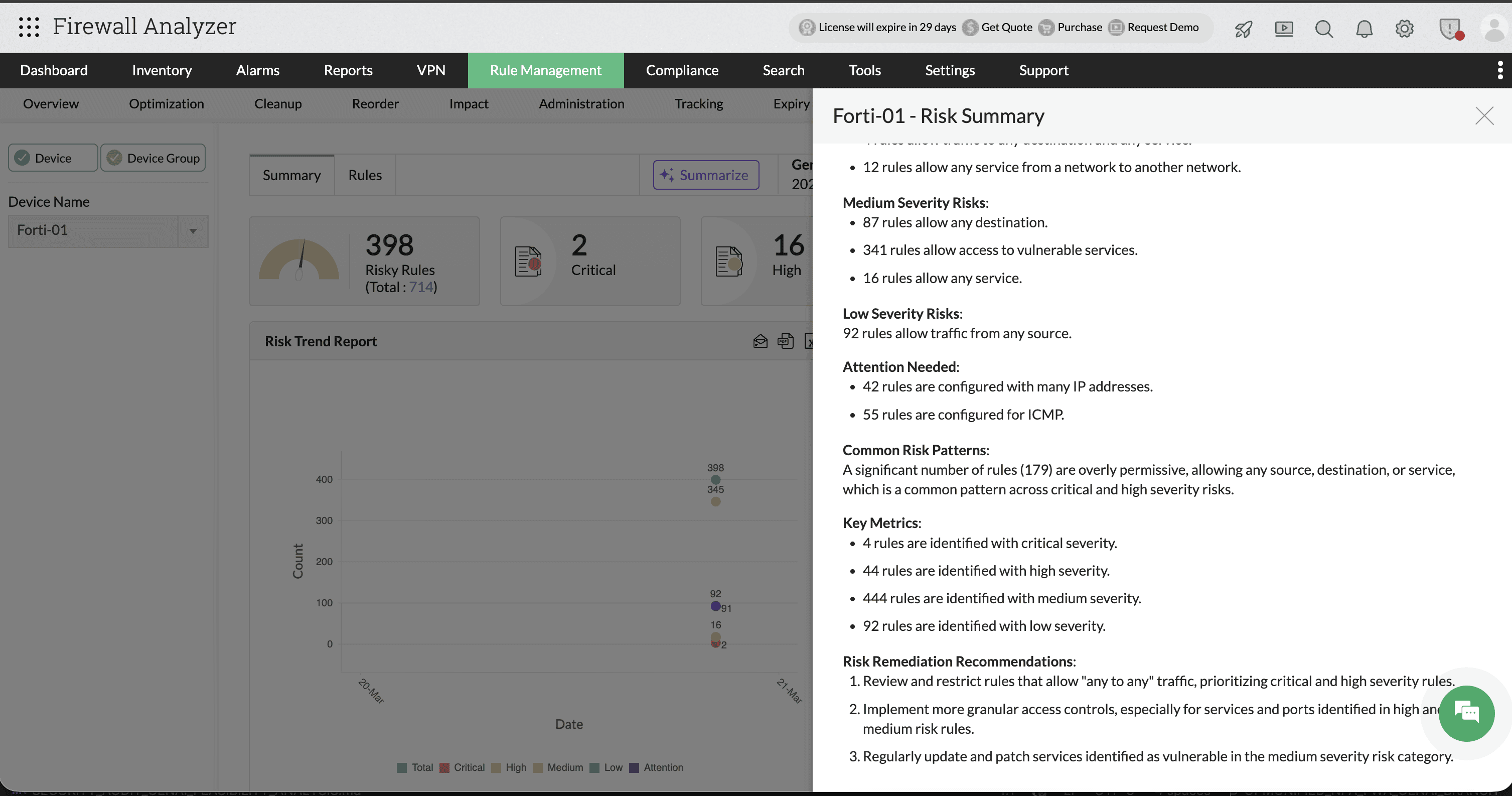
Firewall Analyzer’s DeepSeek integration also supports AI-powered summaries for Risky Rules reports. The generated summary helps administrators quickly identify critical, high, medium, and low severity firewall rules, along with common risk patterns, overly permissive policies, and remediation recommendations. Instead of manually reviewing hundreds of risky rules, DeepSeek consolidates the findings into an easy-to-understand security overview with actionable insights.
- Go to Rule Management > Risk.
- Select the required firewall device or device group.
- Open the Summary tab under Risk Management.
- Click the Summarize option available in the top-right corner.
- Firewall Analyzer will analyze the risky rules report using DeepSeek and automatically generate the AI-powered Risk Summary.
- Review the generated severity analysis, risk patterns, key metrics, and remediation recommendations for further policy optimization.
Policy Anomaly Summary
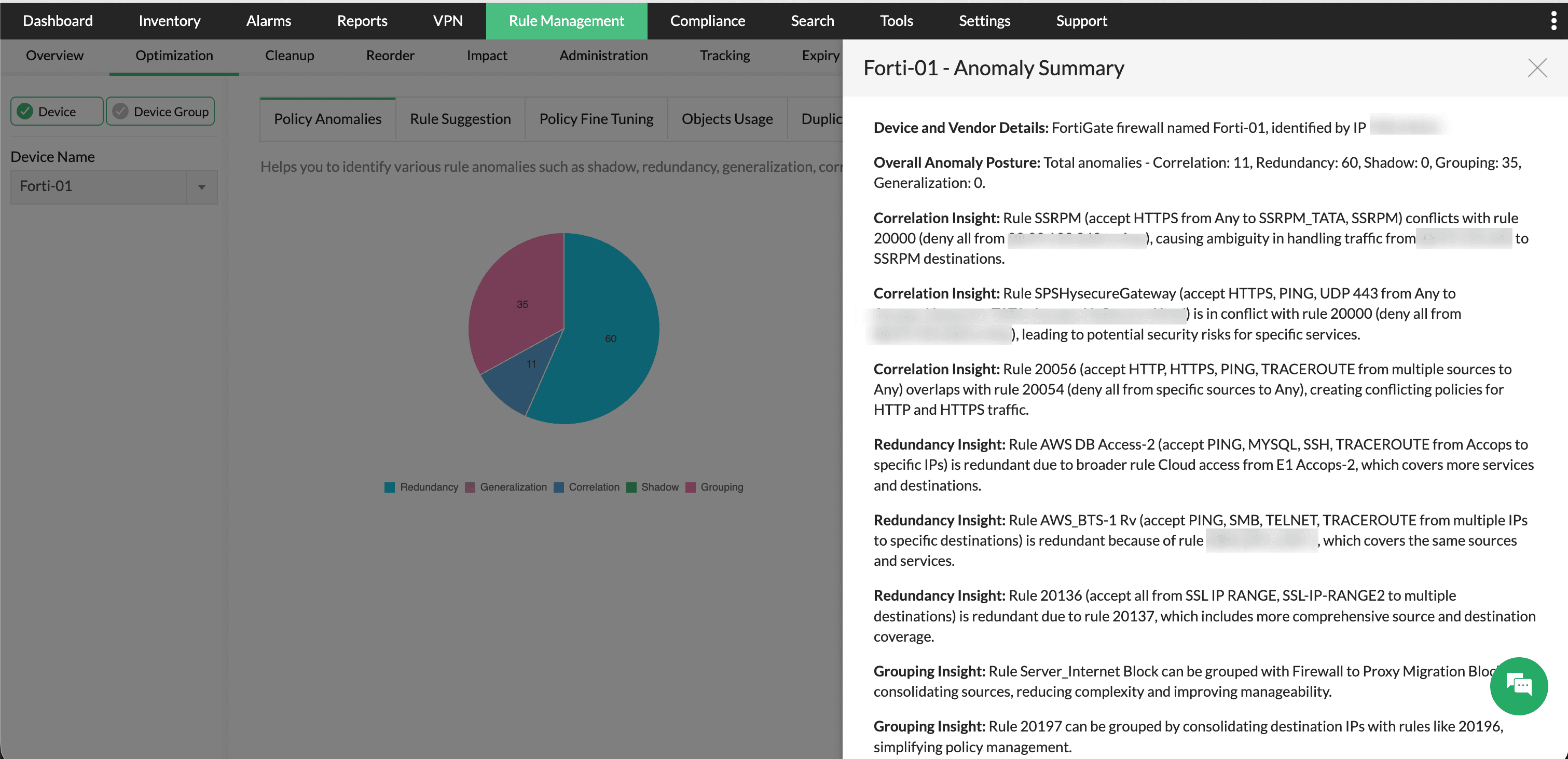
Firewall Analyzer also supports AI-generated summaries for Policy Anomaly reports through the DeepSeek integration. The summary helps administrators identify rule anomalies such as correlation, redundancy, shadowing, grouping opportunities, and generalization issues across firewall policies. DeepSeek analyzes the anomaly report data and presents a consolidated explanation of conflicting or redundant rules along with optimization recommendations to simplify policy management.
- Go to Rule Management -> Optimization -> Policy Anomalies.
- Select the required firewall device.
- Click the Summarize option available in the top-right corner.
- Firewall Analyzer will process the anomaly data using DeepSeek and generate the AI-powered Policy Anomaly Summary.
- Review the generated anomaly insights, conflict analysis, redundancy findings, and grouping recommendations to optimize firewall rule management.
The Firewall Analyzer—DeepSeek integration combines AI-powered summaries, and real-time insights, within a unified workflow — significantly reducing manual effort and enabling faster, more effective decision-making across network operations.