How to Uninstall agent using AgentCleanupTool?

  • When the agent upgradation fails, the admin will have to wipe off the existing agent completely and install the new agent.
  • Uninstallation of the agent from the control panel will not remove the entire files and tasks. Using this AgentCleanupTool will clear all the files and folders related to the agent.
Important
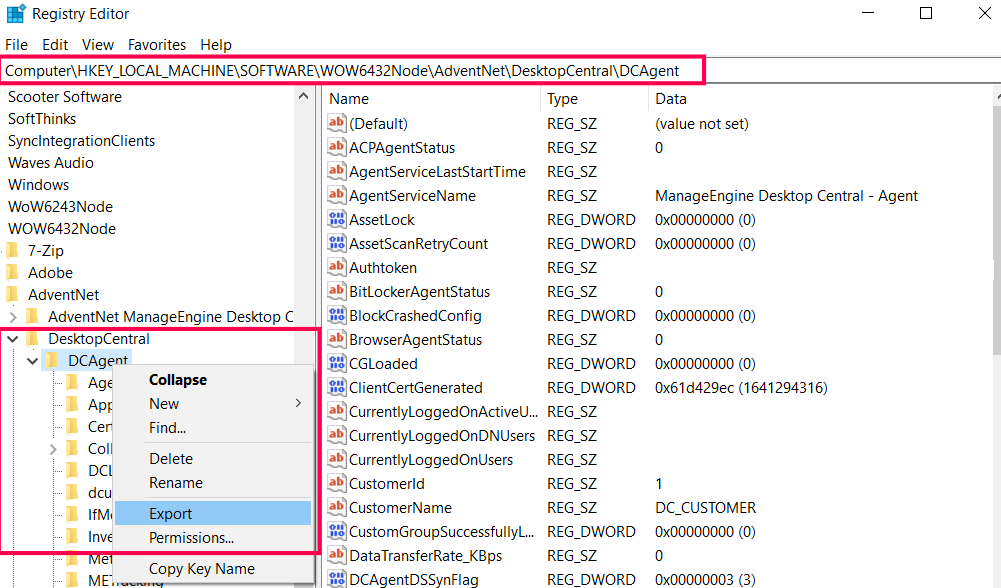
  • If the Central server is uninstalled and you still have the agents in your machine, please contact support with Agent registry export. The support will provide the AgentCleanupTool for proper cleanup of the agent.
  • Agent uninstallation
  • For Endpoint Central Cloud, please contact the support for the AgentCleanupTool with any one agent registry export.

Step1: Generating cleanup files

Downloading the AgentCleanupTool

Generate cleanup clients

  • Open the command prompt as Admin and navigate to the directory where the file is downloaded
  • Execute the following command as an administrator:
    Command
                                                                                 AgentCleanupTool.exe UEMS                                     
                                    
  • This will generate:
    • AgentCleanupToolClient.exe (for Windows agent cleanup)
    • UEMS_MacAgent_UninstallInfo.plist (for Mac agent cleanup)

Step2: Uninstalling the Agent

Uninstall Windows agent using Agent cleanup tool

  • Copy the AgentCleanuptoolClient.exe manually to the target machine where the agent needs to be uninstalled
  • Run this AgentCleanupToolClient.exe on the agent machine, as an administrator to remove the agent.

Uninstalling mac agent using Agent cleanup tool

  • Download UEMS_MacAgent_Cleanup_Tool.pkg
  • Copy both UEMS_MacAgent_UninstallInfo.plist (generated in Step 1) and UEMS_MacAgent_Cleanup_Tool.pkg to the target Mac machine.
  • Ensure both files are in the same folder.
  • Run UEMS_MacAgent_Cleanup_Tool.pkg (double-click the file), and complete the prompts as an admin user to perform the cleanup.
Important
  1. The AgentCleanupToolClient (Windows) and UEMS_MacAgent_unisntallInfo.plist will be valid only for 48 hours.
  2. Do not rename either of the files.
  3. The Client tool should not be executed from the agent installed directory.
  4. If the AgentCleanupToolClient.exe or UEMS_MacAgent_UninstallInfo.plist has expired, regenerate the AgentCleanupToolClient and execute the same in the agent machine.
  5. Agent cleanup tool will remove only the agent from the machines. To remove the computer from the Central Server, navigate to Agent > Computers, select the desired computers to be removed and select remove computers.

Applies to: Endpoint Central Uninstallation, Agent Uninstallation.

Keywords: Uninstall Agents, Agent Uninstallation, Endpoint Central Agent Uninstallation.

Unable to resolve this issue?
If you feel this KB article is incomplete or does not contain the information required to help you resolve your issue, upload the required logs, fill up and submit the form given below. Include details of the issue along with your correct e-mail ID and phone number. Our support team will contact you shortly and give you priority assistance and a resolution for the issue you are facing.
Please enter the valid name. Please enter a name. Please enter a valid email. Please enter a email. Please enter the valid phone. Please enter the phone.
By clicking 'Submit', you agree to processing of personal data according to the Privacy Policy.
Other KB articles 24/5 Support

Support will be available 24hrs a day and five days a week (Monday through Friday), excluding USA & India public holidays.

Tel : +1-888-720-9500
Email : endpointcentral-support@manageengine.com

Speak to us

  • Join the Endpoint Central Community, to get instant answers for your queries, register with our Forum.
  • Look out for the latest happenings in Desktop Management, follow our Tweets on Twitter.
  • Get to know the latest updates and Best Practices in Desktop Management through our Blog.