How to automate Exchange backups
In this article:
Objective
This article explains how to automate on-premises Exchange and Exchange Online backups in RecoveryManager Plus, enabling IT administrators to dynamically include or exclude mailboxes based on custom conditions. This feature eliminates manual effort, enhances backup reliability, and improves data governance by ensuring all relevant mailbox data is consistently backed up without manual intervention.
Use case
An organization's legal department requires all mailboxes from the Compliance Team group to be backed up with a five year retention period for regulatory purposes. Manually adding new members to the backup schedule is inefficient and risks missing critical data if not updated promptly.
Solution
Using RecoveryManager Plus, administrators can create a backup schedule specifically for the Compliance Team group, set the retention policy to five years, and enable automated mailbox selection with the Group filter. This ensures that whenever a new user is added to the compliance team group, their mailbox is automatically included in the backup, eliminating the need for manually updating the mailbox schedule and ensuring continuous compliance.
Using a Microsoft Teams backup solution like RecoveryManager Plus simplifies this process by enabling automated backups of Teams data at regular intervals and downloading or exporting the data easily.
Prerequisites
- An administrator who is a member of the Organization Management role group.
Steps to follow
The following steps demonstrate how to automate mailbox selection when creating a new backup schedule or for existing on-premises Exchange or Exchange Online backups in RecoveryManager Plus.
Enabling automation while creating a new backup schedule:
- Log in to RecoveryManager Plus as an administrator.
- Navigate to the Exchange tab > Backup Settings.
- Click the Create Backup button located at the top-right corner of the screen.
- In the Tenant Details section, select your Exchange environment type from the drop-down.
- Choose the tenant or organization for which you wish to create a backup schedule.
- In the Backup Details section, provide a name for the backup schedule.
- Select the mailboxes that you wish to back up by clicking the add icon
 in the Select Mailboxes field, or you can import the mailboxes from CSV files by clicking the import icon
  .
.
- You can select all the mailboxes by selecting the check box adjacent to the Display Name text. To search for individual mailboxes, use the search icon
 .
.
- Click the Filter by Criteria option available at the top-right corner of the Select Mailboxes pop-up to filter mailboxes based on certain conditions.
- You can filter based on attributes like Display Name, Email, Recipient Type, Group, or Mailboxes. You can also apply conditions such as Starts with, Ends with, Contains, or Does not contain for the selected attribute. Add more conditions using the plus icon
 .
.
- You can also decide the type of the condition (AND/OR) when you have multiple conditions. You can remove the conditions set using the remove icon
 .
.
- After you’ve selected all the mailboxes that you wish to back up, click OK.
- To automate the backup schedule, enable the Automate Mailbox Selection toggle.
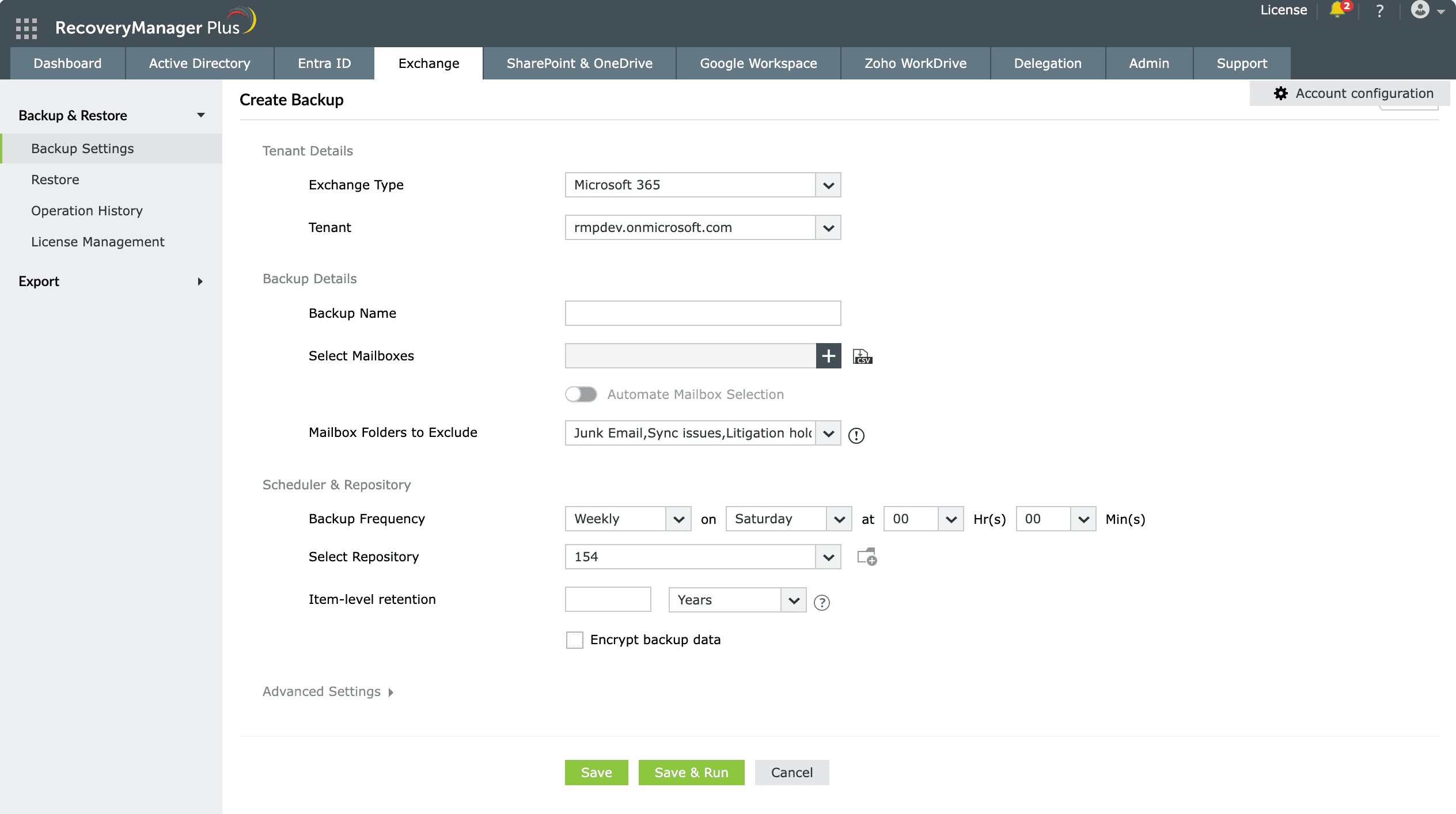
Figure 1: Automating mailbox selection in Exchange in RecoveryManager Plus.
Select the mailbox criteria you wish to include in the automation policy.
Enable the Automate Mailbox Selection toggle to configure automation for the selected mailboxes.
- Set the conditions based on the Display Name, Email, Recipient Type, Group, or Mailboxes in the Automation Settings pop-up.
- Use filters such as Starts With, Ends With, Contains, and Does not contain to configure the automation policy based on certain conditions.
- Click the add icon to add more conditions. A schedule will run every day to discover the created, modified, and deleted mailboxes, and these mailboxes will be validated against the condition set. If any of these mailboxes satisfies the conditions, it is automatically added or removed from the selected backup job.
- Select the Validate existing mailboxes selection with automation criteria check box to periodically validate the existing mailboxes in this backup schedule against the criteria and add mailboxes that satisfy the criteria and remove mailboxes that don't satisfy the criteria. Click Save.
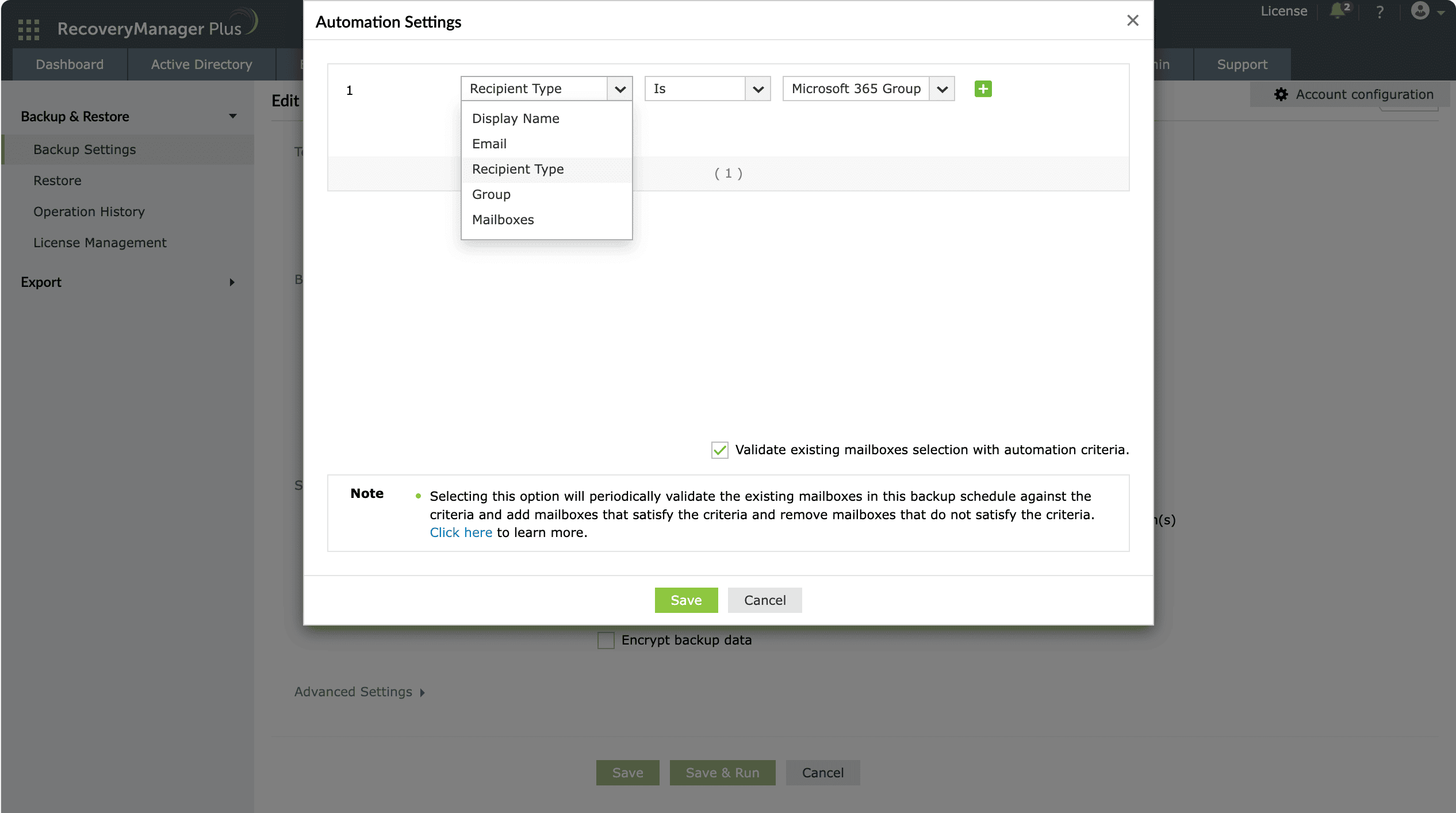
Figure 2: Automating mailbox selection in Exchange in RecoveryManager Plus.
Configure the automation policy using the available filters
Check the box to verify the existing mailbox selection with the automation criteria.
- Select the mailbox folders that you wish to exclude from being backed up in the Mailbox Folders to Exclude drop-down.
- Select the desired frequency at which the schedule must run from the options available in the Backup Frequency drop-down.
- Daily: The scheduler will run once every day at the scheduled time.
- Weekly: The scheduler will run once every week on the specified day and time.
- Monthly: The scheduler will run once a month on the specified date and time.
- Select the repository in which you wish to store the backups from the Select Repository drop-down.
- In the Item-level retention field, enter the number of days, months, or years for which the backups should be stored. Backups older than the specified age will be discarded.
Note: The minimum item-level retention for Exchange backups is 30 days.
- If you wish to encrypt your backup data, check the Encrypt backup data check box and provide the Encryption key.
- When backed-up items exceed their item-level retention, you can export them to a PST file before deleting them by turning the Enable Archive Data toggle on.
- If you have enabled archive settings, provide the location where you wish to store the PST from the Select Archive Repository drop-down.
- If you wish to add an additional layer of security for your PST, check the Protect archived PST with a password check box and provide a password.
- Click Save to run the backup at a specified time or Save & Run to trigger the backup immediately.
Enabling automation for existing backup schedules:
- Log in to RecoveryManager Plus as an administrator.
- Navigate to the Exchange tab > Backup Settings.
- Search for the backup schedule for which you wish to apply automatic mailbox selection using the search icon .
- Click the edit icon
 under the Actions column of the corresponding backup schedule.
- Enable the Automate Mailbox Selection toggle under the Backup Details section and follow step eight from the Enabling automation while creating a new backup schedule section.
- Click Save to run the backup at a specified time or Save & Run to trigger the backup immediately.
By following these steps, you can automate mailbox selection for on-premises Exchange and Exchange Online backups with RecoveryManager Plus.
Related topics and articles
Last updated on: 30-05-2025
 Free Edition
