Last updated: August 14, 2026
Apple Device Management
This page covers Apple Device Management in MDM, helping IT admins configure, secure, and manage macOS, iOS, iPadOS, and tvOS devices. It explains the supported management types — including Automated Device Enrollment via Apple Business Manager or Apple School Manager, User Enrollment, and manual enrollment methods — along with the scenarios best suited for each. A detailed feature comparison table by management type helps admins select the right enrollment approach for company-owned and personal (BYOD) device deployments.
Apple Device Management in MDM empowers IT admins to seamlessly configure, secure, and manage macOS, iOS, iPadOS, and tvOS devices across their organization. This document outlines the different Apple management types supported through MDM, including Automated Device Enrollment (via Apple Business Manager/Apple School Manager), User Enrollment, and manual enrollment methods. It also provides a comparison of features based on the management type, enabling admins to evaluate the right approach for their environment. With these options, admins can simplify large-scale deployments, enforce compliance, and deliver a consistent and secure experience for all Apple devices.
iOS Management Mode | Scenarios | Enrollment Methods |
|---|---|---|
| Personal device management (Device Enrollment or User Enrollment) (Unsupervised) |
|
|
| Company-owned device management (Device enrollment or Automated device enrollment) (supervised) |
|
|
Apple Device Management Types
Company-Owned Device Management: For devices purchased and owned by the organization, ensuring full control and security.
Enrollment Methods:
Automated Device Enrollment (ABM/ASM):
When to Use:
- Apple Business Manager (ABM) or Apple School Manager (ASM) Availabile in Your Country or Region.
- Devices purchased directly from Apple or an authorized reseller. If there are company-owned devices purchased otherwise, it is possible to add them to Apple Business/ School Manager's Automated Device Enrollment program via the Apple Configurator app in iPhone or Mac.
Verify the above device eligibility and enroll devices in MDM through Automated Device enrollment (ABM/ASM).
Manual Enrollment via Apple Configurator
When to Use: If Apple Business Manager (ABM) or Apple School Manager (ASM) is not available in your Country or Region.
Personal Device Management (BYOD - Bring Your Own Device):For employee-owned Personal devices accessing corporate resources.
Management Mode: There are two different Management mode. Devices can be enrolled either Account-Driven (using a Managed Apple ID) or Profile-Based (via an installation profile). If a user removes the enrollment profile, all associated configurations, policies, and managed apps are automatically revoked, ensuring corporate data remains protected when devices exit management. This approach maintains security while allowing flexibility in deployment. MDM supports multiple manual enrollment methods, including Invite Enrollment, Self Enrollment, and Apple User Enrollment, providing flexibility for different deployment scenarios.
Enrollment Methods:
Self-Enrollment:
When to Use: Employees need to enroll their personal devices for work access.
Enrollment Type:
- Self Enrollment using AD Credentials: Users can self-enroll personal devices by scanning a QR code or visiting a self-enrollment URL, authenticated via Active Directory credentials. Visit our Self Enrollment guide for detailed information.
- Apple User Enrollment (Managed Apple IDs): Users can self-enroll personal devices via Apple User Enrollment (iOS 13+/macOS 10.15+) using their Managed Apple ID. For step-by-step instructions, refer to our Apple User enrollment Guide.
Invite Enrollment
When to Use: IT Admins want to send a secure enrollment invitation(email) to employees. Useful for BYOD scenarios where users need a guided setup.
Invite enrollment can be sent to a individual user to enroll a single device and can also be sent in bulk to multiple users for enrolling their devices. For detailed instructions on sending enrollment invitations, please refer to our Invite Enrollment Guide.
Comparison of Supported Functionality by Management Type
This section outlines the key functionality available for each Apple device management type, helping IT admins choose the right approach based on security and functionality requirements.
iOS/iPadOS
| Company-Owned Device Management (Supervised) | Personal Device Management (Un-Supervised) | |||
|---|---|---|---|---|
| Functionality | Automated Device Enrollment iOS/iPadOS (Non-Shared) | Automated Device Enrollment Shared iPad | Invite Enrollment/Self Enrollment | Apple User Enrollment |
| Policy | ||||
| Passcode |  |  | | Limited Capability |
| Restrictions | | | | Limited Restrictions |
| Wi-Fi | | | | |
| Virtual Private Network (VPN) | | | | |
| Per-App VPN | | | | |
| | | | |
| Exchange ActiveServer(EAS) | | | | |
| Kiosk | | | | |
| Web Shortcut | | | | |
| Web Content Filter | | | | |
| App Notification | | | | |
| Managed Web Domains | | | | |
| Wallpaper | | | | |
| Asset Tag | | | | |
| AirPrint | | | | |
| Global HTTP Proxy | | | | |
| Enterprise SSO | | | | |
| Extensible SSO | | | | |
| Certificate | | | | |
| Simple Certificate Enrollment Protocol(SCEP) | | | | |
| ACME | | | | |
| Shared iPad Configuration | | | | |
| LDAP | | | | |
| Contact Sync | | | | |
| Calendar Sync | | | | |
| Subscribed Calendars | | | | |
| Access Point Name | | | | |
| Fonts | | | | |
| Accessibility Settings | | | | |
| eSIM | | | | |
| APPS & UPDATE MANAGEMENT | ||||
| Silent Installation of Store Apps | | |
Users will prompted to install the apps. Alternatively, the App will be listed in the App Catalog and user need to install the app manually. |
Users will prompted to install the apps. Alternatively, the App will be listed in the App Catalog and user need to install the app manually.
|
| Installation of apps without Apple ID | | | | |
| Silent Installation of in-house Apps | | | Users will prompted to install the apps. Alternatively, the App will be listed in the App Catalog and user need to install the app manually. |
Users will prompted to install the apps. Alternatively, the App will be listed in the App Catalog and user need to install the app manually. |
| Restricting side-loaded Apps | | | | |
| Automate OS Updates | | | | |
| Schedule and Automate app updates | | | | |
| Blocklisting Apps | | | | |
| Multiple versions of in-house Apps | | | | |
| INVENTORY | ||||
| Device details such as model name, manufacturer name, UDID, etc. | Required details will be fetched. | |||
| Tracking Device Battery Level | | | | |
| Locate Device | | | | |
| Restart Device | | | | |
| Shutdown Device | | | | |
| Remove Screen Time Passcode | | | | |
| Logout Users | | | | |
| Delete Users | | | | |
| TOOLS | ||||
| Announcements | | | | |
| Remote Troubleshooting(Only remote view is possible) | | | | |
| SECURITY MANAGEMENT | ||||
| Complete Wipe of the device | | | | |
| Corporate Wipe of the device | | | | |
| Remote Lock | | | | |
| Lost Mode | | | | |
| Clear/ Reset Passcode | | | | |
MacOS
| Company-Owned Device Management | Personal Device Management | ||
|---|---|---|---|
| Functionality | Automated Device Enrollment | Invite Enrollment/Self Enrollment | Apple User Enrollment |
| Policy | |||
| Passcode | | | |
| Restrictions | | Limited Restrictions | |
| Wi-Fi | | | |
| Virtual Private Network(VPN) | | | |
| Per-App VPN | | | |
| Web Content Filter | | | |
| App Notifications | | | |
| FileVault Encryption | | | |
| Firewall | | | |
| AirPrint | | | |
| Global HTTP Proxy | | | |
| Extensible SSO | | | |
| Certificate | | | |
| SCEP | | | |
| AD Asset Binding | | | |
| AD Certificate Policy | | | |
| Recovery lock / Firmware password | | | |
| System extensions | | | |
| Background service management | | | |
| PPPC | | | |
| Fonts | | | |
| APPS & UPDATE MANAGEMENT | |||
| Installation of apps without Apple ID | | | |
| Schedule and Automate app updates (VPP) | | | |
| Inventory | |||
| Device details such as model name, manufacturer name, UDID, etc. | Required details will be fetched. | ||
| Locate Device | | | |
| Restart Device | | | |
| Shutdown Device | | | |
| Delete User | | | |
| SECURITY MANAGEMENT | |||
| Complete Wipe of the device | | | |
| Corporate Wipe of the device | | | |
| Remote Lock | | | |
Access Management for Managed Apple Accounts
What is Access Management?
Access Management gives you control over where your organization’s Managed Apple IDs (MAIDs) can be used. Instead of letting end-users sign in from any iPhone, iPad, or Mac, access can be restricted to only those devices that are enrolled or supervised by your organization. This helps keep company data secure and ensures Managed Apple Accounts stay within your IT boundaries.
Key Benefits
- Security — Prevent users from signing in with a corporate Apple ID on unapproved devices.
- Compliance — Ensure organizational accounts are used only on devices you manage.
- Control — Decide whether to allow sign-in on any device, managed devices only, or supervised devices only.
Prerequisites
- Minimum OS versions required:
- iOS/iPadOS 17 or later
- macOS 14 or later
Note: Devices running versions below iOS/iPadOS 17 or macOS 14 will not be able to sign in with Managed Apple IDs, and the device will appear as an unsupported OS. This limitation applies only when the Managed or Supervised option is selected under Access Management.
Enable Access Management Capability
The Access Management Capability is enabled when Apple Account Access Management is activated in the MDM console. This capability allows administrators to control Managed Apple ID sign-ins by defining scope-based access such as allowing sign-in from any device, only managed devices, or only supervised devices as configured in Apple Business Manager (ABM).
How to Enable the Capability
- In the MDM web console, navigate to Enrollment → Apple → Apple Enrollment (ABM/ASM) → Access Management.
- Click Enable Now.

- The MDM server syncs with the configured ABM server and pushes a configuration profile to all eligible devices.
What Happens After Enabling
- The configuration profile makes the device capable of Access Management.
- This capability enables devices to apply Managed Apple ID sign-in restrictions once they are defined in ABM.
- Only devices that have received and installed this configuration will support Managed Apple ID sign-ins.
Administrators can verify the status of this configuration by navigating to Inventory → Devices and checking the Access Management Capability column.
- Enabled: The device has successfully received the configuration profile and now supports Apple Account Access Management.
- In Progress: The profile is still being applied. Once the process completes, the device status changes to Enabled.
 After confirming that all devices show Enabled, administrators must sign in to Apple Business Manager to configure the Managed Apple ID sign-in controls under Organization name > Settings > Access Management > Apple Services.
Configuration Steps
- Log in to the ABM portal with Administrator or People Manager rights.
- Go to Organization name > Settings > Access Management.
- Configure any of the following settings (per your requirement) under Access Management:
Sign in with Apple (App scope)
- All apps — Users can sign in with their Managed Apple ID on any app that supports Sign in with Apple.
Example: Ideal for employees who use a mix of productivity and collaboration apps that support Sign in with Apple.
- Specific apps — Users can sign in only on apps explicitly allowed by the organization.
Example: Suitable for education or regulated environments where Managed Apple IDs should be used only for school or business apps explicitly approved by the organization.
Apple Services (Service scope)
- Controls access to Apple services such as iCloud, Messages, FaceTime, Wallet, Developer, and AppleSeed for IT.
- Each service can be toggled On/Off depending on organizational requirements.
Example: An enterprise may disable iCloud Drive and FaceTime but allow Developer access for app testing or internal deployments.
Allow Managed Apple Account on (Device scope)
- Any device — Users can sign in from any device (default).
Example: Suitable for hybrid work environments where users may need access from personal Apple devices.
- Managed devices only — Users can sign in only from devices enrolled in MDM.
Example: Recommended for corporate-owned deployments where devices are centrally managed and monitored.
- Supervised devices only — Users can sign in only from supervised corporate devices (most restrictive).
Example: Best suited for education or retail setups where devices are owned, supervised, and configured solely for institutional use.
Note: Any changes made to Access Management settings (Sign in with Apple, Apple Services, and Allow Managed Apple Account on) apply to all servers under the same organization account in the ABM/ASM portal.
Restrict Personal Apple IDs on Organization Devices
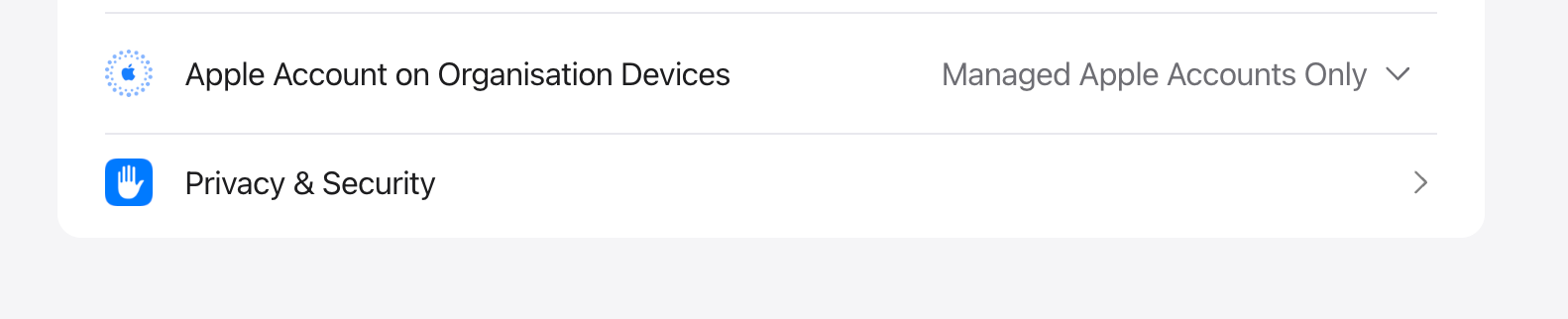
To prevent users from signing in with personal Apple IDs on ABM-enrolled devices, ClickOrganization name > Settings > Access Management > Apple Services > Apple Account on Organization Devices in Apple Business Manager. Set the option to Managed Apple Account only. This ensures that only corporate Managed Apple IDs can be used on enrolled devices, blocking personal Apple IDs for iCloud, Messages, FaceTime, and other Apple services. This restriction enhances data security, ensures compliance, and keeps organizational devices free from personal data or accounts.
Revoke the Restriction
To revoke the restriction, return to the same Access Management page in ABM and reset the options back to their defaults:
- All apps for Sign in with Apple.
- Any device for Apple Services.
- Any device for Allow Managed Apple Account on.
Revoking the restriction restores the default ABM/ASM configuration, ensuring Managed Apple IDs can be used without restrictions across apps, services, and devices.
Note: Revoking the restriction must be done only in Apple Business Manager. There is no need to revoke or modify any setting in the MDM console, as the capability is automatically managed during ABM configuration changes.
Things to Keep in Mind
- Restrictions can be relaxed later by selecting Any device in ABM/ASM.
- Users are automatically signed out if their device does not meet the new access requirements.
- For devices using Apple User Enrollment, devices are automatically unenrolled if the set criteria are not met.
- Shared iPads have a known limitation and do not support Managed Apple IDs.
- Accounts are affected only when sign-in is restricted to Managed or Supervised devices.
- Ensure the selected server remains synced to maintain the sync status.
- Refer to the Apple Access Management documentation for more details on Apple settings and ABM behavior.
Frequently Asked Questions
1. What is the difference between supervised and unsupervised iOS device management?
Supervised iOS devices (enrolled via Apple Business Manager or Apple Configurator) allow a wider range of restrictions and configurations, including app lock, silent app installation without user approval, and stricter content filtering. Unsupervised devices enrolled via standard enrollment have fewer management controls available.
2. Can ManageEngine MDM silently install apps on iOS devices without user interaction?
Silent app installation is supported for supervised iOS devices enrolled through Apple Business Manager (ABM) or Apple Configurator. For unsupervised devices, the user receives a prompt to approve the app installation.
3. What happens to corporate data on an iOS device when it is unenrolled from MDM?
When an iOS device is unenrolled from ManageEngine MDM, all MDM-managed profiles, configurations, and apps distributed through the MDM console are removed from the device. Personal apps and data that were not managed by MDM remain unaffected.