
Migrating configurations from EventLog Analyzer to Unified Log360
Last updated on:
In this page
Overview
- This migration applies only to Log360 deployments with the EventLog Analyzer component and EventLog Analyzer bundled installations.
- It is supported only for EventLog Analyzer and Log360 build below 13000.
- If you are using a standalone EventLog Analyzer setup, select the Upgrade to Log360 option in the top pane to convert your EventLog Analyzer installation to Log360.
This document explains how to migrate configurations from an EventLog Analyzer instance integrated with Log360 to Unified Log360. During migration, both Log360 and EventLog Analyzer are upgraded and merged into a single Unified Log360 interface, enabling centralized security monitoring, compliance management, and analysis.
Before initiating the migration, ensure that EventLog Analyzer is updated to the latest PPM.
Configuration changes must be reviewed before proceeding with the migration process. Follow these steps when upgrading to Unified Log360 for the first time, after ensuring all prerequisites are met.
After migration, the product console will display Log360 instead of EventLog Analyzer. However, the existing installation directory name will remain EventLog Analyzer, as the directory structure is not modified during migration.
During the migration, EventLog Analyzer and Log360 will be merged as part of the Unified Log360 setup. The existing EventLog Analyzer instance will continue to be available for use as Unified Log360.
Do not remove the Elasticsearch data folder from the common Elasticsearch setup, as it contains required data. If migration is required, contact support for assistance.
Supported deployments
This migration is supported only for the following deployment scenarios:
- Log360 deployment where Log360 is integrated with EventLog Analyzer and other components.
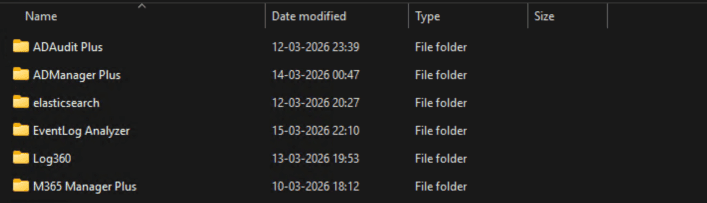
Figure 1: Example of an installation directory - EventLog Analyzer setup where EventLog Analyzer and Log360 are installed as part of a bundled installation. If the user wants to start using Log360 with this setup, they must follow the migration steps provided below.
- EventLog Analyzer setup where EventLog Analyzer is actively used and Log360 is installed as part of the bundled setup. If the user does not require Log360, refer to the migration without Log360 integration steps.
The following scenarios are not applicable to this migration process:
- In deployments where Log360 is integrated with other components but not with EventLog Analyzer, refer to this document specific to standalone Log360 migration.
- Additional SEM nodes are deployed in the Log360 - EventLog Analyzer setup.
This migration guide does not apply to Distributed Edition and MSSP deployments. If you are using these deployments, contact support for assistance.
Migration is not directly supported for High Availability (HA) setups. To migrate from an existing High Availability (HA) setup to Log360, you must use the scalability (active-active) migration approach. For detailed steps, contact support for assistance.
Migration limitations for EventLog Analyzer on Linux
During this migration, EventLog Analyzer will be merged with Log360, and Unified Log360 will run on Linux. If EventLog Analyzer is currently running on a Linux operating system, certain Log360 features available only on Windows, such as Active Directory integration, will not be supported after migration. As a result, the following configurations will not be migrated to Unified Log360.
Excluded modules during Linux instance migration:
- Manage Technicians - Active Directory (AD) Technicians
AD based technician accounts configured in Log360 will not be migrated. The product cannot be logged in using Active Directory technicians.
- Logon Settings - Single Sign-On (SSO) and Smart Card authentication
SSO and Smart Card authentication settings configured in Log360 will not be carried over during migration.
- Compliance - Active Directory (AD) Risk Posture
The Active Directory (AD) Risk Posture feature will not be available when EventLog Analyzer is deployed on Linux.
- Integration Settings
The Single Shutdown configuration will not be migrated if EventLog Analyzer is deployed on Linux.
- Dashboard, Custom Compliance, and Compliance Schedules
AD Technician-created dashboard tab custom widgets, custom compliance, and compliance schedules will not be migrated when EventLog Analyzer is deployed on Linux.
- Security Hardening
Security Hardening LDAP SSL settings will not be merged when EventLog Analyzer is deployed on Linux.
Pre-requisites
- The latest PPM is applied individually on both Log360 and EventLog Analyzer.
- Both Log360 and EventLog Analyzer services are running and accessible.
- It is recommended to ensure that all child components are up and running on the latest version before initiating migration to avoid synchronization issues.
- Verify that the server meets the required system requirements for Unified Log360.
- Ensure a valid Log360 license is available before migration. If not, contact support at support@log360.com to retrieve the license file. If a new license is required, reach out to sales at sales@manageengine.com or request via the Get Quote page.
NOTE In case of a bundled license, if child components are integrated and online, their respective licenses will be applied.
- Before proceeding with the migration, ensure that all files in the <Log360-Product-location>\Export folder are backed up to a separate location. After the migration is completed and verified, the source files will be removed to optimize disk space. In case of any discrepancies after migration, recovery will only be possible using the backup.
- Before proceeding with the migration, ensure that all Smart Card certificates are backed up to a separate location. After the migration is completed and verified, the source files will be removed to optimize disk space. In case of any discrepancies after migration, recovery will only be possible using the backup.
Note If UEBA is integrated with the product, upgrade UEBA to build 4085 and ensure that it is running before migrating Log360 or EventLog Analyzer to the 13000 build series.
- Super Admin Login: When logging in after migration, the Super Admin account must use the same password that was configured in EventLog Analyzer.
Configuration changes during migration
During migration, certain configurations from Log360 and the integrated EventLog Analyzer instance are automatically merged, while some settings may require review post migration and a few settings can be customized before the migration begins.
Mandated changes
The following configurations are automatically merged and applied during migration:
| Configuration | What happens during migration |
|---|---|
| Custom Compliance | If the same custom compliance exists in both products, both will be retained. The Log360 configuration will be renamed with the suffix adding (Log360), while the EventLog Analyzer configuration remains unchanged. |
| Compliance Configuration | For predefined compliances, the enabled or disabled status will follow the configuration in EventLog Analyzer after migration. This means that if a compliance is enabled in EventLog Analyzer, it will remain enabled in Unified Log360; if it is disabled, it will remain disabled. The corresponding setting from Log360 will not be considered for these compliances. Users can re-enable or modify compliances based on organizational requirements from the Compliance tab. For more information, refer to this page.
Additional settings configured in the Edit Compliance page will not be migrated for both predefined and custom compliances. |
| Risk Posture |
|
| Logon Settings | Captcha and Block User Settings:
Single Sign-On (SSO) Settings:
NOTE The Jespa JAR will also be migrated but will take effect in EventLog Analyzer only after a restart.
|
| Two-Factor Authentication | The configuration from the product with the higher number of enrolled users will be applied. For example, If Two-Factor Authentication (TFA) has 10 enrolled users in EventLog Analyzer and 11 in Log360, the Log360 configuration will be retained. User enrollment data from Log360 will not be migrated if Two-Factor Authentication is disabled in Log360. Duo authentication settings are not migrated. |
| Allowed/Restricted IPs |
|
| Reverse proxy | During reverse proxy migration, the required ports must be available for the settings to be migrated successfully.
|
| Compliance Schedule | If the same compliance schedule name exists in both products, both will be retained. The Log360 configuration will be renamed with the suffix adding (Log360), while the EventLog Analyzer configuration remains unchanged. |
| Rebranding | Product logo:
Browser Favicon (Default): The Log360 settings will be retained. Browser Title (Default): The Log360 settings will be retained. |
| Integrations | Log360 configurations will be migrated and applied after migration. |
| Domain configuration | If domains are configured only in Log360, all domains will be migrated to EventLog Analyzer. Auto-discovered domains will also be migrated, however users will need to update the credentials after migration. |
| Manage Technicians | Technicians from both Log360 and EventLog Analyzer will be merged. If the same technician exists in both products, the account status, roles and delegations after migration will follow the configurations in EventLog Analyzer. This means that if a technician account is enabled in EventLog Analyzer, it will remain enabled after migration; if it is disabled, it will remain disabled. All roles and delegations configured in EventLog Analyzer will be retained. For Product Authenticated technicians, the credentials configured in EventLog Analyzer will also be retained. |
| Personalize |
|
| Protocol settings | EventLog Analyzer configuration will be migrated and applied after migration. |
| Dashboard | Dashboard tabs and their respective widgets from both Log360 and EventLog Analyzer will be merged. Custom tabs from Log360 will be added to EventLog Analyzer, and existing EventLog Analyzer tabs and widgets will be retained. Tab names will remain unchanged and will not be modified after migration.
The tab order will list EventLog Analyzer tabs first, followed by Log360 tabs. The Refresh Interval setting will not be migrated. The EventLog Analyzer Refresh Interval will be retained. Users will need to customize the refresh interval after migration is completed. |
| Product Notifications |
|
| Security Hardening | The settings will be merged automatically. |
| Notification Settings | Mail Server Configuration:
SMS Server Configuration:
|
| Scheduled export files | Both Log360 and EventLog Analyzer export files will be available in the history and can be downloaded if needed. |
| Port configuration | The user must choose the port on which the product will run. The following conditions apply:
Users can also customize the port on the customization page during migration. |
| Connection settings | Proxy Server Settings:
Session Expiry: The highest configured value will be applied. Protocol, SSL, and Other Connection Settings: The EventLog Analyzer settings will be retained. |
| Database Settings | Backup Configuration:
|
| AppsPane and JumpTo |
|
Settings to review after migration
The following configurations should be reviewed by administrators after migration:
- Device Allocation Management - This feature in ADAudit Plus has been discontinued in this edition. This capability is available as a built-in feature in ADAudit Plus. Existing auto-allocation policies will not be migrated and must be manually reconfigured in ADAudit Plus. In EventLog Analyzer, this feature is merged into the Auto Device Configuration feature in this edition. After migration, it will be disabled by default. Please enable it manually to ensure device statuses are updated and the auto-allocation schedule continues.This applies only to Windows environments and is not applicable for Linux.
- Duo authentication - Duo authentication settings will not be migrated. It must be reconfigured after migration.
- Database backup configuration - Log360 backup files are not compatible with Unified Log360 and are therefore not migrated. However, existing EventLog Analyzer backup files are retained and remain available in Unified Log360.
- Search Engine Settings - Search Engine Replica settings will not be migrated. It must be reconfigured after migration.
- Two factor authentication (TFA) - Users who are enrolled in TFA in EventLog Analyzer but are either not present or not enrolled in Log360 will not be migrated as part of the TFA configuration. These users must manually enroll for TFA in Log360 after the migration is complete.
NOTE Reapplying the license file is not required during migration, as the existing license configuration will be retained and continue to be effective post-migration.
- Auto Update - This feature has been discontinued in this version.
- Log360 Report Management - Viewing other component(s) product reports within the integrated Log360 console is no longer supported. The Manage Reports settings will also not be migrated.
- Risk Posture - The daily schedule configured for Risk Posture will not be migrated.
Customizable settings during migration
The following configurations can be modified by the user from the migration interface before starting the migration:
- Logon Settings
- Smart Card Authentication - If EventLog Analyzer is installed on Windows, Log360 configuration will be retained as default. Users will also be provided with the following options:
- Retain Log360 settings (Default)
- Retain EventLog Analyzer settings
- Retain both (Merge EventLog Analyzer and Log360 configurations)
- Allowed/Restricted IPs - If configured in both Log360 and EventLog Analyzer with different configurations, users will be provided with the following options:
- Retain Log360 settings (Default)
- Retain EventLog Analyzer settings
- Two Factor Authentication - Log360 settings will be retained by default. Users will also be provided with the following options:
- Retain Log360 settings (Default)
- Retain EventLog Analyzer settings
- Smart Card Authentication - If EventLog Analyzer is installed on Windows, Log360 configuration will be retained as default. Users will also be provided with the following options:
- Reverse Proxy - If the ports used by Log360 are unavailable, users will need to customize the ports during migration on the customization page.
- Rebranding - If configured in both Log360 and EventLog Analyzer, users will be provided with the following options. Customization will be available only for the product logo:
- Retain EventLog Analyzer settings (Default)
- Retain Log360 settings
- Port Configuration
Steps to migrate data
Depending on your setup, follow the appropriate migration procedure:
- Migration for integrated setup - If Log360 is integrated with EventLog Analyzer.
- Migration without Log360 integration - In cases where Log360 is integrated with EventLog Analyzer, and the user chooses not to use Log360.
Migration for integrated setup
- Log in to the Log360 console.
- On the migration introduction screen, view the key enhancements introduced in Unified Log360.
- Click Access EventLog Analyzer to proceed.
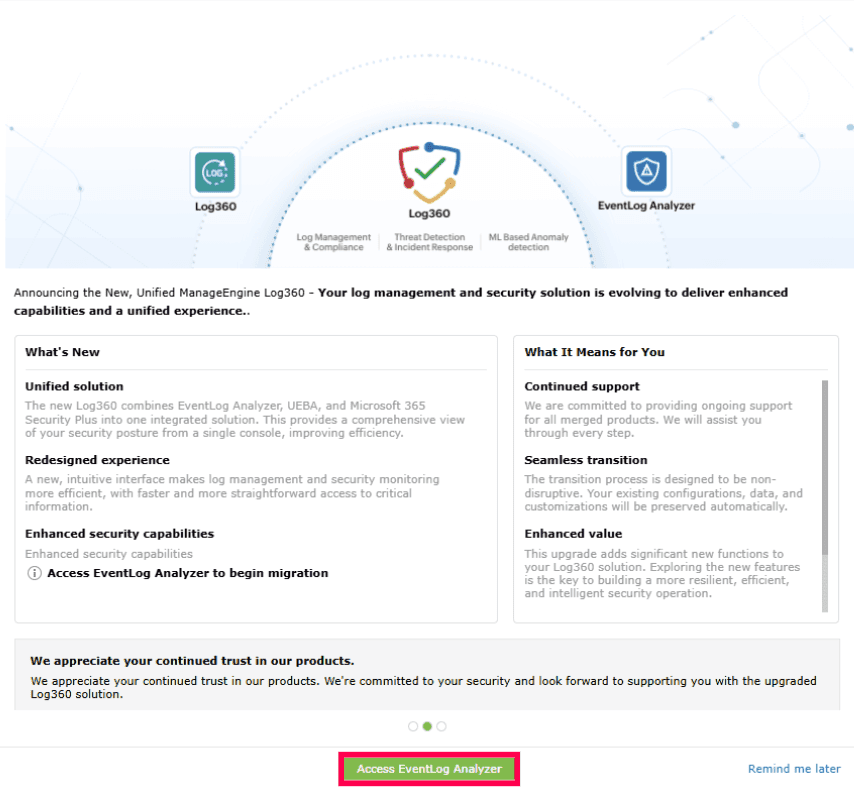
Figure 2: Accessing EventLog Analyzer NOTE If you select Remind Me Later, the migration will be postponed, and the migration prompt will appear again each time you log in to the product console until the migration is completed. - You will be redirected to the EventLog Analyzer interface.
- Click Proceed to Log360 to continue with the migration.
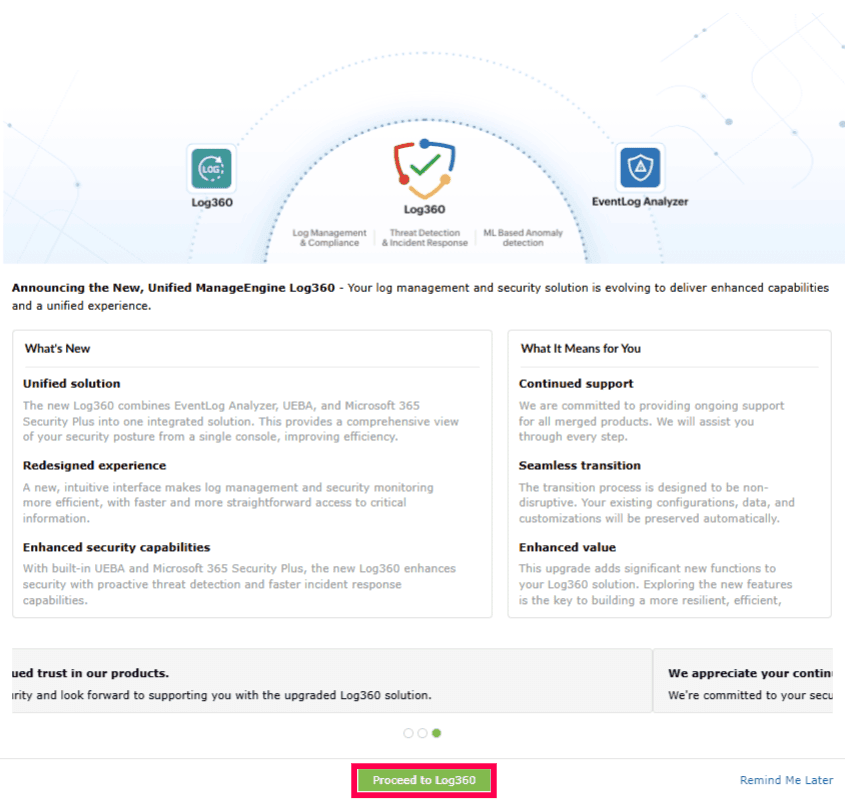
Figure 3: Migrating data - If any child components are not running, a pop-up appears indicating that one or more components are currently down and may impact data synchronization during migration. You can choose one of the following options:
- Check now - Verifies whether the required components are up and running. It is recommended to ensure all components are running before proceeding.
- Skip and Proceed - Continues the migration without resolving the issue. In this case, you may need to manually update the related configurations after migration.
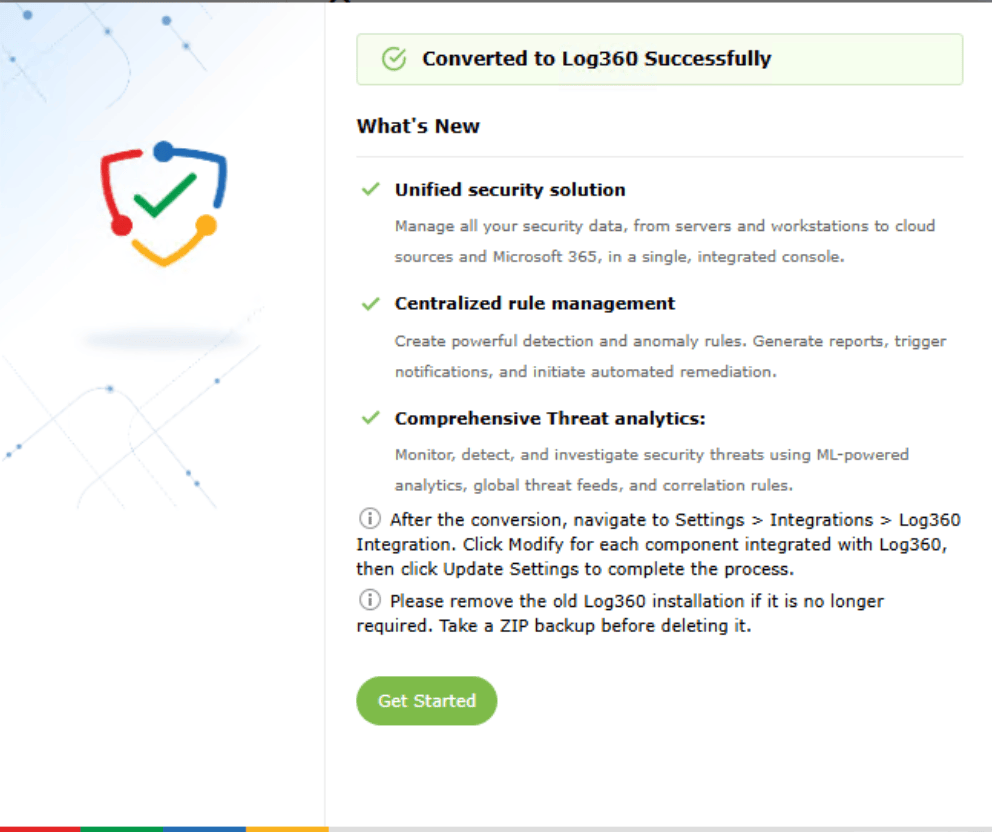
NOTE After the restart, navigate to Settings > Integrations > Log360 Integration. Click Modify for each component integrated with Log360, then click Update Settings to complete the process.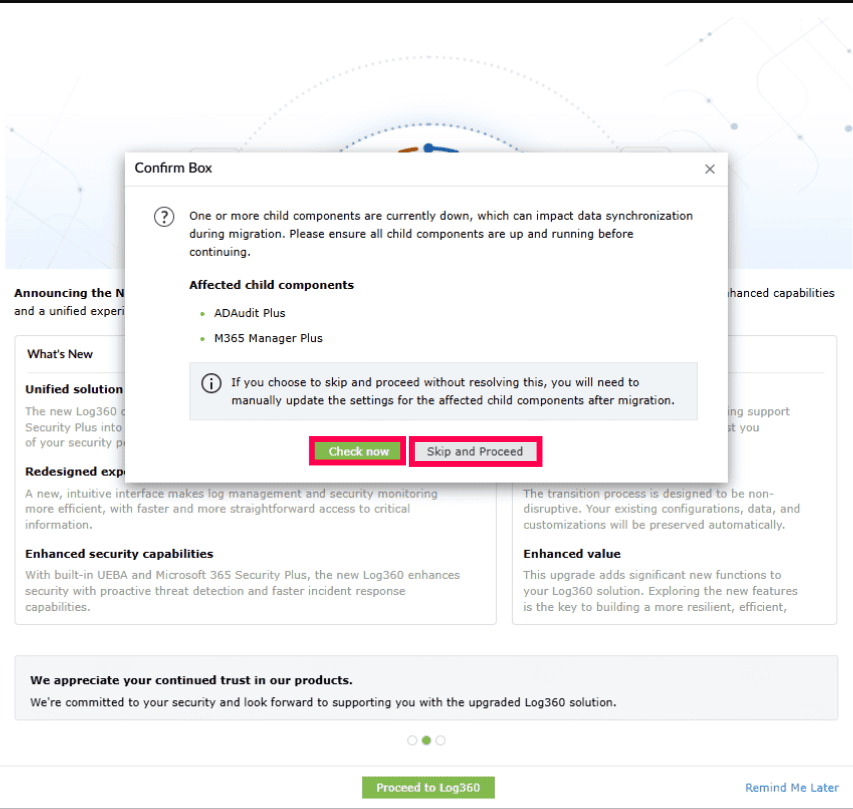
Figure 4: Migration alert for affected child components - The Migration Details window displays how existing configurations from Log360 and the integrated EventLog Analyzer will be handled during migration. Review the following information on this page.
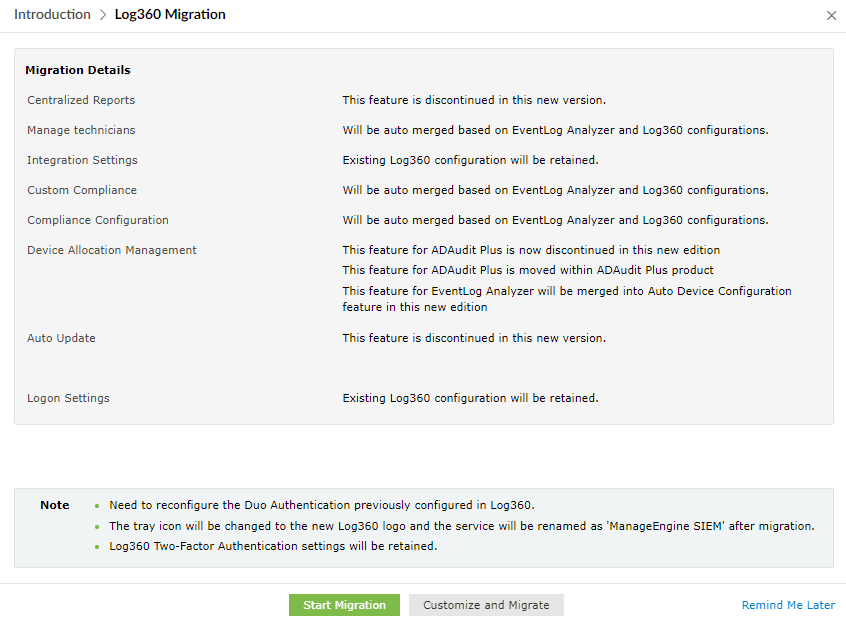
Figure 5: Customizing migration details 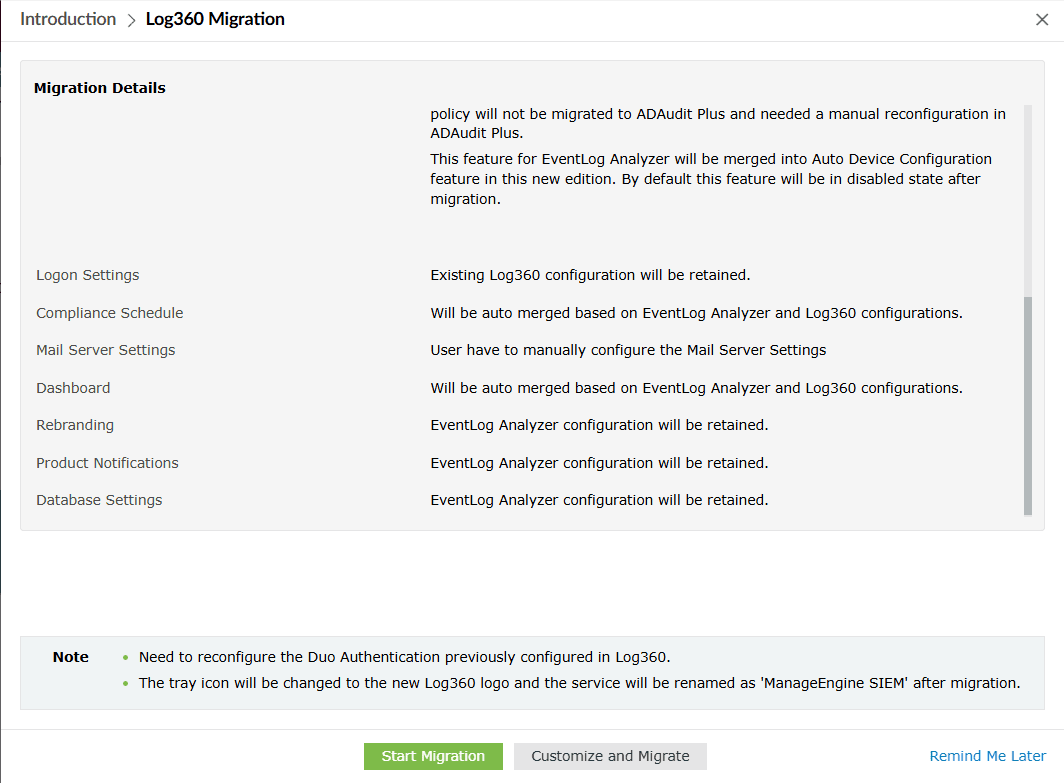
Figure 5: Customizing migration details - Click Customize and Migrate to modify certain configurations.
- After reviewing the migration details, verify the configuration settings displayed on the page.
- Reverse Proxy Configuration - Review the reverse proxy port settings for Log360 and the integrated child components. Click Check Availability to verify that the configured ports are available. If a port is unavailable, modify the value and check its availability again.
- Port Configuration - Verify the product port and click Check Availability to ensure it is available. If the port is unavailable, update the value and validate it again.
- Logon Settings - Choose how the authentication settings for Smart Card Authentication, Allowed / Restricted IPs, and Two-Factor Authentication should be applied during migration using the available dropdown options.
- Retain Log360 Settings - Keeps the existing Log360 configuration.
- Retain EventLog Analyzer Settings - Uses the existing EventLog Analyzer configuration.
- Merge Both - Combines configurations from both Log360 and EventLog Analyzer where applicable.
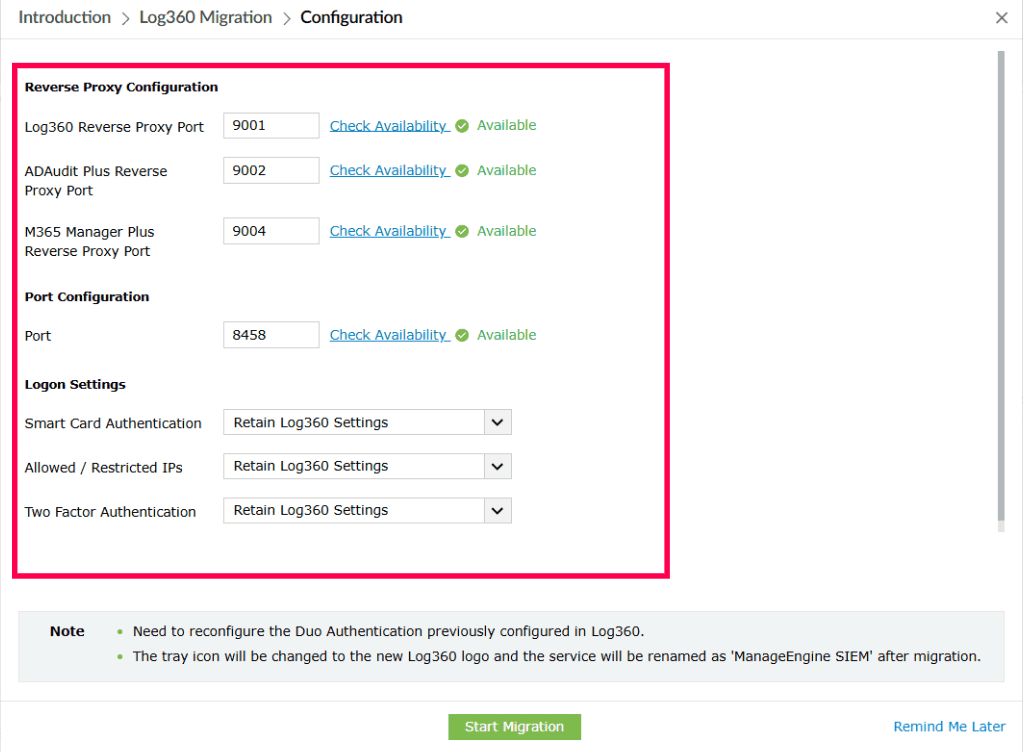
Figure 6: Configuring port and logon settings
- After reviewing or updating the required settings, click Start Migration to proceed.
- Before the migration begins, a pop-up appears indicating that the application tray icon will be updated to the new Log360 logo, and a new service will be created as ManageEngine SIEM. Click Proceed to continue with the migration.
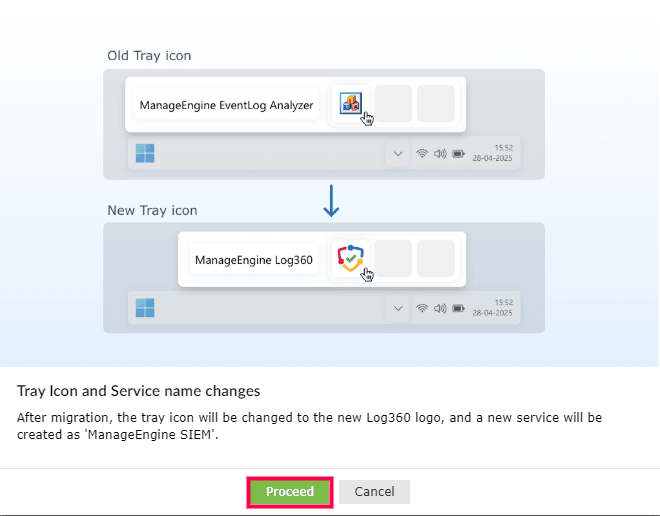
Figure 7: Tray icon and service name changes - The migration may take a few moments. The progress of the migration can be monitored by clicking the
 icon in the EventLog Analyzer console.
NOTE It is highly recommended not to shut down the product or make any changes in the product settings during the migration process.
icon in the EventLog Analyzer console.
NOTE It is highly recommended not to shut down the product or make any changes in the product settings during the migration process.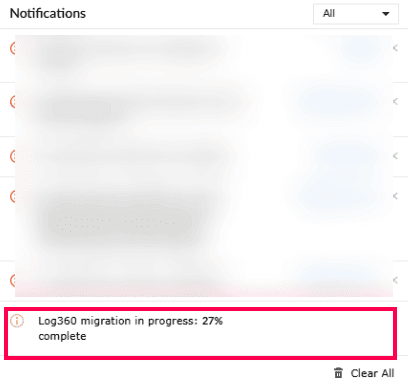
Figure 8: Migration progress notification - Once the migration is complete, a confirmation pop-up appears. Select Get Started to continue using Unified Log360, or select Restart Now to restart the server and apply all changes immediately.
NOTE Some configuration changes, such as port updates, take effect only after a restart.
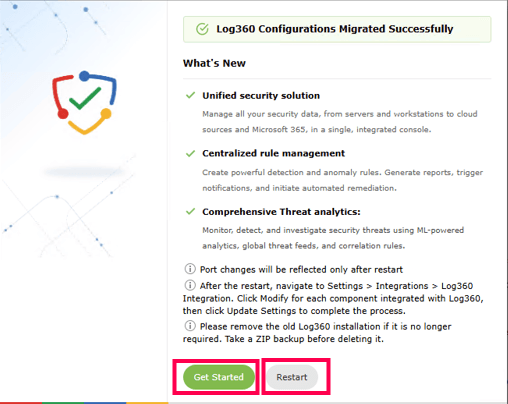
Figure 9: Migration completion - The migration process is now complete. Review the migrated configurations.
- After the migration is complete, remove the ManageEngine EventLog Analyzer and ManageEngine Log360 services from the machine. For Linux systems, ensure that the eventloganalyzer service is removed.
- After restarting the product, navigate to the Settings tab and select Admin Settings. Under Integrations, click Log360 Integration. For each component integrated with Log360, click Modify, review the settings if required, and then click Update Settings to complete the integration update.
Troubleshooting tips
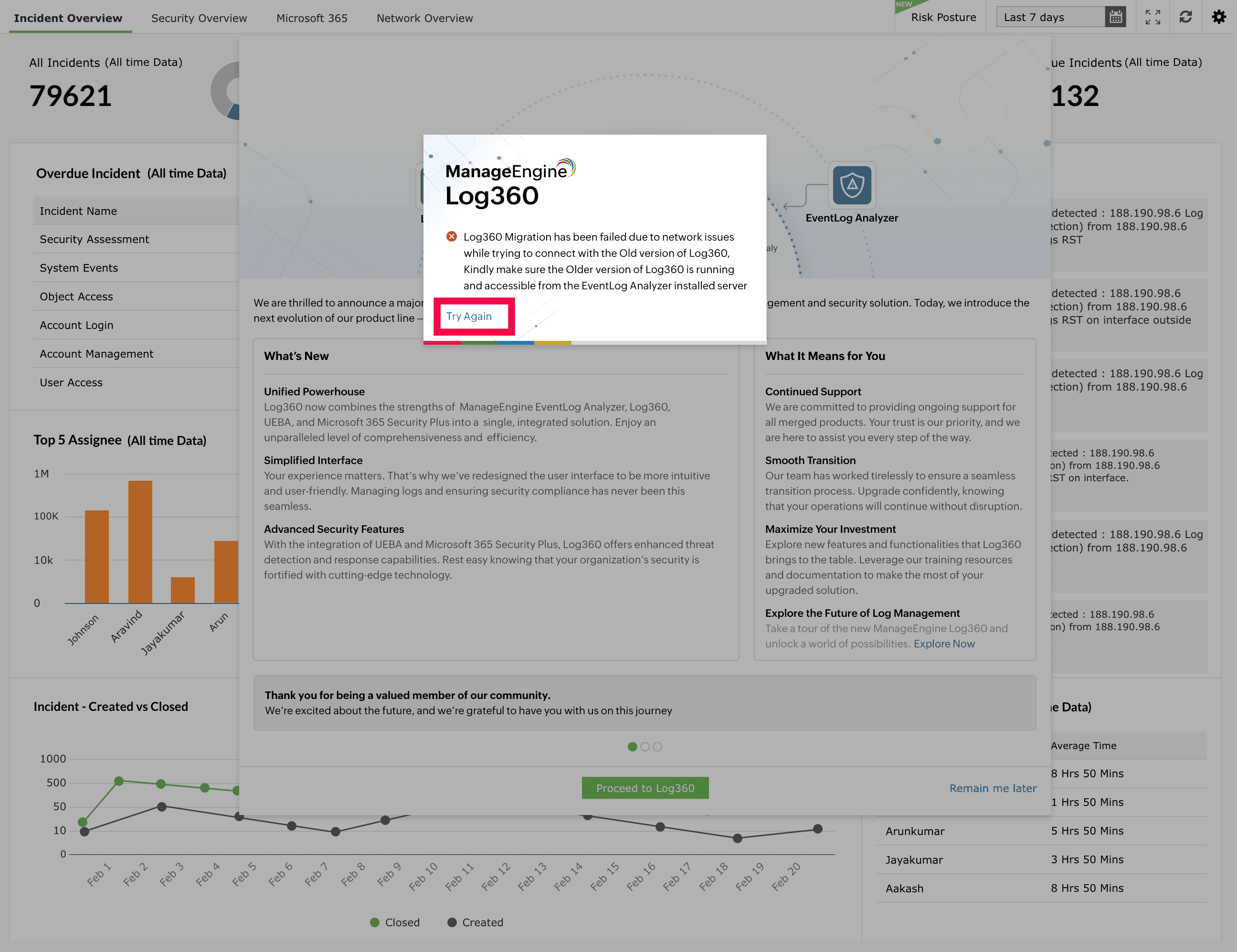
1. Migration failure due to connectivity issues
Error message:
Log360 Migration has been failed due to network issues while trying to connect with the old version of Log360. Kindly make sure the older version of Log360 is running and accessible from the EventLog Analyzer installed server.
When this occurs:
This occurs while the migration is in process, when the product is unable to establish a connection with the existing Log360 instance.
Solution:
Ensure that the pre-requisites are met. Once connectivity is verified, click Try Again.
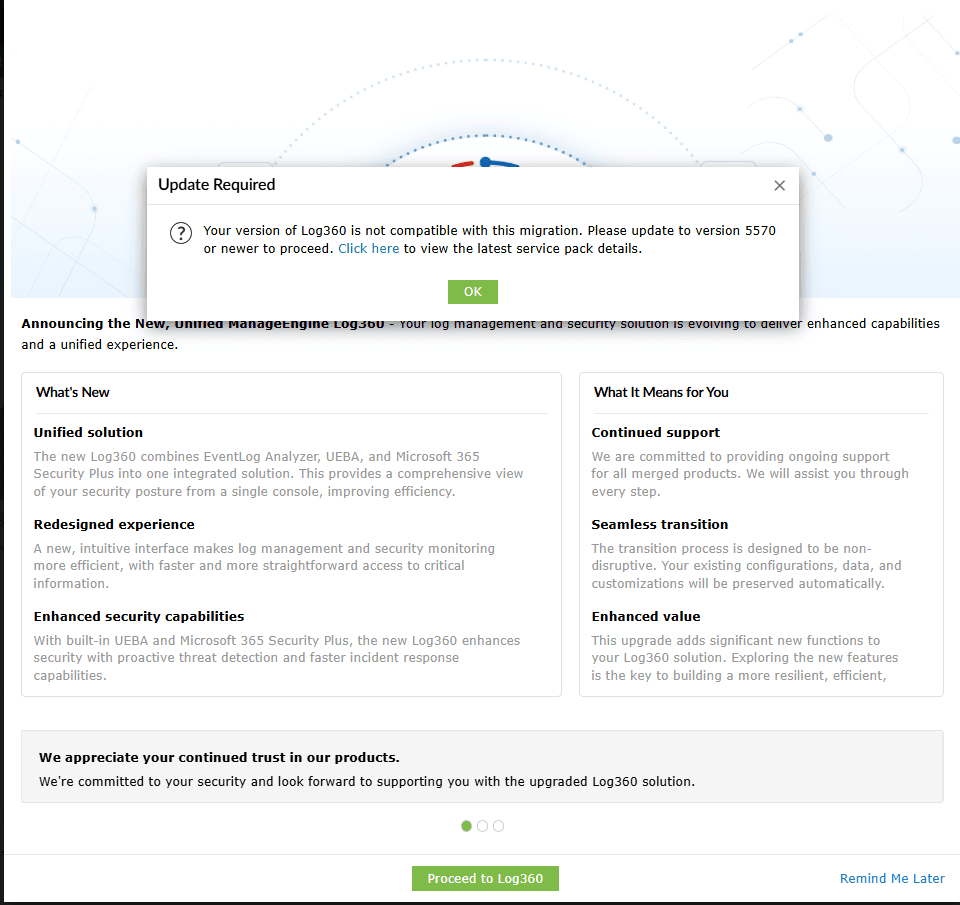
2. Integrated Log360 version incompatibility
Alert message: Your version of Log360 is not compatible with this migration. Please update to version 5570 or later to proceed.
When this occurs:
This occurs when the existing Log360 version is not compatible with the migration or is not updated to the required version.
Solution:
Update Log360 to the latest version and ensure all prerequisites are met. Then, click OK and proceed with the migration.
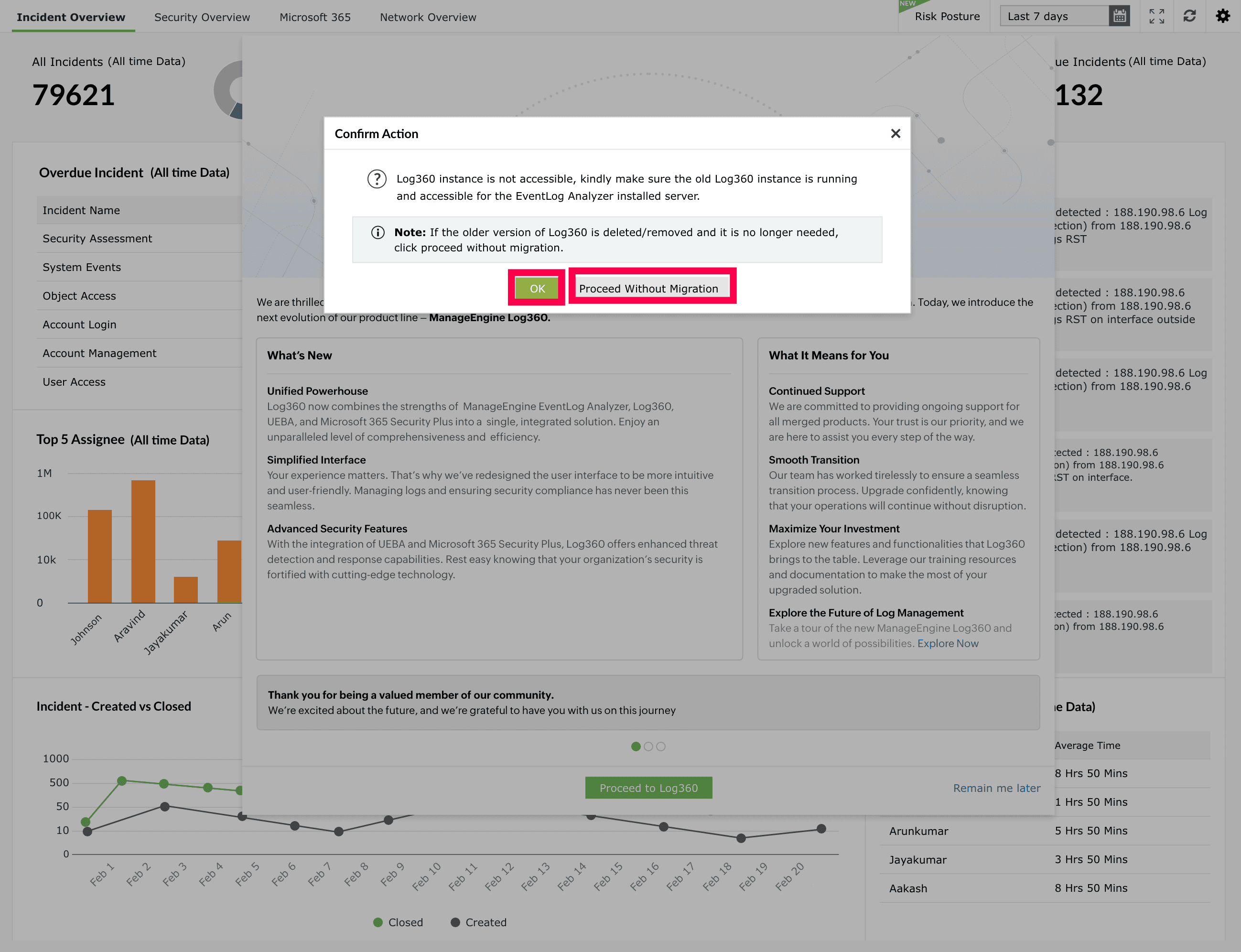
3. Older Log360 instance not accessible
Error message:
The Log360 instance is not accessible. Ensure that the instance is running and reachable from the EventLog Analyzer server.
When this occurs:
This occurs before migration when the existing Log360 instance is shut down, removed, or not accessible.
Solution:
- If Log360 is required: Ensure that the product is running, verify network connectivity, and confirm that all prerequisites are met. If the issue persists, contact support.
- If Log360 is not required: Click Proceed Without Migration to continue. You can then update each integrated component in the Log360 integration page.
Upon conversion to Log360, the following window will be displayed.
Frequently asked questions (FAQs)
1) What can be done to the existing product folder?
If the previous Log360 installation is no longer required, you can remove the existing product folder. Before deleting it, it is recommended to create a ZIP backup of the installation directory for future reference or recovery purposes.
2) What can be done to the existing product services?
If the services associated with the previous installation are no longer required, they can be removed manually.
Windows
- Open Command Prompt as Administrator.
- List all services to identify the service you want to remove:
sc query type=all state=all
- Stop the service:
sc stop "<servicename>"
- Delete the service:
sc delete "<servicename>"
- Verify that the service has been removed:
sc query "<servicename>"
Linux
- Open a Terminal with sudo privileges.
- List all services to identify the service you want to remove:
systemctl list-units --type=service --all
- Stop and disable the service:
								sudo systemctl stop <servicename>

sudo systemctl disable <servicename> - Delete the service file:
sudo rm /etc/systemd/system/<servicename>.service
- Reload systemd to apply the changes:
sudo systemctl daemon-reload && sudo systemctl reset-failed
- Verify that the service has been removed:
systemctl status <servicename>
Read also
This page explained how to migrate data from EventLog Analyzer to Unified Log360, including prerequisites, migration steps, and possible migration scenarios. To learn how to migrate data from Log360 to unified Log360, refer to the following page: