How to check email attachment size in Exchange Reporter Plus

Your download is in progress and it will be complete in just a few seconds! If you face any issues, download manually here

Thank you for registering with ManageEngine.

We will send the download link to the registered email ID shortly.

Stay informed about Exchange with Exchange Reporter Plus

  •  
  •  
  •  
  • By clicking 'Download 30-day free trial' you agree to processing of personal data according to the Privacy Policy.

Exchange Online Reports

Monitoring email attachment sizes is vital for organizations to optimize storage and ensure efficient email server performance. Understanding attachment size trends helps in resource allocation and in identifying potential data leakage. To check the email attachment size of various emails that have been sent and received in your Exchange organization, please follow the steps mentioned below.
Creating a custom report to check email attachment size

  1. Log in to Exchange Reporter Plus.
  2. Navigate to Settings > Configuration > Exchange Server > Custom Reports.
  3. Under Custom Reports, click Create New Report.
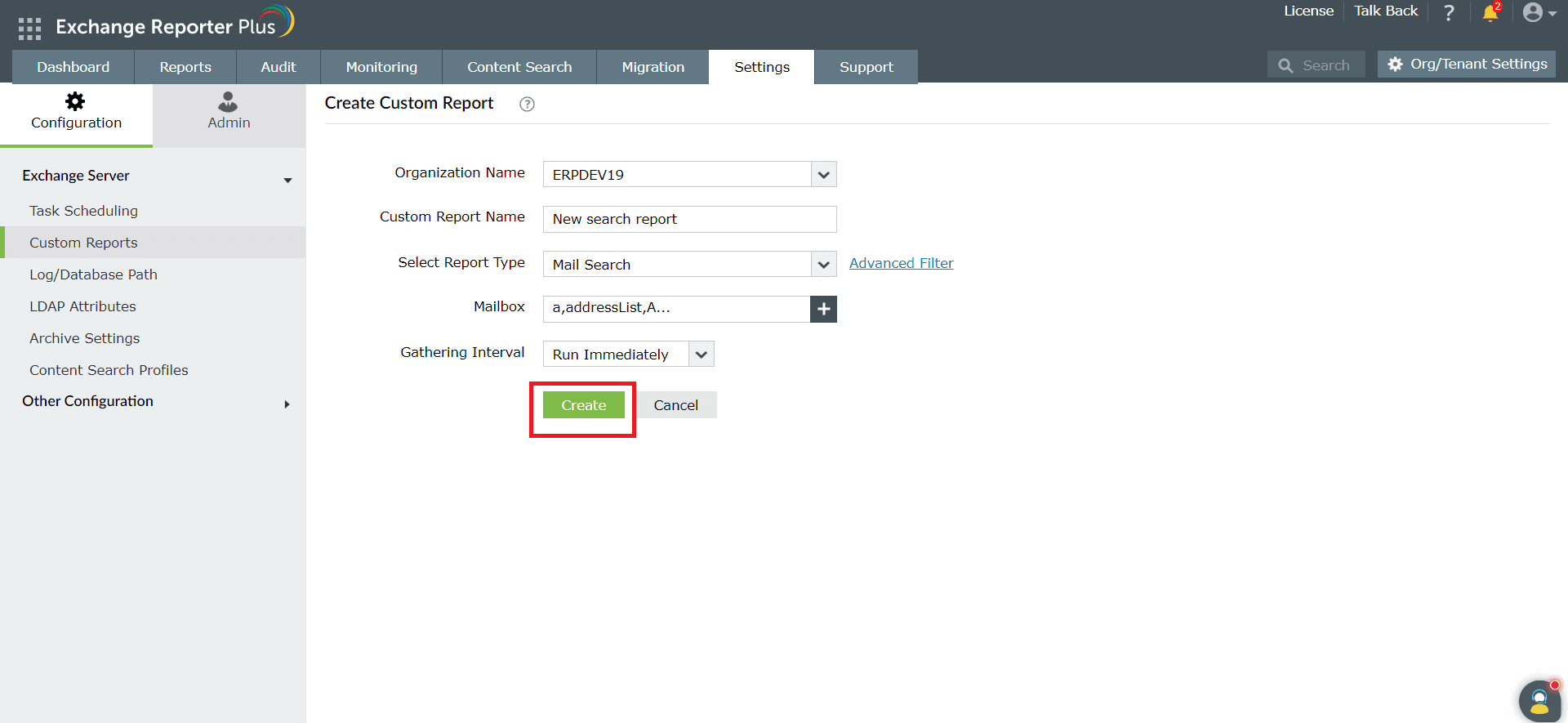
  4. Select the Exchange organization by clicking the drop-down menu next to Organization Name.
  5. Enter a name of your choice in the Custom Report Name field.
  6. In the Select Report Type field, select Mail Search.
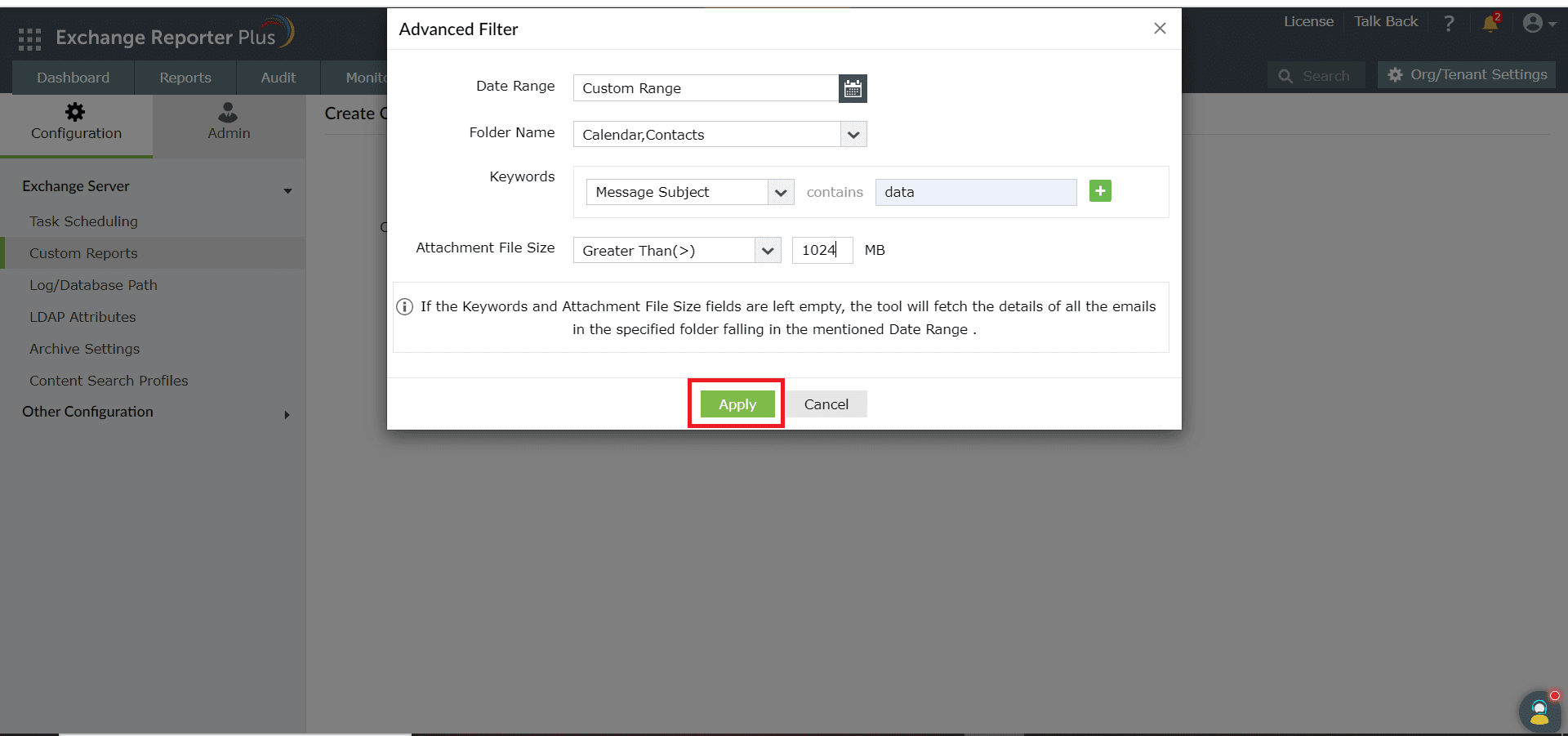
  7. Click Advanced Filter next to the Select Report Type field.
  8. In the new window that opens, click the <calendar> icon next to the Date Range field to select the date range.
  9. You can exclude or include folders to be searched by clicking the drop-down menu next to the Folder Name field.
  10. If you would like to search for particular keywords, select the keyword category and type in the keyword in the contains field. You can search for multiple keywords at once by clicking the + icon next to the contains field.
  11. Specify the file size of the attachment in the Attachment File Size field (in MB). You can choose from these conditions:
  12. Click Apply to save the filter options. How to check email attachment size in Exchange Reporter Plus
  13. Select the mailboxes you want to search by clicking the + icon next to the Mailbox field.
  14. Select the intervals at which the data should be updated in the report by clicking the drop-down menu next to the Gathering Interval field. You can choose from the intervals mentioned below:
    • Run Immediately
    • Daily
    • Weekly
    • Monthly
  15. Click Create to save the custom report. How to check email attachment size in Exchange Reporter Plus

Executing the email attachment size custom report

  1. Log in to Exchange Reporter Plus.
  2. Navigate to Reports > Exchange Server > Custom Reports.
  3. Under Mailbox Content Reports, click the custom report you created earlier.
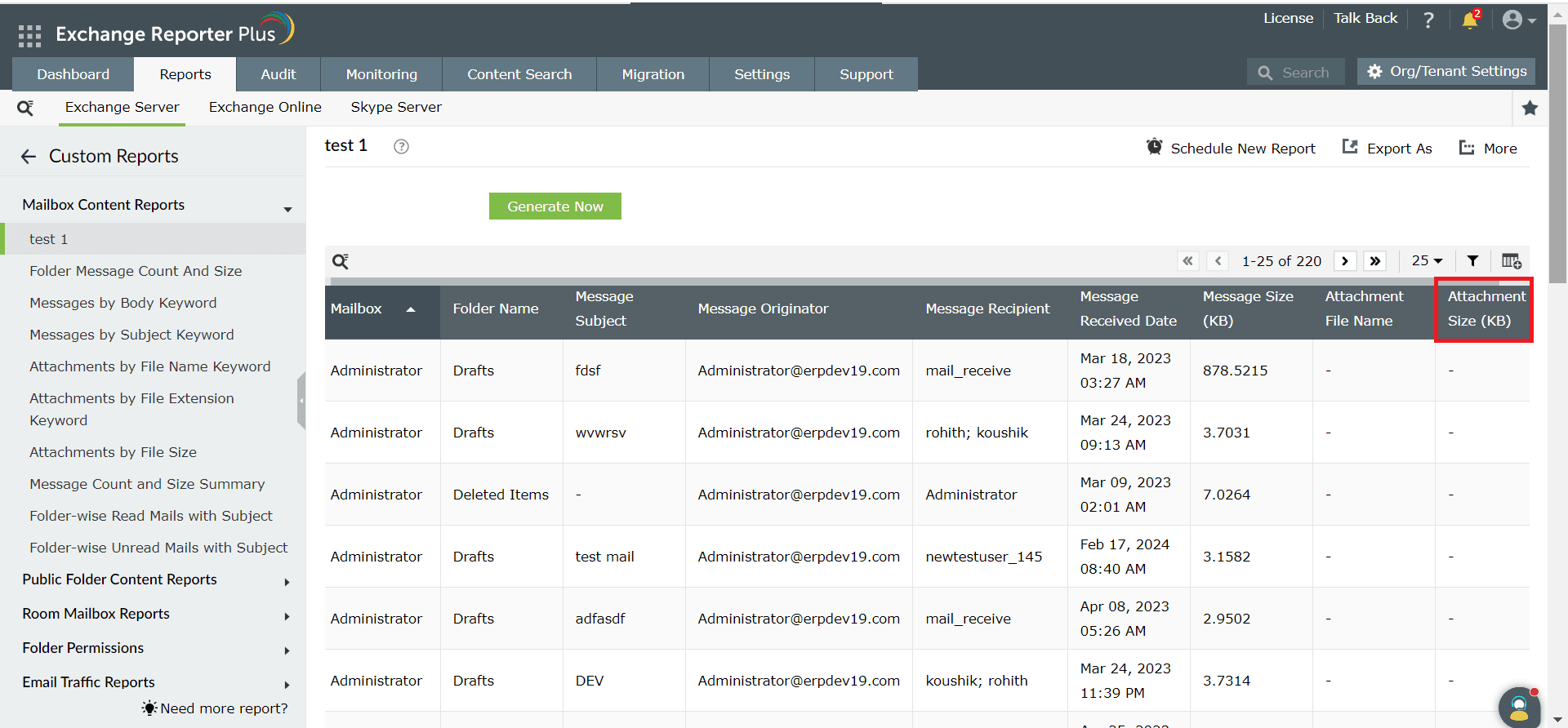
  4. The report will be displayed with the data according to the filters that were selected while creating the custom report.
  5. The Attachment Size column displays the email attachment size. How to check email attachment size in Exchange Reporter Plus
A single pane of glass for Exchange Server Monitoring, Reporting and Auditing