NetApp server auditing overview
NetApp filer network-attached storage (NAS) devices use NetApp's proprietary ONTAP operating system. A VServer unit is a partition within a storage system, appearing as a separate storage system to users on the network. Each VServer is associated with its own network resources and operates independently.
On this page:
Supported versions
Log360 Cloud audits NetApp ONTAP versions 8.2.1 and above.
Audited events
Log360 Cloud audits both successful and failed attempts for the following file activities:
- Create
- Read
- Write
- Delete
- Change file permissions
- Rename
- Move
Prerequisites for NetApp server auditing
To configure NetApp server auditing effectively with Log360 Cloud, the user account on the domain must either be an admin or have the minimum privileges listed below:
- Read and write privileges to set the SACL automatically on shares to be audited.
- Read privileges for the NetApp audit log share path.
- Access for the management IP (this user can be vsadmin or any user with the roles listed below).

Log storage requirements
Audit logs can be stored in one of the following locations:
- New aggregate: 3GB of available space where Log360 Cloud creates a volume named cifs_audit_log mounted at /cifs_audit_log.
- Existing junction/local path: Minimum 3GB of available space, such as /logs/fs1/.
Configuring NetApp server auditing in Log360 Cloud
Follow these steps to configure NetApp Server auditing:
- Go to Settings > Configuration > File Integrity Monitoring > NetApp Server.

- If the server is configured to a domain, select the NetApp Server from the list of discovered devices. If not, you can choose the Configure Manually option and enter the server name.
Note: Ensure the server name is used instead of the IP address. Update the host file to map the server name to the NetApp management IP for proper configuration.

- Provide the correct credentials and choose an appropriate Agent.
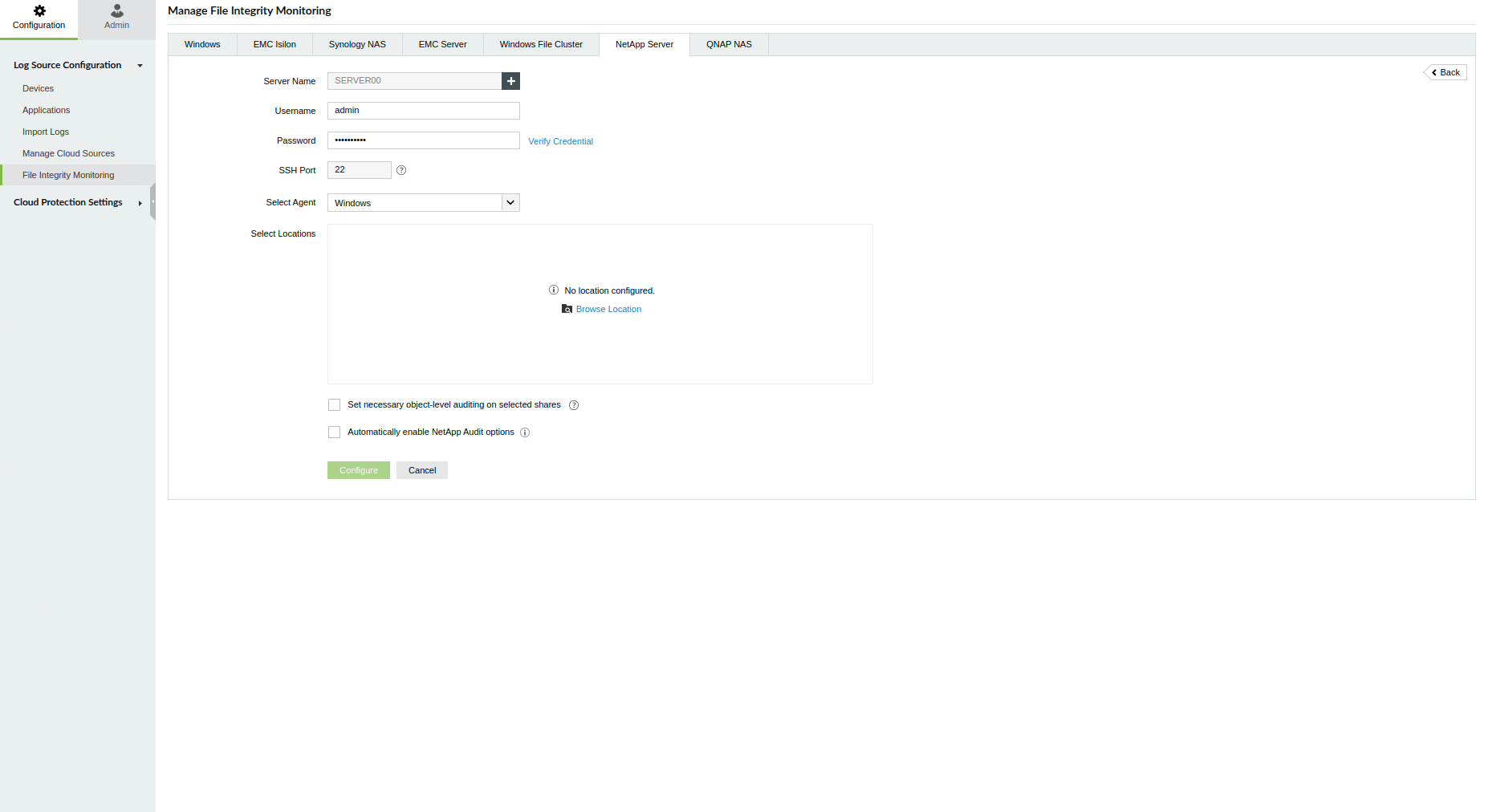
- Verify the provided credentials to enable browsing of locations. Ensure proper credentials validation before browsing NetApp Server locations for secure connections and accurate file activity monitoring.

- Browse through the directories and choose the specific files and folders you wish to monitor. Alternatively, you can manually enter the path to the files/folders.

- Utilize the Exclude Filter to omit specific items:
- Certain file types.
- Sub-locations within the main directory.
- All sub-locations within the main directory.

- If you wish to allow Log360Cloud to configure object-level auditing automatically, select the check box for Set necessary object-level auditing on selected shares.

- Select either Create or Exist based on whether you want to provide a new aggregate name or an existing path with 3GB space. If you choose "Create new path", a new volume named cifs_audit_log will be created and mounted on the /cifs_audit_log path.

- Alternatively, choose Existing Path to use an available path with at least 3GB of space.
Note: For the Existing path option, provide junction path instead of the share path (e.g., /root/logs/cifs).

- Click on the Configure button to initiate the configuration process.
Automatic Audit Policy Configuration
To allow Log360 Cloud to automatically configure audit settings, enable the Automatically enable NetApp Audit options checkbox when adding the NetApp server.
This configures a default audit policy with the following parameters:
- Rotation based on: Size
- Max log file count: 10
- Log file size: 200 MB
- Log path: Use Create new path for a new volume or Existing path for an existing path with 3GB space.
Manual Audit Policy Configuration
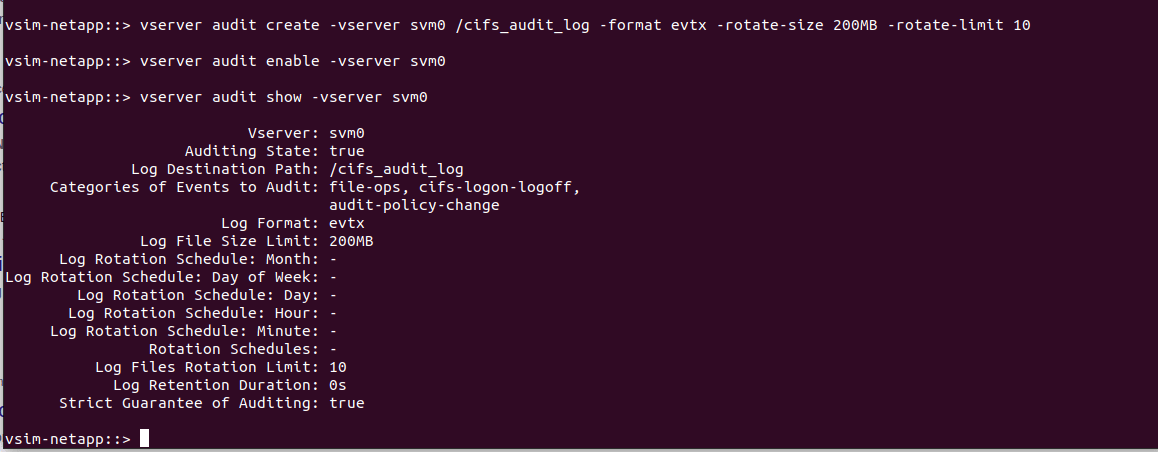
To manually configure the audit policies, use an SSH connection with the required cluster admin credentials. Use the command below to configure audit settings for the CIFS server:
Vserver audit create -<Vserver_Name> -destination <Log_Destination_Path> -format <Log_Format_in_XML/evtx> -rotate-size <Log_File_Size_Limit_in_KB/MB/GB/TB/PB> -rotate-limit <Log_Files_Rotation_Limit></Log_Files_Rotation_Limit>
Parameters
- <Vserver_Name>: Name of the VServer to create the audit configuration on.
- <Log_Destination_Path>: The path where audit logs are stored. The path can be up to 864 characters in length and must have read-write permissions.
- <Log_Format>: The output format of the audit logs. It can either be ONTAP-specific XML or Windows EVTX.
- <Log_File_Size_Limit>: Audit log file size limit with appropriate units (e.g., 200MB).
- <Log_Files_Rotation_Limit>: The number of audit logs to retain. A value of '0' means all log files are retained, while a value of '5' retains only the last five audit logs.
Example: Vserver audit create -Vserver vs1 -destination /cifs_audit_log -format evtx -rotate-size 200MB -rotate-limit 10
Manual SACL Configuration for NetApp Server Auditing
To manually configure object-level auditing in NetApp shares:
- Right-click the target share, select Properties.
- Go to the Security tab, then click Advanced.
- In the Auditing tab, add the following entries for the Everyone group:
| To audit |
Principal |
Event type |
Accesses |
Applies to |
| File and folder changes |
Everyone |
Success and failure |
Create Files/Write Data
Create Folders/Append Data
Write Attributes
Write Extended Attributes
Delete Subfolders and Files
Delete
|
This folder, subfolders, and files |
| Folder permission and owner changes |
Everyone |
Success and failure |
Take Ownership
Change Permissions
|
This folder and subfolders |
| File read |
Everyone |
Success and failure |
List Folder/Read Data |
Files only |
| Folder read failure |
Everyone |
Failure |
List Folder/Read Data |
This folder and subfolders |
- Click OK to finish setting the required SACLs for the selected share.
Troubleshooting
Credentials verification
Error: Connection to <server name> failed due to incorrect server name or port.
Solution: Ensure the server name resolves to the server's IP address. You can verify this by pinging the NetApp server using its server name to check if it resolves to the correct IP address. If not, update the DNS suffix in Advanced TCP/IP settings or add a host record in the DNS server, mapping the name to the NetApp server's IP address. If there is still difficulty pinging the server, verify the internet connection.
Browsing locations
Error: Connection failed (Error Code: 5 - Access is denied).
Solution: Verify credentials have appropriate read access to the specified location.
Logs not monitored
Error: Logs are not being monitored after successful configuration.
Cause:
- The aggregate does not have 3GB of storage.
- Invalid aggregate.
- The specified log path or aggregate does not exist.
- The user does not have permission to create an audit on the NetApp server.
Refresh NetApp failure
Error: Unable to refresh NetApp Server <server name>: No audit found. Create an audit before attempting to refresh.
Cause: The audit configuration has not been created in NetApp.
Solution: Create the audit configuration manually or through Log360 Cloud.
Final consolidation error
Error: Final consolidation is in process. Please try again later.
Cause: NetApp is performing another operation, preventing additional actions at this time.
Solution: Wait for the current operation to complete before trying again.