Portal User Management
Portal user management allows you to manage users who access the customer portal. This feature enables MSSP admins and technicians to add, enable, disable, and delete portal users. The portal has one admin user responsible for managing all other users.
Accessing Portal User Management
- MSSP admin or technician:
- Go to Settings -> Admin -> Portal User Management.
- View the list of enabled, disabled, and unconfirmed users.

- Portal account:
- Go to Settings -> Admin -> User Management.
- View the list of enabled, disabled, and unconfirmed users.

Viewing Users by Category
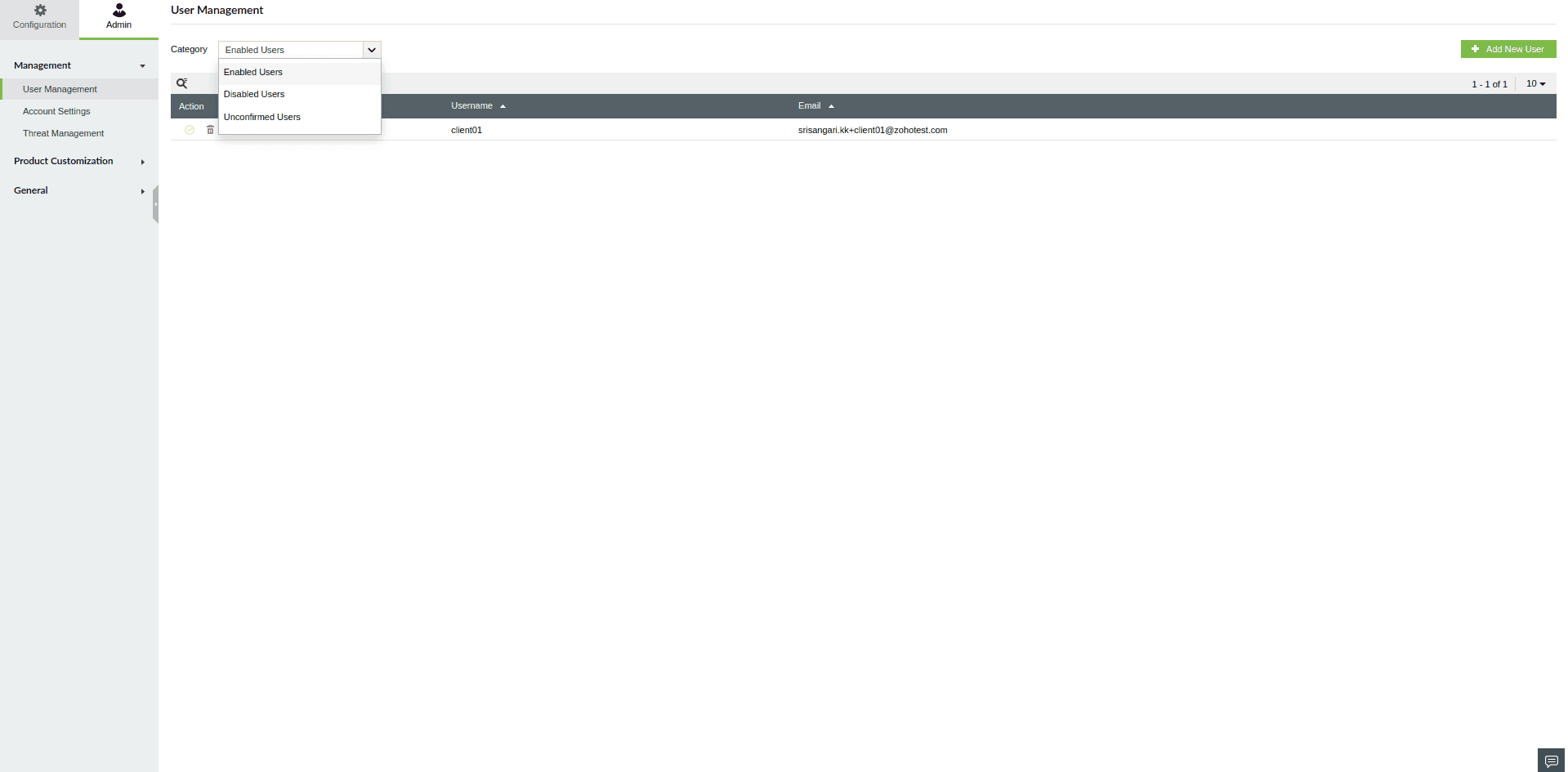
To view users by category:
- In the Portal User Management tab, select the category in the top-left corner:
- Enabled users
- Disabled users
- Unconfirmed users
The users under the selected category will be listed accordingly.
Adding a New Portal User
- Click on the Add New User button in the top-right corner of the user list.
- In the pop-up, enter the user’s name and email.

- Click Invite.

The user will be added as a non-admin portal user, and an invitation email will be sent.
Note: To add an admin portal user, click
here.
Enabling a Portal User
- Go to Portal User Management and select Disabled Users from the category dropdown.

- Locate the user to be enabled and click the Enable icon in the Actions column.

- Confirm the action by clicking Yes.
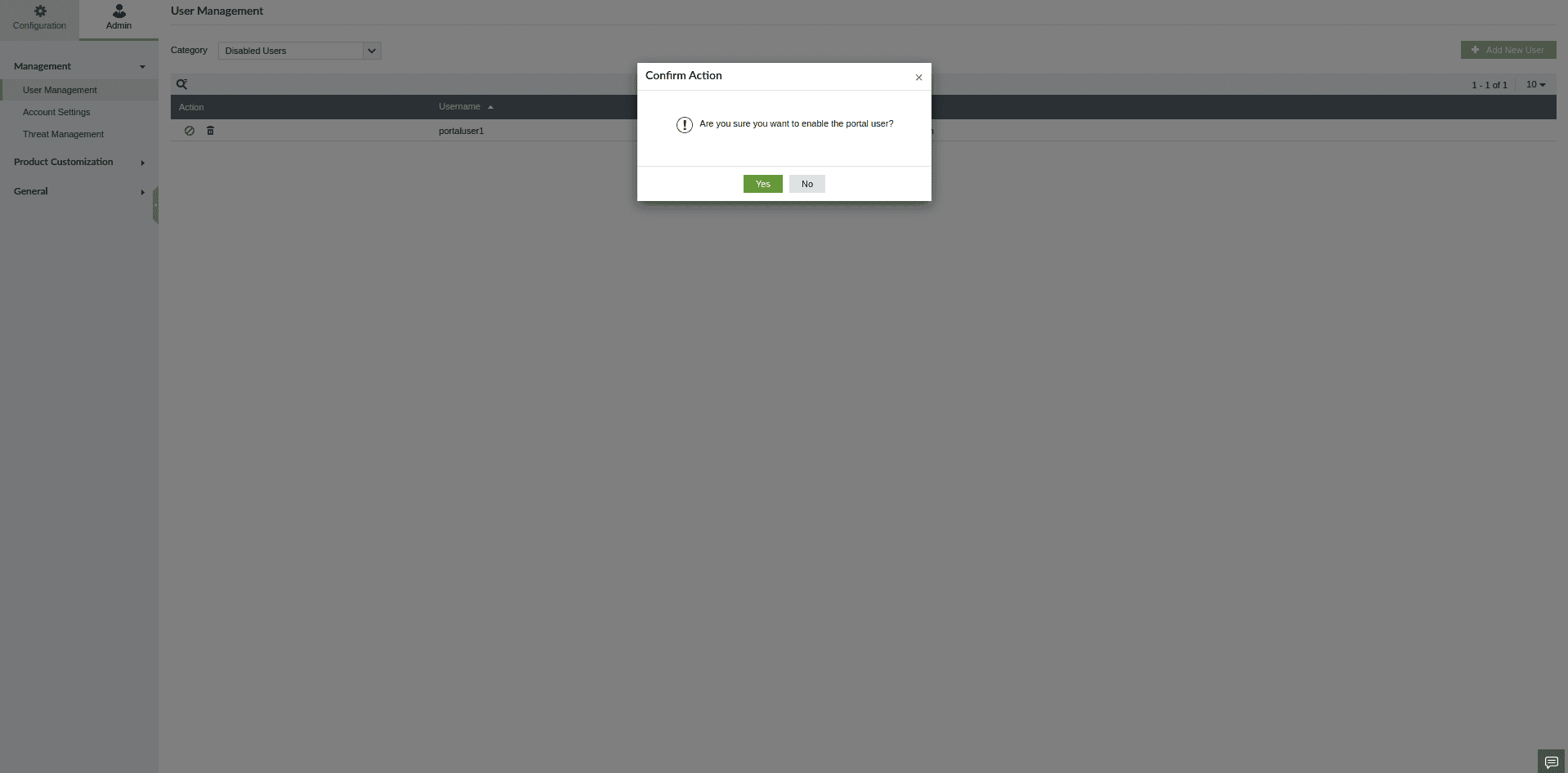
The user will be enabled and provided access to the portal.

Disabling a Portal User
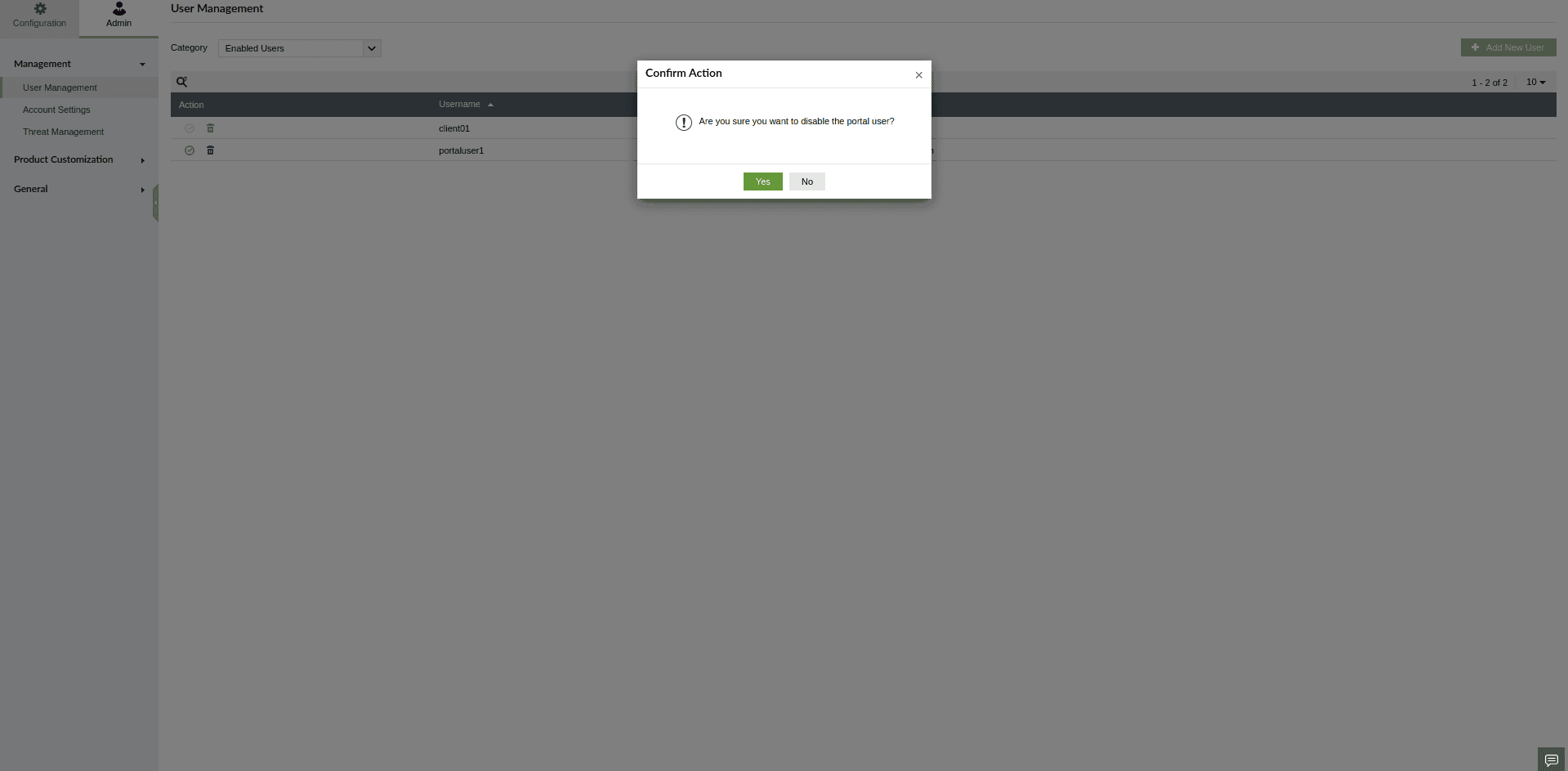
- Go to Portal User Management and select Enabled Users from the category dropdown.

- Locate the user to be disabled and click the Disable icon in the Actions column.
- Confirm the action by clicking Yes.

The user will be disabled and will no longer have access to the portal.
Deleting a Portal User
- In Portal User Management, select either Enabled Users or Disabled Users from the category dropdown.
- Click the Delete icon in the Actions column for the user you want to remove.
- Confirm the deletion by clicking Yes.
The user will be permanently removed from the portal.
Reinviting Unconfirmed Users
- Select Unconfirmed Users from the category dropdown.

- Click the Reinvite icon in the Actions column for the user you want to reinvite.
- Confirm the action by clicking Yes.

A new invitation email will be sent to the user.
Deleting Unconfirmed Users
- Select Unconfirmed Users from the category dropdown.

- Click the Delete icon in the Actions column for the user you want to remove.

- Confirm the deletion by clicking Yes.

The invitation sent to the user will be invalidated, and they will no longer be able to access the portal.