Okta overview
Okta is a cloud-based Identity and Access Management (IAM) platform designed to secure user authentication and manage access to applications, devices, and APIs. It offers key features like Single Sign-On (SSO), Multi-Factor Authentication (MFA), lifecycle management, and directory integration, helping organizations streamline access control.
Okta extension scope
Okta extension allows users to add their Okta domains to collect Okta system logs to Log360 cloud. This extension provides features such as log collection, parsing, reporting, alerting, correlation, and advanced log search capabilities for monitoring web traffic and server performance.
Audited Okta events
Okta provides detailed logs for all actions that modify the Okta domain. These logs capture key system events, including changes to user accounts, groups, and applications.
Major logged events
- User lifecycle management
- User creation, modification, and deletion
- Activation, deactivation, suspension, and unsuspension of user accounts
- Group management
- Creation and deletion of groups
- User assignments to and removals from groups
- Application management
- Creation, update, integration, and deletion of applications
- Assignment and removal of users from applications
How to configure Okta log source in Log360 Cloud
- Navigate to Settings > Marketplace > Installed Extensions to view the installed Okta extension.
- Click Manage under configuration to open the Manage Configuration page.

- To configure the Okta log source, click Configure to open the configuration page. Then, navigate to Settings > Configurations > Log Source Configuration > Applications > Other Applications.
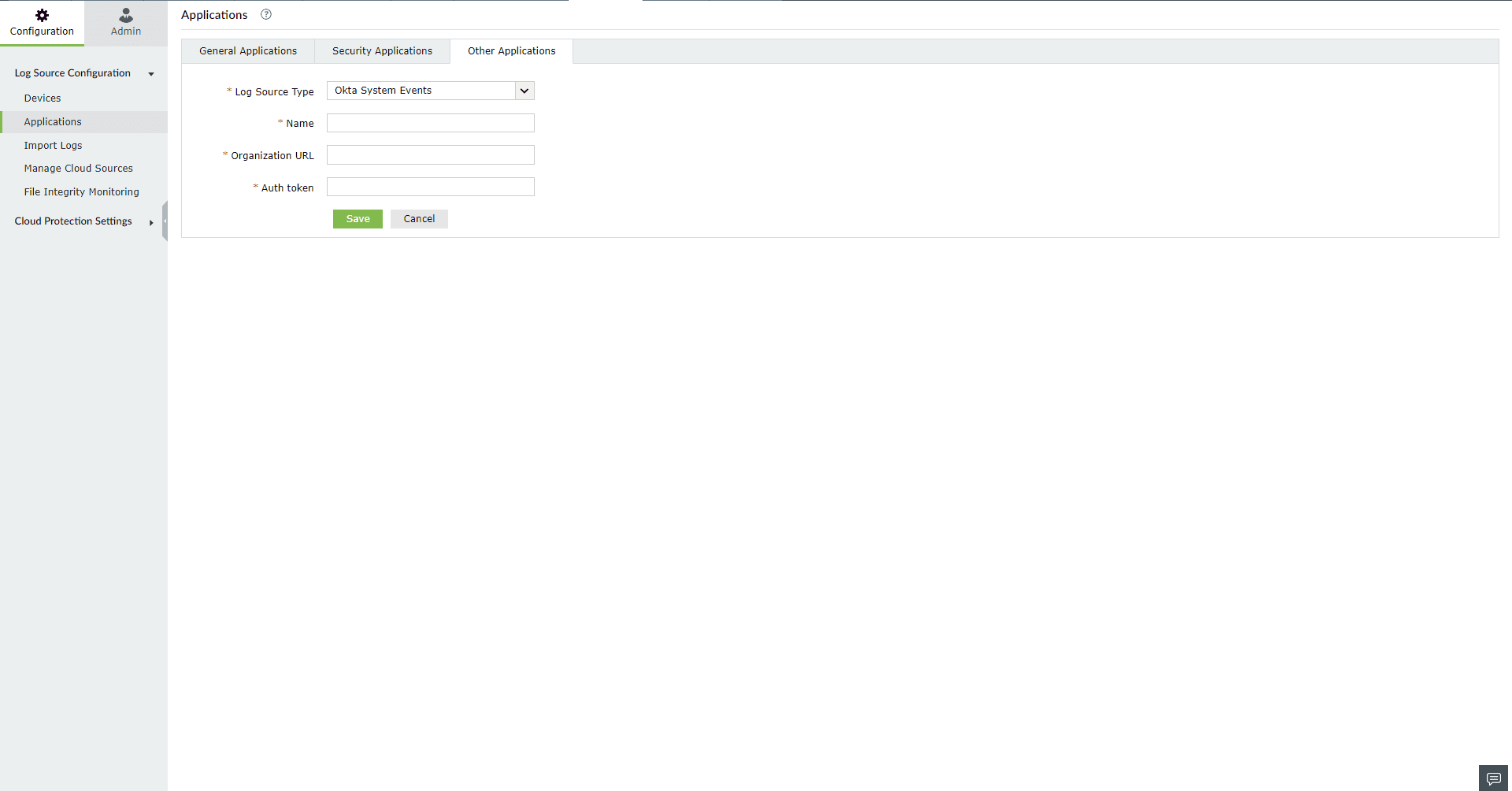
- In the Display Name field, enter a name for the Okta source in Log360 cloud
- In the Organization URL field, enter the Okta domain (eg: exampledomain.okta.com )
Note: Please refer to
this document to identify the Okta domain URL.
- In the Auth token field, add the auth token associated with your Okta account. The auth token must be created by an admin who has access to view the system logs.
Note:
- Read-only administrator role is enough to fetch and display all the relevant Okta data in Log360 Cloud.
- Please refer to this document for the steps to create auth token in Okta
Viewing Okta reports
To view Okta reports, navigate to the Reports tab and select Okta for Log360 Cloud in the sub-tab.

Log360 Cloud provides the following out-of-the-box reports:
Okta Events
- All Events
- Important events (multi report mapping)
- Password Reset
- User Locked Out
- Privileged Application Access
- Request Blocked
User Audit Reports
- User Authentication SSO
- Privileged Application Access
- User Locked Out
- Suspicious Activity
- Self Service Unlock
- User Session Start
- Password Reset
- Request Blocked
User Management Reports
- User Account Created
- User Account Activated
- User Account Deactivated
- User Account Suspended
- User Account Unsuspended
Configuration Reports
- User Added to an Application
- User Removed from an Application
- Username Changed
- User added to Group
- User removed from Group
Application Events
- Application Created
- Application Updated
- Application Deactivated
- Application Activated
- Application Deactivated
Okta correlation actions
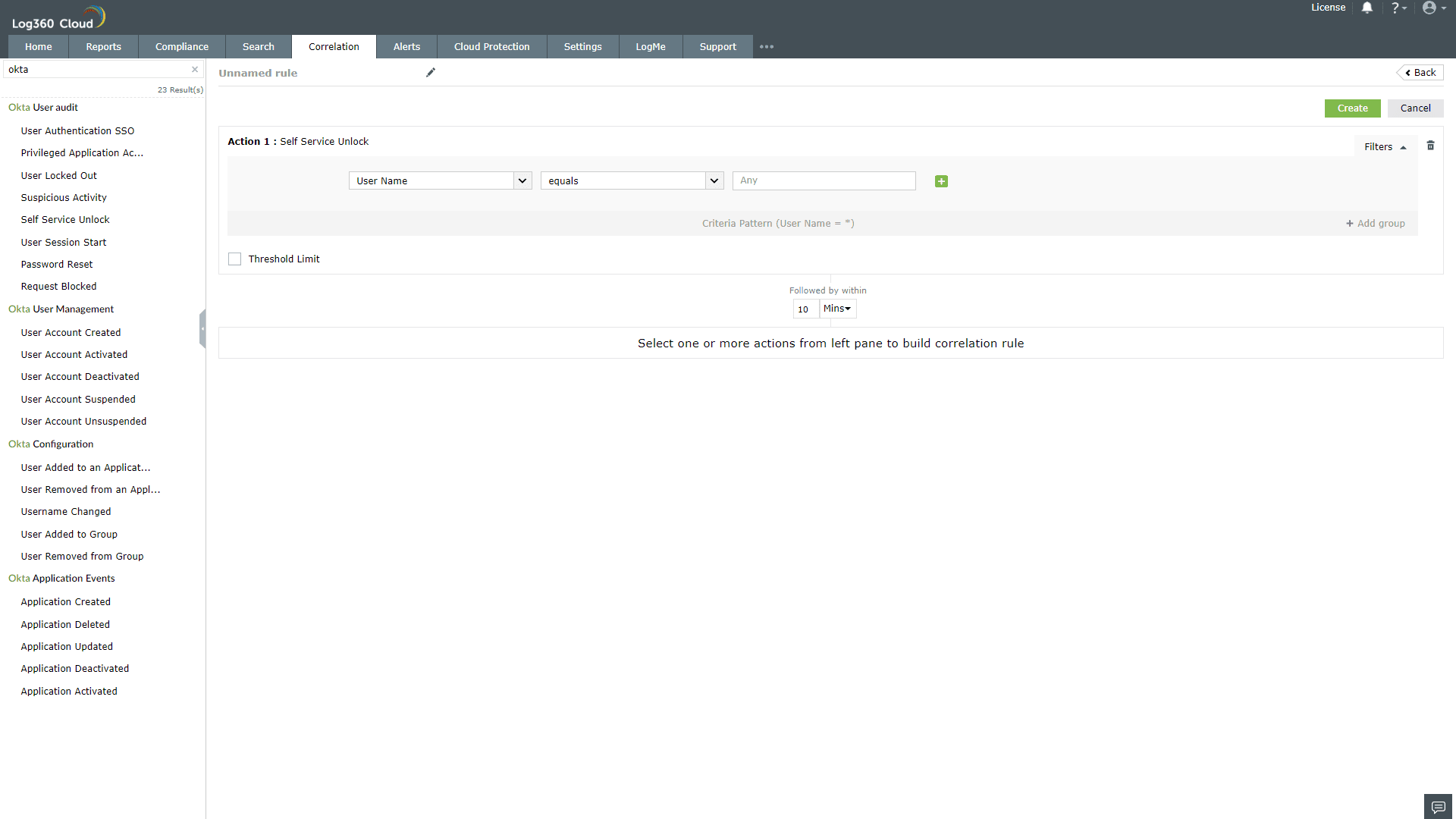
To view the Okta correlation actions, navigate to the Correlation tab -> Manage Rules.
In the Manage Rules page, select Okta as the Rule Category to filter out the related correlation actions. You can select the actions and build custom rules.
Okta Alerts
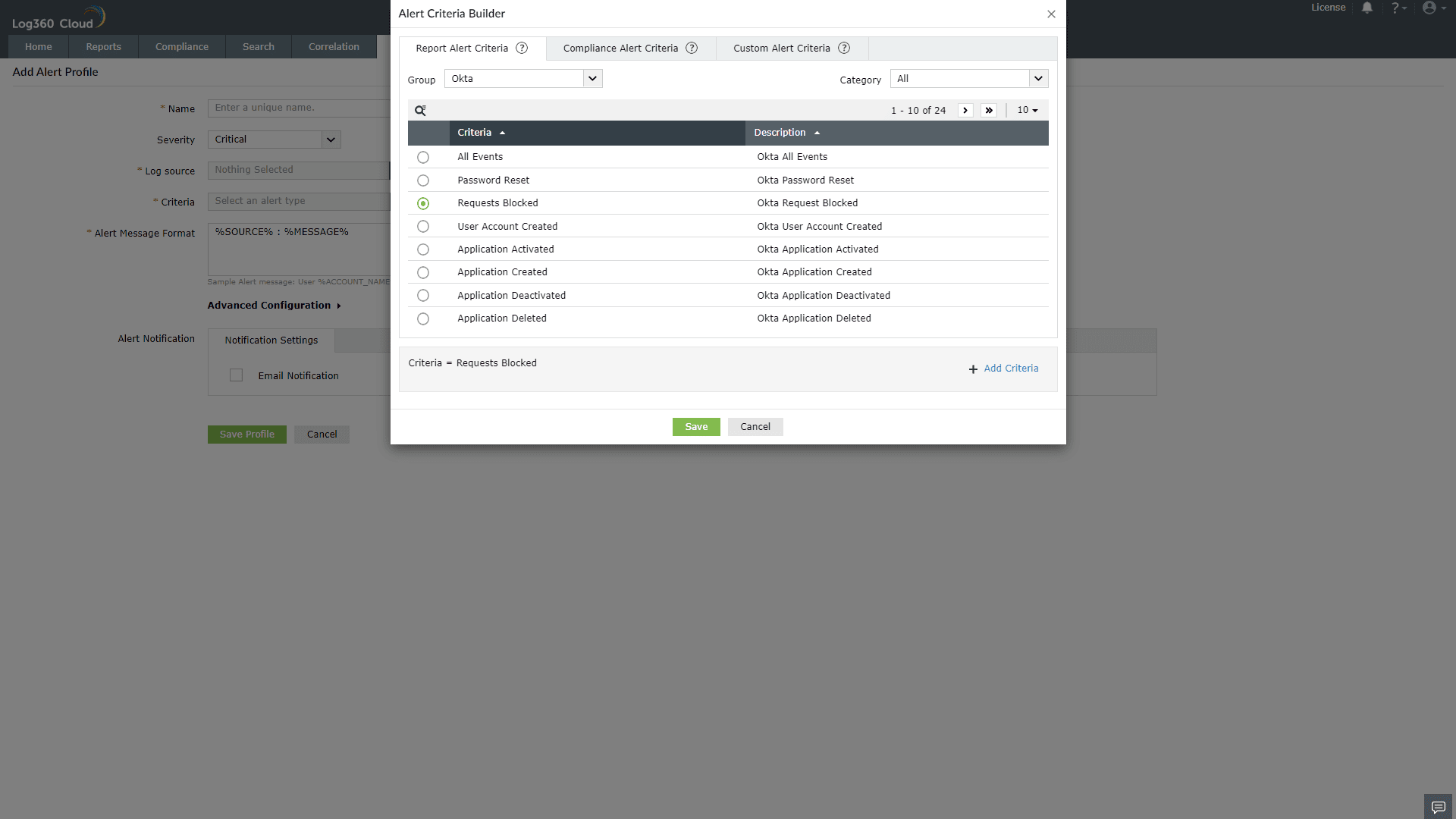
To view the Alerts, navigate to the Alerts tab -> Manage Alert Profiles.
In the Manage Alert Profiles page, select Custom Alert Profiles as the Alert Profile Type. Click the search icon and add Okta to filter out the alert criteria.