

This document will explain to you about the following:
The Downloaded Patches view provides the details of patches that are downloaded, along with their deployment status.
To view the list of the downloaded patches,
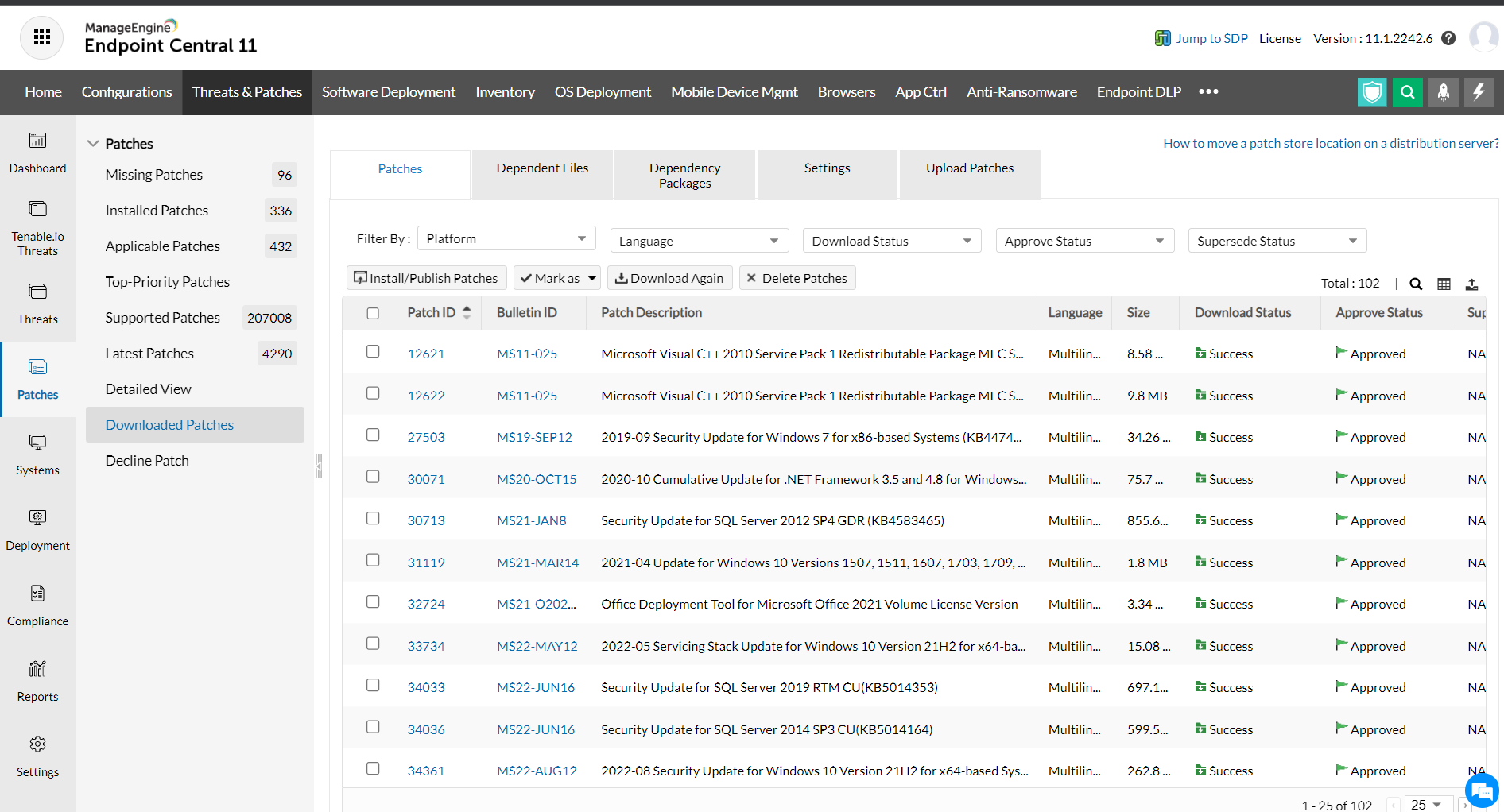
You can export the Downloaded Patches details in PDF and CSV file formats.
Administrators can limit the amount of space for Patch Repository. If the Patch Repository size exceeds the specified limit, an email notification will be sent to the administrators. This allows them to ensure that the Patch Repository does not run out of free disc space. The latest patches cannot be downloaded if the Patch Repository runs out of free space. However, the above-mentioned space restriction is only for notification reasons. Assume you have set the Repository size to 10 GB, but there is 40 GB of free space on the same disc; patch downloads will not be affected even if the size exceeds the given limit of 10 GB.
The patch download location on the server can be accessed by clicking on Patch Management tab -> Settings -> Cleanup Settings ->Settings tab. Under Patch download location, the patch repository location path will be given.
In case the existing patch store has limited space available, you can modify the location details using the Change Patch Store Location icon available near the Patch Repository location. You should copy the patches from the previous directory to this new location and restart product server for the changes to take effect. The steps to restart the product server are as follows:
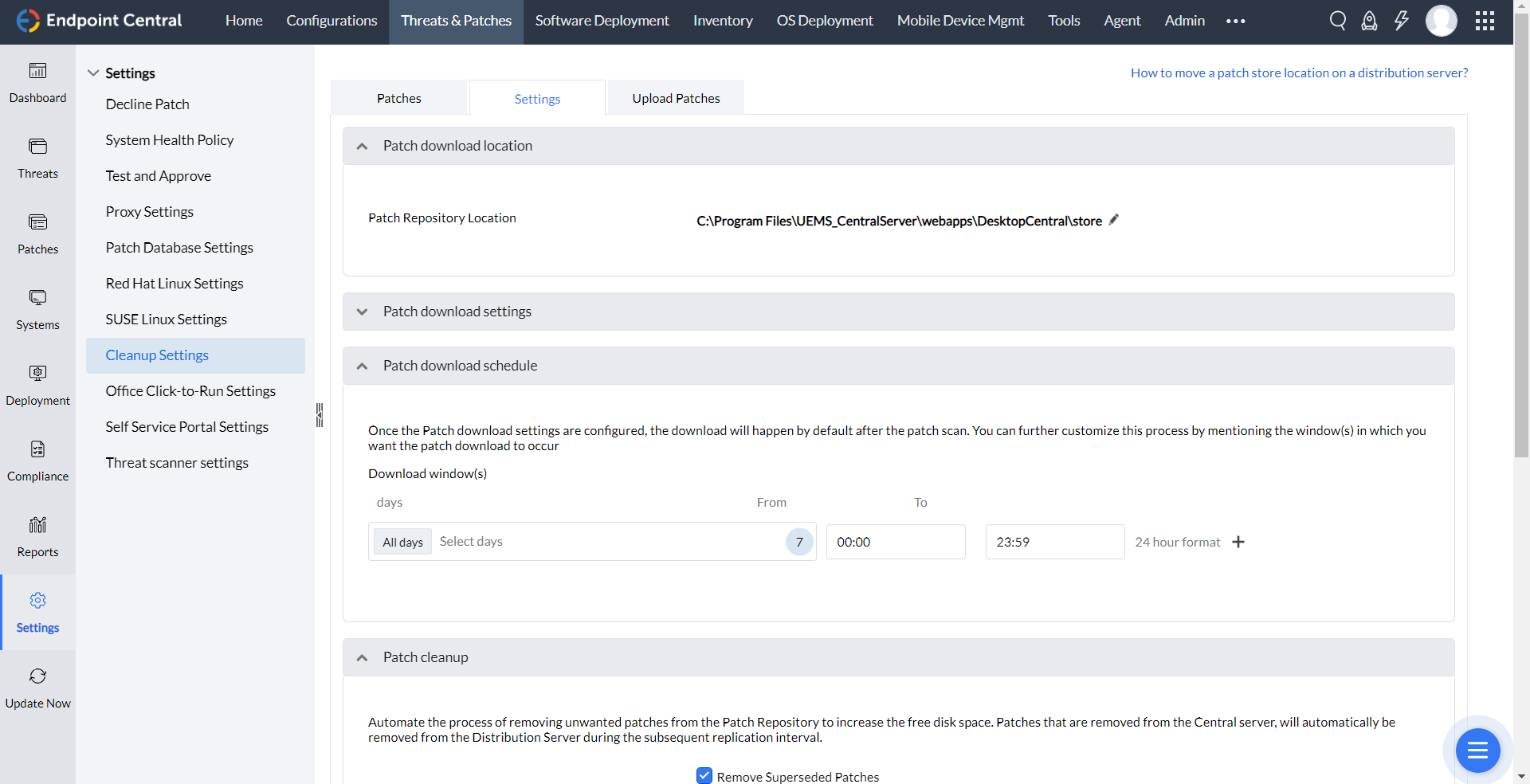
Administrators can configure patch cleanup settings to increase the free disk space on the Patch Repository. There are two ways to increase the free disk space, they are explained below:
Using "Cleanup Settings", you can remove superseded patches. When a new version of a patch has been released, the older version of the patch is no longer required in the network. These patches can be removed as and when a latest version is supported. You can automate the process of removing superseded patches by configuring the cleanup policy. This will result in increasing your free disk space, by removing unwanted patches.
Patches once downloaded, are retained in your Patch Repository. Administrators can periodically check for the patches which are not missing on any of the computers and which are old enough to be removed. Though it is a time-consuming process, you can remove a lot of unwanted patches and increase your disk space. The process of removing patches which are older than a specific period has been automated now. You can specify a time interval, after which the patches will be removed if it is not missing in any of the managed computers.
You can follow the steps mentioned below to configure Patch Cleanup Policy:
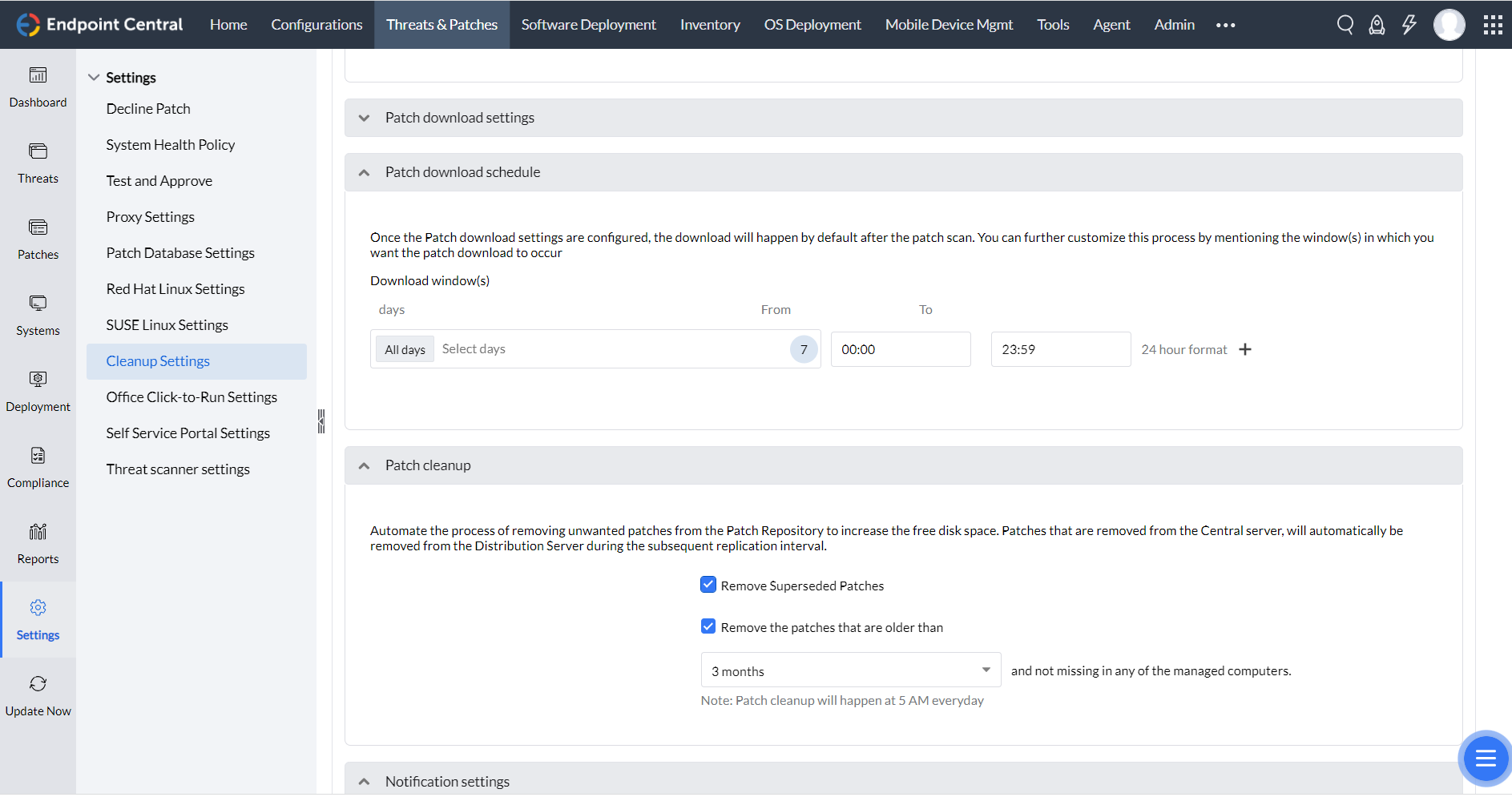
You have successfully configured the patch cleanup policy. Superseded patches and patches that are older than the specified time limit will be removed from the patch repository, which means the available free disk space in the product server will be increased. These changes will also impact the Distribution Server. Distribution server synchronizes the patch details with the product server in such a way, that when a patch is removed from the product server, it will also be removed from the Distribution Server during the subsequent replication interval. So whenever the patch repository is cleaned up, the unwanted patches will also be removed from the Distribution Server.


