Knowledge Base

How to restore Microsoft Teams data using RecoveryManager Plus

In this article:

Objective

This article explains how to restore Microsoft Teams data using RecoveryManager Plus, a comprehensive Microsoft 365 backup solution. RecoveryManager Plus supports backing up file contents and channel posts and restoring file contents in Microsoft Teams sites. This helpsprotect critical Teams content and recover it when needed. With granular recovery options and point-in-time snapshots, administrators can quickly restore Microsoft Teams sites and files after accidental deletion, corruption, or outages, supporting business continuity and regulatory compliance.

Prerequisites

  • A Microsoft 365 tenant configured in RecoveryManager Plus.
  • The account used to configure a tenant in RecoveryManager Plus must be assigned the SharePoint Administrator role.
  • A backup schedule that includes the Microsoft Teams sites to be restored must be configured and run at least once in RecoveryManager Plus.

Steps to restore Microsoft Teams data using RecoveryManager Plus

  1. Log in to RecoveryManager Plus as an administrator.
  2. Navigate to the SharePoint & OneDrive tab > Restore.
  3. Select the Tenant that has the Microsoft Teams site with data that needs to be restored.
  4. In the Select Backup drop-down menu, select the backup schedule that contains the Microsoft Teams site to be restored.
  5. Select the site that you want to restore and click the Review and Restore button.
  6. To view how your sites looked at any point in the past, select a date and time from the Snapshot field.
  7. RecoveryManager Plus provides two views to explore site items in each backup:
    • Site View: This is the default restoration view that provides a list of all sites that were backed up in the selected schedule. This view also includes details such as the URL of the Microsoft Teams site backed up, the number of items backed up during the last backup cycle, and the size of those items. You can also download the entire content of the site by selecting the site and clicking the Download data (zip) button.
    • Backup view: This view provides the complete execution history of the selected backup schedule along with the number of items backed up during each cycle.
  8. Select the site and click Review and Restore in any view. The left pane on the next screen will display a list of all the sites you have selected.
  9. To view how your Microsoft Teams site looked at any point in the past, select a date and time from the Snapshot field and click Apply. The tree in the left pane will provide an exact representation of your Microsoft Teams data at the selected instant. You can restore any site or item to the backed up state.
  10. Clicking the name of any site will expand it and display three trees: Subsites, Contents, and Channels. The Subsites tree displays all the SharePoint Online and OneDrive for Business subsites, the Contents tree displays all the lists in the site, and the Channels tree displays all the posts and files in the Microsoft Teams site.

    Note: Adaptive cards and apps posted in Teams channels will not be displayed. However, Loop Apps and the hosted content can be viewed and downloaded.

  11. You can restore an entire site or just a few items.
    • To restore an entire site to a backed up version:
      • Click the site’s name and click the Restore Site button at the bottom of the screen. You can also use the search bar at the top of the left pane to search for a particular site.
      • Select location for site restoration (same or other).
      • If you wish to restore the contents to the same site, select Restore to the same site.
      • If you wish to restore the contents to a different location, select Restore to another site and click Browse. Select the site under which this site is to be restored and click Next.
      • Provide a name for the restore operation.
      • You can choose to restore just the changed items or missing items by selecting the appropriate option in the Restore following items section.
      • Specify the versions you wish to restore: all of the list items or just the current version.If you need to restore just the current version, you can also specify if you wish to overwrite the version history or merge it with the existing version history in the Version history restore option section.

        Note: If you select overwrite, the item will be deleted from the list and the backed up version will be restored to the list.

      • Specify if you wish to restore the site permissions, subsites, and list views.
      • Click Restore to begin the restoration process.
    • To restore individual items to a backed up version:
      • Select the items that you would like to restore and click the Restore Item button at the bottom of the screen.
      • Select if the item should be restored to the same list or a different one.
      • If you wish to restore the contents to the same site, select Restore to the same list.
      • If you wish to restore the contents to a different location, select Restore to another list and click Browse. Select the site and list in which the items are to be restored and click Next.
      • Provide a name for the restore operation.
      • You can choose to restore just the changed items or missing items by selecting the appropriate option in the Restore following items section.
      • Specify if you wish to restore all versions of the item or just the current version. If you need to restore just the current version, you can also specify if you wish to overwrite the version history or merge it with the existing version history in the Version history restore option section.

        Note: If you select overwrite, the item will be deleted from the list and the backed up version will be restored to the list.

      • Specify if you wish to restore the permissions and previously configured list views.
      • Click Restore to begin the restoration process.

        Note: Files and file contents available within the Microsoft Teams site can be restored using the restore options above. However, Teams channel posts cannot currently be restored. To access or download your backed-up channel posts, refer to How to download and export Microsoft Teams data.

    • To restore a particular version of any item:
      • Click the number under the Versions column of the item that is to be restored.
      • A list of all the versions of the items will appear on the screen.
      • To preview the item’s version, hover the mouse over the version and click the preview icon Preview Icon.
      • To restore the item to any particular version, hover the mouse over the version and click the Restore link.
      • Select if the item should be restored to the same list or to a different list.
      • If you wish to restore the contents to the same site, select Restore to same list.
      • If you wish to restore the contents to a different location, select Restore to another list and click Browse. Select the site and list in which the items are to be restored and click Next.
      • Provide a name for the restore operation.
      • You can choose to restore just the changed items or missing items by selecting the appropriate option in the Restore following items section.
      • Specify if you wish to overwrite the version history or merge it with the existing version history.
      • Specify if you wish to restore the permissions and previously configured list views.
      • Click Restore to begin the restoration process.
    • Click the Operation History link in the bottom-right corner of the screen to view the status of the last five restoration or download operations performed. Clicking Stop will stop the restore process. Clicking the View All link in the pop-up window will take you to the Operation History screen. Click here for more information about the details provided in the Operation History section.
1
 

Choose the sites to include in the backup schedule

1
 

Configure the schedule and frequency for the backup to run
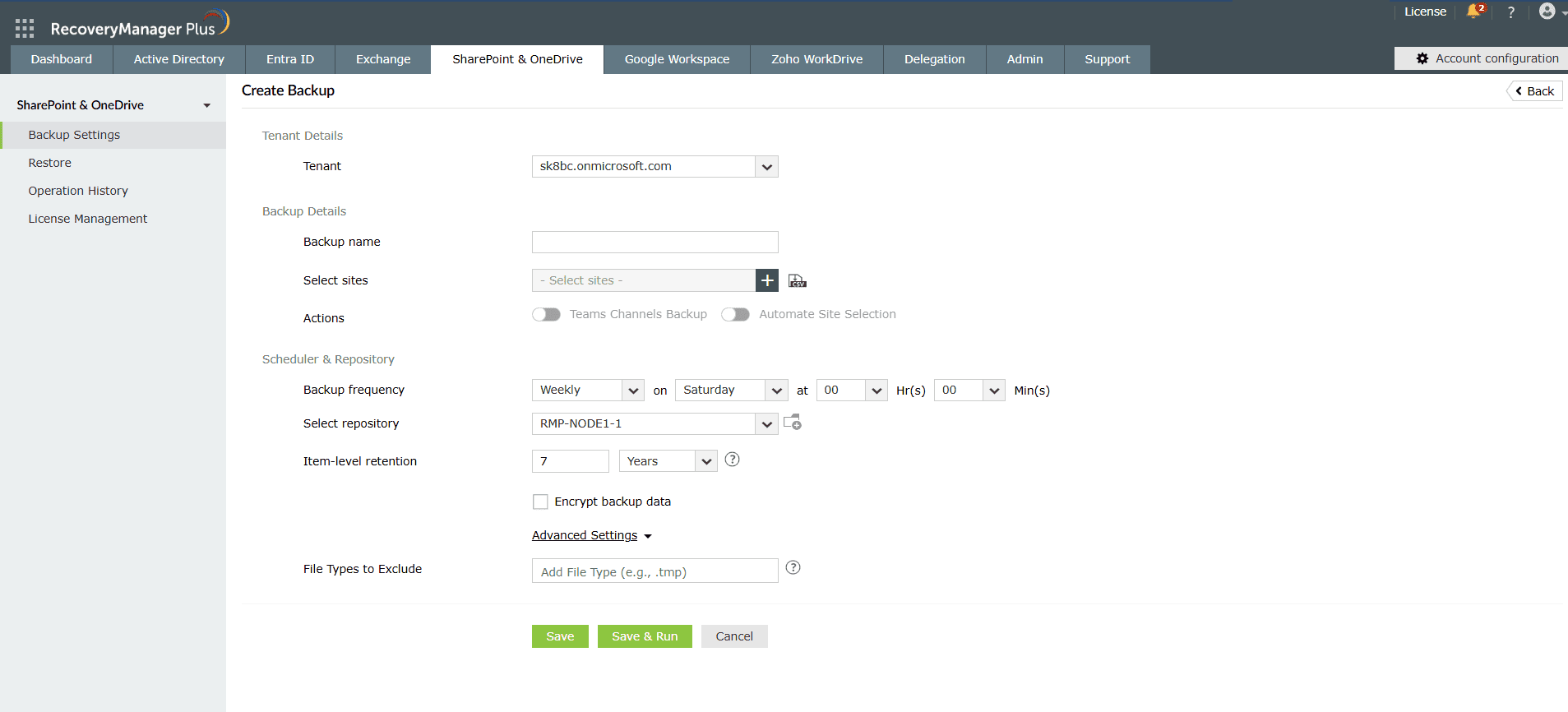
Restoring Microsoft Teams sites

Figure 1: Restoring Microsoft Teams sites in RecoveryManager Plus.

Choose the sites to include in the backup schedule.
Configure the schedule and frequency for the backup to run.

By following these steps, you can securely restore Microsoft Teams data with RecoveryManager Plus.

Once you’ve configured a backup schedule, you can perform the following actions:

  • Edit the backup schedule: Click the edit icon Edit Icon under the Action column of the corresponding backup schedule.
  • Enable or disable the backup schedule: Click the enable icon Enable Icon/disable icon Disable Icon under the Action column of the backup schedule that you wish to enable or disable.
  • Manually trigger a backup: Click the backup now icon Backup Icon under the Action column of the backup schedule to trigger a backup.
  • Stop a backup: Click Stop under the Last Run Status column of the backup schedule to stop the backup operation.
  • Delete the backup schedule: Click the delete icon Delete Icon under the Action column of the backup schedule that you wish to delete.

Related topics and articles

Need further assistance?

Fill this form, and we'll contact you rightaway.

Request Support

  •  
  • *
     
  • *
     
  • *
     
  • By submitting you agree to processing of personal data according to the Privacy Policy.

"Thank you for submitting your request.

Our technical support team will get in touch with you at the earliest."

A single pane of glass for AD, Entra ID, Microsoft 365,
Google Workspace, Exchange, and Zoho WorkDrive backup.
  • » Personal WorkDrive backup
  • » Backup retention
  • » Incremental backup