Agent Settings
Introduction
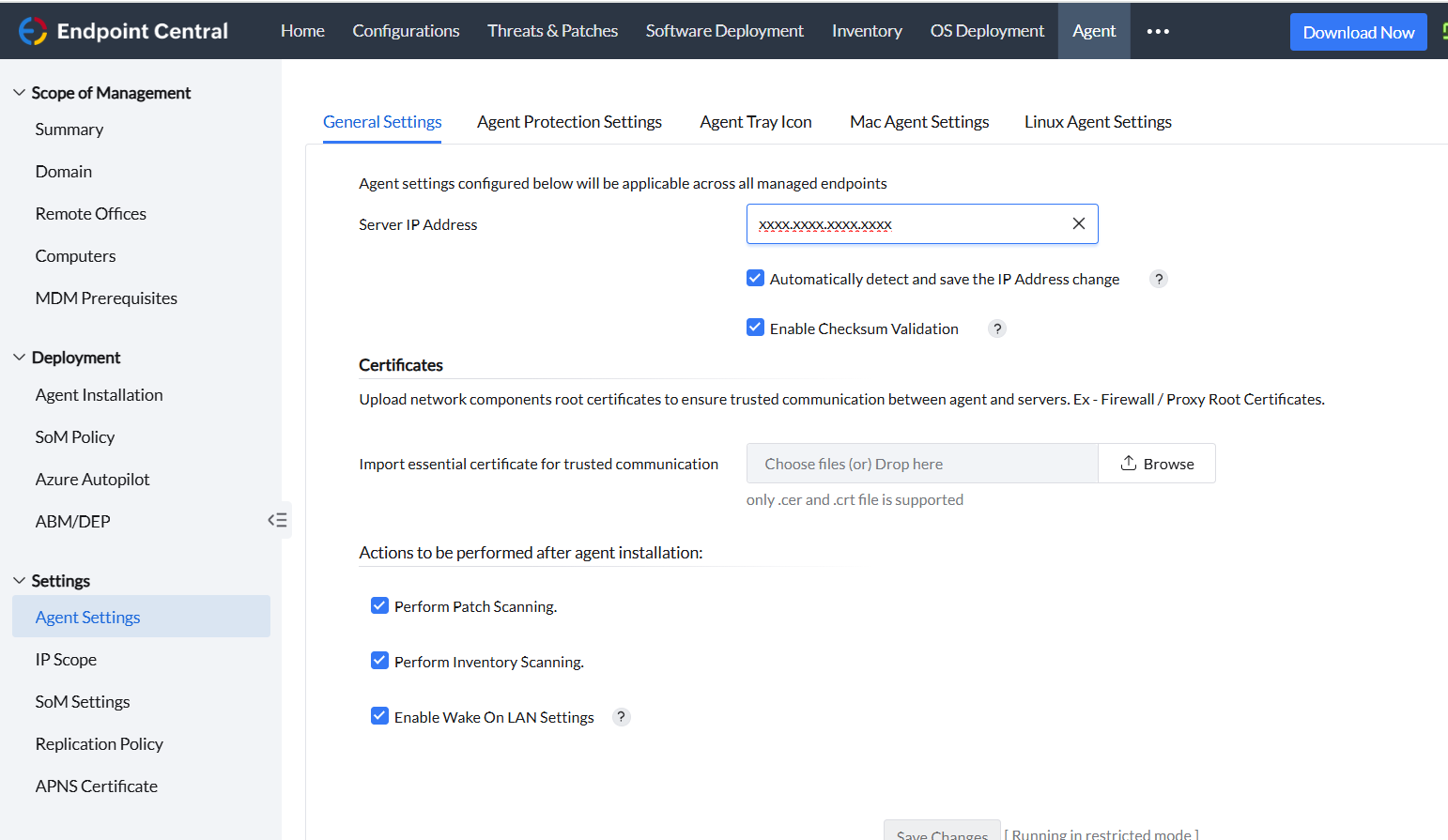
The Endpoint Central agent is a lightweight software installed on managed computers that enforces policies, performs scans, and maintains communication with the central server. Agent Settings allows administrators to customize how the agent operates across Windows, Mac, and Linux endpoints — covering general configuration, protection against unauthorized changes, tray icon visibility, and platform-specific installation options. To configure these settings, navigate to Agent → Settings → Agent Settings on the Endpoint Central console.
General Settings
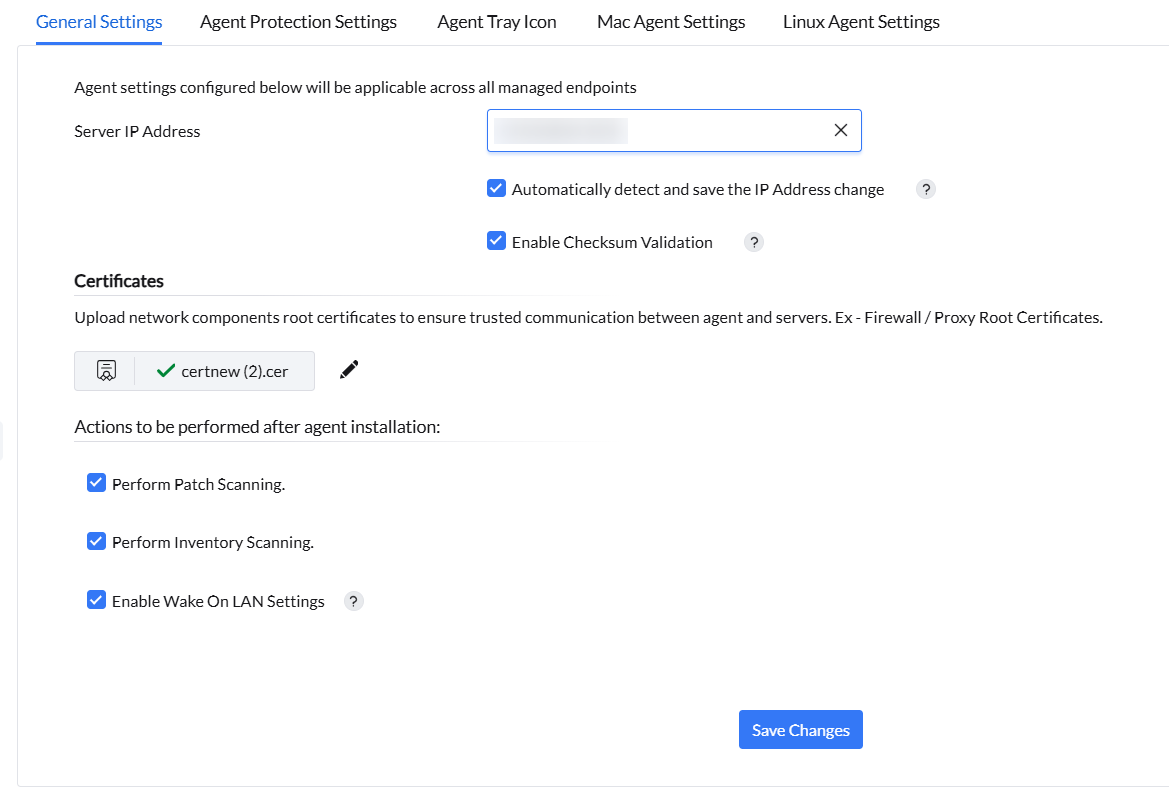
- Under General Settings, you can add your central server's IP address. In addition, you can allow your agents to detect automatically and save the updated IP address of the server.
- You can allow the agents to perform a checksum validation before downloading any binaries from the server.
- Strict firewalls, proxies, or other security applications in your network might intercept the communication between the agent and the server. Uploading the third-party root certificates (e.g., Firewall or Proxy Root Certificates) here prevents the agent from dropping the connection with the server. Ensure you import both the necessary Root and Intermediate certificates for trusted communication (Only .cer and .crt file formats are supported).
- You can configure the actions like performing patch scanning, performing inventory scanning, enabling wake on LAN settings, that needs to performed right after your agent installation
Agent Protection Settings
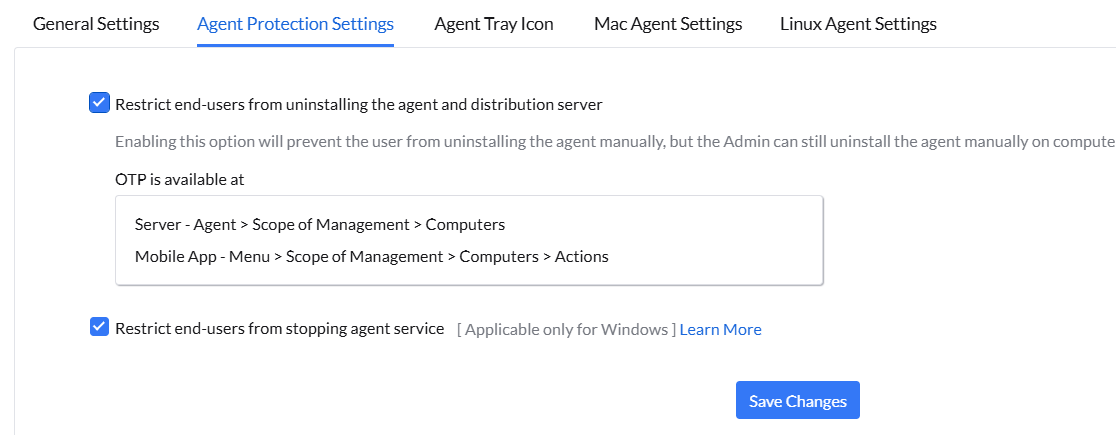
- This customisation is available to provide baseline security standards to your agents. This includes restricting end-users from uninstalling the agent on their own, stopping the agent's service and tampering with agent's data.
- Prevent Agent Uninstallation: Enabling this option restricts end-users from manually uninstalling the agent and distribution server. However, an Admin can still perform a manual uninstallation on computers using an OTP.
- Select OTP Type: You can choose between a Common OTP (one OTP shared across all managed devices) or a Device Specific OTP (Unique OTP generated per device).
- The OTP for uninstalling the agent can be viewed on the console by navigating to Agent > Scope of Management > Computers. It can also be viewed in the Mobile App by navigating to Menu > More > Agent Uninstall OTP.
- Prevent Agent Termination (Windows): Enabling this restricts end-users from stopping the agent service. Once enabled, end-users will be restricted from stopping or modifying the ManageEngine UEMS-Agent service in the Windows Services console.
- Prevent Agent Data Tampering: Enabling this restricts end-users from accessing or modifying the agent's installed directory, registry components, and terminating the agent process through Activity Monitor. This protection can be enabled specifically for Windows and Mac machines.
Agent Tray Icon Settings
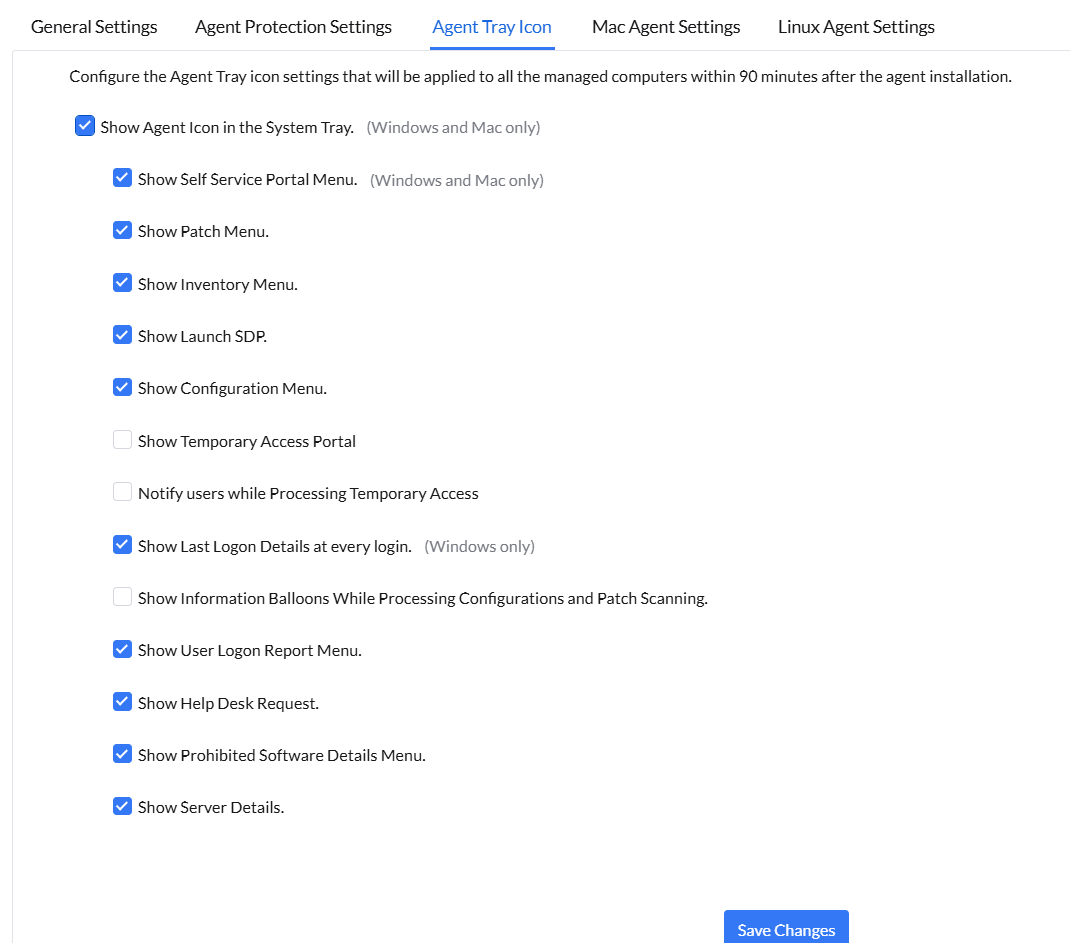
Agent tray icon is a self-service meta functionality that helps end-users to access the required services in order to contact the central server. These include the self-service portal, patch scanning, inventory scanning, launching helpdesk, applying configurations on-demand, and troubleshooting agents. To customise this, navigate to Agent > Settings > Agent Settings > Agent Tray Icon. A list of options will be available for you to customise and personalise the end-user's experience.
Mac Agent Settings
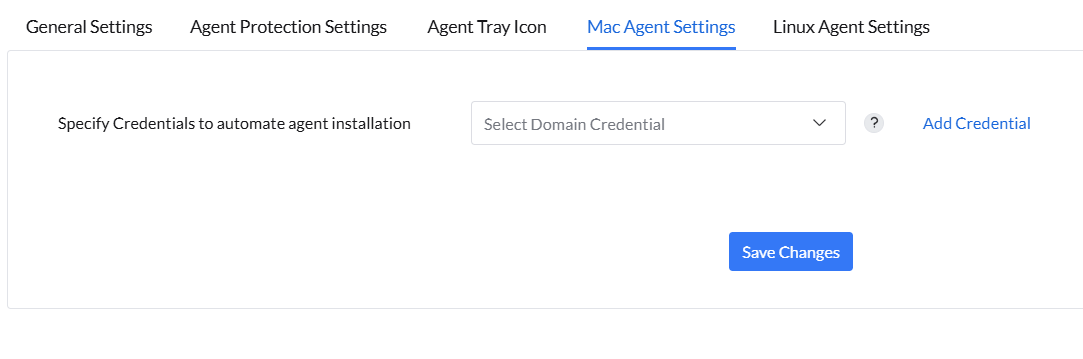
This setting is available to simplify your agent installation process on endpoints running on Mac. The provided root credentials will be used to install agents across all the Mac computers in your network, irrespective of the domain they belong to. Ensure that the user has "sudo" permissions. Make sure that remote login is enabled on all the target Mac computers.
Linux Agent Settings
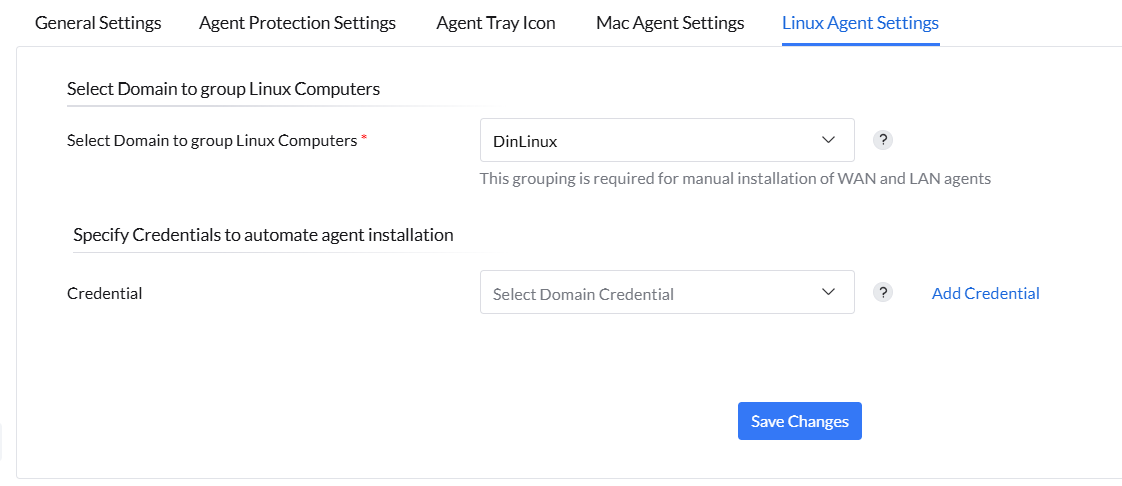
Under this setting, you can group your Linux machines to a domain. The Domain selected here will be used to group all the Linux computers in your network to that domain or workgroup for the LAN/WAN agents that are installed manually. Agents that are pushed remotely from Scope of Management > Add Computers will be shown under the respective Domain/Workgroup from which they are added. This will facilitate your agent installation process for Linux.
In addition, you can specify a credential to streamline your agent installation process for Linux, similar to Mac. This root credential will be used to install agents across all the Linux computers in your network, irrespective of the domain they belong to. Ensure that the user has "sudo" permissions. Make sure that remote login is enabled on all the target Linux computers.