How to Create a Master BitLocker Recovery Key for All Endpoints
This page explains how to use a Data Recovery Agent (DRA) certificate to create a single master BitLocker recovery key that works across all managed endpoints in Endpoint Central — covering certificate generation, deployment of the public key to endpoints, key security considerations, private key export, OS drive recovery, and DRA protector deletion.
Overview
In large Windows environments, BitLocker recovery often depends on individual 48-digit recovery passwords stored per device. When these passwords are unavailable, recovery becomes operationally difficult and may result in permanent data loss.
To address this at scale, BitLocker supports a certificate-based recovery mechanism known as a Data Recovery Agent (DRA). Instead of managing recovery passwords per device, administrators generate a single certificate pair that acts as a master recovery key:
- A public certificate (.cer) is deployed to all managed endpoints and added as a BitLocker protector.
- A private certificate (.pfx) is securely retained by the organization and can unlock any drive protected by the corresponding public key.
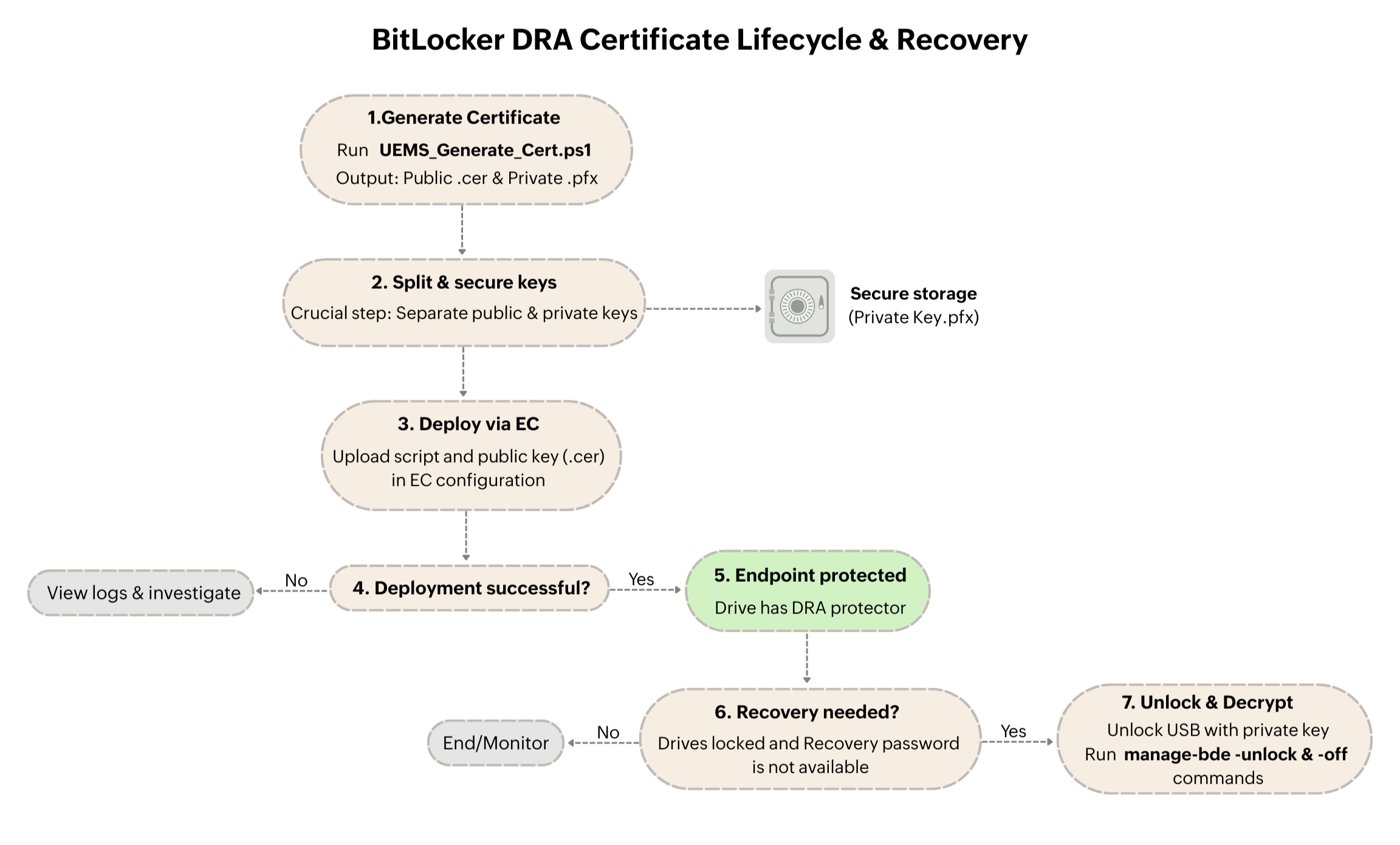
When managed through Endpoint Central, this approach provides centralized, controlled, and auditable BitLocker recovery across the organization without weakening BitLocker's encryption model.
Pre-Configuration
Before creating and deploying a master recovery key, review the following prerequisites to ensure successful enforcement.
Supported Operating Systems
Ensure endpoints run Windows editions that support BitLocker DRA.
Windows Client Operating Systems
- Windows 7 — Enterprise, Ultimate
- Windows 8 / 8.1 — Pro, Enterprise
- Windows 10 — Pro, Enterprise, Education
- Windows 11 — Pro, Enterprise, Education
Windows Server Operating Systems
- Windows Server 2008 / 2008 R2
- Windows Server 2012 / 2012 R2
- Windows Server 2016
- Windows Server 2019
- Windows Server 2022
PowerShell Availability
- Windows PowerShell 5.1 or later must be present on the system where scripts are executed.
- Scripts must be executed with administrative privileges.
Security Planning
- Identify a secure, controlled system where the certificate will be generated.
- Decide where the private key (.pfx) will be stored — for example, on an offline USB storage device or in a secure vault.
- Limit access to the private key to authorized recovery personnel only.
Generating the Master Recovery Certificate
This step creates the certificate pair that forms the foundation of centralized BitLocker recovery.
- Download the certificate generation script.
- Open Windows PowerShell as Administrator on the chosen secure system.
- Run the following command, replacing
<path to certificate>with the actual directory path of the script file:
PowerShell.exe -ExecutionPolicy Bypass -File "<path to certificate>\UEMS_Generate_Cert.ps1"- When prompted, create a strong password to protect the private key. Running the script generates a BitLocker DRA certificate and exports the following two files to the script's directory:
- Public Key (.cer) — Deploy this file to all endpoints to configure the BitLocker DRA protector on the drives.
- Private Key (.pfx) — Store this file securely (for example, on a USB device) along with the password. This key is required to unlock any drive encrypted with the corresponding public key.
The certificate is also installed in the local certificate store of the system where it was generated, enabling future export if required.
Deploying the DRA Protector to Endpoints
Once the master recovery certificate is created, the public key must be deployed to all managed devices so it is added as a BitLocker protector.
Add the Deployment Script
- Download the DRA deployment script.
- In the Endpoint Central console, navigate to Configuration → Script Repositories.
- Select Create/Modify Script → Add Script.
- Browse for and select the UEMS_BLM_DRA_Script.ps1 file.
- Click Add Script.
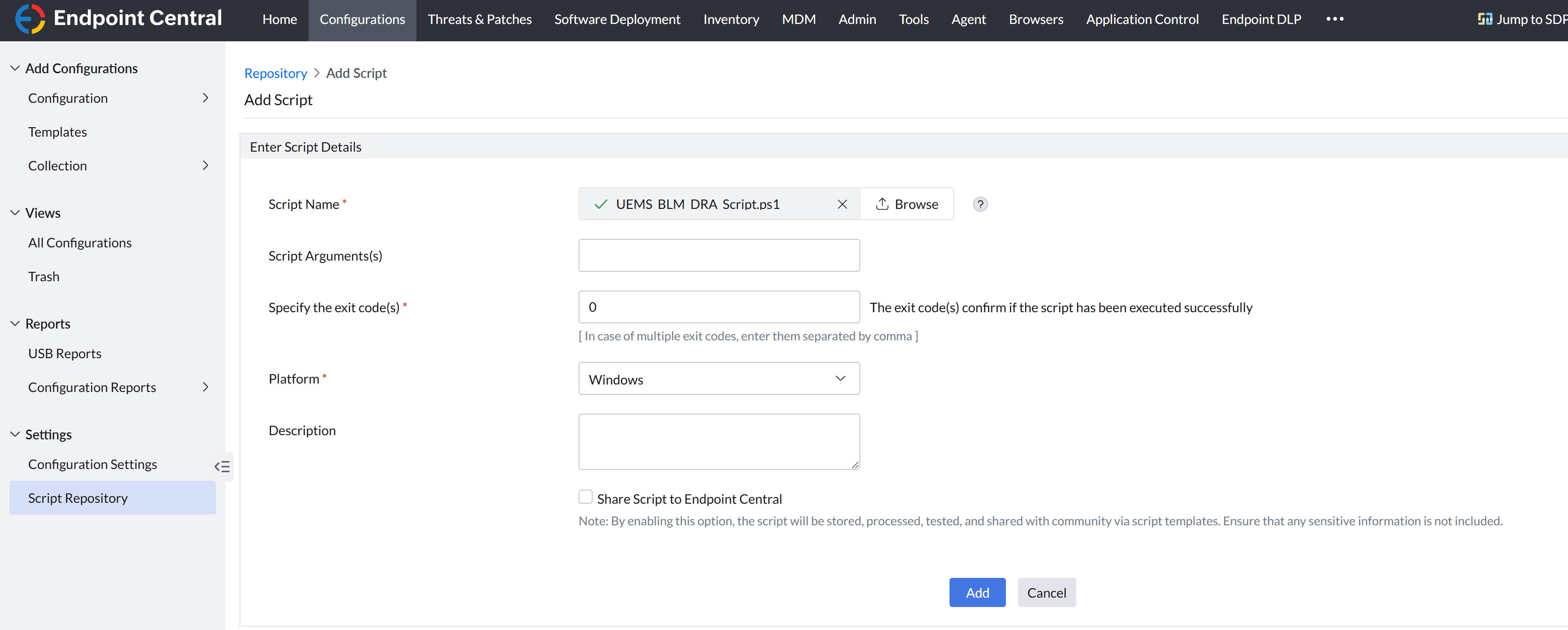
Configure Deployment
- Navigate to Configuration → Windows → Custom Script → Computer.
- Select the UEMS_BLM_DRA_Script.ps1 script added in the previous step.
- In the Dependency Files field, browse for and select the generated
.cerfile. The file must be named UEMS_BLM_PublicKey.cer for the script to work correctly. - Configure the following settings:
- Frequency: Once
- Logging: Enabled (recommended for troubleshooting)
- Run as: System User
- Click Deploy and deploy the configuration to the required device groups.
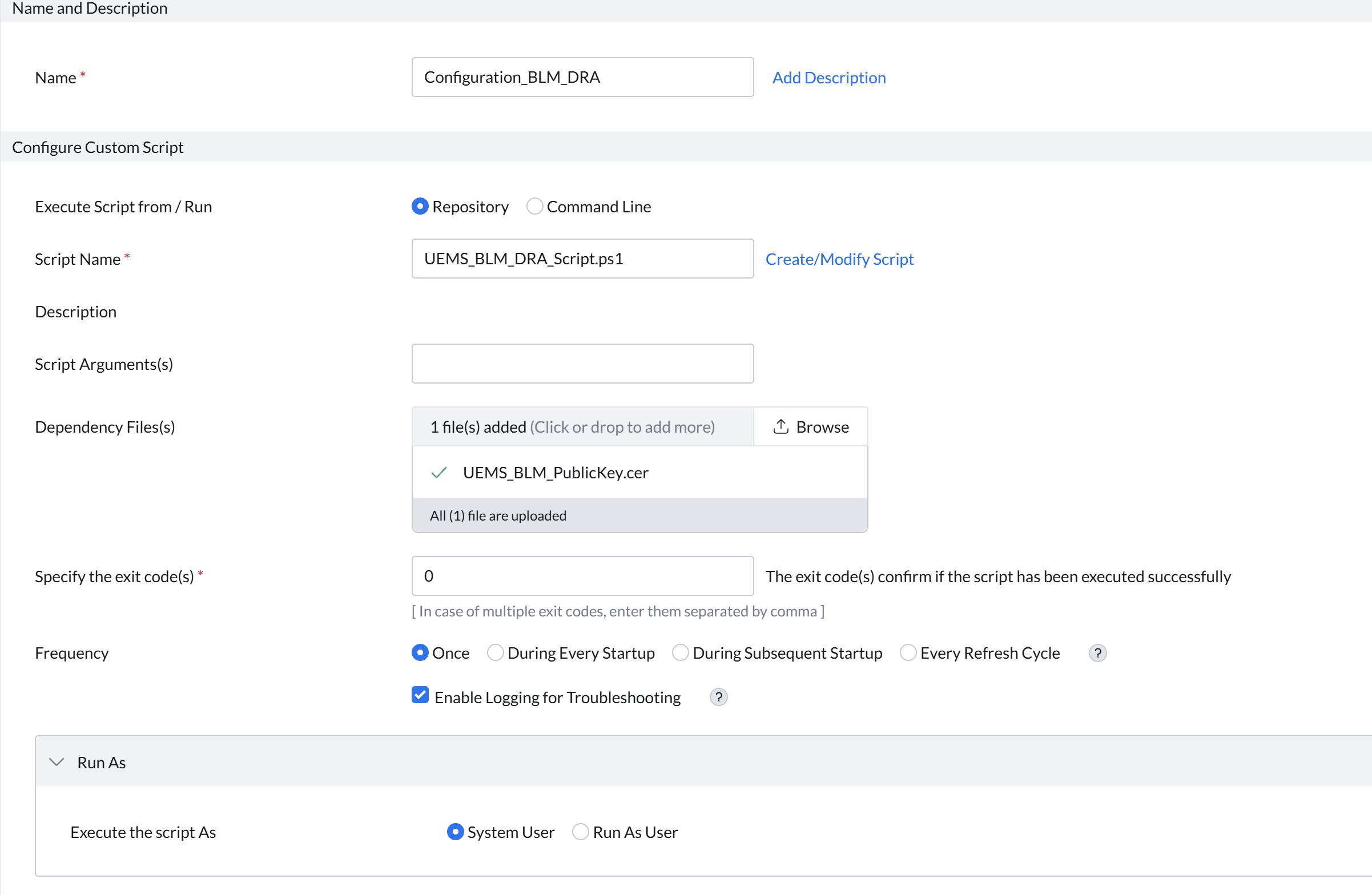
Verify Execution
Navigate to Configuration → All Configurations and select the deployed configuration to view the summary.
- Success — A green status indicates the configuration executed successfully.
- Failure — If the configuration failed, select the configuration, click Execution Status, and then select View Log to investigate the cause.
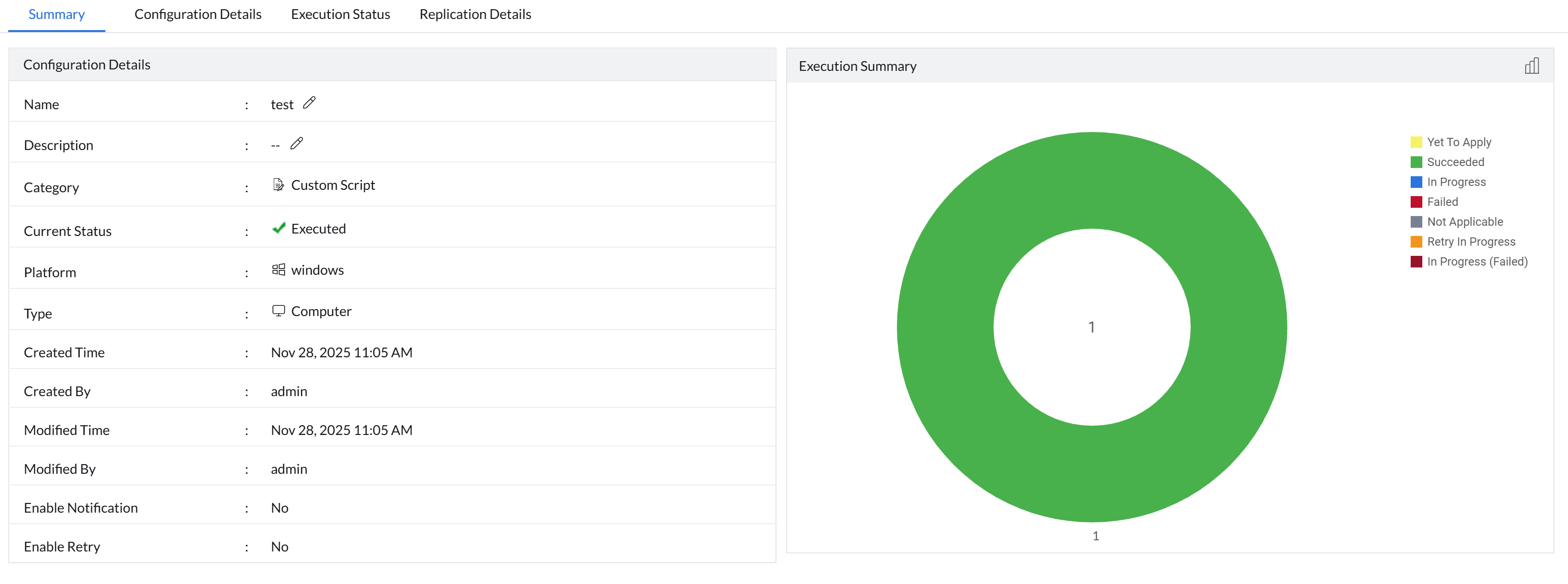
What Happens After Deployment
After successful deployment, each BitLocker-encrypted drive gains an additional recovery protector tied to the DRA certificate. The existing encryption remains unchanged — no re-encryption is required. During recovery scenarios where the standard recovery password is unavailable:
- The drive can be unlocked using the private .pfx file and its password.
- This applies uniformly across all endpoints that received the public key.
This establishes a single, organization-controlled recovery mechanism that works across devices without relying on per-machine recovery keys.
Key Security and Lifecycle Considerations
Private Key Protection
- The private key and its password are critical assets.
- If both are lost and the certificate is removed from the original generation system, recovery becomes impossible for drives protected by that DRA.
- Do not delete the certificate from the certificate store of the system where it was generated.
Key Recovery and Rotation
- If the private key file is lost, it can be re-exported from the original system where the certificate was generated. Refer to the Exporting the Lost DRA Private Key section below.
- If the certificate itself is lost or compromised:
- Remove existing DRA protectors from endpoints.
- Generate a new certificate pair.
- Redeploy the updated public key organization-wide.
Operational Impact
- DRA does not replace standard BitLocker recovery passwords — it complements them.
- Administrators gain a controlled fallback mechanism without reducing endpoint security posture.
Exporting the Lost DRA Private Key
Follow these steps if the private key (.pfx) file has been lost and needs to be re-exported. These steps must be performed on the same machine where the certificate was originally generated.
- Download the private key export script.
- Open Windows PowerShell as Administrator on the original certificate generation machine.
- Execute the following command, replacing
<path to certificate>with the actual directory path of the script file:
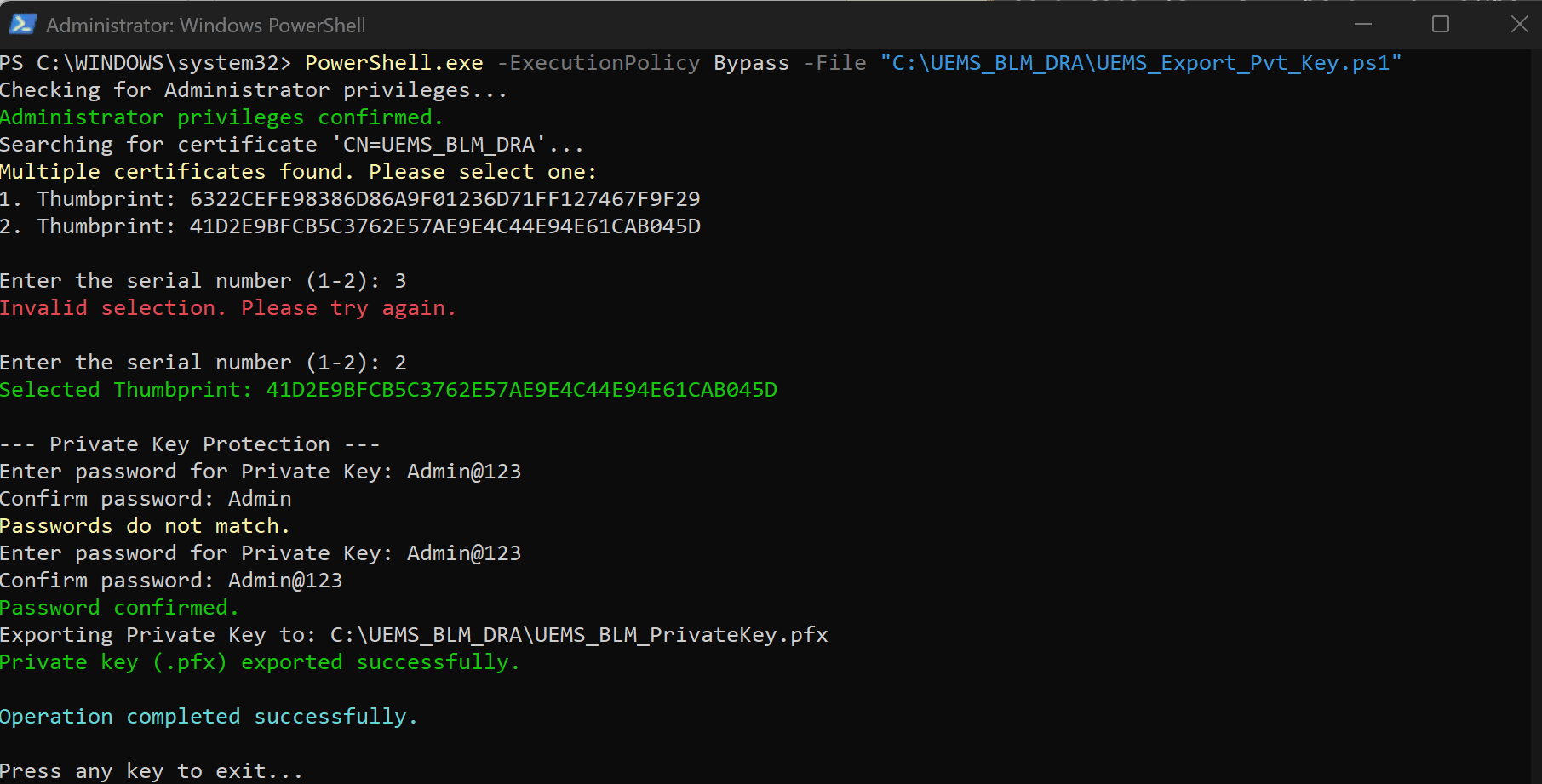
PowerShell.exe -ExecutionPolicy Bypass -File "<path to certificate>\UEMS_Export_Pvt_Key.ps1"- If the machine contains only one DRA certificate named UEMS_BLM_DRA, the script will automatically detect it and proceed to export the private key after prompting you to set a password for the .pfx file.
- If multiple DRA certificates exist on the machine (for example, if the generation script was executed more than once), the script will list all matching certificates and prompt you to select the correct one by its Thumbprint.
- To identify the correct Thumbprint, verify the public key already deployed to endpoints. On any endpoint where the public key protector is added, run the following command:
manage-bde -protectors -get <DriveLetter>:- After selecting the correct Thumbprint, the script will prompt you to set a password and will export the private key (.pfx) to the same directory where the script is executed.
Unlocking an OS Drive Using the DRA Private Key
Follow the steps below to unlock the OS drive using the DRA private key at boot.
- Access Command Prompt in Recovery Mode:
- If the Recovery Password is unavailable, press Esc when prompted for the Recovery Key.
- Navigate to Troubleshoot → Advanced Options → Command Prompt.
- Find the USB drive letter: Run the following commands to identify the drive letter assigned to the USB device (look for the volume labelled USB):
diskpart
list volume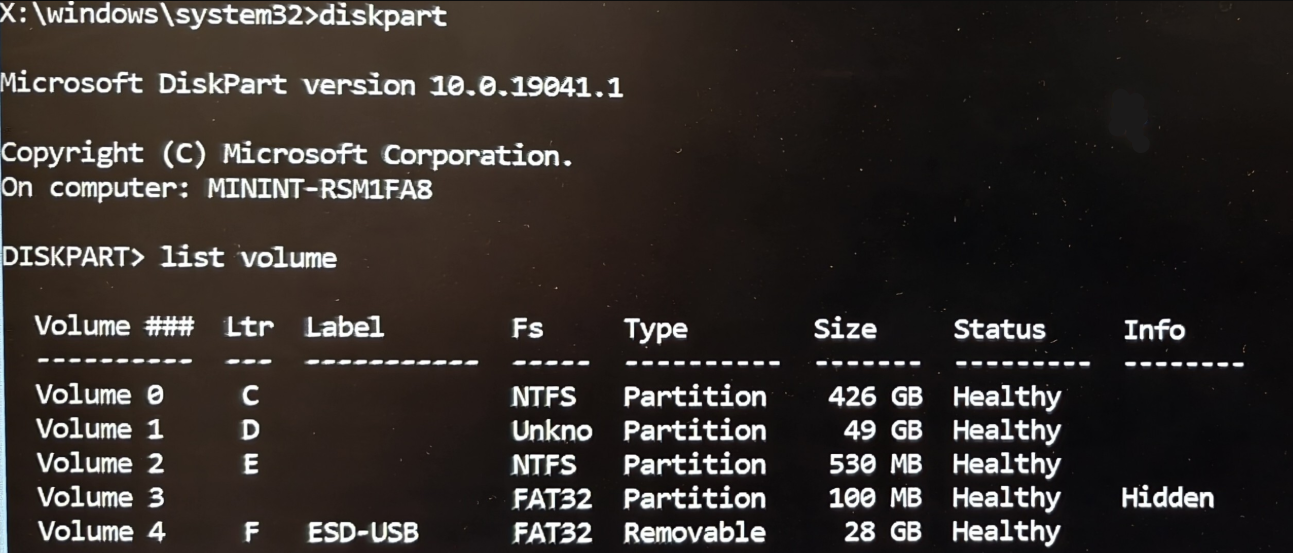
- Unlock the drive: Run the following command, replacing
<Path to .pfx file on USB>with the actual path of the .pfx file on the USB device:
manage-bde -unlock C: -certificate -cf "<Path to .pfx file on USB>" -pin- When prompted, enter the password created during the .pfx file export.

- Decrypt the drive: The drive is now unlocked but will lock again when the Command Prompt is closed. To prevent this, decrypt the drive using the following command:
manage-bde -off C:- Verify decryption status: Decryption takes time. Do not restart until the Conversion Status displays Fully Decrypted. Monitor progress using the following command:
manage-bde -status C:- Once fully decrypted, close the Command Prompt and restart the machine.
Deleting DRA Protectors
Use the steps below to remove DRA protectors from endpoints — either all DRA protectors or only a specific one.
Add the Deletion Script
- Download the appropriate script:
- To delete all DRA protectors on a machine: download UEMS_Delete_All_DRA_Protectors.ps1.
- To delete a specific DRA protector: download UEMS_Delete_Specific_DRA_Protectors.ps1.
- In the Endpoint Central console, navigate to Configuration → Script Repositories.
- Select Create/Modify Script → Add Script.
- Browse for and select the chosen deletion script file.
- Click Add Script.
Configure Deployment
- Navigate to Configuration → Windows → Custom Script → Computer.
- Select the deletion script added in the previous step.
- In the Dependency Files field, browse for and select the exact
.cerpublic key file to be deleted. The file must be named UEMS_BLM_PublicKey.cer for the script to work correctly. - Configure the following settings:
- Frequency: Once
- Logging: Enabled (recommended for troubleshooting)
- Run as: System User
- Click Deploy and deploy the configuration to the required device groups.
Verify Execution
Navigate to Configuration → All Configurations and select the deployed configuration to view the summary.
- Success — A green status indicates the configuration executed successfully.
- Failure — If the configuration failed, select the configuration, click Execution Status, and then select View Log to investigate the cause.