
Home » General Settings
 

Securing the Endpoint Central installation directory

The EndpointCentral installation directory contains important files required for it to function properly, including files that are used to start and stop the product, files containing database configuration information, license file etc.

Unauthorized access to the EndpointCentral installation directory could allow someone to,

  • Tamper with the directory's contents; modifying or deleting critical files, leading to software malfunction or compromised integrity of the system.
  • Expose sensitive data, possibly causing data breaches.
  • Inject malicious software into the directory.

This document discusses the proactive measures implemented to prevent unauthorized users from accessing the EndpointCentral installation directory and modifying its contents to ensure privilege-based access.

For new EndpointCentral installations

For new installations of builds 11.2.2322.01 and above, only the following types of user accounts are automatically provided access to the installation directory.

  • Local system account
  • User account used during product installation
  • Administrators group

Steps to check installation build number,

  1. In the product console, navigate to Support -> General Details -> Upgrade Details.
  2. Navigate to the first entry in the logs with the remark "Fresh Installation" in the Upgrade Type column.
  3. Note down the build number.
  4. ecsecure1

For existing EndpointCentral instances

Unauthorized users can be prevented from accessing the EndpointCentral installation directory for builds lower than 11.2.2322.01 by running the SetPermission.bat
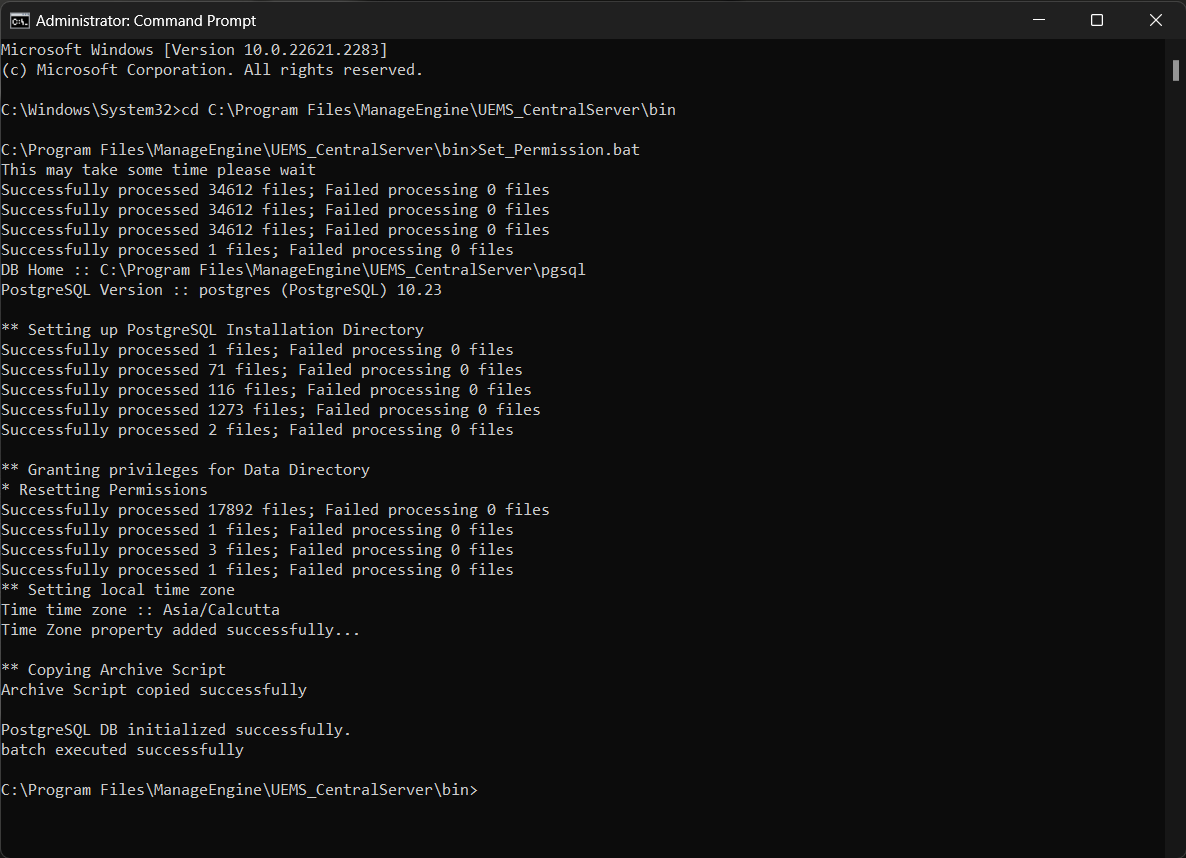
  • Download the file and move it to the /bin folder.
  • Stop the service and run the Set_Permission.bat file from the elevated Command Prompt.

ecsecure2

Note: If you have a fail over server (FoS) setup in your environment, the same steps need to be carried out in the secondary server as well.

Post-execution (only for FoS, MSSQL setups)

After running the batch file, certain permissions have to be manually reallocated.

1) For fail-over-server setups,

  • Provide access for the UEMS_CentralServer folder to the peer server (FOS).
  • Repeat the above steps for both the servers.

Refer to this doc for steps to configure permissions in the failover server - Configure Failover Server

2) For MSSQL server backup enabled setups,

  • Write permission in Share and Security for EC Service Logon user for the \ScheduledDBBackup folder.
  • Write permission in Share and Security for MSSQL service Logon user for the \ScheduledDBBackup folder. (If the user is a SYSTEM or NT SERVICE account, then permission needs to be given for the whole system.)

Refer to this doc for steps to configure permissions in the backup server - Data backup and restore