User Custom Group
User Custom Groups help you organize users for easier management and targeted deployments. You can create these groups manually, or automatically based on Active Directory (AD) groups and Entra groups (Azure AD), giving you more flexibility in grouping users for configurations, policies, and other tasks.
Unlike dynamic groups based on criteria, user custom groups are static groupings — meaning you control the membership directly. Users can belong to multiple custom groups, and groups can span across domains. Only technicians with administrator role access can create or manage these groups.
Table of Contents
Manually Assigned Static User Custom Groups
Manually created user custom groups contain specific users you select based on business requirements. These groups are static and only include users you explicitly add.
When to Use:
- When you need a custom logical grouping not tied to directory groups.
- When you want full control over membership.
- For ad hoc or temporary user groupings.
How to Create a Manually Created User Custom Group
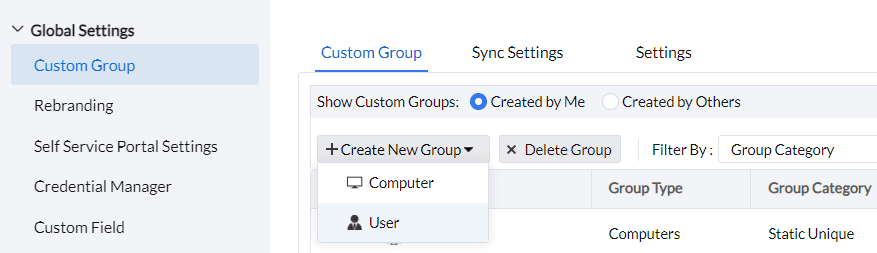
- Navigate to Admin > Custom Groups > Create New Group.
- Select User as the group type.
- Enter a Group Name and Description.
- Select "Assign Manually" as Membership.
- Choose the required users to be added to the group.
- Click Create Group.
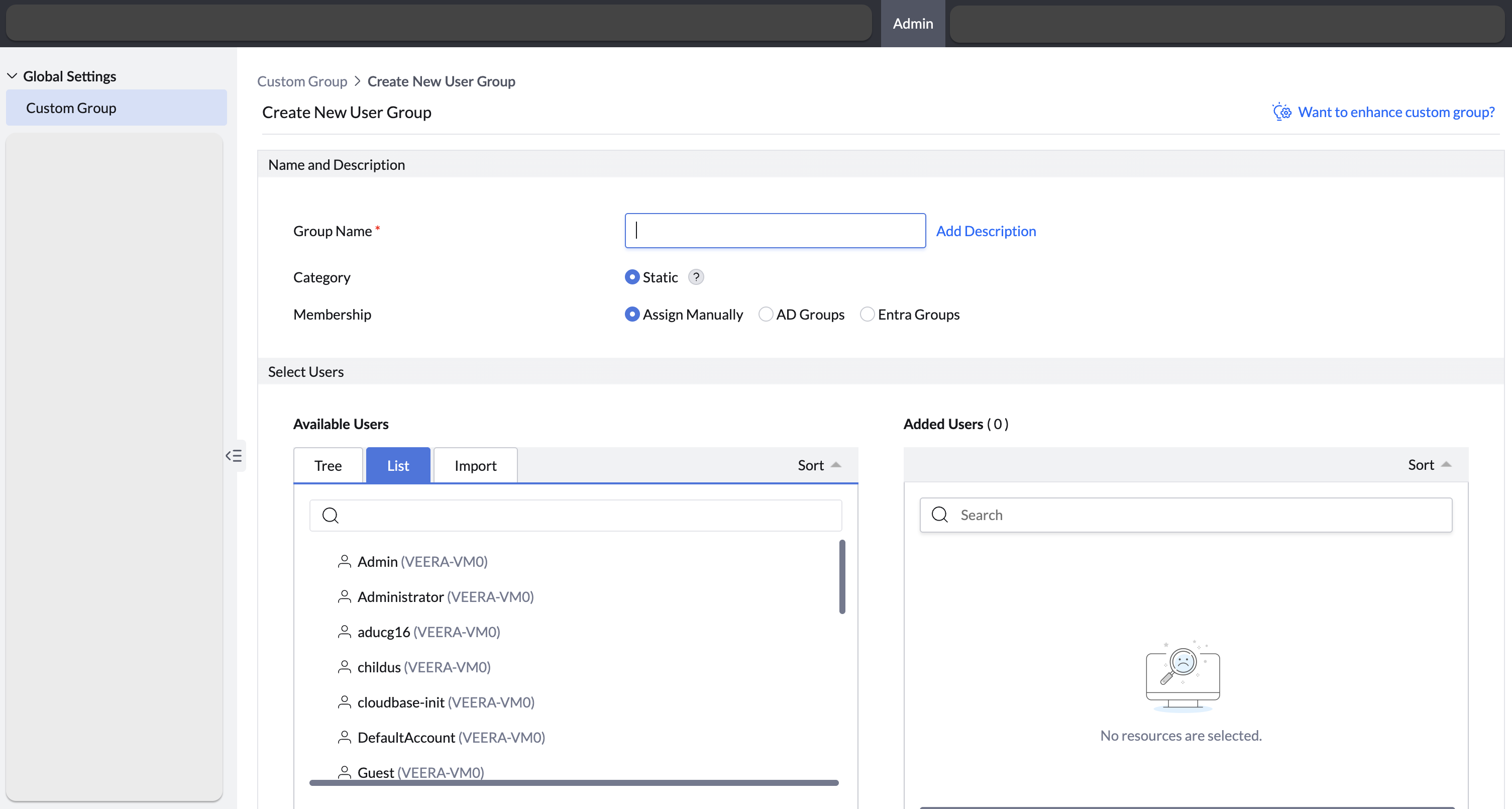
To ease the process of manually grouping the users, the managed users can be selected using:
- The list of users with user and domain name search filter.
- The tree view structure of domains.
- Import csv option. The csv should contain the name of the computer followed by the domain name as explained below: [User Name, Domain Name (Eg: administrator, companyOrg)].
Directory based static user custom groups
Directory-based groups allow you to create user custom groups based on existing Active Directory (AD) groups or Entra (Azure AD) groups that are synchronised with Endpoint Central. This saves time and ensures consistency with your directory structure.
When to use:
- When users are already organized in AD or Entra groups.
- When membership should reflect directory changes automatically (if directory sync is enabled.
Prerequisites:
- Domain must be configured on your Endpoint Central server. Refer here.
- The AD or Entra group must be visible and available in the directory sync list.
How to create a directory-based user custom group
- Go to Admin → Custom Groups → Create New Group.
- In Group Type, select User.
- Enter a Group Name and optional Description.
- Select the membership as AD groups or Entra groups as needed.
- Select the required AD/Entra groups from the list.
- Click Add Group.
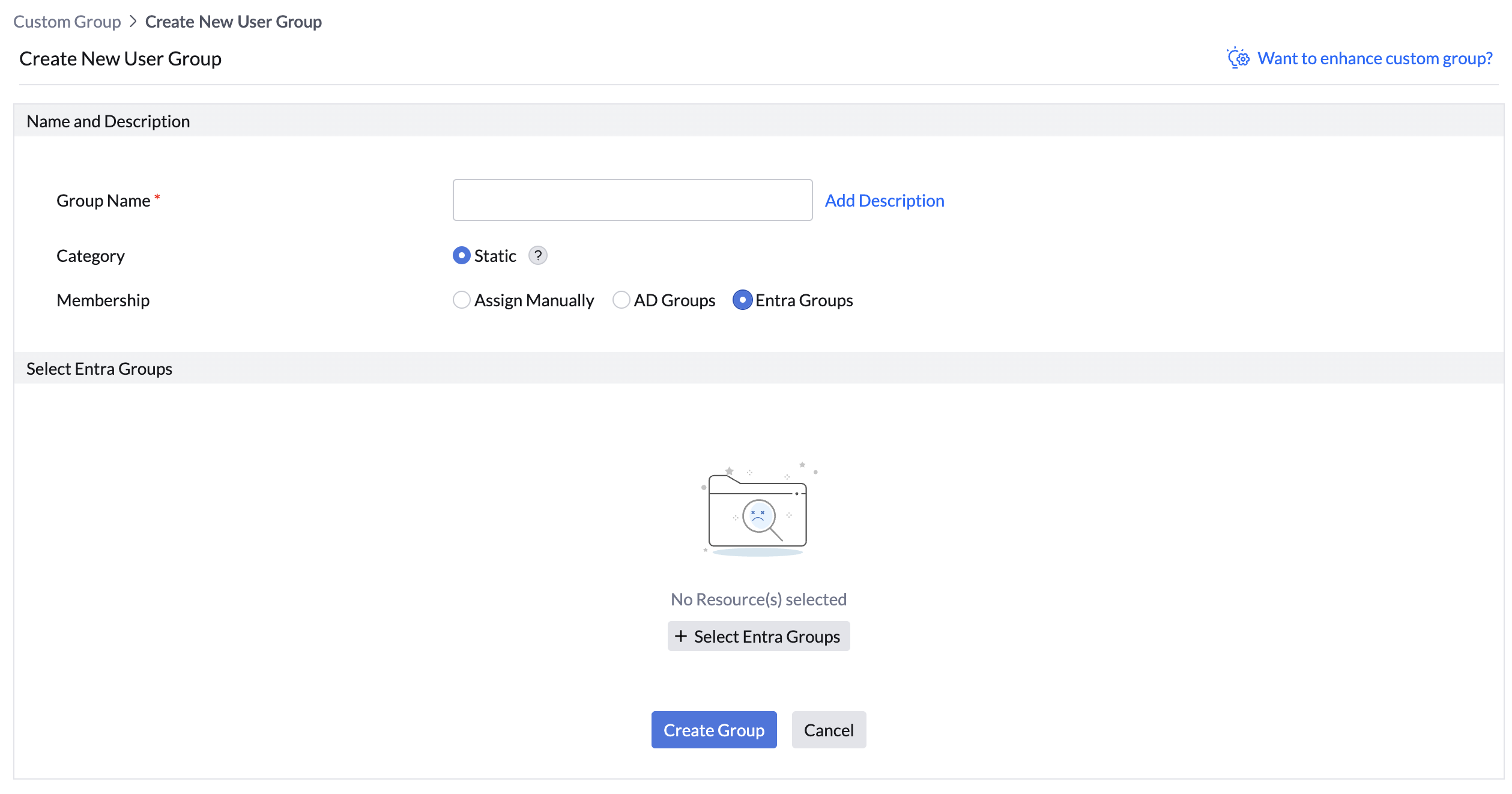
The selected directory group’s users are imported as members of the custom group. If directory sync is enabled, group membership can update automatically when changes occur in the source directory.
Note:
- If the directory group is deleted or removed from the directory, the custom group will no longer map automatically. It will not be automatically removed in the Endpoint Central console.
- When a group is selected from On-Premise AD or Entra directory, the system automatically creates individual custom groups for all existing subgroups within the selected group, provided those subgroups are not already defined as custom groups in the product.
- Auto-created custom groups follow a standardised naming pattern:
- AD Groups: AD Group Name - Parent OU - Domain (Users)
- Entra Groups: Group Name - Domain (Users)
- If a user custom group with the same name already exists, a sequential number will be appended to the group name to maintain uniqueness. Example:Finance - HQ - corp.com (Users)(1)
- If the "Exclude empty Sub-OUs and groups" option is enabled in the custom group settings, AD or Entra groups that do not contain any users will not be created as custom groups.
- Directory-based user custom groups are updated based on the synchronisation schedule configured for each domain.
View deployment activities for User custom groups
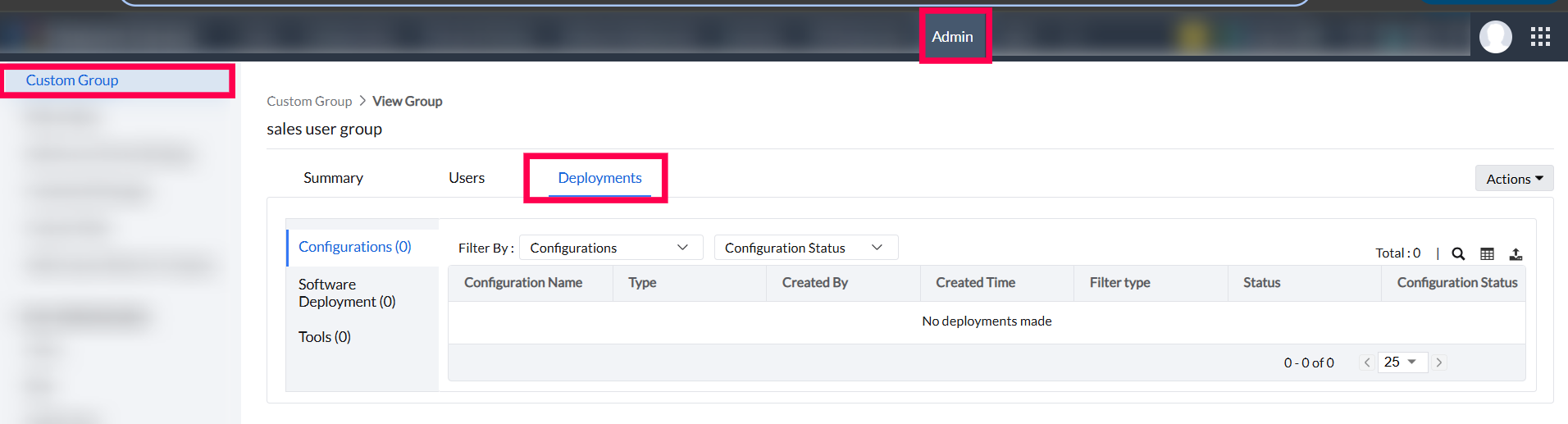
Custom Groups also provide clarity on where they are applied, allowing visibility into deployments and efficient management of group-specific activities.
To check where a Custom Group is used: Go to Custom Groups > Select the desired user group > Deployments tab. From there, you can view the applied configurations and software installations associated with that group.