Specifications and Settings
This page covers the system requirements for Malware Protection component and explains how to configure its key settings, including exclusions, data cleanup, notifications, scan settings, and add-on configurations.
System Requirements
To ensure optimal performance and security, the system must meet the requirements outlined below. These cover hardware and software compatibility, including supported operating systems, CPU and RAM usage, and network bandwidth. Failure to meet these specifications may result in reduced performance, compromised security, or system instability.
Configuring Settings
To configure the settings below, navigate to Settings.
Exclusions
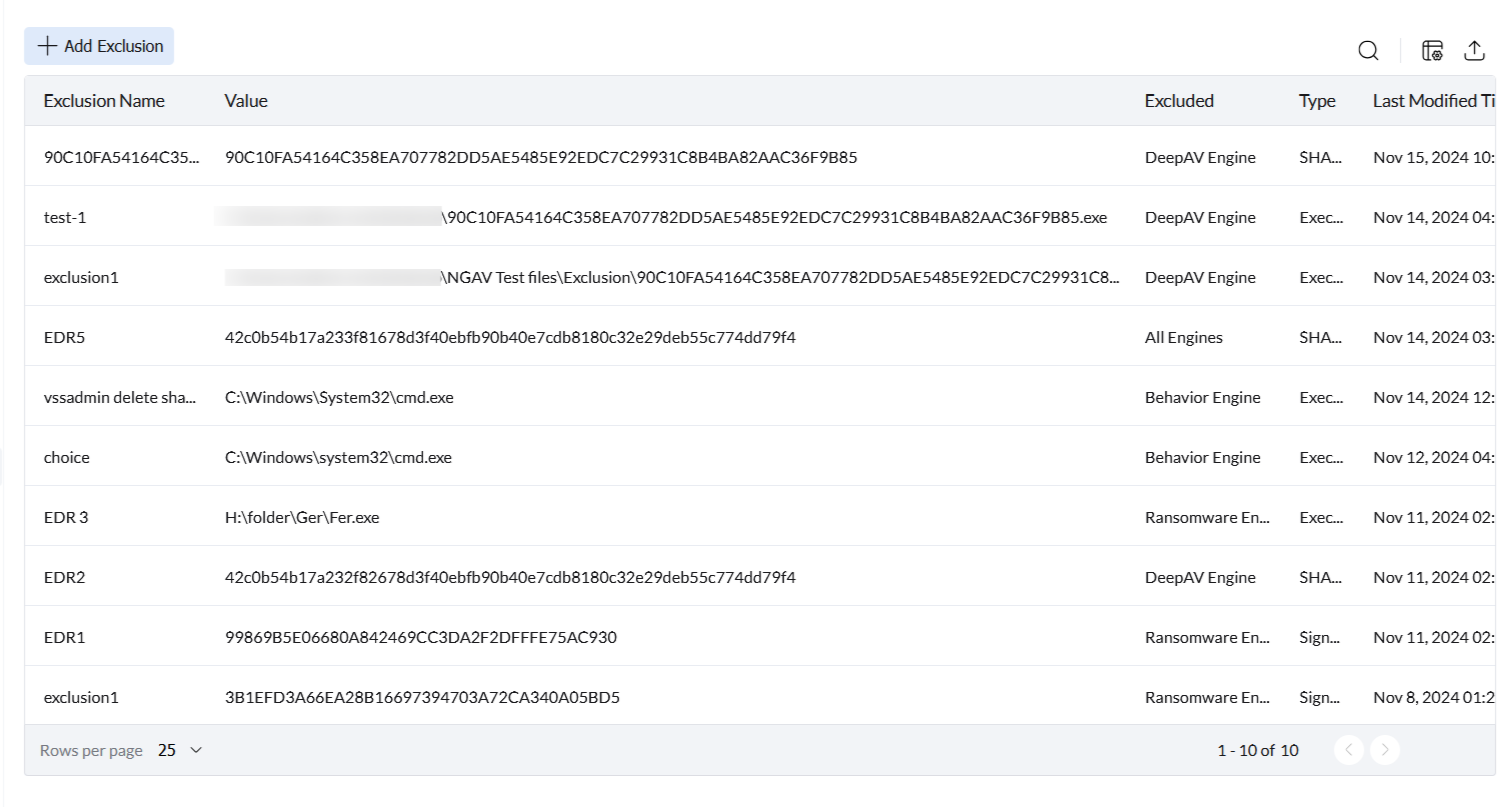
In certain scenarios, you may need to exclude specific files or folders from Malware Protection scrutiny — for example, to prevent false positives or avoid interference with trusted applications. Refer to this guide to add exclusions.
Cleanup Settings
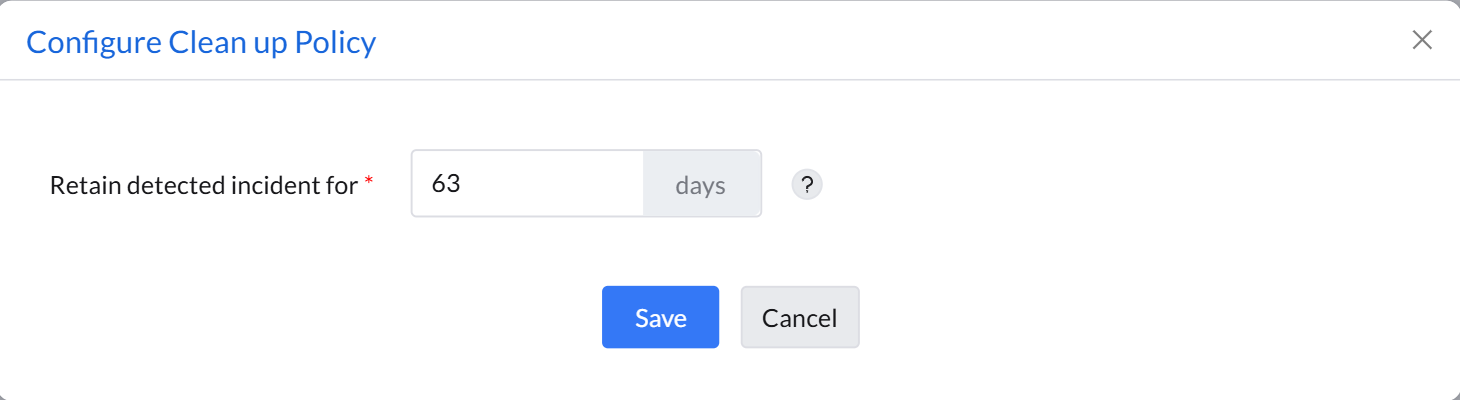
This setting defines how long detected incidents and their related information are retained. Reducing the retention period can help optimize storage usage, but incident data will be permanently erased after the specified number of days.
Notification Settings
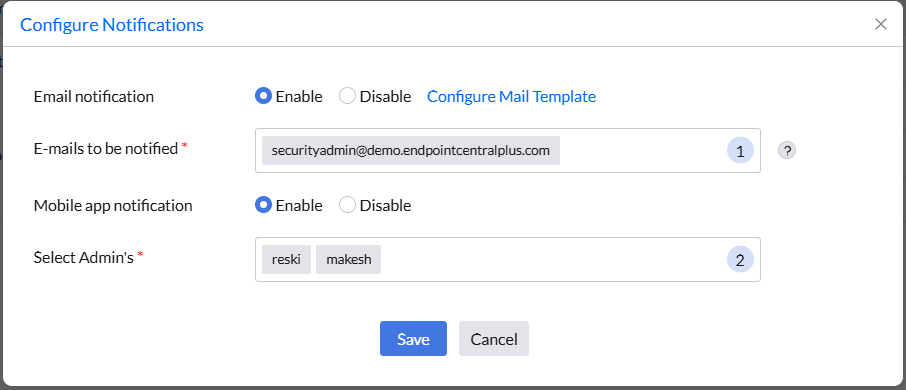
Configure notifications to keep administrators informed about security events and activities related to Malware Protection. The following notification channels are available:
- Email notification — Enable email alerts and specify the email addresses of the administrators who should receive them.
- Mobile app notification — Enable in-app alerts and select the admin users who should receive notifications through the mobile application.
Click Modify to configure or update the notification settings.
Scan Settings
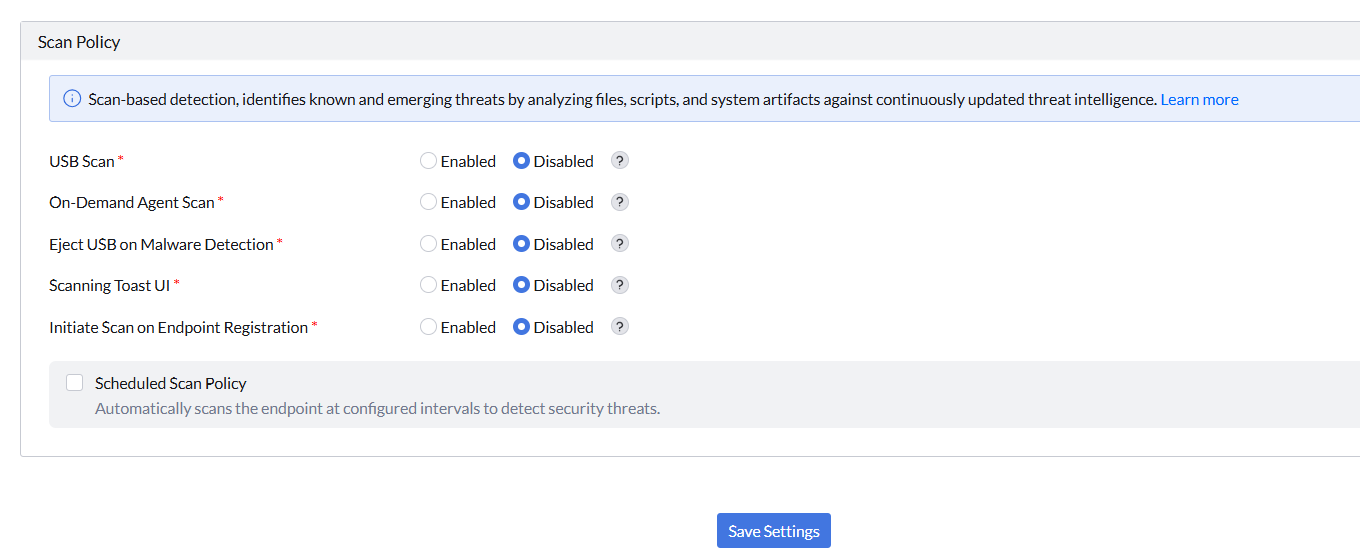
Scan settings let you configure how scan-based detection operates on managed endpoints. The following controls are available:
- USB Scan — Enable or disable scanning of USB devices when connected.
- On-Demand Agent Scan — Enable or disable the ability to trigger scans on demand from the agent.
- Eject USB on Malware Detection — Automatically eject a USB device if malware is detected on it.
- Scanning Toast UI — Show or hide the toast notification displayed to users during a scan.
- Initiate Scan on Endpoint Registration — Automatically trigger a scan when an endpoint registers with the server.
- Scheduled Scan Policy — Enable automatic scans at configured intervals for ongoing threat detection.
For detailed information about individual scan controls, removable storage scanning, scan schedules, scan modes, and performance settings, refer to the Configuring Scan Policy guide.
Add-on Configurations
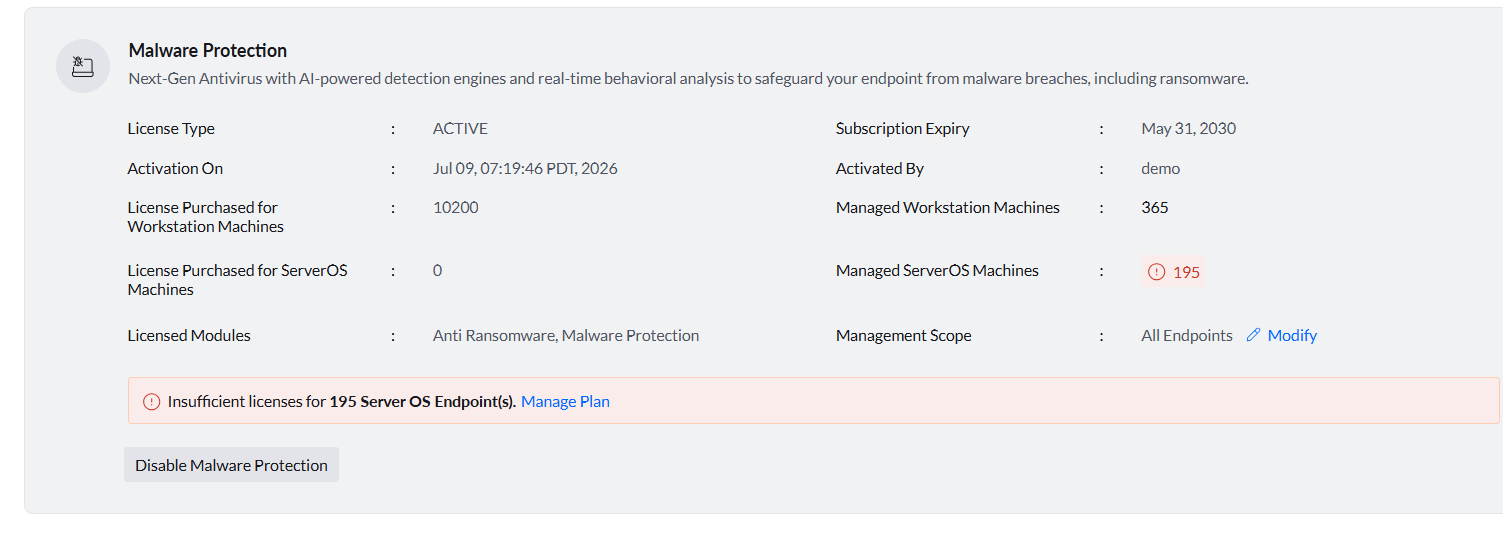
The Add-on Configurations section provides details about the Malware Protection add-on and its current subscription. The following information is displayed:
- License type
- Activation date
- Subscription expiry date
- Licensed modules
- Number of licenses purchased and currently in use, for both workstation and server OS machines
You can also view and modify the Management Scope to control which endpoints have Malware Protection enabled. If the number of managed endpoints exceeds the available licenses, a license notification is displayed with an option to manage the plan.