Performing searches on raw firewall logs
With constantly evolving attack patterns, it can be challenging to identify an anomaly or deviance in the aggregated firewall log data. Effectively searching the firewall logs using a dedicated log search tool can help identify malicious activities taking place in your network.
EventLog Analyzer is an effective log management solution that collects, parses, and analyzes the huge amount of log data generated from your network firewalls. It acts as a firewall forensics tool, as it helps in searching the raw firewall logs using its built-in log search capabilities facilitated by the Elasticsearch engine.
How to perform searches on your firewall logs using EventLog Analyzer
To perform a firewall log search, EventLog Analyzer provides two unique search functionalities:
Basic search
Basic search feature in EventLog Analyzer allows you to search your firewall log data by using simple attributes such as:
- Event ID
- Severity
- Severity level
- Event_type
- Risk_level
- Facility
- Source
With the basic search option, you can spot event IDs such as:
- 4964 - A new rule was added to the Windows Firewall list
- 4947 - A Windows Firewall rule was modified
- 4950 - A firewall setting was modified
- 4954 - Group Policy settings were modified for firewall devices
- 5025 - A firewall service was terminated
To track down attack patterns and to perform complex searches, the solution has advanced search mechanisms.
Performing advanced search on firewall logs
EventLog Analyzer provides advanced search mechanisms to search your firewall logs using Boolean operators, wild-card phrases, and group and range searches. With such extensive search functions, you can get the exact results that match your search criteria faster and without having to perform your own query.
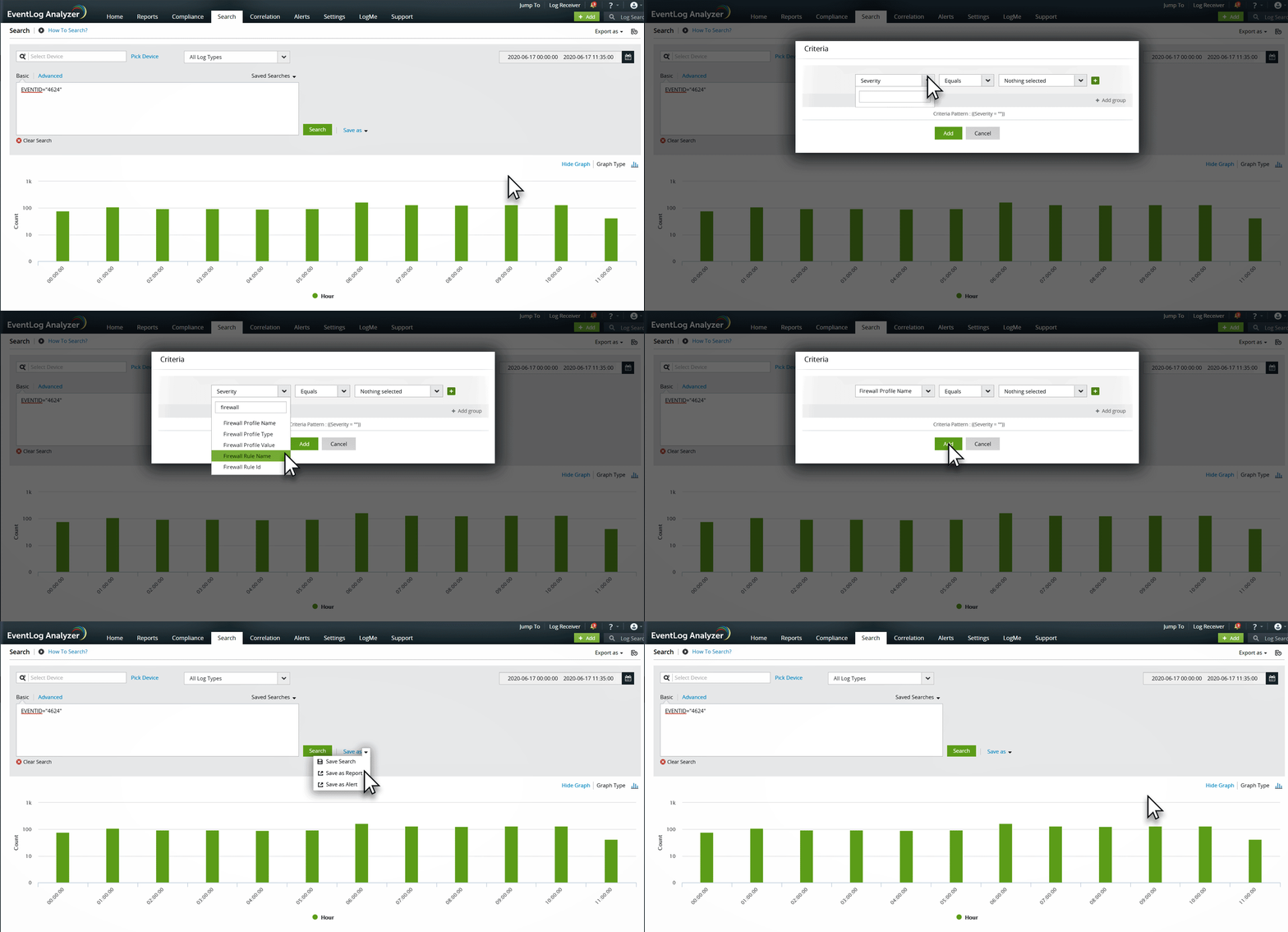
How to generate reports for firewall log searches
EventLog Analyzer skillfully performs all the duties of firewall log search software, including generating reports for all performed searches. EventLog Analyzer allows you to record your search results by providing three options.
- Save Search
You can specify a name for your search and save it.
- Save as Report
This option allows you to generate a report on the search results. This report can be exported in CSV or PDF formats for further reference and use.
- Save as Alert
This option allows you to configure an alert profile for the search value. You can specify the severity and notification mode for alerts (SMS/email), and enable a workflow to respond to the alert.


 Free Edition