A distribution group (or distribution list) is a mail-enabled group in Exchange Online used to send a message to many recipients at once. Keeping its membership current, whether that means adding a new hire to the team list, or a contractor to a project alias, is routine list maintenance. Unlike a dynamic distribution group whose membership is determined by a recipient filter, a standard distribution group has a fixed member list that you update manually.
You can add members through the Add-DistributionGroupMember cmdlet in PowerShell, the Exchange admin center (EAC), or with ManageEngine ADManager Plus. This guide covers all three, including how to add many members at once from a CSV file and the common errors to expect.
On-premises hybrid sync limitation: There is one important limitation to know before you start. If a distribution group was created on-premises and synchronized to Exchange Online through directory synchronization, you cannot edit its membership in the cloud, not in the EAC and not with Add-DistributionGroupMember. The group is mastered on-premises, so its membership must be changed there in AD or on-premises Exchange, and allowed to sync back up. Attempting to add a member to a synced group in Exchange Online returns an error stating the object is managed on-premises. Only groups created directly in Exchange Online can be edited in the cloud.
Before you add members, a few things need to be in place:
Install-Module -Name ExchangeOnlineManagement
Import the module and connect with an administrator or group-owner account:
									Import-Module ExchangeOnlineManagement

									Connect-ExchangeOnline -UserPrincipalName itadmin@northpeakcorp.com
The Add-DistributionGroupMember cmdlet adds one member per call. The -Identity parameter names the group, and -Member names the recipient to add, by alias, email address, name, or distinguished name:
Add-DistributionGroupMember -Identity "Sales Team" -Member "jsmith@contoso.com"
To confirm the member was added, retrieve the group's membership with Get-DistributionGroupMember:
									Get-DistributionGroupMember -Identity "Sales Team" |

									Select-Object Name, PrimarySmtpAddress
To add an external person, first create a mail contact for them, then add that contact to the group like any other member:
									New-MailContact -Name "Jane Vendor" -ExternalEmailAddress "jane@partner.com"

									Add-DistributionGroupMember -Identity "Project Falcon" -Member "jane@partner.com"
Since Add-DistributionGroupMember handles one member at a time, adding many people means looping over a list. Prepare a CSV with a Member column (holding each recipient's alias or email address), then pipe it through the cmdlet:
									Import-Csv "C:\Imports\sales-members.csv" | ForEach-Object {

									Add-DistributionGroupMember -Identity "Sales Team" -Member $_.Member

									}
For a larger import, wrap the call in error handling so one bad row (a mistyped address or an already-present member) doesn't halt the run:
									Import-Csv "C:\Imports\sales-members.csv" | ForEach-Object {

									try {

									Add-DistributionGroupMember -Identity "Sales Team" -Member $_.Member -ErrorAction Stop

									Write-Host "Added: $($_.Member)"

									} catch {

									Write-Warning "Failed: $($_.Member) - $($_.Exception.Message)"

									}

									}
The parameters below are used for adding distribution group members in Exchange Online PowerShell.
| Parameter | Description |
|---|---|
| Add-DistributionGroupMember | Adds a single member to a distribution group. |
| -Identity | The distribution group to add the member to, by name, alias, or email address. |
| -Member | The recipient to add, by alias, email address, name, or distinguished name. |
| Get-DistributionGroupMember | Lists the current members of a distribution group, used to verify. |
| New-MailContact | Creates a mail contact for an external recipient so it can be added. |
| Set-DistributionGroup -ManagedBy | Sets the group's owner, and who can then manage membership. |
| Remove-DistributionGroupMember | Removes a member from a distribution group. |
The EAC lets you add members through the group's membership page:
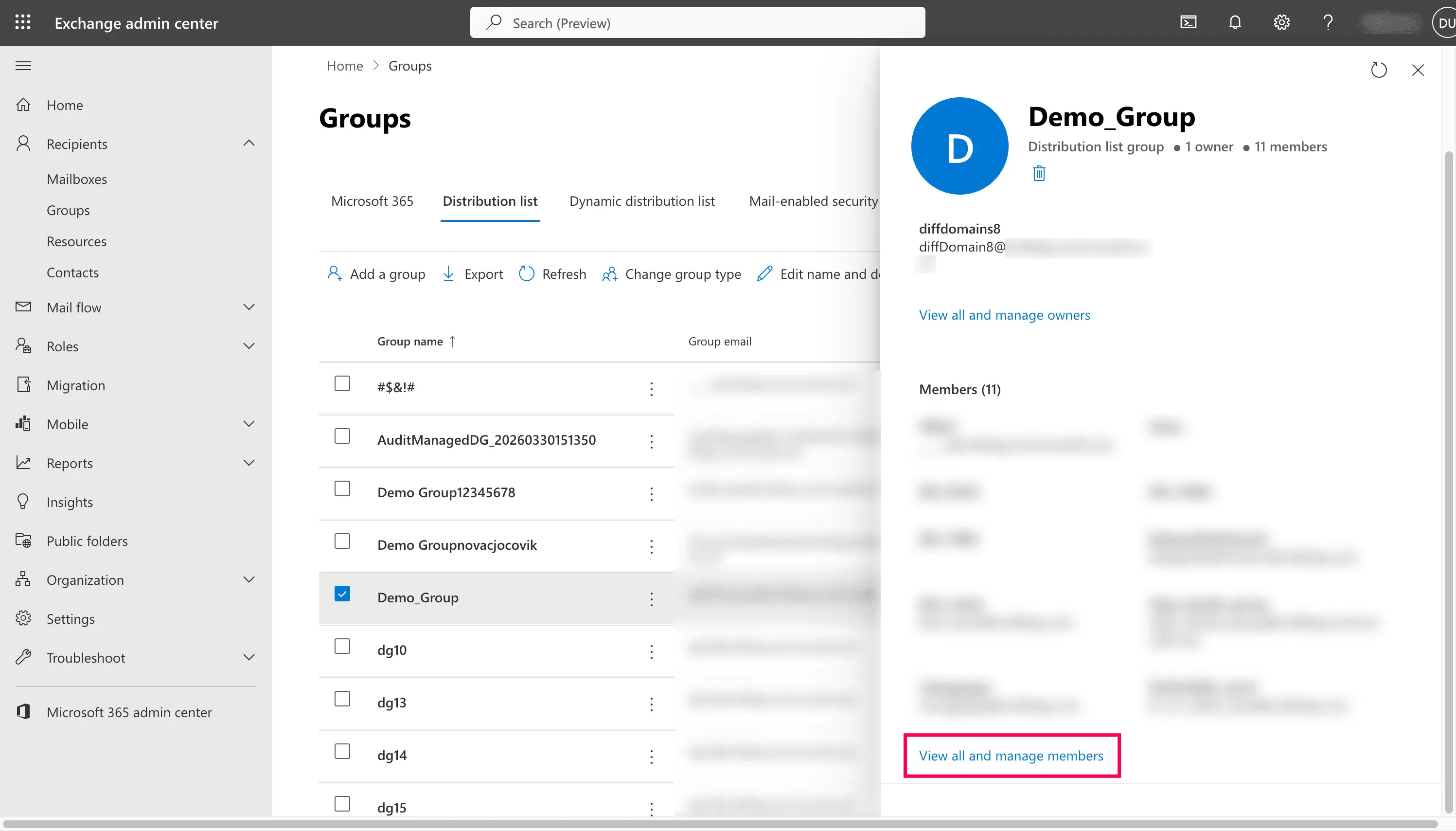
The members are added immediately. Group owners who don't have access to the admin center can manage their groups through Microsoft's distribution group management portal, under the Groups I own tab.
ADManager Plus is a unified AD, Exchange, and Microsoft 365 management and reporting tool that adds members to distribution groups through a point-and-click console, including bulk additions from a CSV, with no scripting.
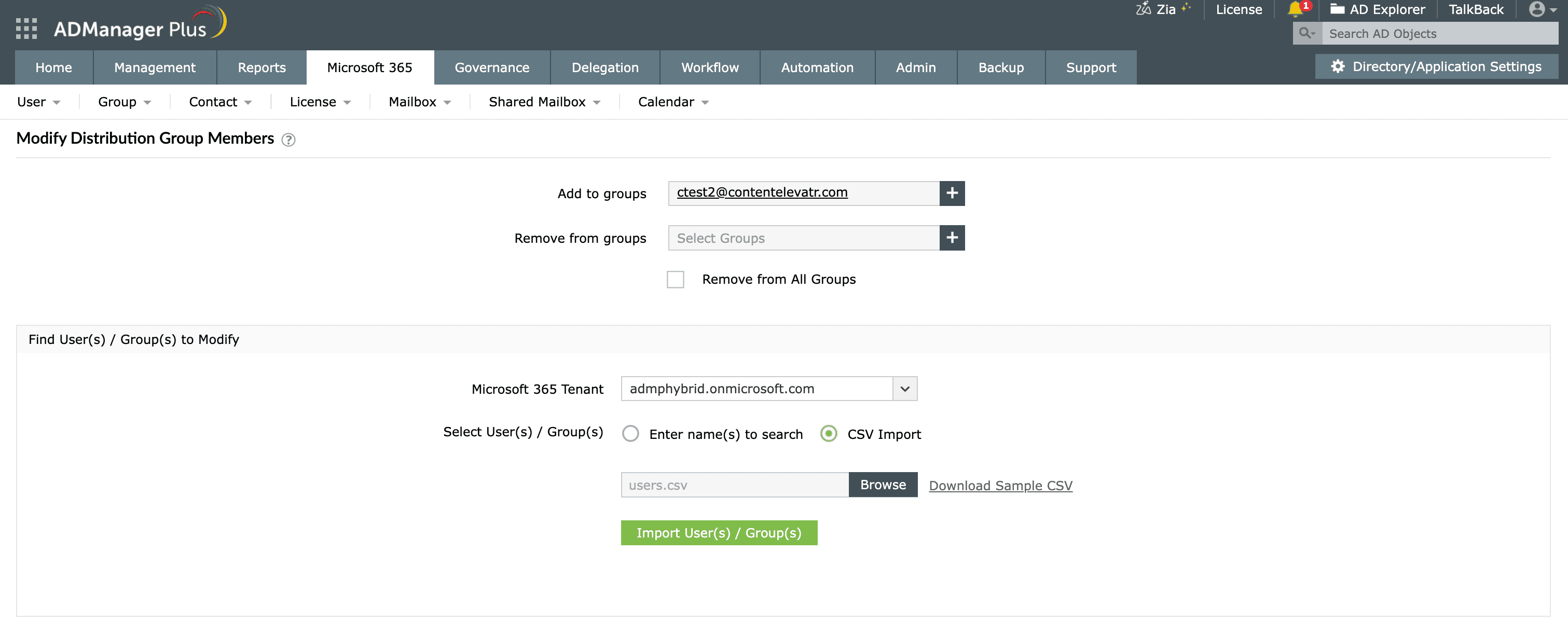
Both native methods add members reliably, but each has limits that show at scale:
ADManager Plus replaces scripts and one-off portal work with a single console for AD, Microsoft 365, and Exchange management and reporting:
Add multiple members to a distribution group at once by looping a CSV of recipients through the cmdlet:
												Import-Csv "C:\Imports\members.csv" | ForEach-Object {

												Add-DistributionGroupMember -Identity "Sales Team" -Member $_.Member

												}
Each row is added in turn. ADManager Plus offers CSV-based bulk addition through its GUI without scripting.
You cannot add an external email address directly as a raw address; you first create a mail contact for the external person with New-MailContact, then add that contact to the group with Add-DistributionGroupMember. The contact represents the external recipient inside your organization, which is what lets it be a group member.
To create a new distribution group, run New-DistributionGroup -Name "<name>" in PowerShell, or Add a group > Distribution in the Exchange admin center, then add members. This creates a standard distribution group with a member list you maintain, as opposed to a dynamic distribution group whose members come from a recipient filter.

