Controlling who can open, change, or take ownership of a shared folder is one of the most common security tasks in a Windows environment. Folder access is governed by NTFS permissions, which define the access rights assigned to files and folders on an NTFS volume. In an Active Directory (AD) domain, these permissions are typically assigned to security groups rather than individual users to simplify access management.
You can set these permissions through the Windows Security tab, the Set-Acl cmdlet in PowerShell, or ManageEngine ADManager Plus. This guide walks through all three methods, how NTFS permissions and security groups work together, how inheritance flows from parent folders to child items, and how to apply the principle of least privilege so users get only the access they need.
Before you set permissions, it helps to understand the following concepts:
NTFS permissions are the access rules Windows stores on each file and folder, deciding who can read, write, modify, or take ownership of it. Every folder holds them in an access control list (ACL), where each entry pairs a user or security group with a permission level. The six standard levels are Full control, Modify, Read & execute, List folder contents, Read, and Write, built from finer-grained special permissions underneath. An ACL can also hold Deny entries, too. This overrides an Allow entry, so Deny entries are best used sparingly, granting access only to the groups that need it.
Assigning permissions to individual users doesn't scale, so the practice in AD is to grant permissions to security groups and control access through membership. The accounts, global groups, domain local groups, and permissions (AGDLP) model formalizes this: User accounts go into global role groups, those go into domain local resource groups, and the NTFS permission is assigned to the domain local group. This keeps ACLs role-based and easy to maintain as people change roles.
Permissions flow from a parent folder down to its subfolders and files through inheritance, so a permission set at the top of a folder tree applies throughout it. A permission set directly on a folder is explicit; one flowing down from a parent is inherited, and explicit permissions take precedence. Inherited entries appear grayed out on the Security tab. To give a folder permissions that differ from its parent, you disable inheritance on it.
The principle of least privilege means granting each group only the access it needs and nothing more. In practice, start from no access and add specific permissions for the groups that require them, rather than granting broad access and trimming it later. A finance analyst who only reads reports requires Read & execute, not Modify; only the managers who maintain the reports require Modify. Reviewing permissions periodically and removing access that is no longer needed keeps a folder aligned with the principle of least privilege.
Before changing a folder's permissions, ensure that:
When you need to script permission changes or apply the same access across many folders, PowerShell's Set-Acl cmdlet writes NTFS permissions from the command line. The pattern is to read the folder's current ACL with Get-Acl, build a new access rule, add it to the ACL, and write it back.
The following example grants the Sales security group Modify access to a shared folder. Run PowerShell as an administrator on a machine that can reach the file server:
									$acl = Get-Acl "\\fs1\shared\sales"

									$rule = New-Object System.Security.AccessControl.FileSystemAccessRule(

									"CORP\Sales","Modify","ContainerInherit,ObjectInherit","None","Allow")

									$acl.SetAccessRule($rule)

									Set-Acl -Path "\\fs1\shared\sales" -AclObject $acl
The FileSystemAccessRule takes the identity (the group in the DOMAIN\Group form), the permission level, the inheritance flags, the propagation flags, and whether the rule is an Allow or a Deny entry. The ContainerInherit and ObjectInherit flags apply the permission to subfolders and files, which is what you want in most cases.
To remove a group's access instead of adding it, build the same rule and call RemoveAccessRule before writing the ACL back:
									$acl = Get-Acl "\\fs1\shared\sales"

									$rule = New-Object System.Security.AccessControl.FileSystemAccessRule(

									"CORP\Sales","Modify","ContainerInherit,ObjectInherit","None","Allow")

									$acl.RemoveAccessRule($rule)

									Set-Acl -Path "\\fs1\shared\sales" -AclObject $acl
Sometimes a folder needs permissions that differ from its parent's, such as a restricted subfolder inside an otherwise open share. To break inheritance while keeping the existing permissions as explicit entries (the safe default, equivalent to the GUI's Convert inherited permissions into explicit permissions on this object), set protection with the second argument left as $true:
									$acl = Get-Acl "\\fs1\shared\sales"

									$acl.SetAccessRuleProtection($true, $true)

									Set-Acl -Path "\\fs1\shared\sales" -AclObject $acl
This is equivalent to Remove all inherited permissions from this object, leaving only explicit entries:
									$acl = Get-Acl "\\fs1\shared\sales"

									$acl.SetAccessRuleProtection($true, $false)

									Set-Acl -Path "\\fs1\shared\sales" -AclObject $acl
The parameters and objects below are used for folder permission tasks in PowerShell:
| Parameter or object | Description |
|---|---|
| Get-Acl | Reads the current ACL of a folder so it can be modified |
| Set-Acl | Writes a modified ACL back to the folder |
| -Path | The folder with permissions being read or set |
| FileSystemAccessRule | The object representing a single permission entry: identity, rights, inheritance, propagation, and Allow or Deny |
| SetAccessRule | Adds or updates an access rule on the ACL |
| RemoveAccessRule | Removes an access rule from the ACL |
The Security tab in a folder's Properties dialog box is the native way to view and set NTFS permissions:
To remove access, select the group on the Security tab, click Edit, select the group again, and click Remove. To adjust an existing group's access, change which permission boxes are checked rather than removing and re-adding it.
To set access that the parent won't override, break inheritance on that folder:
Converting rather than removing is the safer first choice because it preserves current access while letting you adjust it, whereas removing everything can lock out users (including administrators) if you don't re-add the necessary groups immediately.
ADManager Plus is a unified AD, Exchange, and Microsoft 365 management and reporting tool that sets NTFS permissions through a point-and-click console for one folder or many, with no scripting. It manages the folder ACLs and the security group memberships behind them from the same place.
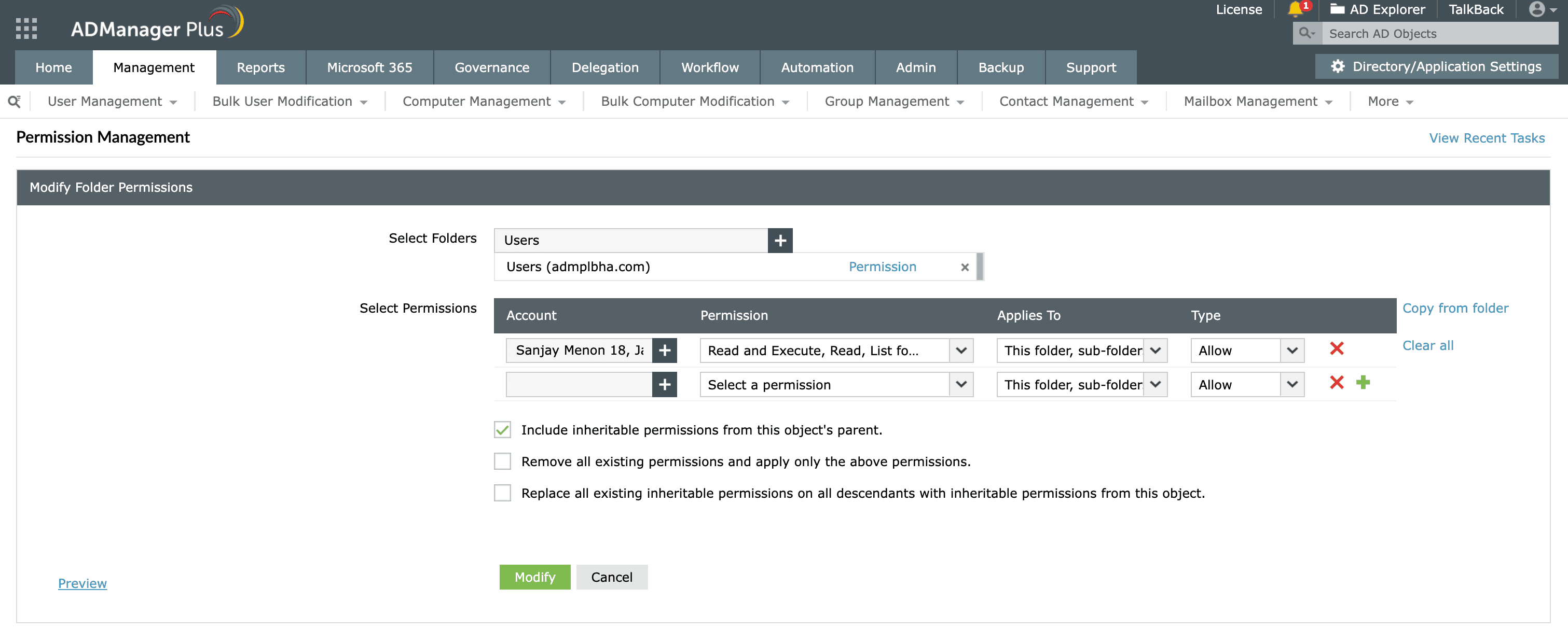
ADManager Plus replaces scripts and repetitive Security tab edits with a single console for AD, Microsoft 365, and Exchange management and reporting.
On the folder's Security tab, click Edit > Add, type the security group's name in the object picker, and click Check Names to resolve it against the directory. Select the group, check the permission levels to allow, such as Read & execute or Modify, and click Apply. The group's members will inherit that access through their membership.
The recommended approach is to assign NTFS permissions to security groups and manage access through group membership, following the AGDLP model: User accounts go into global role groups, those go into domain local resource groups, and the folder permission is assigned to the domain local group.
An explicit permission is set directly on a folder; an inherited permission flows down from a parent folder. Explicit permissions take precedence over inherited ones, and inherited entries appear grayed out on the Security tab. To give a folder permissions that differ from its parent, disable inheritance on that folder and set explicit permissions.
Right-click the folder and click Properties > Security > Advanced > Disable inheritance. When prompted, select Convert inherited permissions into explicit permissions on this object to keep the current access as editable entries, or select Remove all inherited permissions from this object to start from an empty list. Converting is the safer option since removing everything can lock out users if the necessary groups aren't re-added.

