Static Custom Groups
Static groups are perfect when you need to target a specific set of computers or AD groups or Entra groups, whether from a single domain or multiple domains. These groups are created as targets for various tasks, ensuring focused management. Best of all, a computer can belong to multiple static custom groups, giving you ultimate flexibility in organizing and assigning tasks. Static custom groups can be created in the following ways:
Manually Assigned Static Custom Group
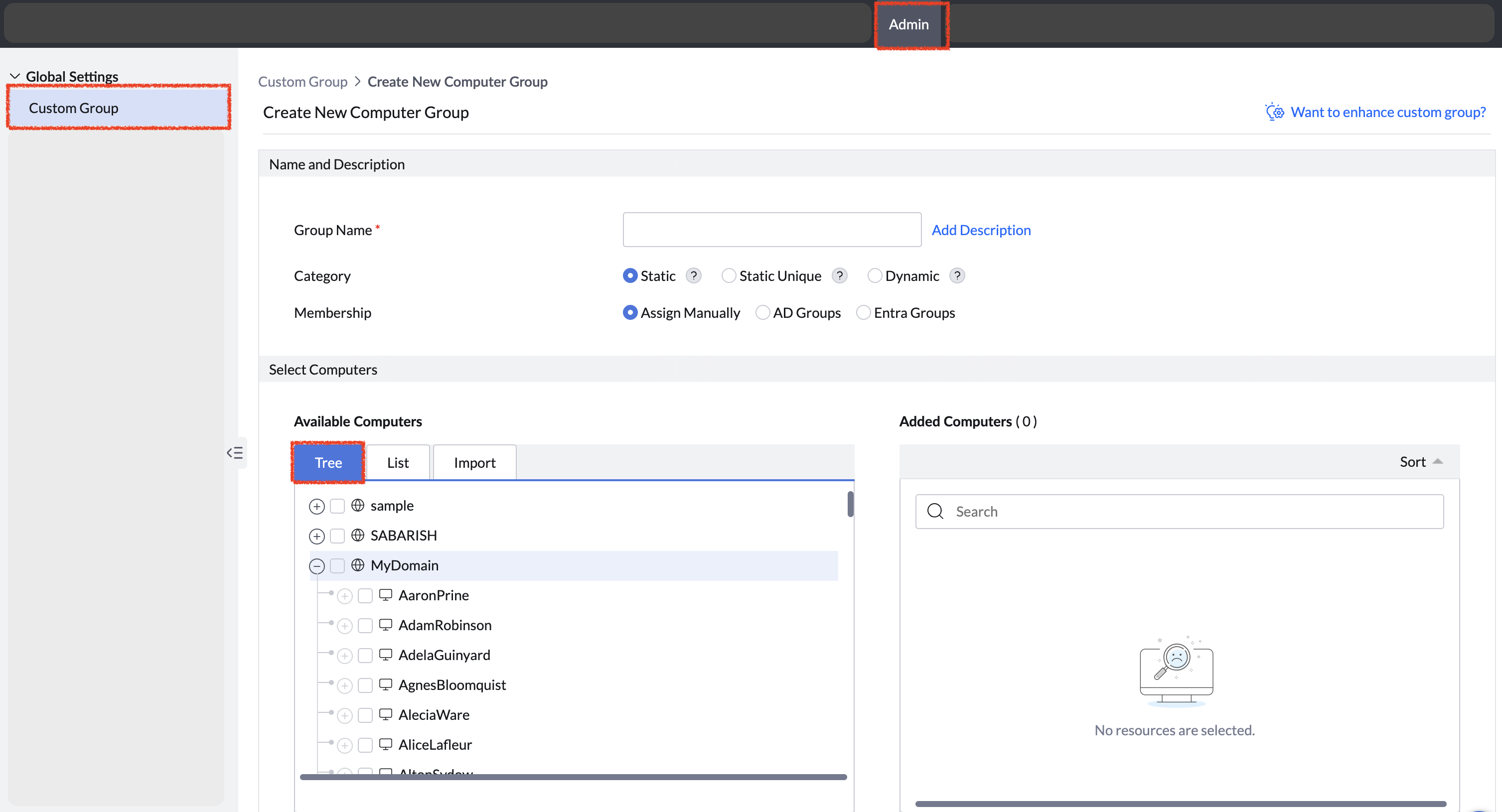
Manual custom groups can be created by any technicians with deployment write access by choosing the required managed computers to the custom group. Manual groups are not altered without user intervention. To create a static custom group in manual mode,
- Navigate to Admin > Custom groups > Create new group > Computer.
- Choose static category option.
- Choose the Assign Manually membership option.
- Select the computers > Click Create Group.
To ease the process of manually grouping the managed computers, those computers can be selected using:
- The list of managed computers with computer and domain name search filter.
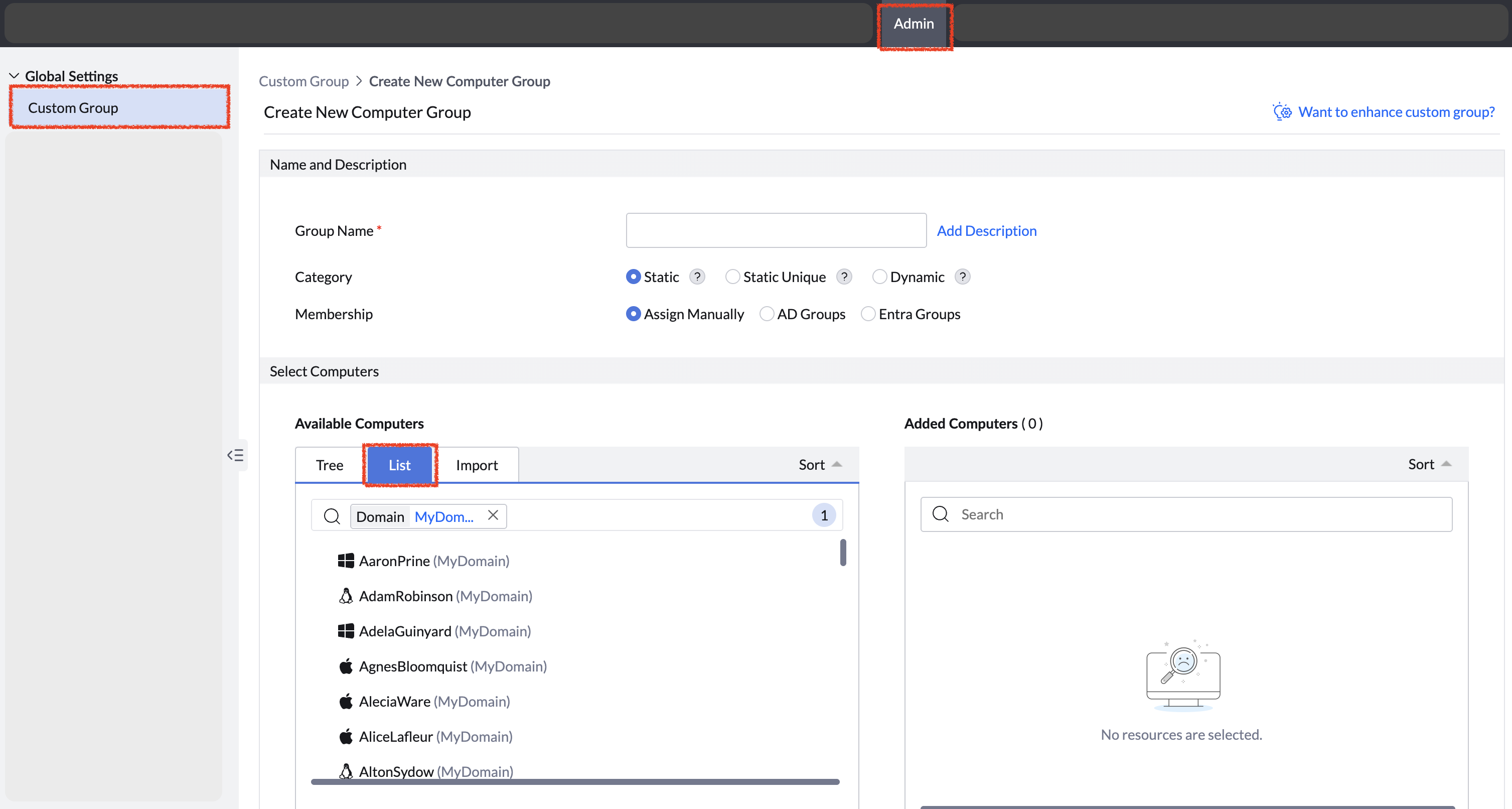
- The tree view structure of domains.
- Import csv option. The csv should contain the name of the computer followed by the domain name as explained below: [Computer Name,Domain Name (Eg: system101,companyorg)].
Directory Groups-Based Static Computer Custom Groups
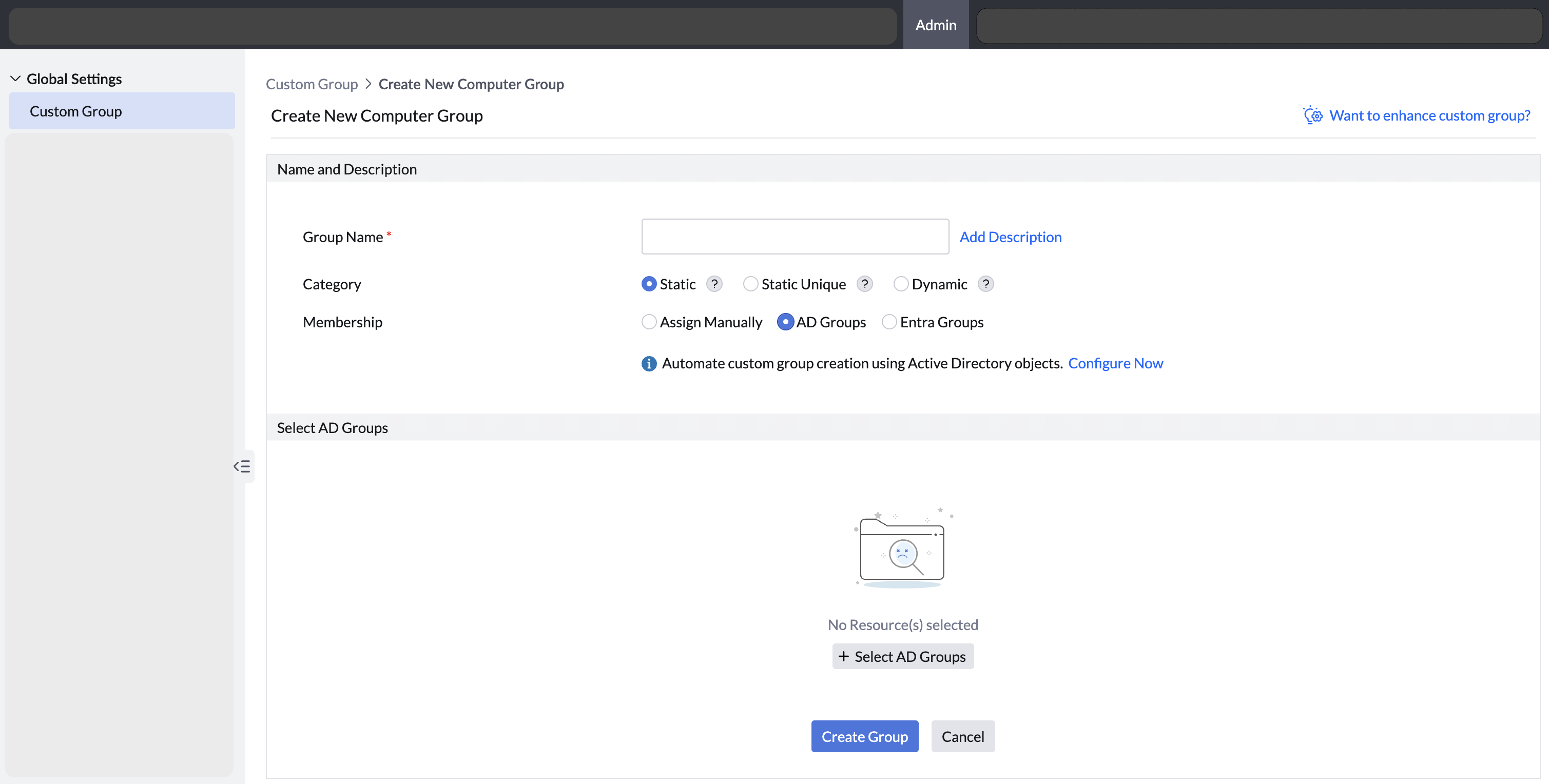
Static custom groups based on On-Premise Active Directory (AD) groups and Entra (Formally Azure) groups can be created only by the technicians with Administrator role access. Groups within the directory will be listed in the product interface, allowing the selection and creation of specific groups into separate custom groups. To Create an On-Premise AD Group-Based Static Custom Group
- Navigate to Admin > Custom Groups > Create New Group > Computer.
- Choose static category option.
- Select the AD Groups Membership option.
- Select the required AD Groups from the list > Click Create Group.
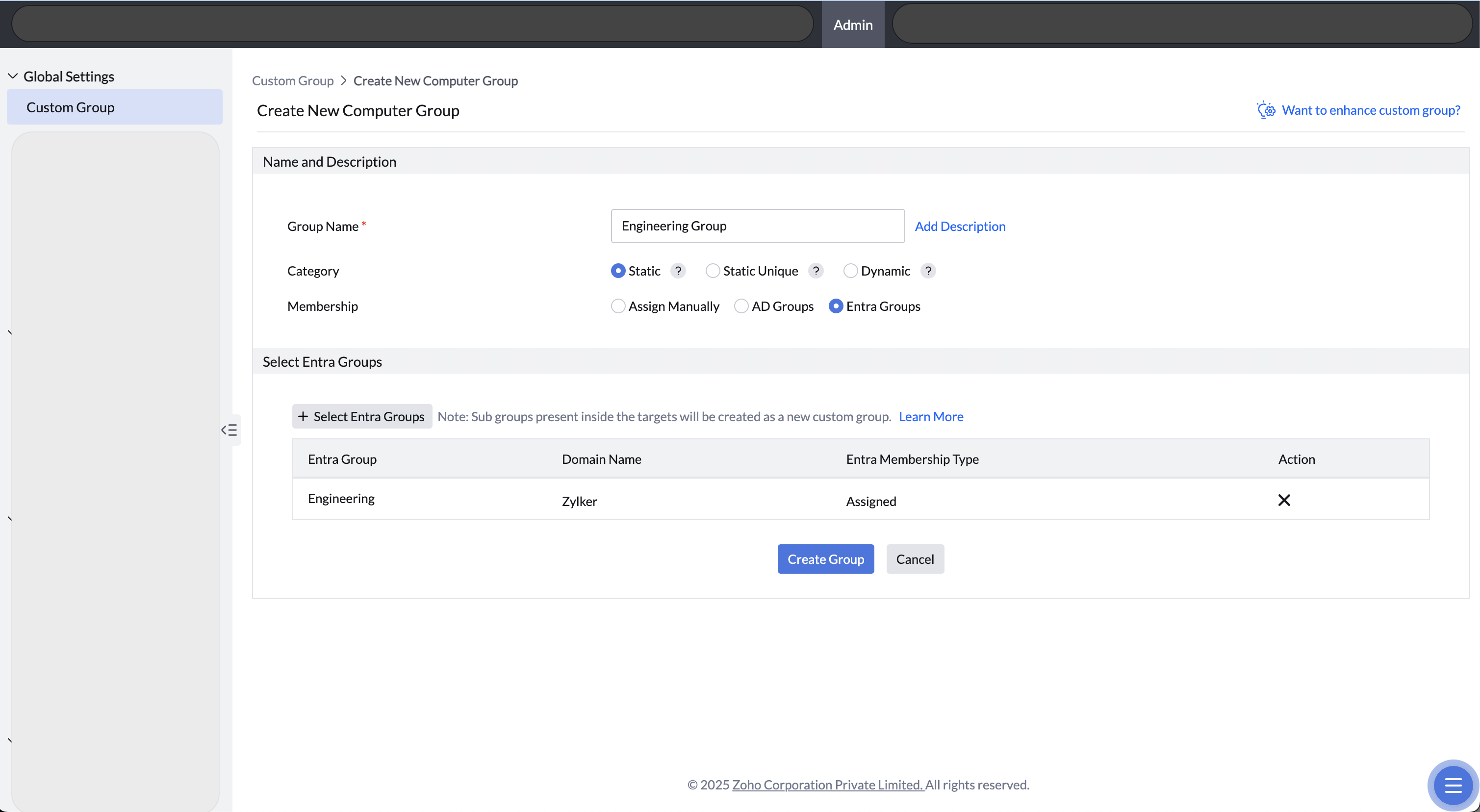
To create an Entra groups based custom groups, follow the below steps:
- Navigate to Admin > Custom Groups > Create New Group > Computer.
- Select the Category as Static.
- Select the membership as Entra groups.
- Select the required Entra groups from the list.
- Click create group.
Behavior during directory groups based static group creation
- When a group is selected from On-Premise AD or Entra directory, the system automatically creates individual custom groups for all existing subgroups within the selected group, provided those subgroups are not already defined as custom groups in the product.
- Auto-created custom groups follow a standardized naming pattern:
- AD Groups: AD Group Name - Parent OU - Domain.
- Entra Groups: Group Name - Domain
- If a custom group with the same name already exists, a sequential number will be appended to the name to ensure uniqueness. Example: Finance - HQ - corp.com (1).
Notes:
Directory Groups-based static custom groups are dynamically updated during each domain sync at the defined frequency to reflect changes in group membership. To know more, refer som policy Sync Settings.
When new groups are added under the selected AD path, they will automatically be created as new static custom groups during the next AD sync.
Static custom groups based on AD groups and Entra groups are supported for computers only.




