

Endpoint Central's MDM uses profiles as a mode to apply policies/configurations to managed devices. MDM, by itself supports an extensive set of policies which can be configured and associated with your managed Apple devices. However, with the support for Custom Configuration profiles, you can also configure policies which are currently not supported by MDM. Custom Configuration profiles can be created using third-party tools like Apple Configurator or Profile Creator, and can be associated with your managed devices using Endpoint Central. Follow the steps given below.
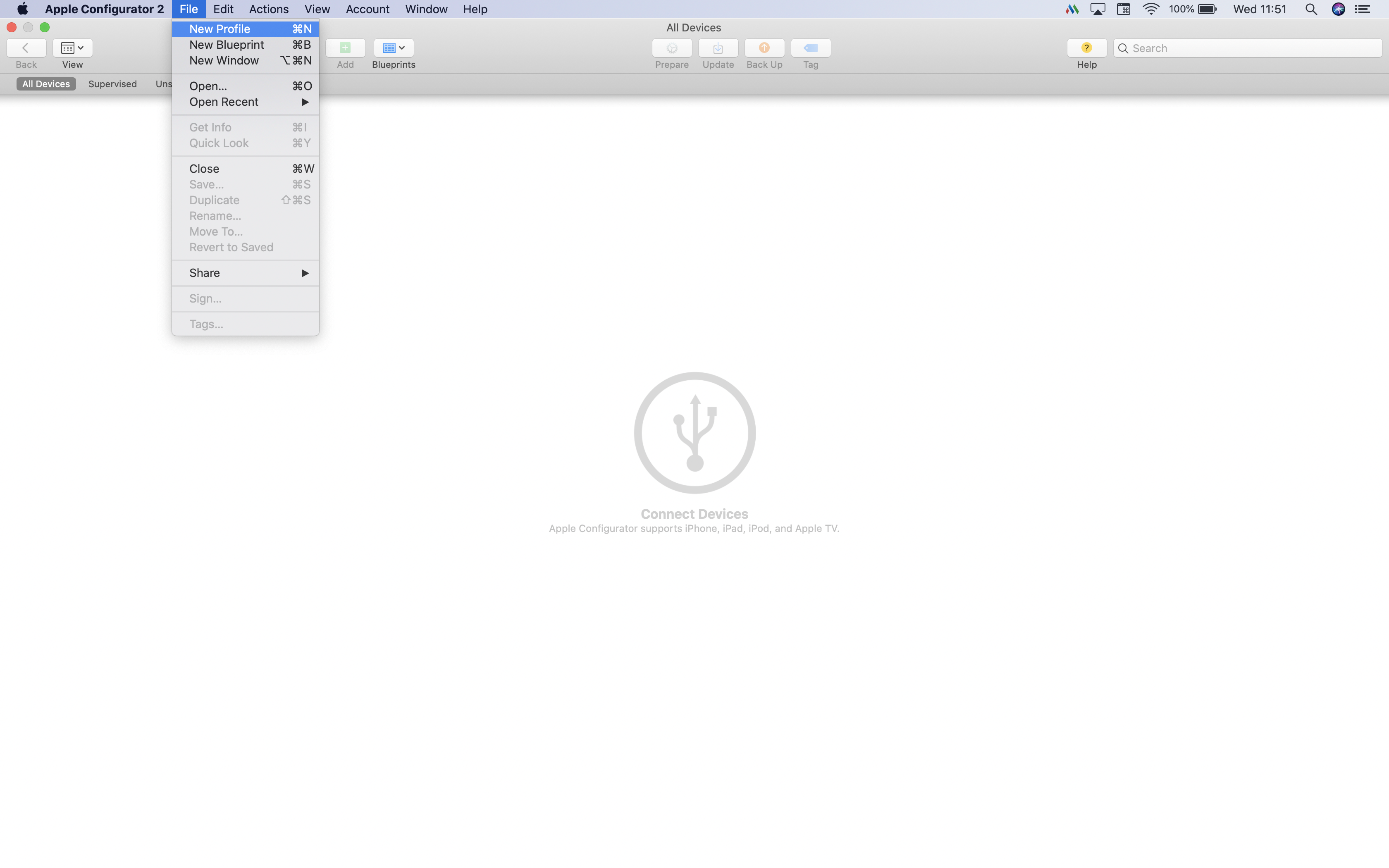
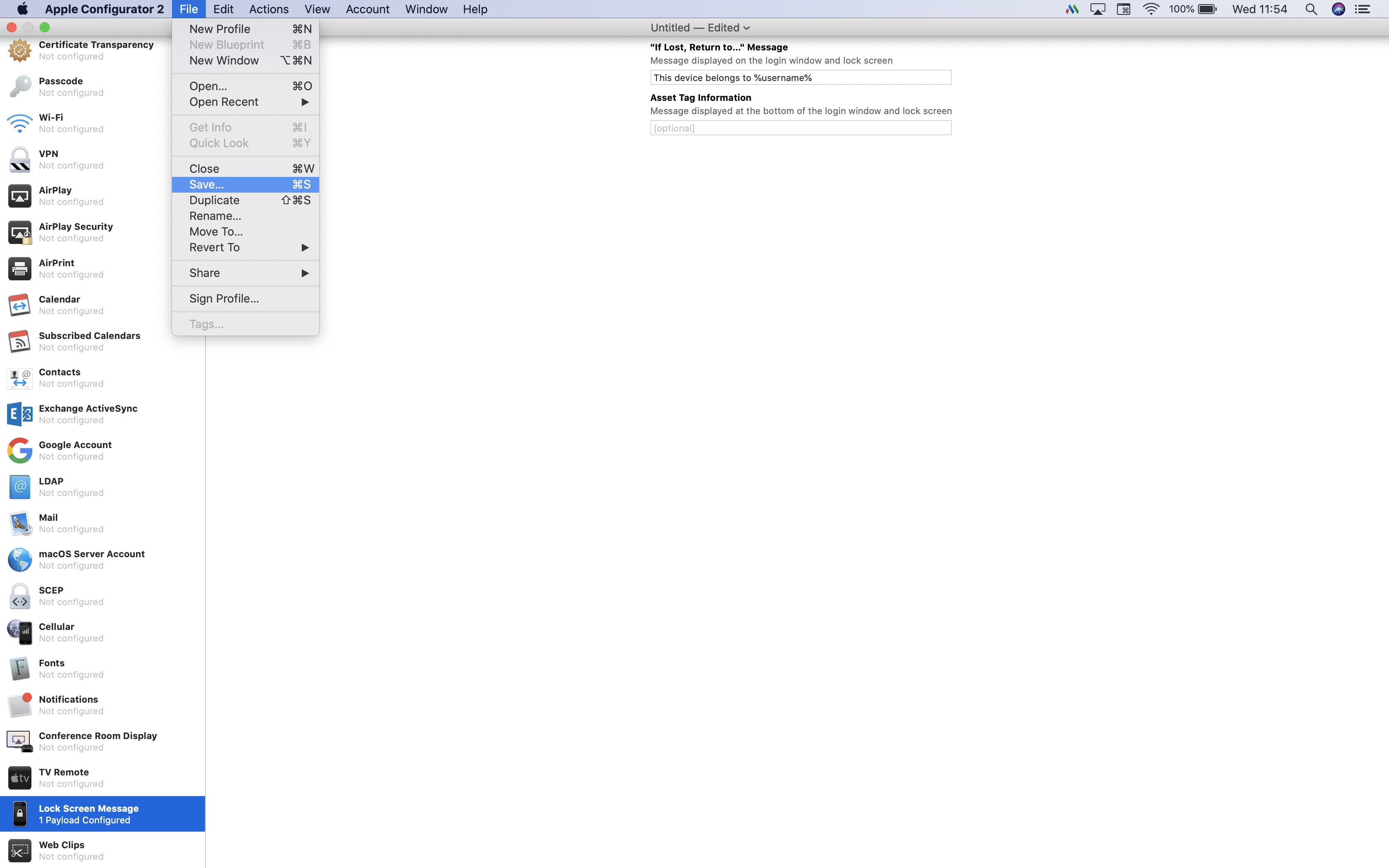
On a Mac machine, open Apple Configurator 2.0 and go to File -> New Profile
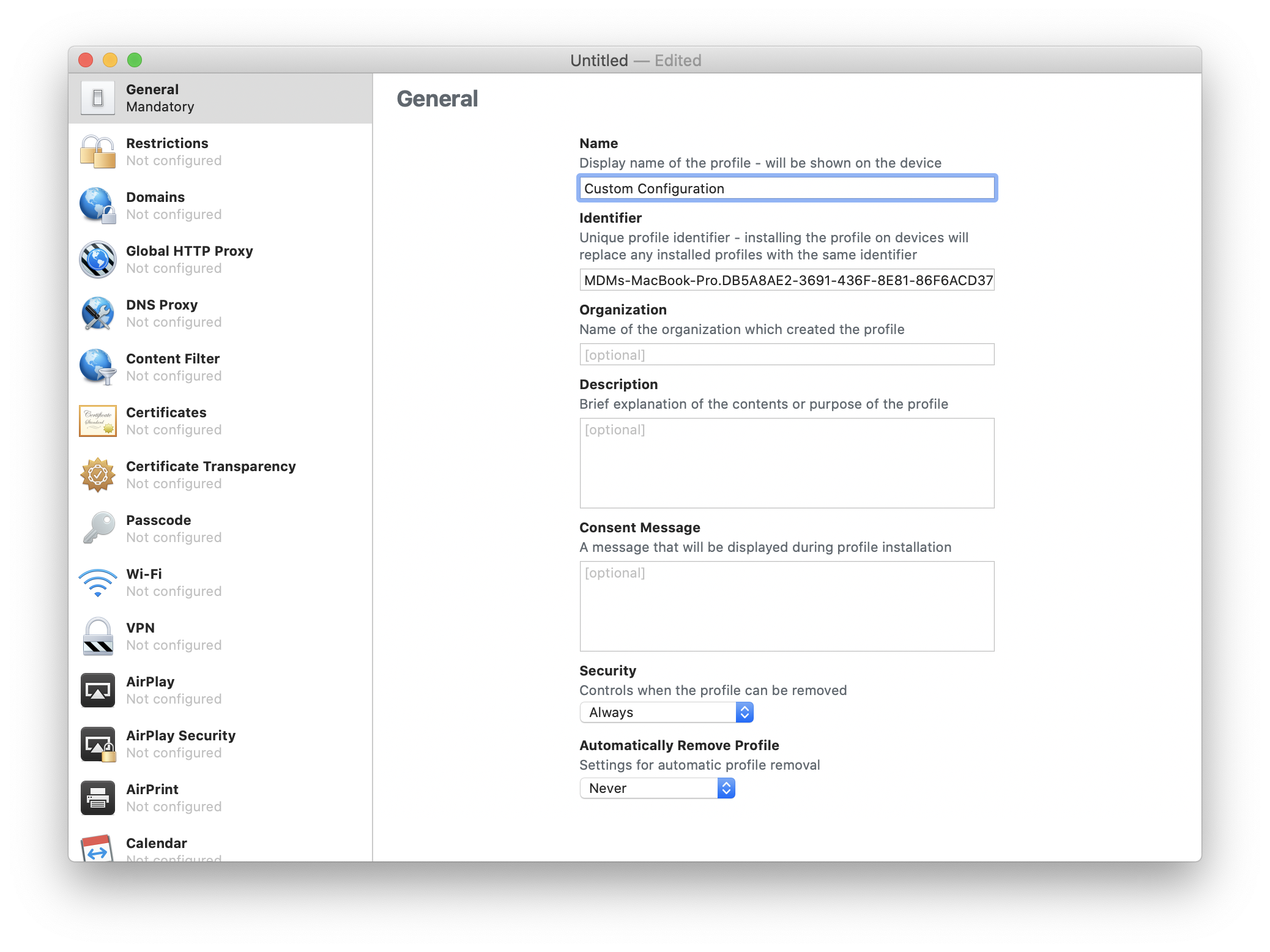
In the General tab, ensure the Name and the Identifier are provided, which are mandatory fields. However, MDM will override the same and replace it with the profile name which you subsequently specify on the MDM console.
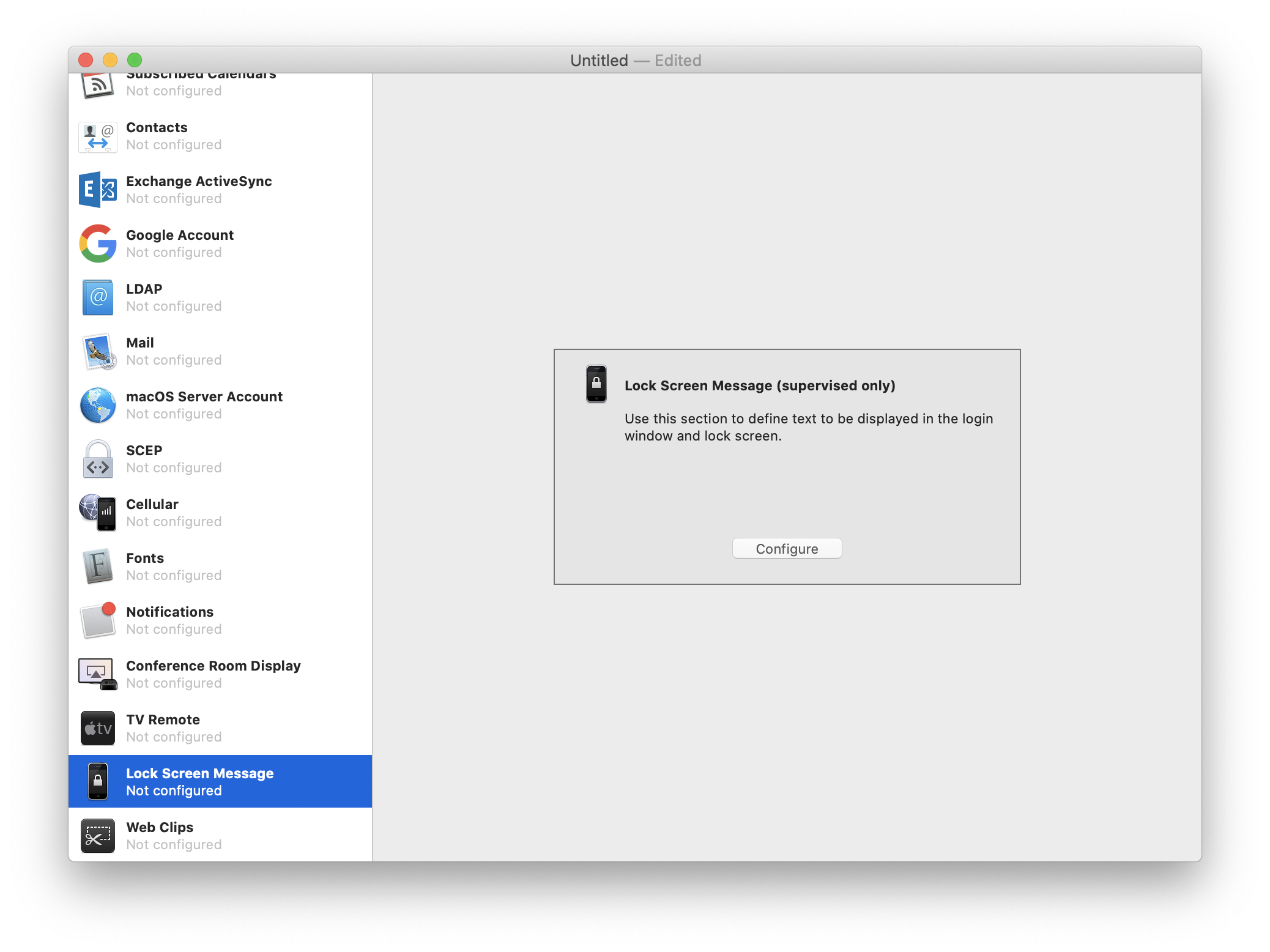
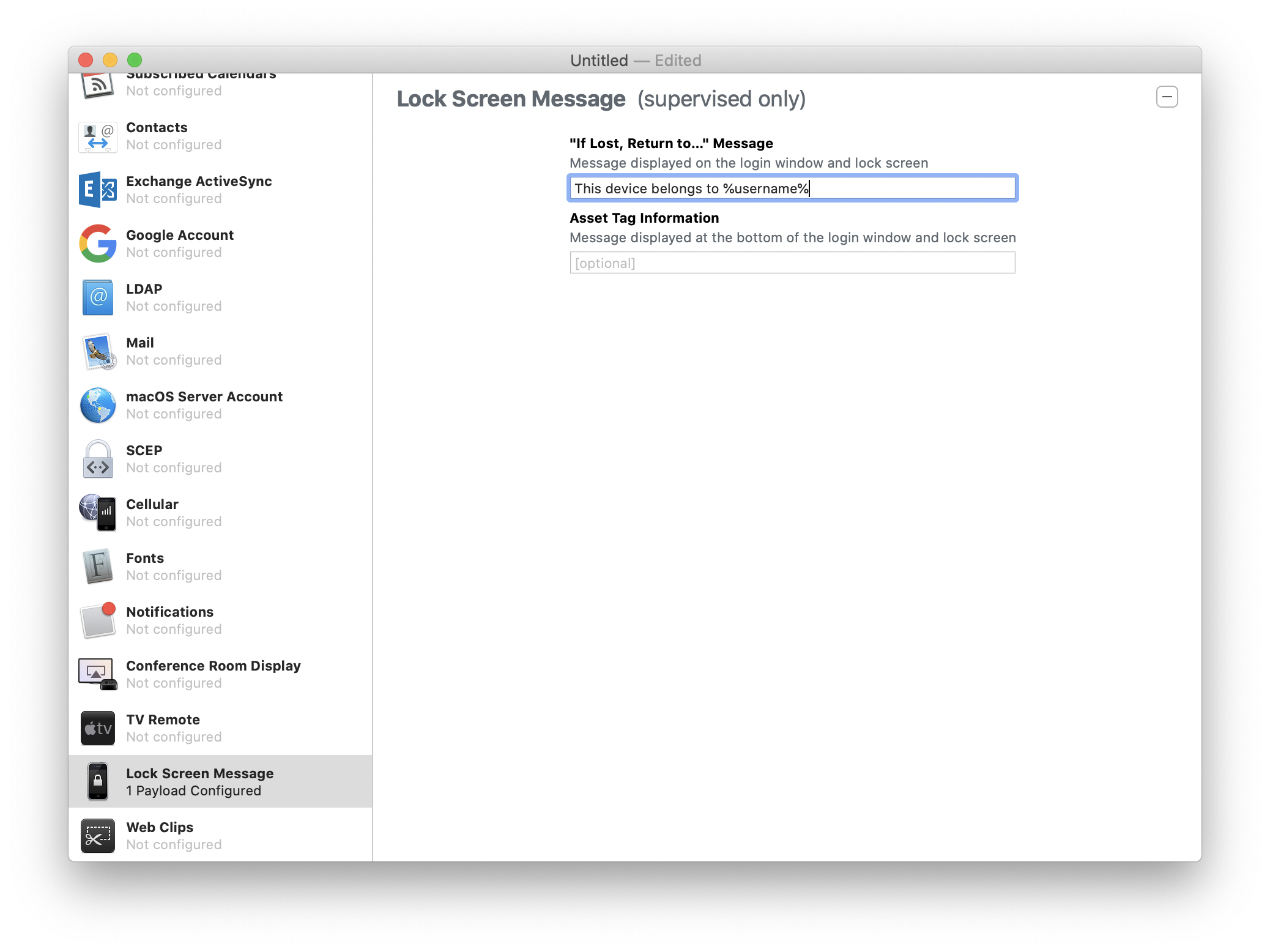
On the left pane, select the policy you want to configure in the custom profile. Here, we have configured a lock screen message involving the use of dynamic variables; To facilitate user-specific configurations, MDM supports the use of dynamic variables. Click here to know more about dynamic variables and their purpose.
NOTE: It is recommended to configure Custom Configuration profiles, only to distribute policies unavailable in MDM.
Now, configure the policy according to your requirements. You can also configure multiple policies within a single profile.
Once done, click on File and Save the profile.
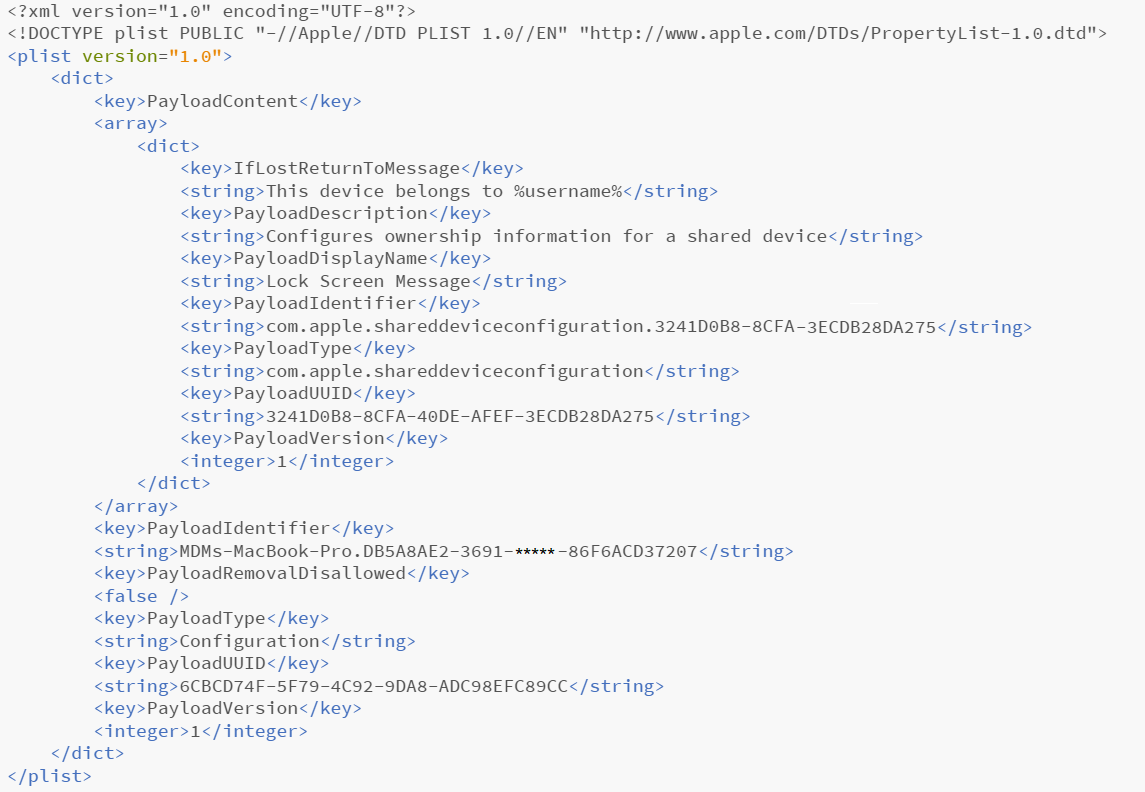
The following is the preview of the created XML file.
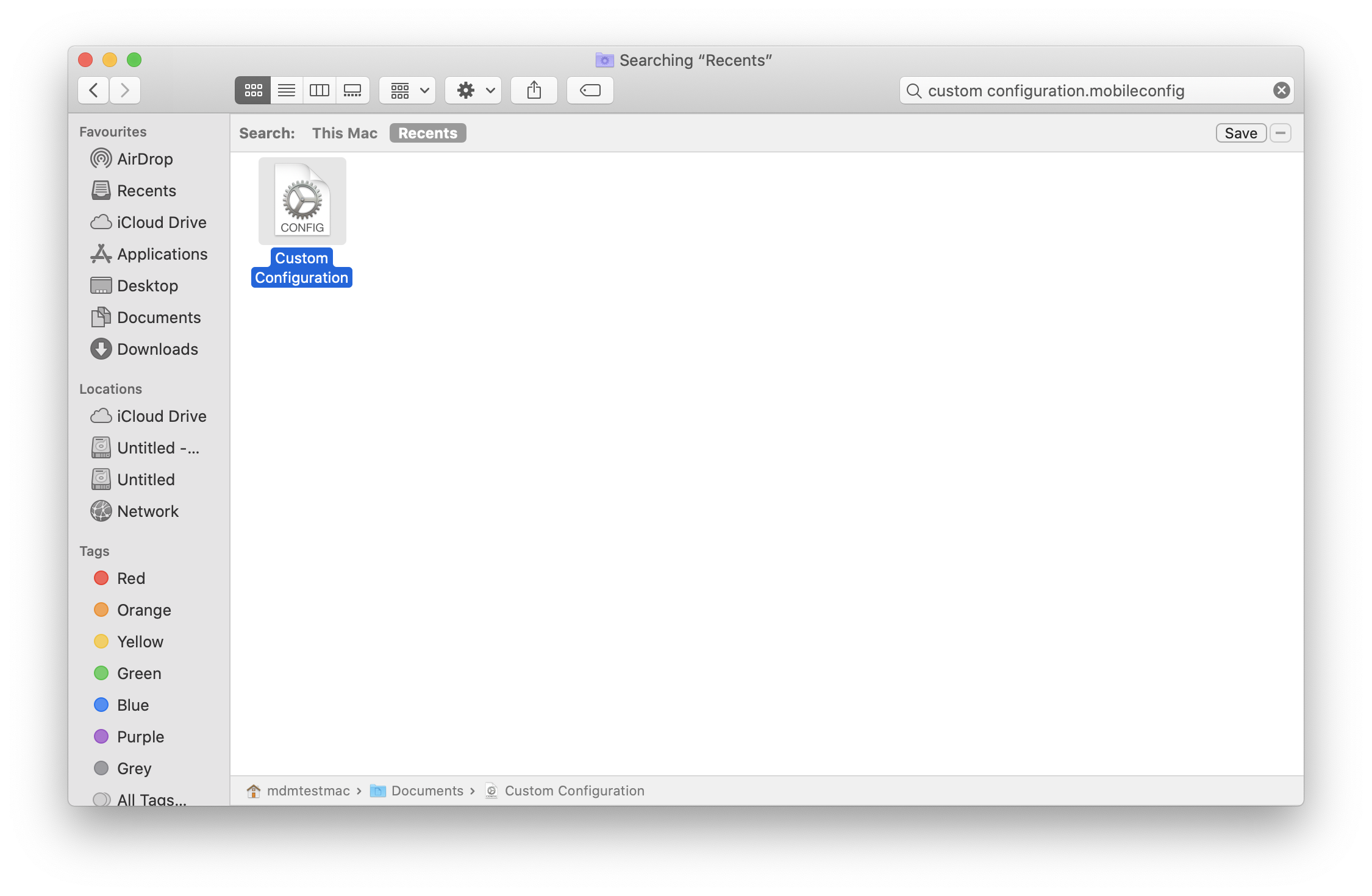
Find the Custom Configuration XML file and follow the steps below to associate it with your managed devices using MDM.
1. Create custom configuration profiles using third-party tools (Apple Configurator, Profile Creator, etc) and configure policies which are currently not supported by MDM.
2. On the Endpoint Central console, go to Device Mgmt -> Profiles -> Create Profile -> Apple. Provide the requisite profile details and click on Continue. On the left pane, select Custom Configuration.
3. Here, drag and drop the configuration profile created earlier or click on Upload Configuration and upload the same.
4. After uploading the profile successfully, save and publish it. Custom configuration profiles can later be associated with managed Apple devices.


