Active Directory Integration for Endpoint Central
Active Directory (Active Directory) is a directory service developed by Microsoft that provides centralized management of network resources such as users, computers, printers, and security groups within a domain-based network. It is designed to help IT administrators efficiently manage and secure an organization's network infrastructure by controlling user access, enforcing policies, and maintaining resource integrity.
At its core, Active Directory acts as a centralized database where all information about network resources is stored, allowing administrators to organize access efficiently, and manage these resources through a single interface, streamlining IT operations across the enterprise.
Functionalities of Active Directory in Endpoint Central
Seamless Onboarding/Offboarding of Computers
With an Active Directory integration, onboarding and offboarding of domain-based devices in becomes much easier. Once a domain is configured, you can import and manage all Active Directory-linked devices from a centralized console. Also, can adjust its management scope automatically to reflect these changes as computers are added or removed from Active Directory.
Automatic Custom Group (CG) Creation
Active Directory integration also supports automatic creation of custom groups (Logical Structure Groups) based on Active Directory Organizational Units (OUs) or other criteria. This simplifies the process of categorizing and managing domain-based devices dynamically to deploy the tasks as well as to provide them as scope for technicians.
Active Directory based Technician Login
Active Directory integration supports Active Directory user-based login to Server console. This allows the technicians to use a single password to access both Active Directory resources and the server.
Active Directory-based Reports
Active Directory integration also supports generating insights on Active Directory components such as OU, Group, Domain, users, computers, and GPOs.
Task Deployment
The Active Directory integration also allows technicians to use the same credentials to deploy tasks such as agent deployment.
Pre-Requisites for Setup
- Administrative Rights: Ensure that the account used to add the domain has appropriate administrative rights across all client systems in the domain. This permission is required to use the credential for onboarding of computers and fetching all objects in Active Directory (computers, users, containers, groups, GPO, and OUs).
- Service Account Access: If using a service account, it must have view access (Read permission) to all objects in Active Directory (computers, users, containers, groups, GPO, and OUs). Lack of view access will cause Active Directory synchronization to fail. This account also should have access to install agent software in computers.
- Access to Attributes: The service account should have access to important object attributes like
whenChanged,whenCreated,objectGUID,Name,distinguishedName, etc. Additionally, for deleted object retrieval, ensure credentials have access to the Active Directory recycle bin. - Data Collection via Command Prompt:
- Run
set Lin Command Prompt to get the Domain Controller name (Logonserver = Domain Controller Name). - Run
set Uto retrieve the Domain Name and Active Directory Domain Name (Userdomain = Domain Name,Userdnsdomain = Active Directory Domain Name)
- Run
Steps to Add a Domain
- Navigate to the Agent > Domain > Add Domain.
- Choose Active Directory from the drop down.
- Enter the details collected from the Command Prompt (from the
set Landset Ucommands) in the appropriate fields. - Select the Active Directory connector from the drop down. Active Directory Connector acts as a communicator between Central Server and Domain Controller to fetch the Active Directory objects. Distribution Server configured for the location where Domain Controller present can be used as an Active Directory Connector. You can also refresh or add a new Active Directory Connector
- Enable LDAP SSL to encrypt communication between and Active Directory. This requires uploading an SSL certificate to the Active Directory. By default, LDAP SSL uses port 636, which can be modified based on your requirements.
- Click Validate and Proceed.
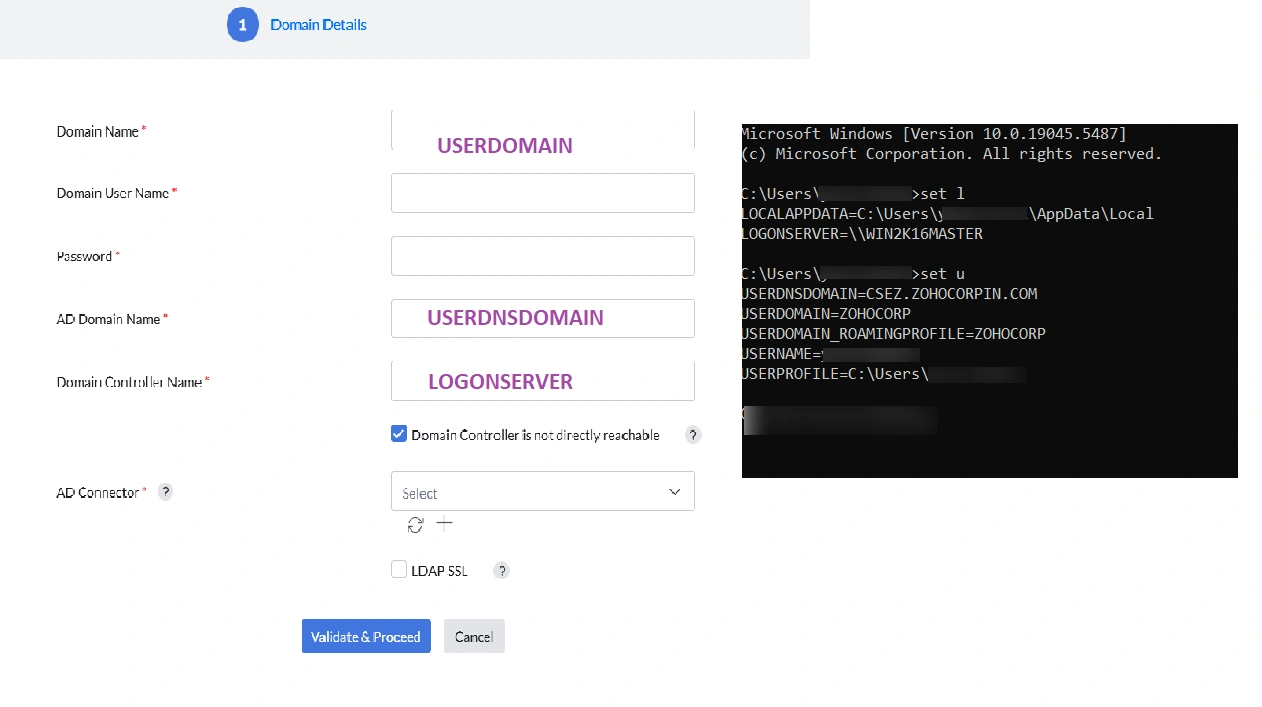
2. Distribution server must be configured for the remote office where the domain controller is located to configure Active Directory connector.
Configuring the Sync Options
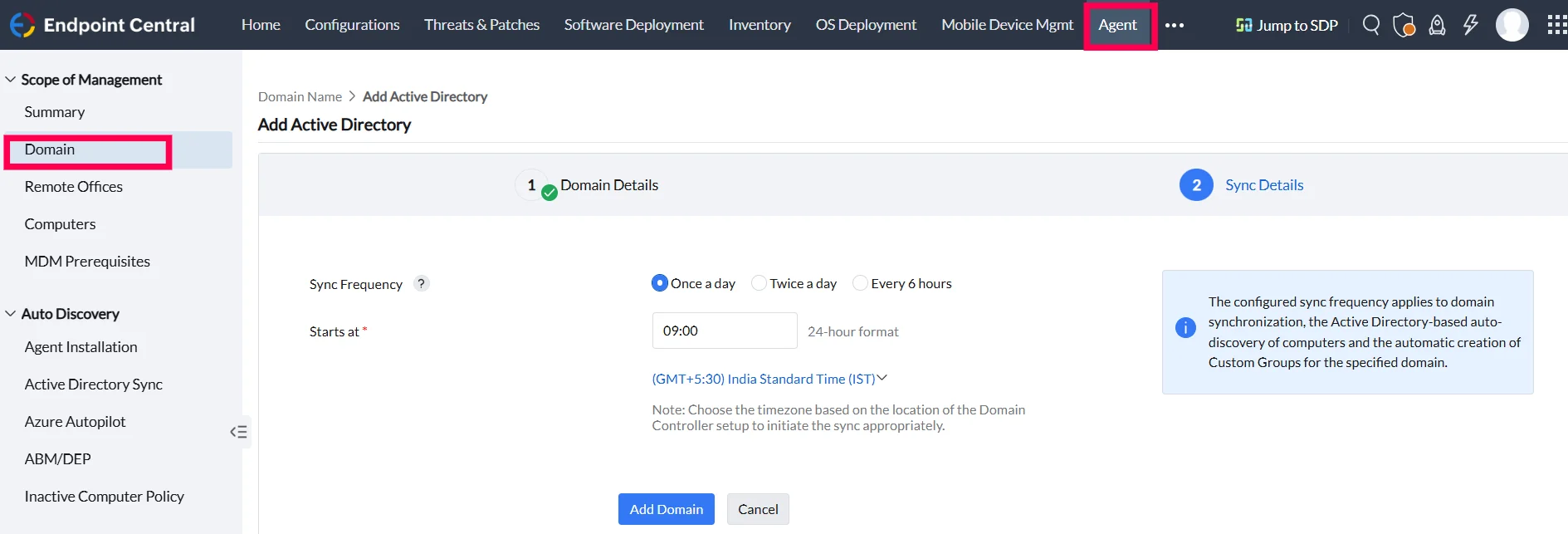
Active Directory resource information is synced according to a pre-configured schedule. Changes in sync frequency will affect Domain, Auto Discovery - Active Directory Sync and Custom group functionalities.
Once the domain is validated, the sync frequency can be configured for that particular domain.
How to Configure Sync Frequency
i. Sync Frequency
Users can choose how often the domain syncs with the server:
- Once a day — Syncs the domain data once every 24 hours.
- Twice a day — Syncs every 12 hours.
- Every 6 hours — Syncs the domain data every 6 hours
ii. Start Time
- Enter a time in 24 hour format to start the sync. Kindly note that the timezone has to be provided based on the location of the domain controller setup to initiate the sync. appropriately.
- Click Add Domain
Managing Domains in Endpoint Central
Once a domain is added, you can manage it through the Actions menu.
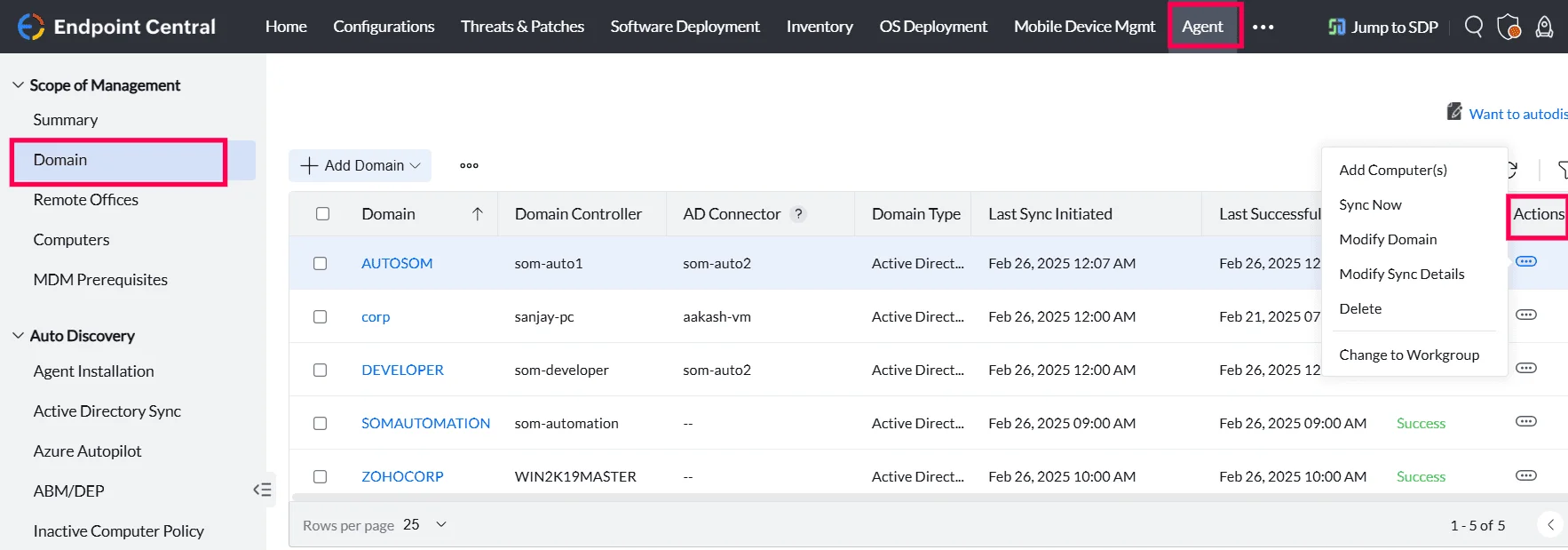
- Add Computer(s): To add Active Directory computers, select the domain, navigate to Actions, and click Add Computers.
- Sync Now:To initiate a domain sync immediately, navigate to the actions menu of the corresponding domain and click sync now.
- Modify Domain: To edit domain details, such as domain controller or Active Directory connector, Navigate to the actions menu of corresponding domain and click Modify Domain.
- Modify Sync Details: To update sync frequency or start time, Navigate to the actions menu of the corresponding domain and click Modify Sync Details.
- Delete: To delete a domain, navigate to Actions for the corresponding domain and click Delete. Kindly note that deleting the domain will erase the domain's data and related Active Directory reports data. A domain cannot be deleted unless all the computers are removed from Scope of Management.
- Change to Workgroup: To change a domain-based device to a workgroup, select the domain, click the corresponding action, and choose Change to Workgroup
ipconfig /all in the command prompt and locate the data corresponding to Primary DNS Suffix.Troubleshooting Domain Configuration in Device Control Plus
For any issues during domain setup or synchronization, review your administrative credentials, access rights, and Active Directory object permissions. Ensure proper configuration of sync frequency and domain connectivity to avoid disruptions.