How to check shared mailbox size

In today’s collaborative work environment, shared mailboxes are essential resources for effective communication and team productivity. They allow multiple users to access and manage emails, calendars, and tasks seamlessly. However, with this shared access comes the need for constant oversight, especially when you seek insights on resource utilization and storage consumption.

ManageEngine Exchange Reporter Plus, an extensive tool used for reporting, auditing, monitoring, and creating alerts for critical activities in your Exchange environment, simplifies this task with the Mailbox Size report.
How to check the shared mailbox size in Exchange using Exchange Reporter Plus

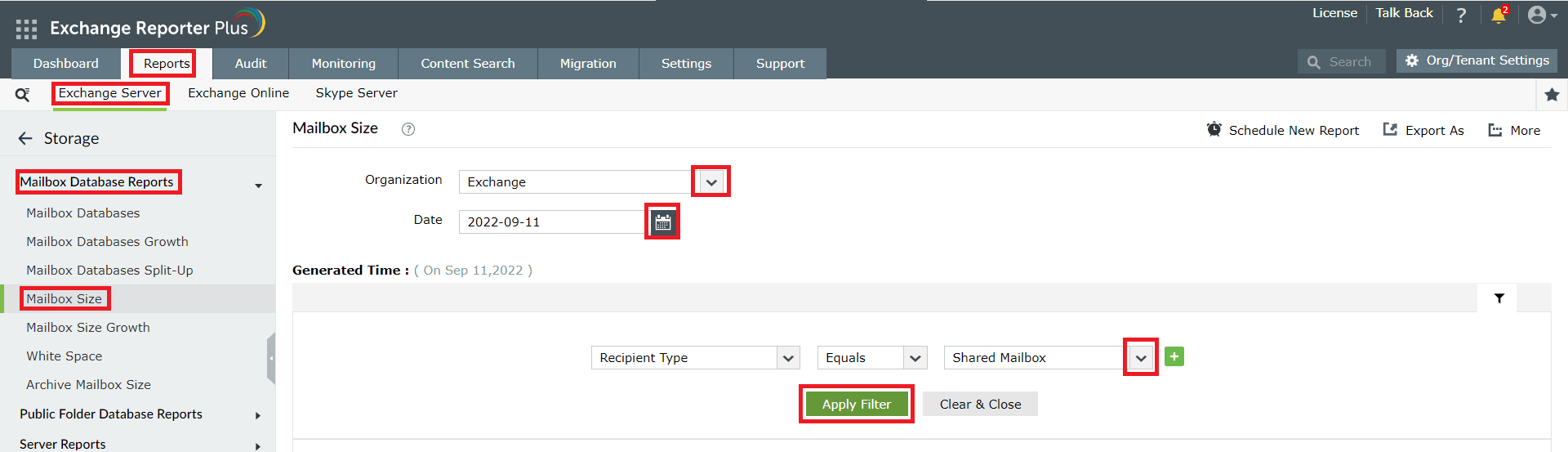
  1. Navigate to Reports > Exchange Server > Storage.
  2. Under the Mailbox Database Reports category, select Mailbox Size.
  3. Select the Exchange organization and date for which you want to see the shared mailbox size.
  4. In the filters section, click the third drop-down box and select Shared Mailbox. Click Apply Filter.

    Applying filters to generate the shared mailbox size report in Exchange Reporter Plus

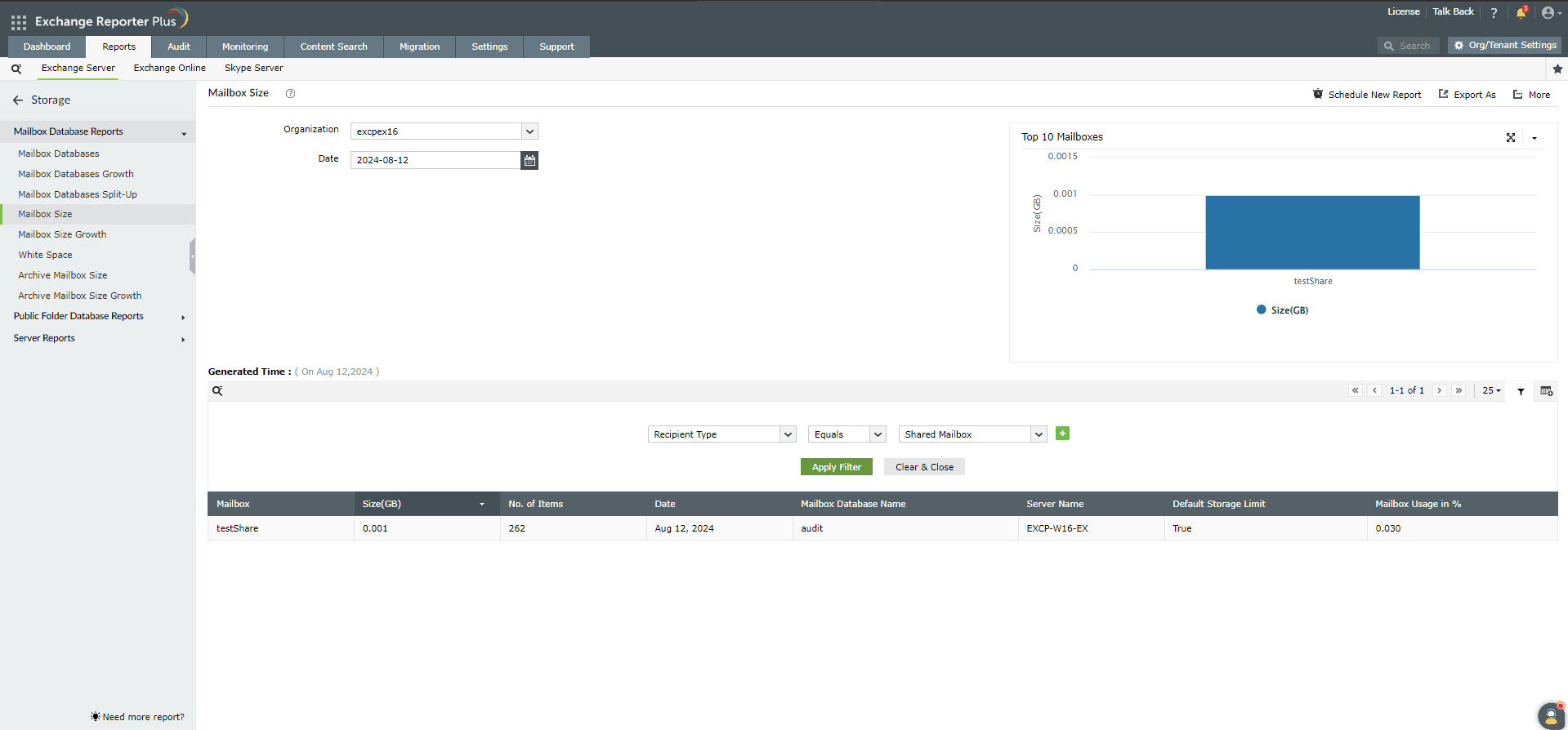
  5. A list of all shared mailboxes in your Exchange organization will be displayed, showing their size, the number of items in each mailbox, mailbox usage as a percentage, and whether each shared mailbox is operating under the default storage limit.
  6. In addition, you'll see a graph displaying the top ten shared mailboxes along with their sizes for the selected date.

    The shared mailbox size report along with the graph in Exchange Reporter Plus

Need further assistance?

Fill this form, and we'll contact you rightaway.

Request Support

  •  
  • *
     
  • *
     
  • *
     
  • By submitting you agree to processing of personal data according to the Privacy Policy.

"Thank you for submitting your request.

Our technical support team will get in touch with you at the earliest."

Exchange Reporter Plus trusted by

A single pane of glass for Exchange Server Monitoring, Reporting and Auditing