- Log360 Cloud
- Configuration settings
- File Monitoring
- Windows File Cluster Auditing
Windows File Cluster Auditing
A Windows failover cluster refers to a group of independent servers that work together to maintain high availability of applications and services. If one of the servers fails, another node in the cluster takes over its workload with minimal or no downtime.
ManageEngine Log360 Cloud audits File Server Clusters to ensure a secure, downtime-free, and compliant network environment.
Audited Events
Log360 Cloud audits the following file activities:
- Create
- Read
- Rename
- Write
- Delete
- Move
- Copy and paste
- Permission changes
- Owner changes
- Failed read attempts
- Failed write attempts
- Failed delete attempts
Prerequisites
In GPO, enable the following policies:
To enable policies:
- Open the Group Policy Management Editor.
- Navigate to Computer Configuration, then Windows Settings.
- Open Security Settings, and then go to Local Policies.
- Enable the following:
- Audit: Force audit policy subcategory settings (Windows Vista or later) to override audit policy category settings
- Access this computer from the network under User Rights Assignment
Note:
The user must belong to the Local Administrators Group or have Administrative Privileges to access administrative shares for setting SACL and Local Security Policies.Auditpol.exe must be available on machines running Windows version 6.0 or higher.
Required Services and Firewall Rules (Windows Version 6.0 or higher)
Services:
- Function Discovery Resource Publication
- Function Discovery Provider Host
Firewall Inbound Rules:
- File and Printer Sharing (SMB-In) – Local Port 445
- File and Printer Sharing (NB-Session-In) – Local Port 139
- Windows Management Instrumentation (WMI-In)
- Windows Management Instrumentation (DCOM-In)
- Windows Management Instrumentation (ASync-In)
Configure DCOM Permissions on Node Machines
- Run dcomcnfg .
- Expand: Component Services → Computers → My Computer.
- Right-click My Computer, choose Properties.
- Go to the COM Security tab.
- In Access Permissions, click Edit Limits.
- Ensure the configuration user account has Remote Access permission.
- In Launch and Activation Permissions, click Edit Limits.
- Ensure the following permissions are granted:
- Local Launch
- Remote Launch
- Local Activation
- Remote Activation
Configure WMI Permissions on Node Machines
- Open the WMI Control Console (wmimgmt.msc).
- Right-click WMI Control (Local) → Properties.
- Go to the Security tab.
- Expand the namespace (e.g., root) and select MSCluster.
- Click Security and ensure the user has Remote Enable permission.
Configuring Windows File Cluster in Log360 Cloud
- Open Log360 Cloud and select the Settings tab.
- Navigate to Configuration, then go to File Integrity Monitoring.
- Under File Integrity Monitoring, click Windows FileCluster.
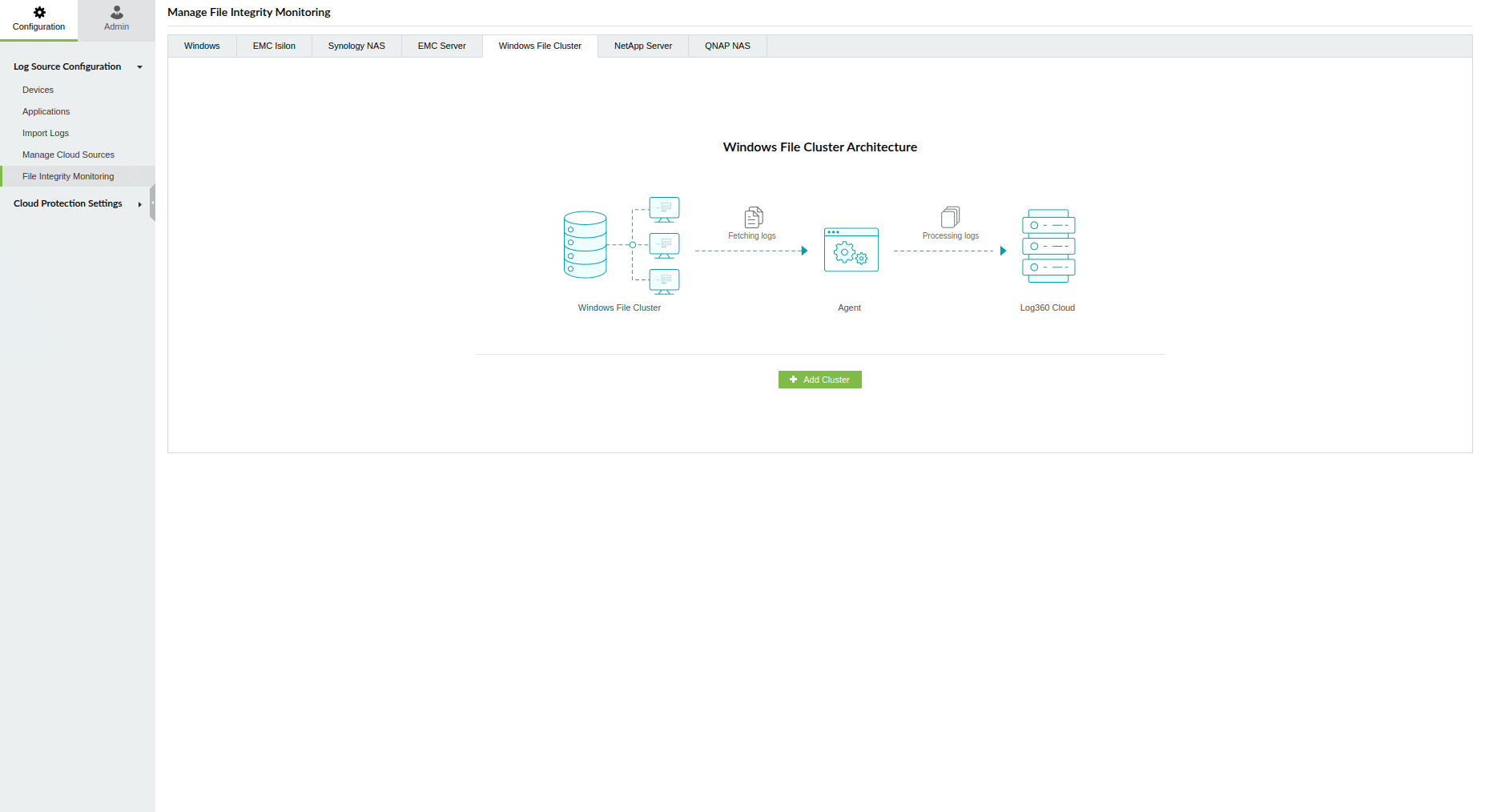
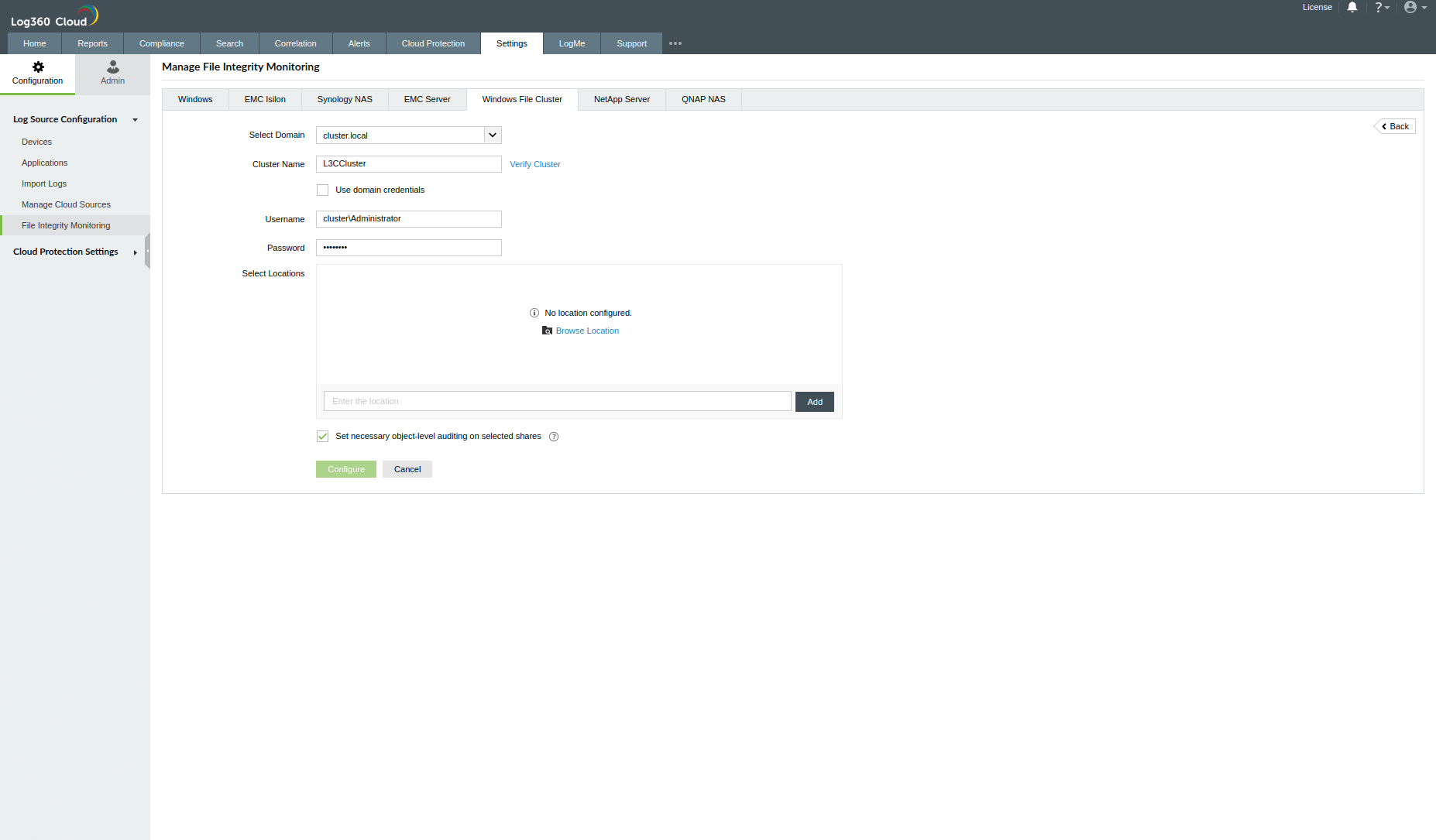
- Select the cluster domain, enter the cluster name and credentials (use domain credentials if already configured), and click Verify Cluster.
Note:
- Ensure that the cluster name is not entered as the domain name.
- Verify that the IP address is mapped to the cluster name, not the domain name, in DNS.
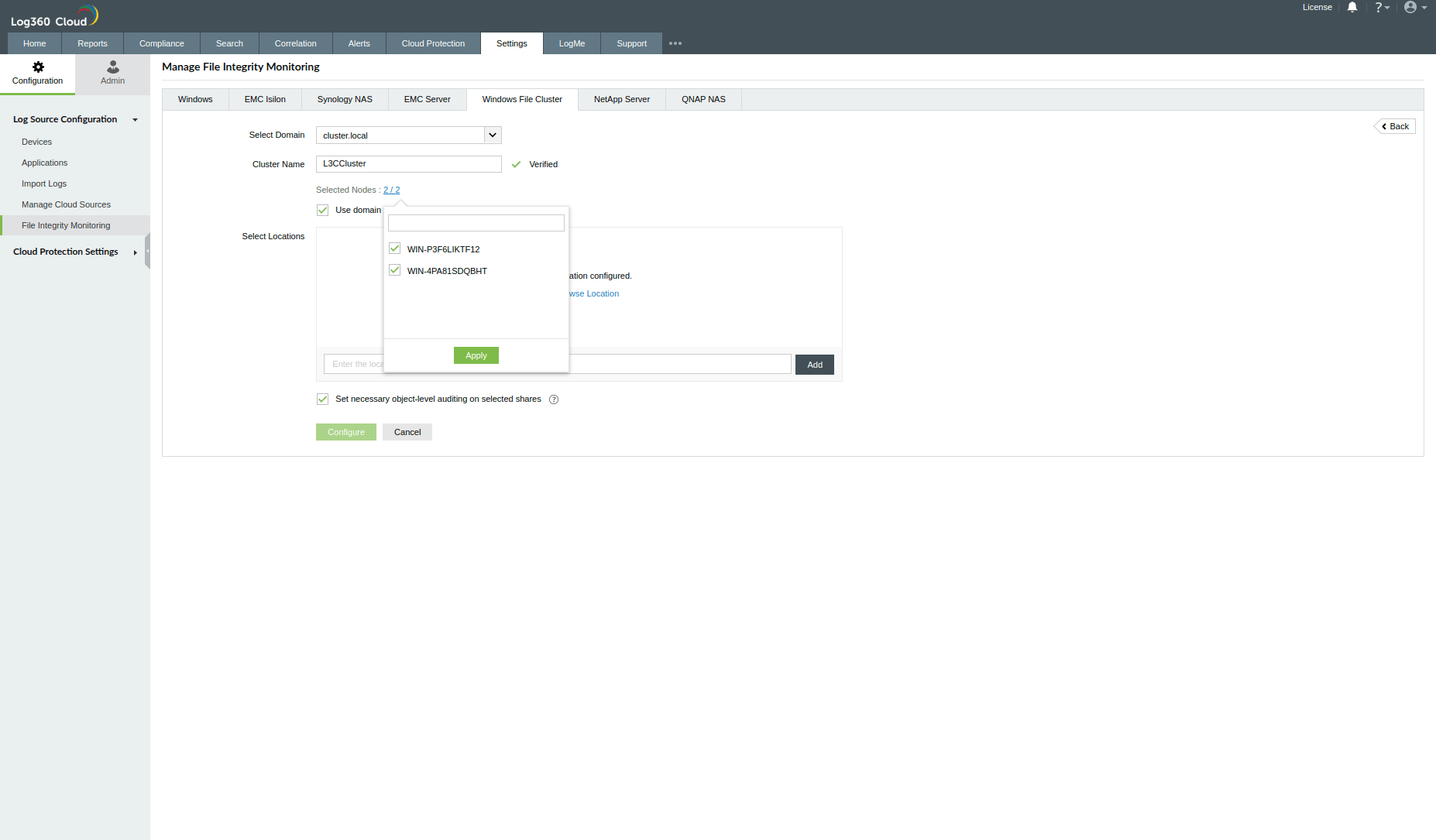
- If the cluster is successfully verified, all nodes associated with it will be shown.
- By default, all nodes are selected
- You can unselect nodes that do not need to be configured
Note:
The selected nodes are only used for log collection.
At least one node must be selected for configuration.
Nodes will be added as hidden devices if not already configured as Windows or Extended Application Windows devices.
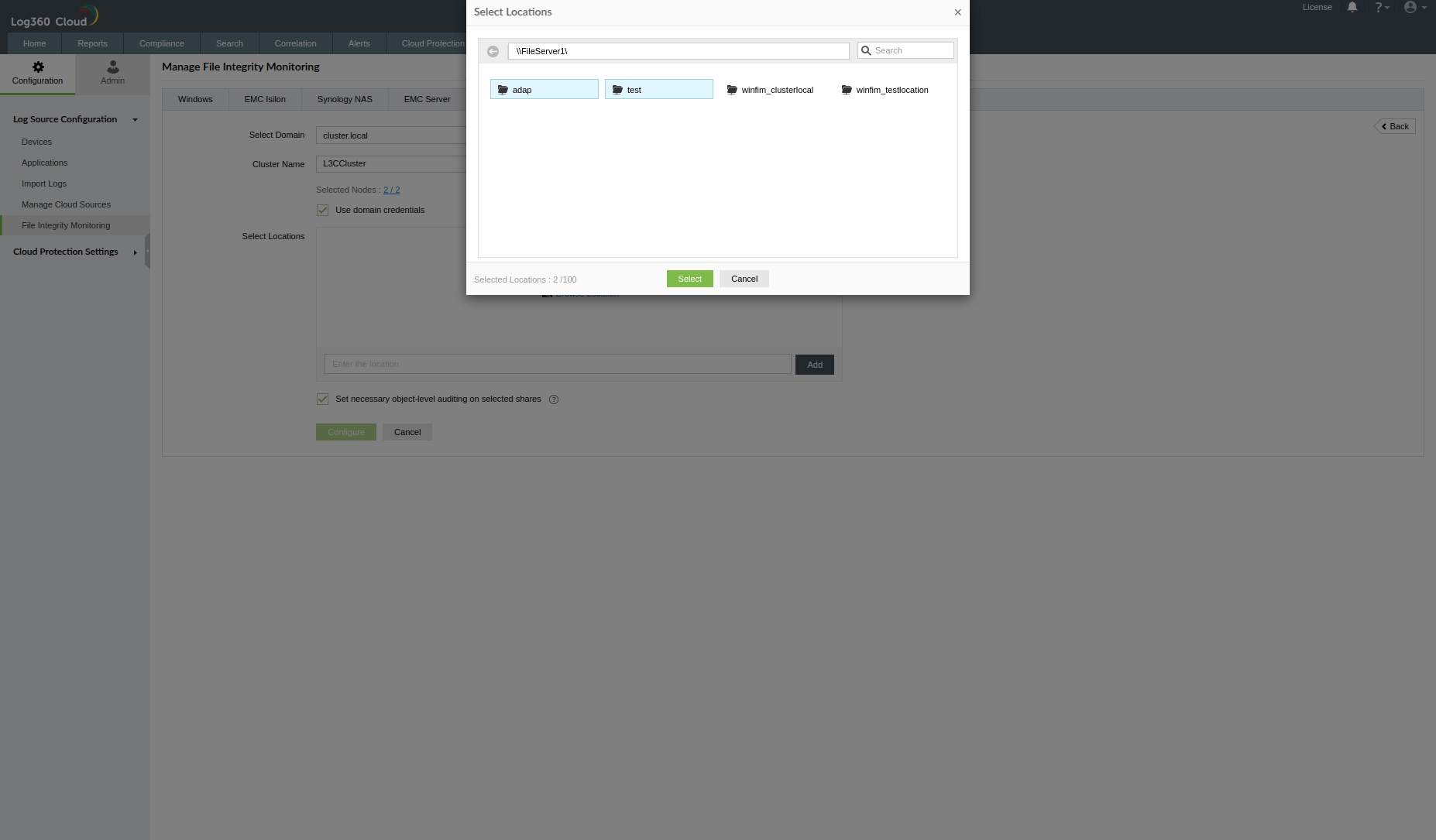
- Browse and select specific files and folders to monitor
- Alternatively, manually enter the path (manual entry is enabled only after successful cluster verification)
- Use the Filter to:
- Include/exclude specific file types
- Exclude specific sub-locations within a main location
- Exclude all sub-locations within a main location
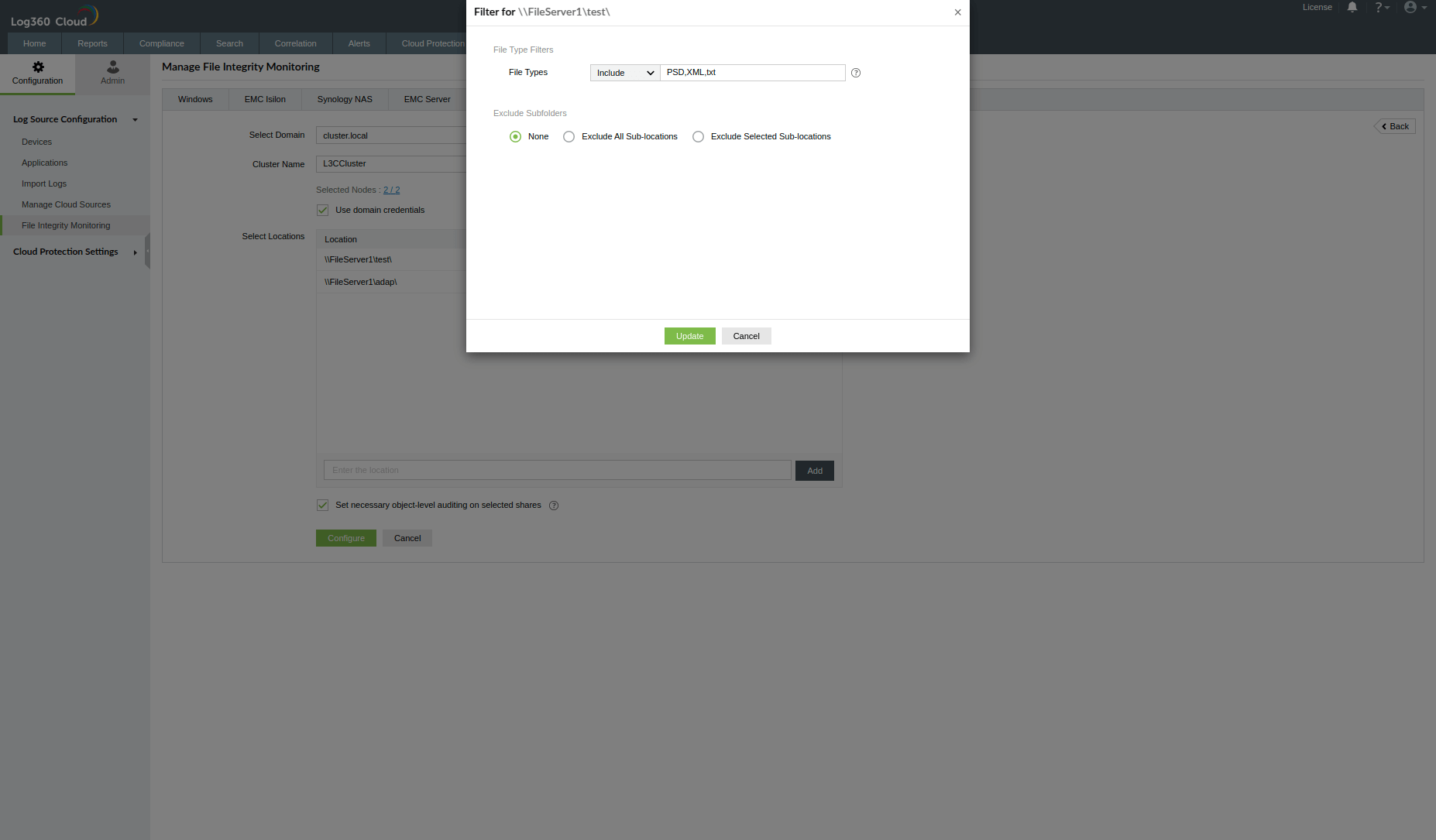
- Click Configure to complete the setup. If successful, the cluster is configured.
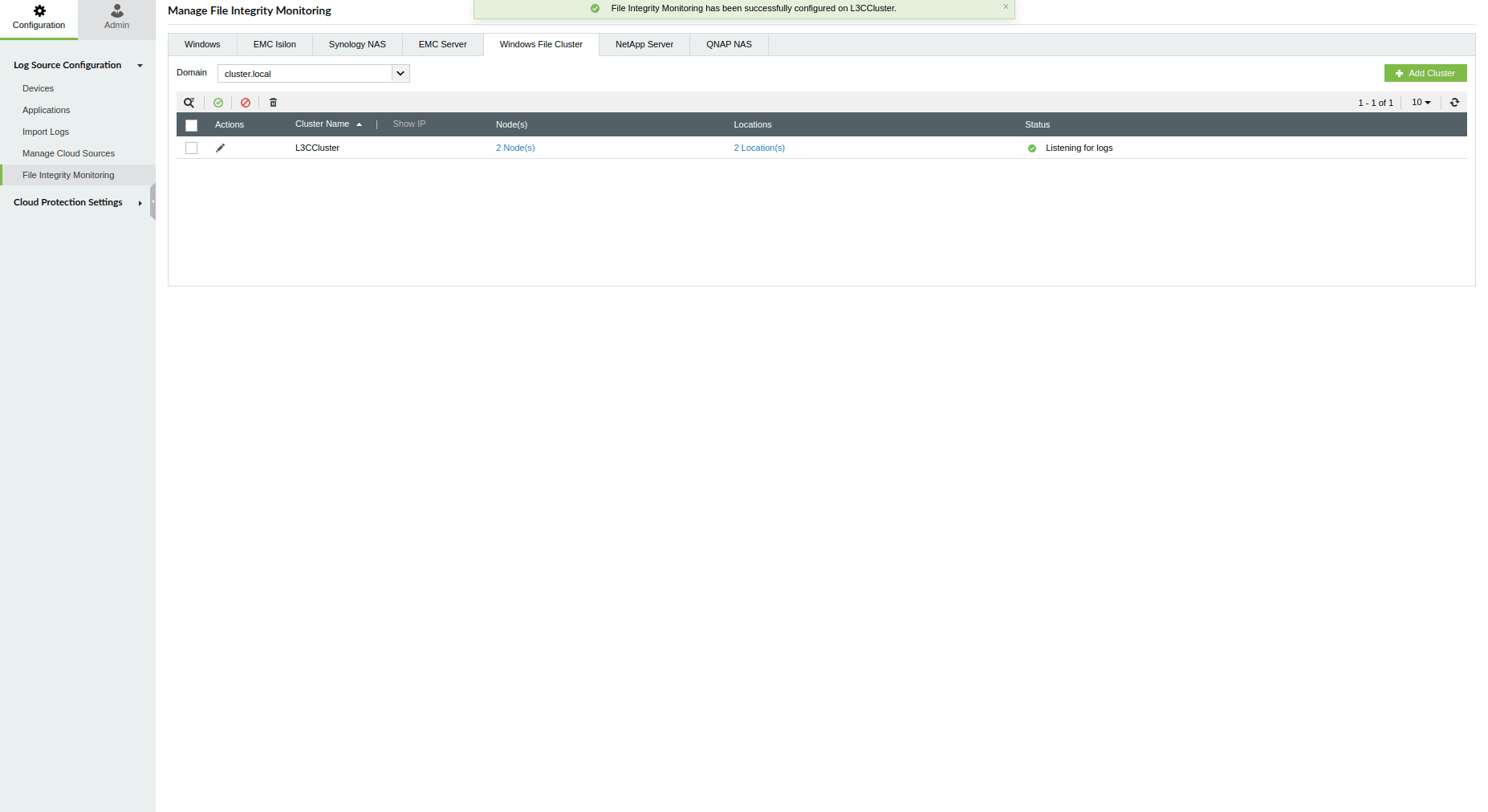
- Edit node configurations by clicking the Configured Nodes count.
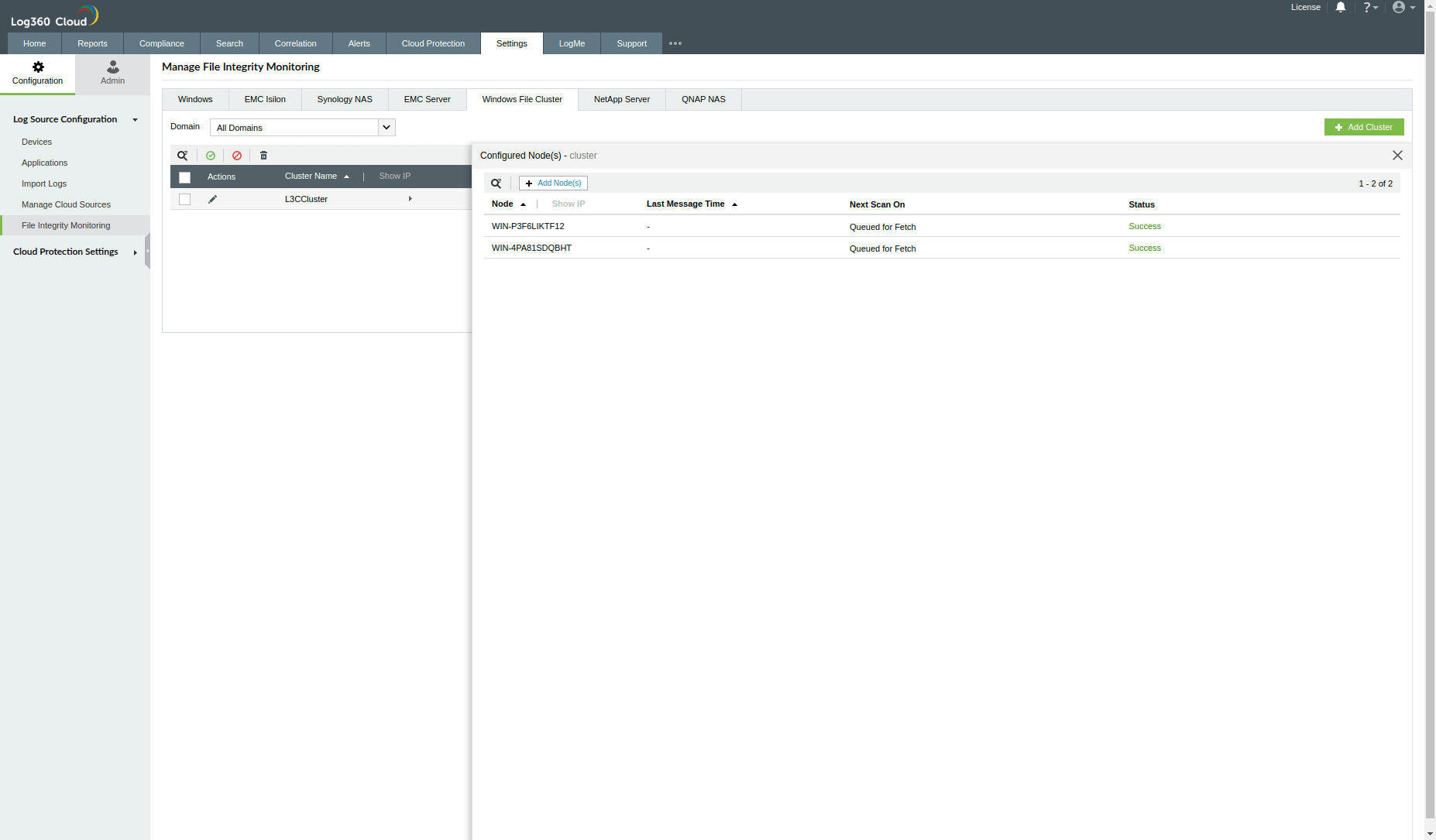
- Use Add Nodes to discover and configure new or unconfigured nodes.
Troubleshooting
Cluster Verification / Add Nodes
Error message: Connecting to <cluster_name> failed due to invalid cluster name
Cause: The cluster name is not resolved by the agent.
Solution:
- Check the spelling of the provided cluster name
- Verify whether the appropriate domain is selected
- Ensure that the cluster is in a proper running state
Error message: Connecting to <cluster_name> failed due to Cluster inaccessibility
Cause: The cluster is not reachable from the agent
Solution:
- Check for any network-related issues
Error message: Invalid credentials
Cause: The provided credentials don't have proper access or are incorrect
Solution:
- Update with valid credentials having administrative/required privileges
Error message: Access denied
Cause: The provided credentials don't have sufficient privileges to fetch cluster details
Solution:
- Provide credentials with appropriate privileges to fetch cluster details
Browsing Location
Issue: Locations are not reachable
Cause: The specified location is not reachable from the agent or is invalid
Solution:
- Check for any network-related issues
- Verify whether the specified location is valid
Error message: Access denied
Cause: The provided credentials don't have sufficient privileges to fetch the specified location details
Solution:
- Provide credentials with appropriate privileges to fetch specified location details
Error message: Unable to check if the locations exist / Cluster inaccessibility
Cause: The cluster is not reachable from the agent
Solution:
- Check for any network-related issues
Error message: Invalid credentials
Cause: The provided credentials don't have proper access or are incorrect
Solution:
- Update with valid credentials having administrative/required privileges
Cluster Status
Issue: No nodes configured
Cause: The configured nodes might have been deleted from the Devices tab
Solution:
- Click the Add Nodes option to reconfigure the nodes
Issue: All/<count> nodes inactive
Cause: All or 'n' nodes are not in successful log collection mode
Solution:
- Check the respective node status from the nodes table and handle it according to the specified error