Dropbox
Dropbox is a cloud-based file storage and collaboration platform that enables users to securely store, sync, and share files across multiple devices. It provides businesses and individuals with easy access to files from anywhere, ensuring seamless collaboration and data protection.
Dropbox extension scope
The Dropbox Audit Log Monitoring Extension empowers organizations to continuously monitor and analyze Dropbox audit logs, ensuring comprehensive visibility into critical activities. By capturing and evaluating events such as user actions, access patterns, and security changes, this extension helps mitigate risks, ensure compliance, and enhance operational efficiency. It enables organizations to detect unusual login attempts, identify potential insider threats, and stay ahead of evolving security challenges.
Audited Dropbox events
Security events
- Ransomware and admin alerts
- Authentications and sessions
- Passwords and TFA
- Encryption and key management
File and folder events
- File and folder operations
- File request and transfer events
Integrations and apps
- Integrations and apps events
Members and groups
- Invite link and add-on activity
- Member management activity
- Group management activity
Device management
- Device link and status Changes
Legal holds
Reports management
- Report management activity
Sharing
- Shared folder and content actions
- Link actions
Showcase
- Showcase management activity
Team policies
- Web session policy
- Password and TFA policy
- Sharing and smart sync policy
- Showcase and signature policy
- Member and team policy
- Third party policy
- File/folder and backup policy
- Governance policy
Team profile
- Data residency migration
- Team profile customization actions
Signatures
- Signature management Activity
Trusted teams
- Enterprise management activity
- Team merge request activity
Configuring Dropbox integration
Setting up a Dropbox account and application
- Sign in to your Dropbox account and navigate to the Dropbox Developers Console.
- Click Create New App and select Scoped Access.
- Choose Full Dropbox Access as the access type.
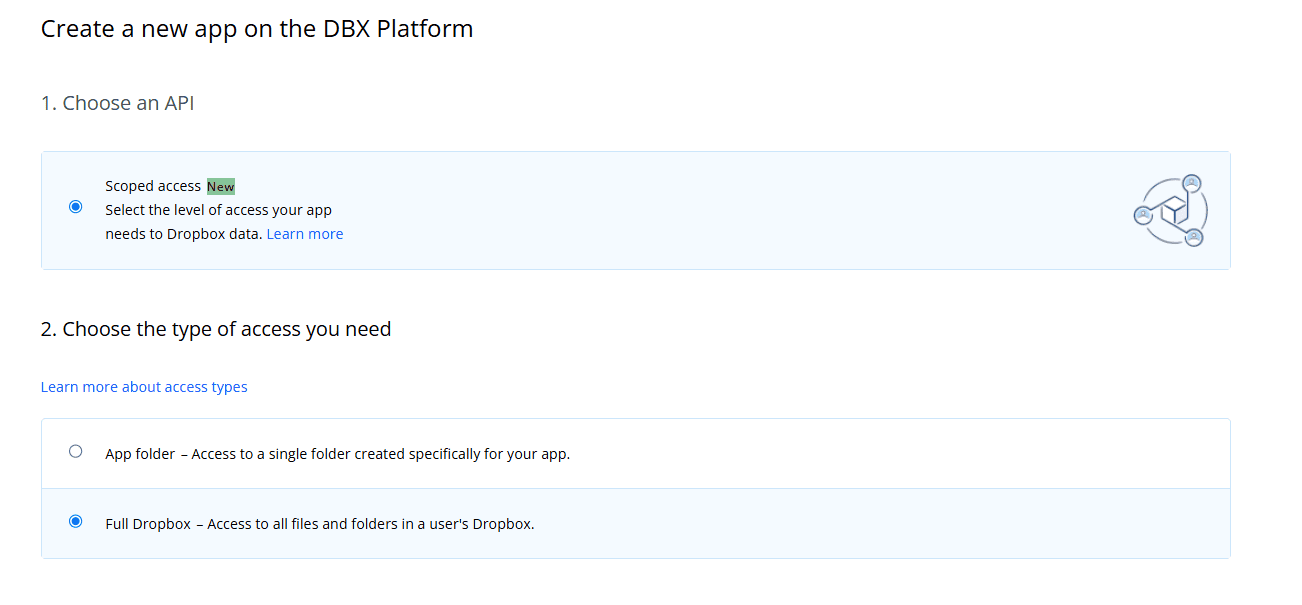
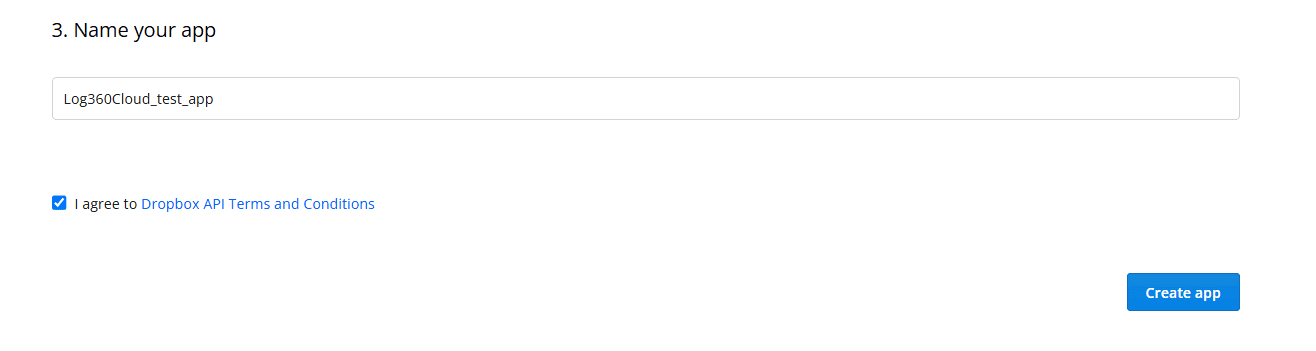
- Provide a name for your app, agree to the Dropbox terms and conditions, and then click Create App.
- Once the app is created, the App Settings page will be displayed.
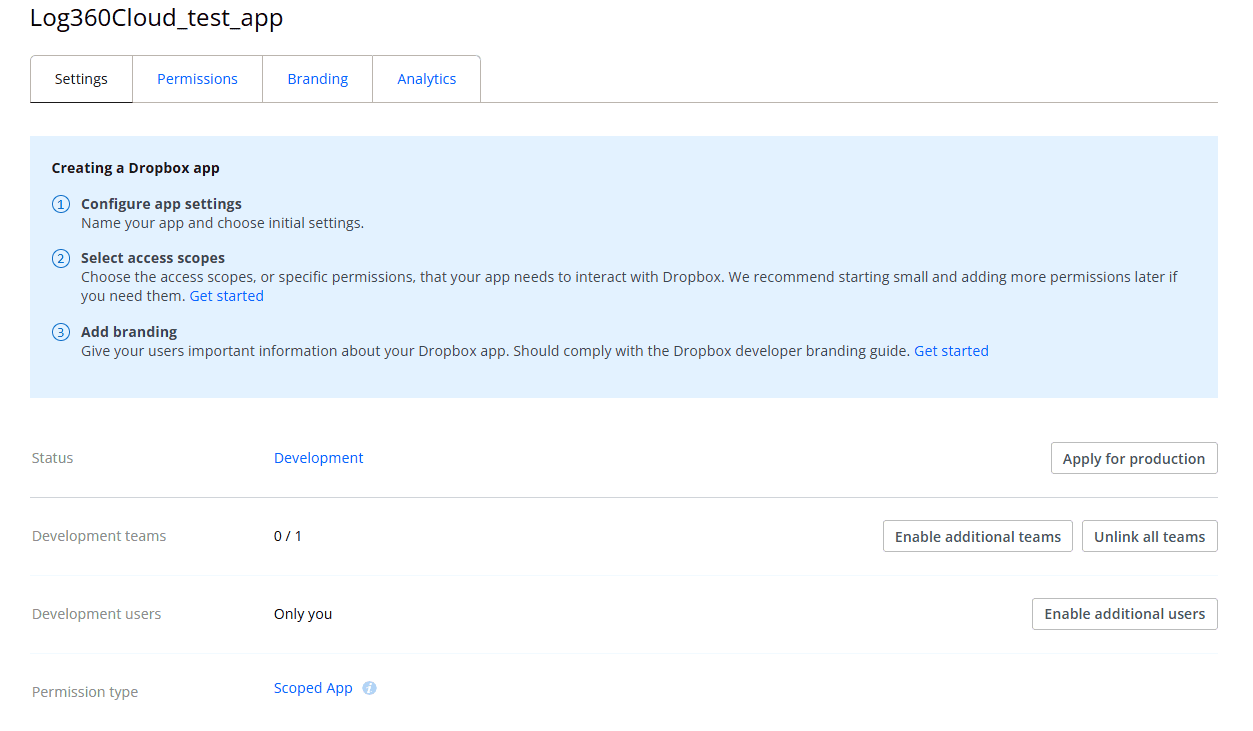
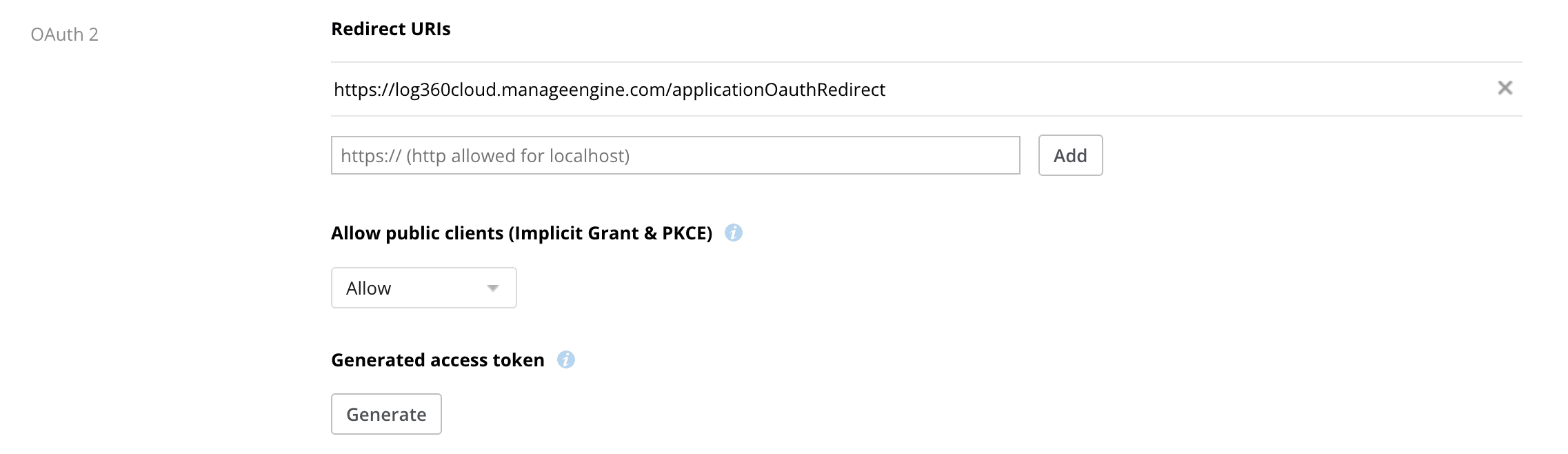
- In the App Settings tab, enter the specified Redirect URL in the Redirect URIs textbox.
- Navigate to the Permissions tab, scroll down, and enable team_data.member and events.read permissions.
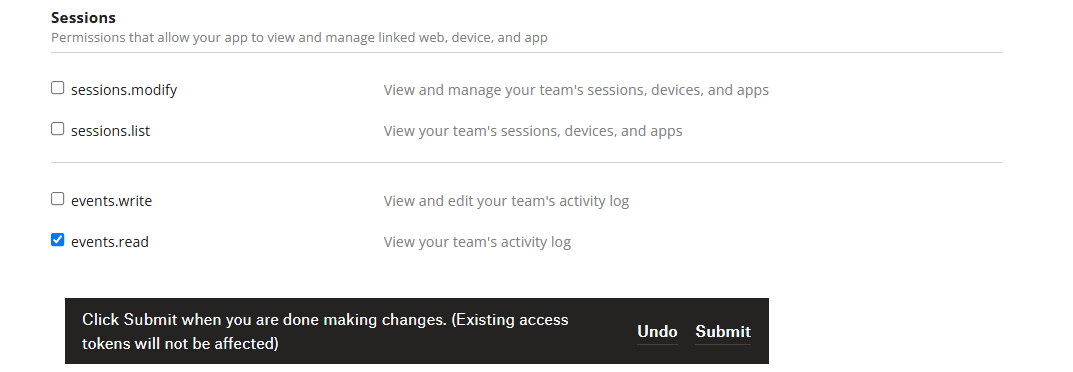
- Click Submit to complete the Dropbox app configuration.
- From the Settings tab, copy the Client ID and Client Secret values from the App ID and App Secret fields. These will be needed later while configuring Dropbox in Log360 Cloud.
Configuring Dropbox in Log360 Cloud
- In Log360 Cloud, navigate to Settings → Marketplace.
- Locate and install the Dropbox Extension from the Marketplace.
- To verify installation, go to Settings → Marketplace → Installed Extensions and ensure Dropbox is listed.
- Click Manage under the Dropbox extension to open the Manage Configuration page.
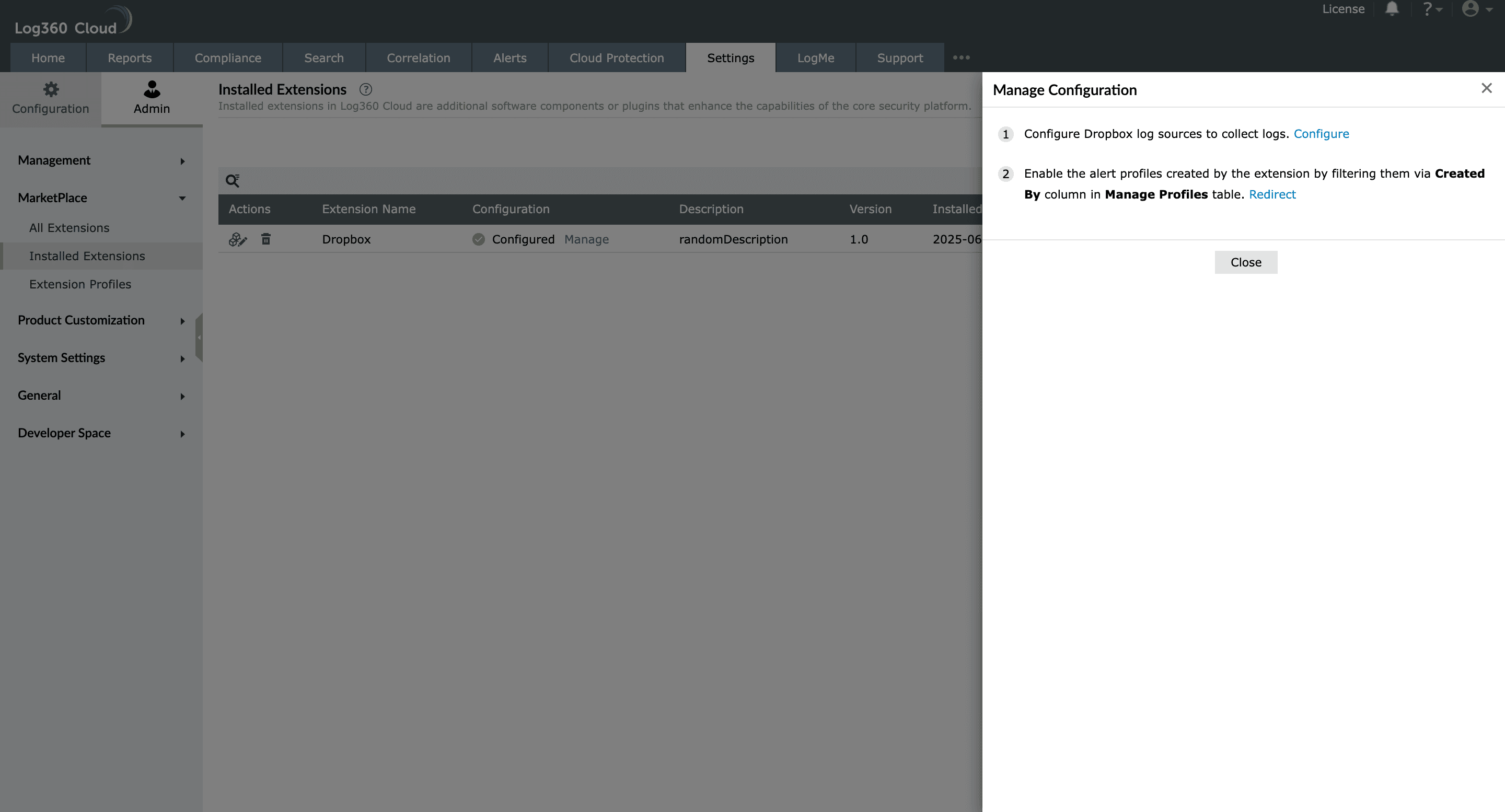
- Click Configure to open the configuration page and navigate to Settings → Configurations → Log Source Configuration → Applications → Other Applications.
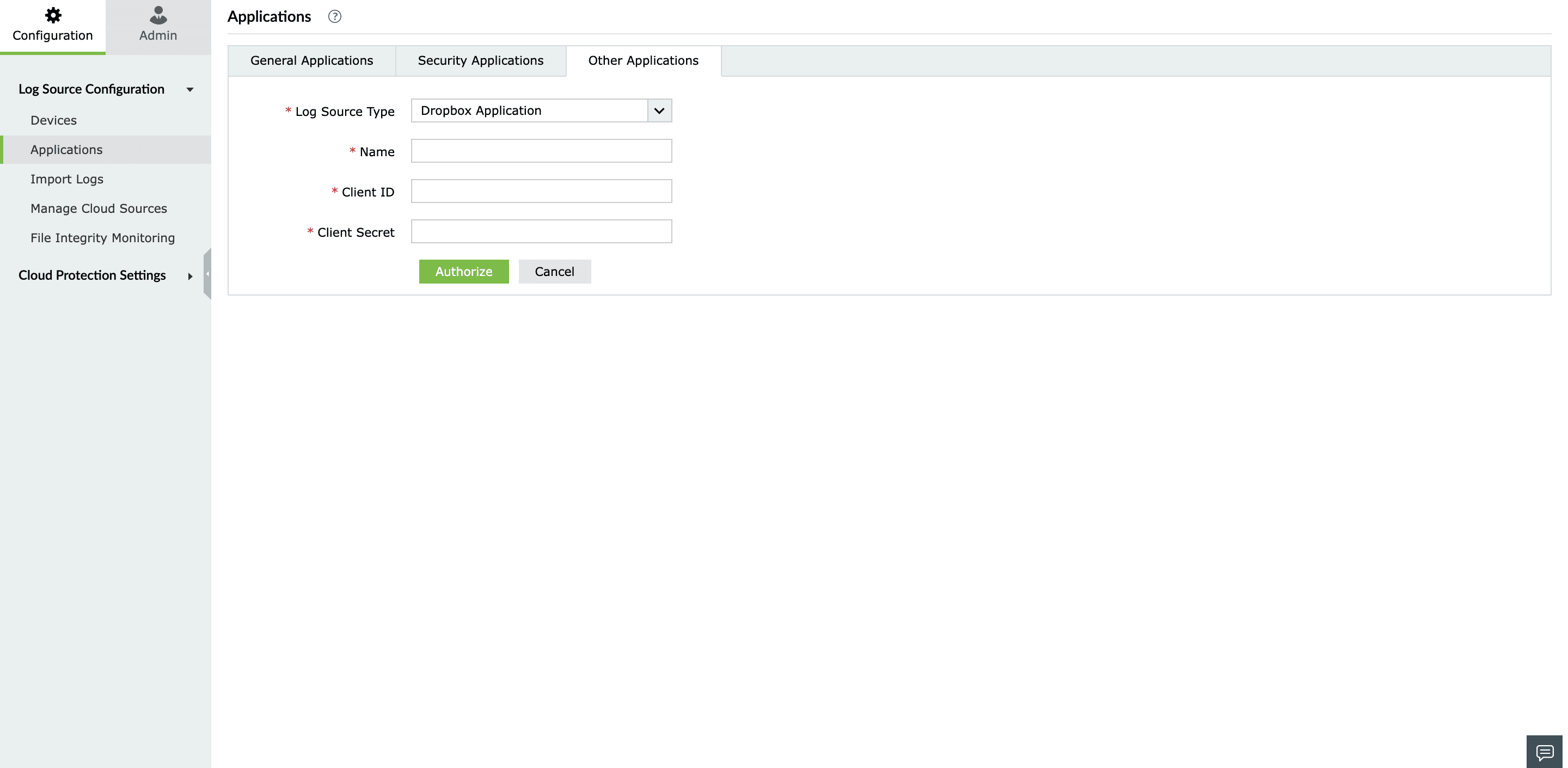
- Enter the Client ID and Client Secret obtained from the Dropbox Developer Console.
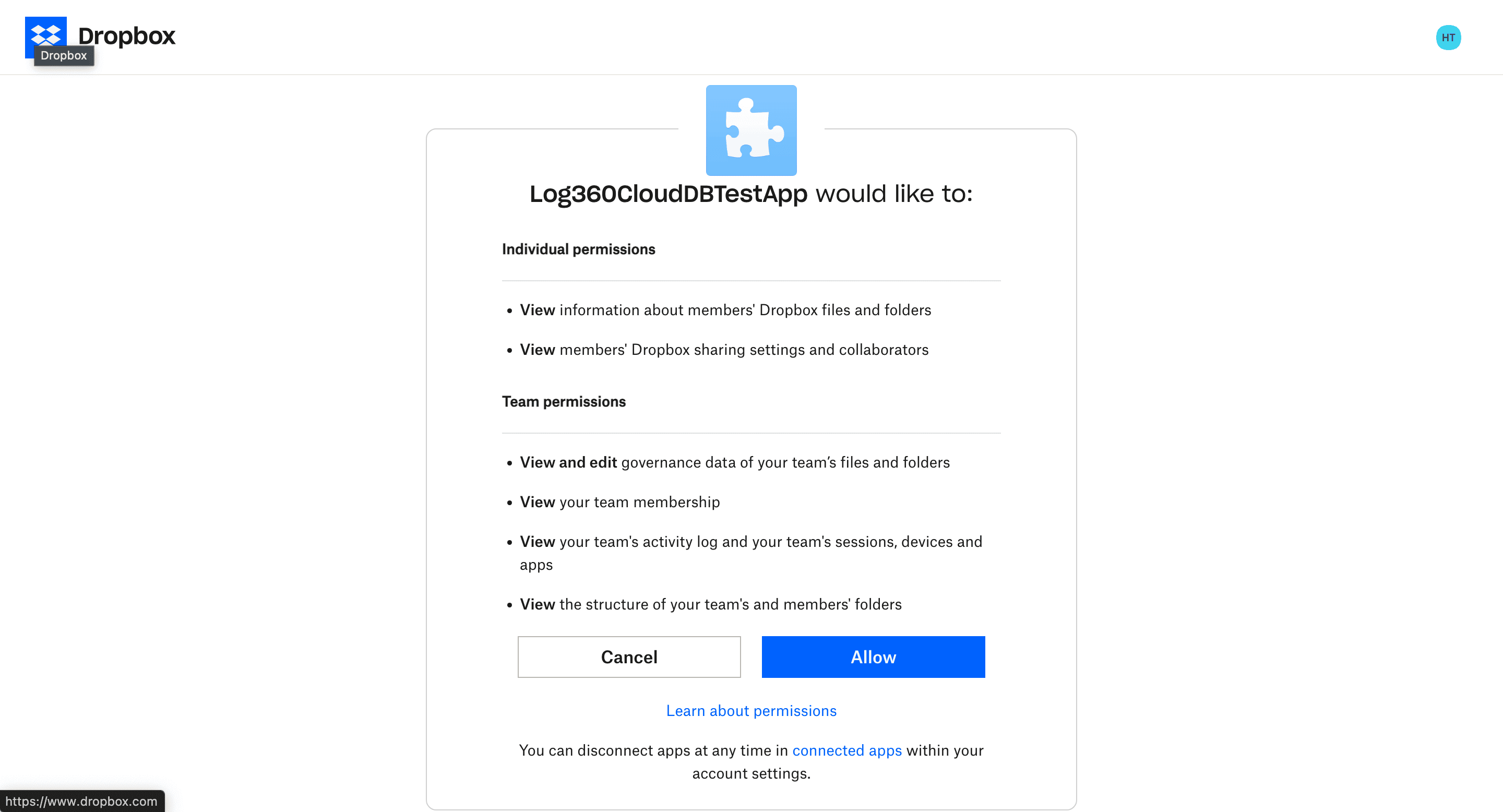
- Click Authorize. A pop-up will appear requesting consent.
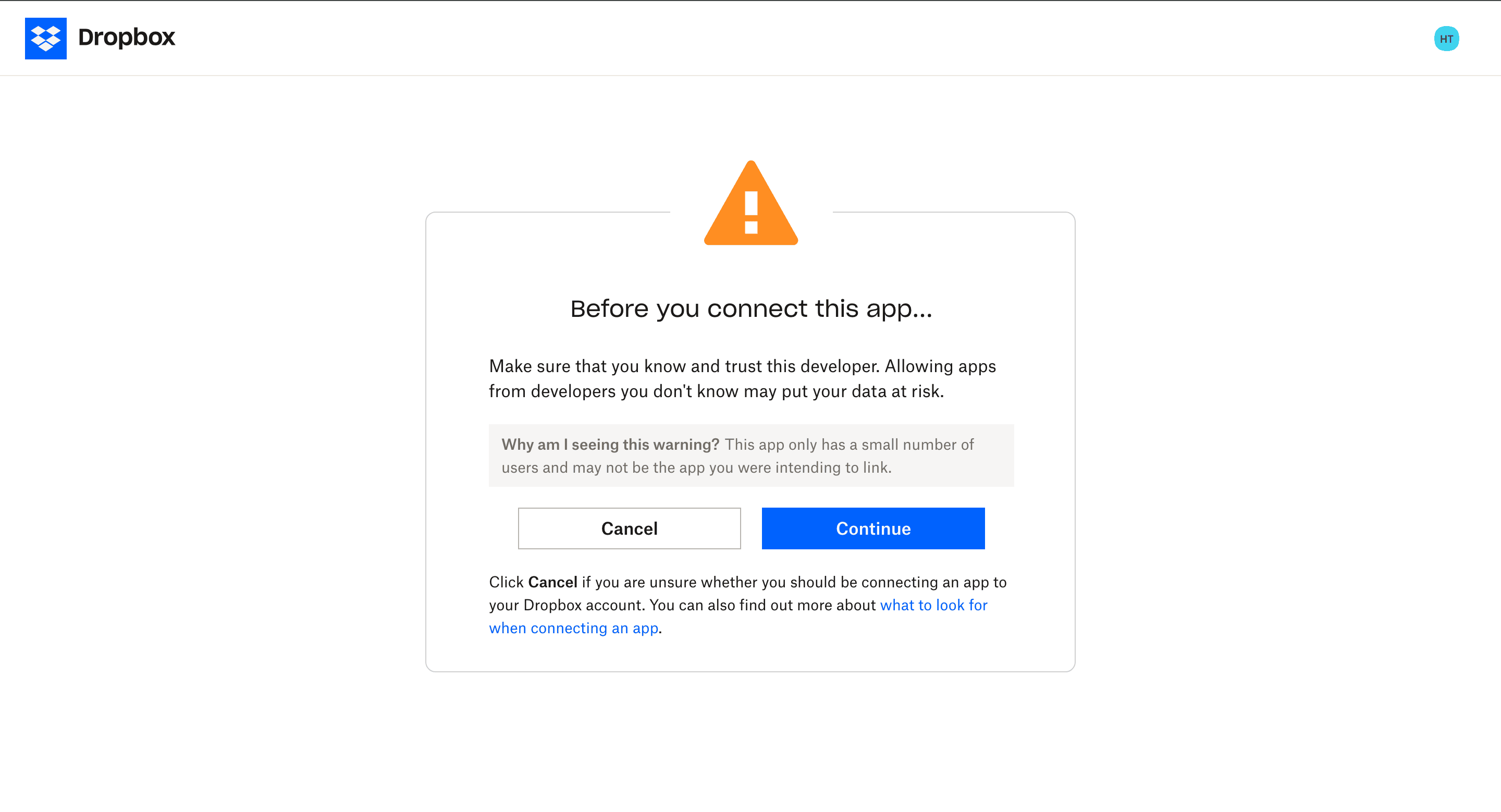
- Accept the consent request to complete the configuration.
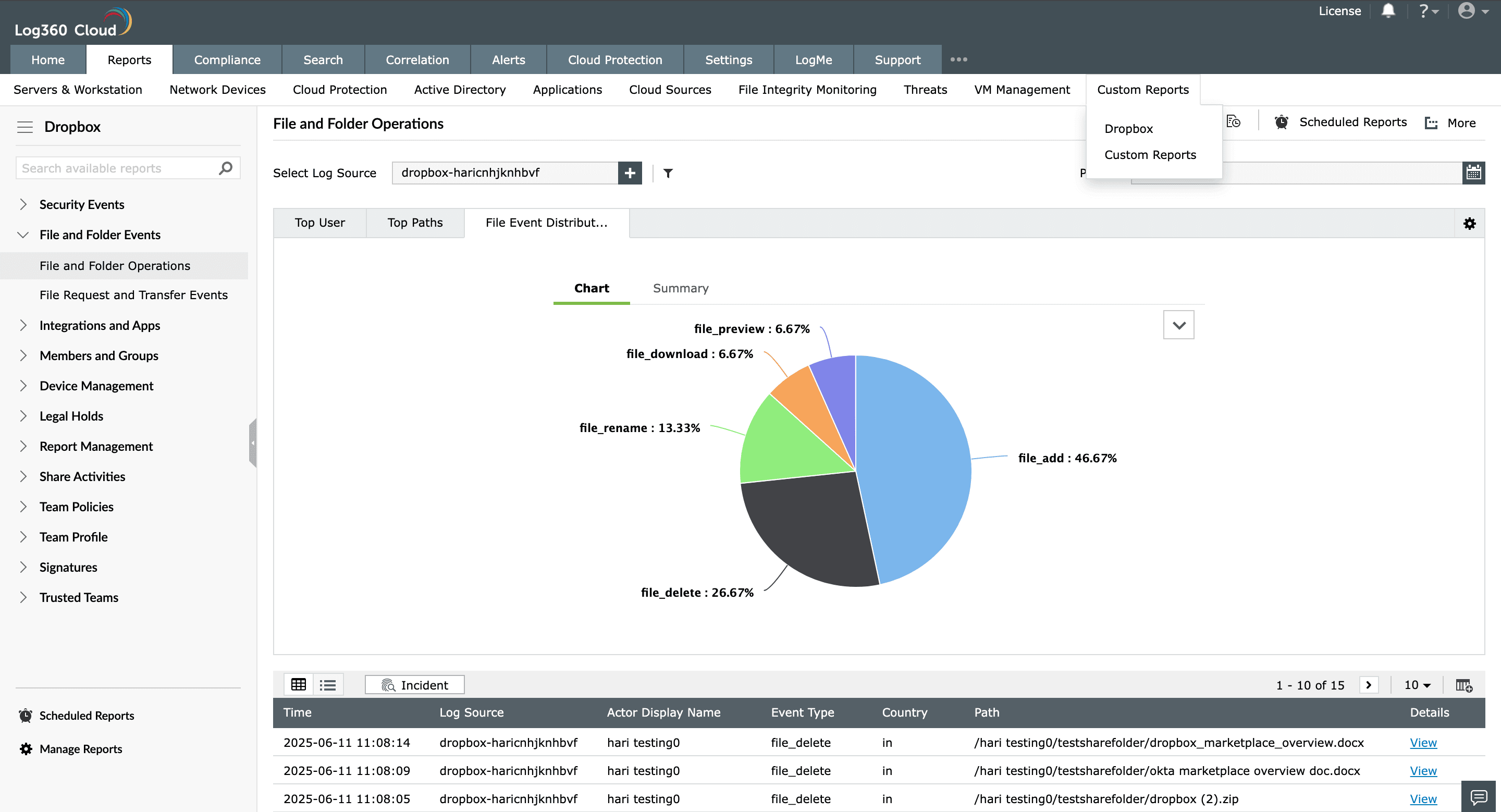
Accessing Dropbox reports
- Navigate to Reports → Custom Reports → Dropbox to view Dropbox-related reports.
Configuring Dropbox alerts
- After configuring the log source, go to Settings → Marketplace → Installed Extensions.
- Click Manage under the Dropbox extension to open the Manage Configuration page.
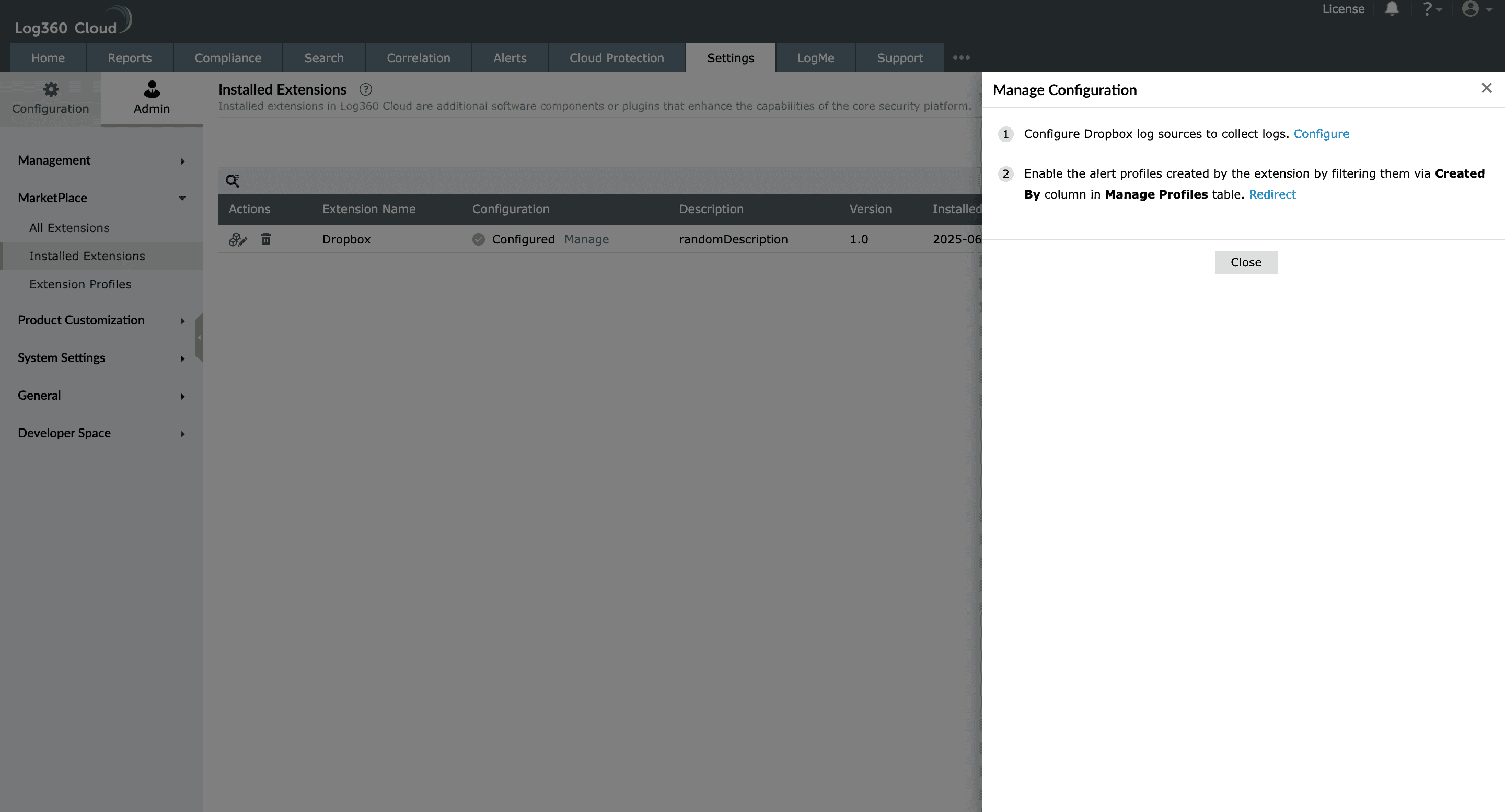
- Click Enable next to Alert Profiles to open the Alerts tab. Browse the available Dropbox alert profiles and enable the required ones.
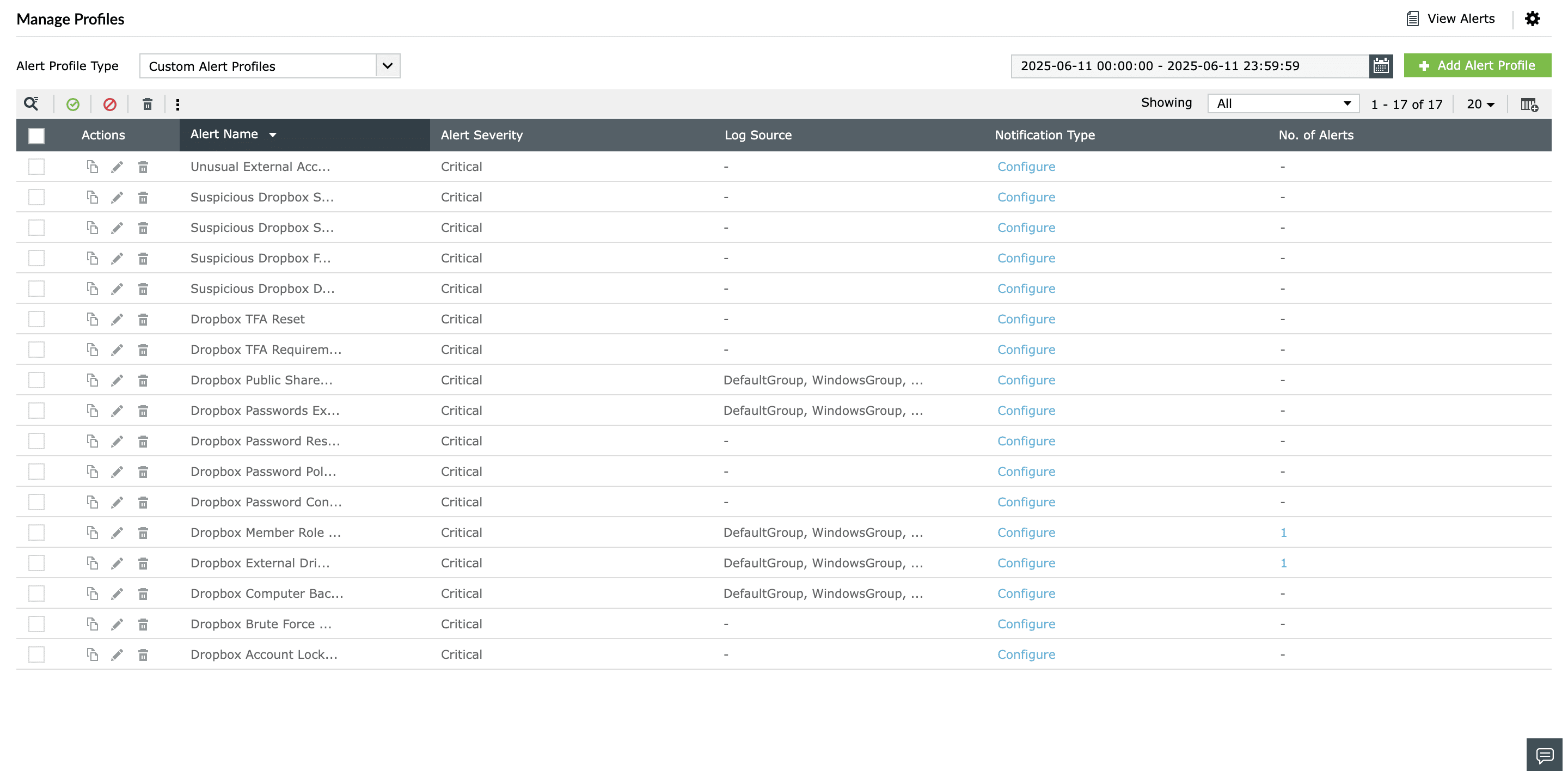
- Alternatively, go to the Alerts tab, select Extensions under Alert Profile Source, and choosenDropbox under Extension Name.
- Enable the required alert profiles.
Searching Dropbox Logs
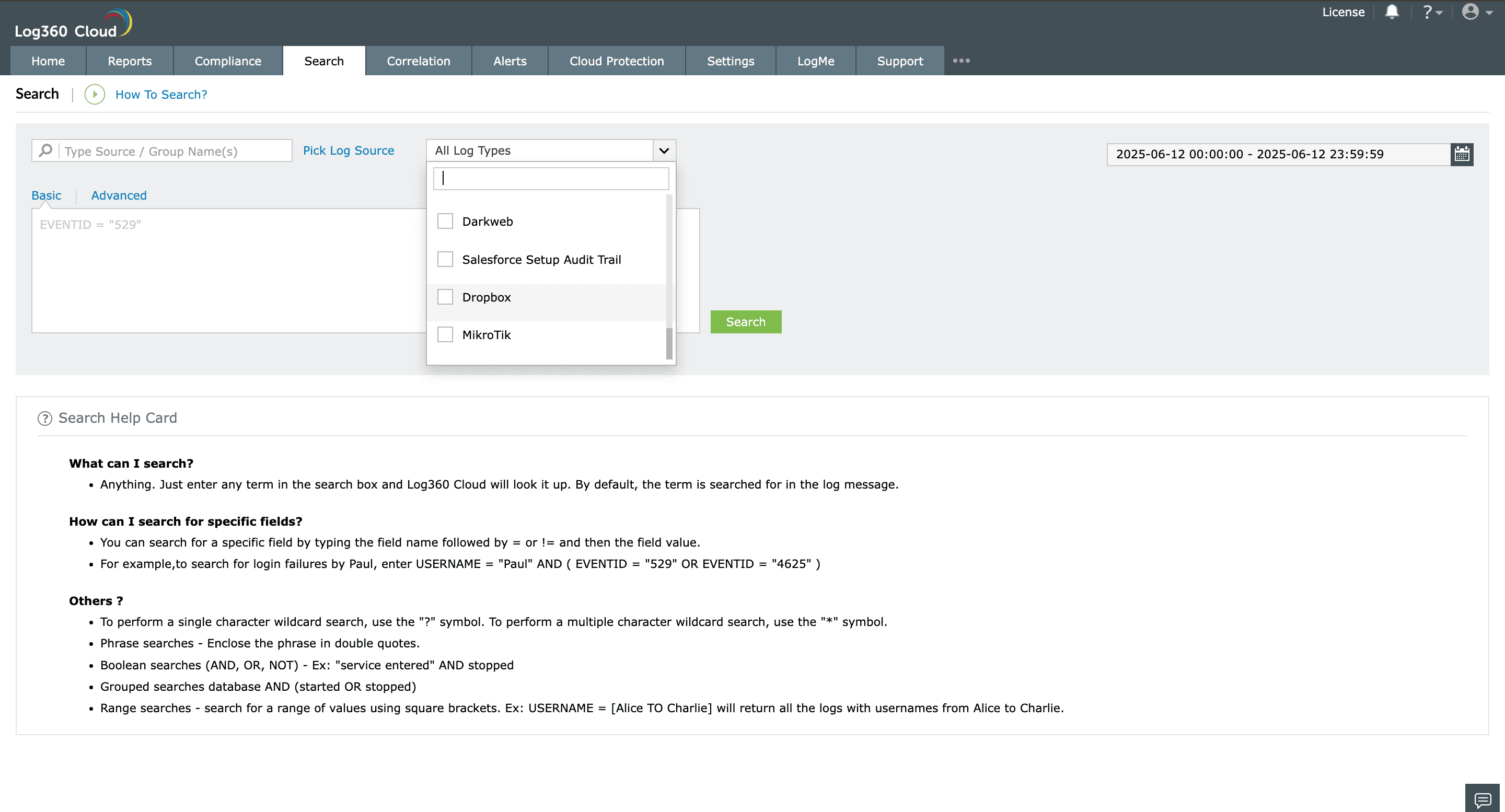
- To search for Dropbox logs, select Dropbox under Extensions Group as the log source.
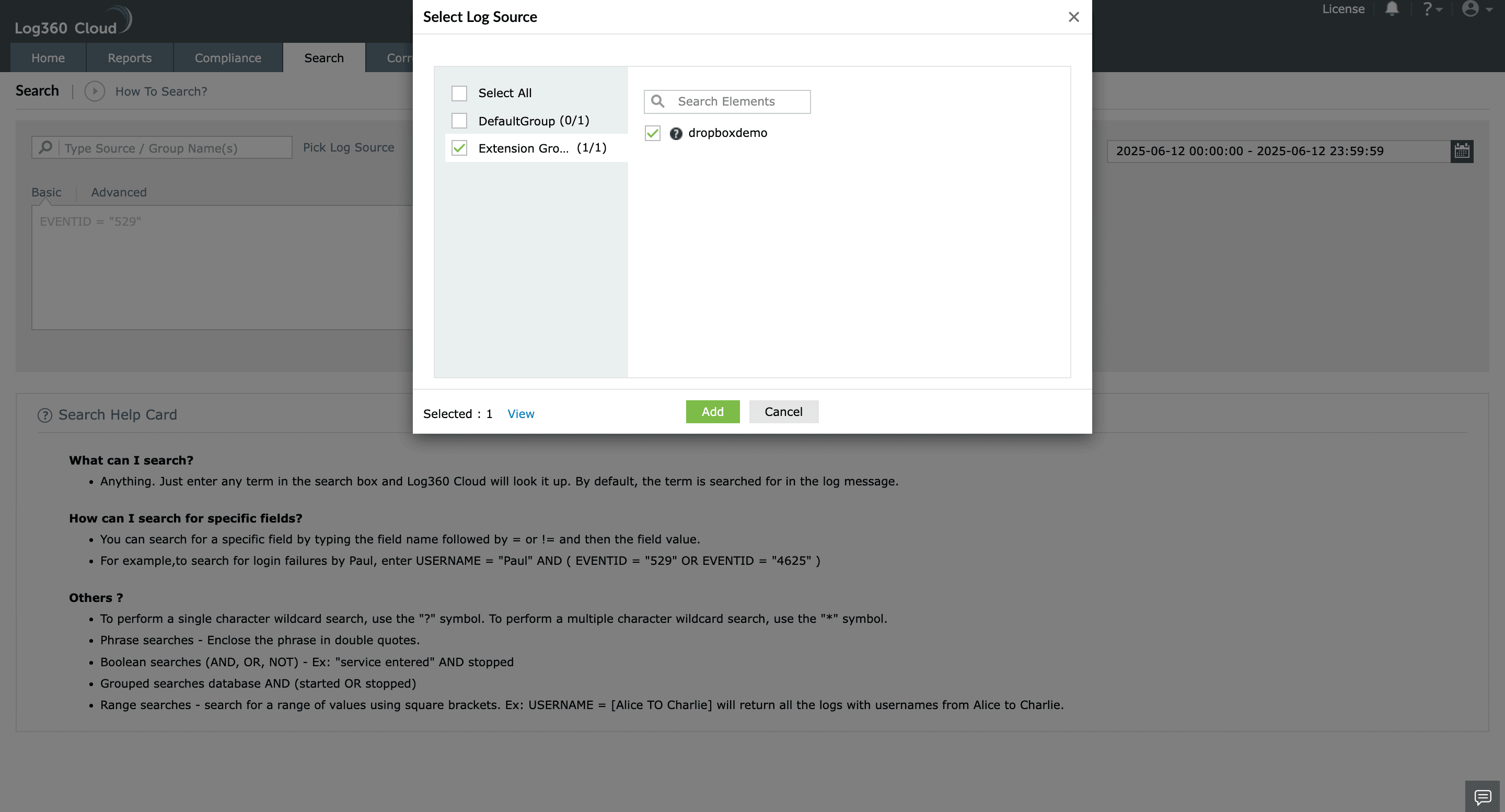
- Alternatively, filter logs by selecting Dropbox as the log type.