
In this page
This page elaborates how you can access various reports for an effective anomaly investigation, associate alert profiles with the anomalies detected in Log360 Cloud, and how to manage and customize the alerts.
The anomaly reports of Log360 Cloud's UEBA further elevate the anomaly investigation process by providing granular details of each anomaly detected, categorized based on the associated anomaly rule. These reports can be accessed from the Correlation tab and include the following:
These reports can be exported in PDF or CSV formats, allowing further offline analysis or sharing with other teams.
By combining both report and dashboard analytic views, Log360 Cloud enables a structured approach to investigating and understanding anomalous behavior across your organization’s environment.

Image 1: Anomaly reports in ManageEngine Log360 Cloud
 icon to expand the left hand side pane). Scroll down to view a list of Anomaly Reports.
Image 2: View anomaly reports in ManageEngine Log360 Cloud
Depending upon the rule status, there are three types of informational alert messages that will be displayed to the user:

Image 3: Informational alert in anomaly reports in ManageEngine Log360 Cloud
In this case, the rule is currently active but so far, no reports have been generated for it yet because that anomaly hasn't been triggered.

Image 4: Informational alert in anomaly reports in ManageEngine Log360 Cloud
As shown above, you can activate that specific anomaly rule by:


Image 5: Informational alert in anomaly reports in ManageEngine Log360 Cloud
In this case, that particular anomaly rule was previously active and reports for that anomaly were generated as well and later the anomaly rule was deactivated. For such anomaly rule, the user can view the reports generated but only until the point when that rule was active. The rule must be manually activated in order to generate reports for it further.
To know about how to activate an anomaly rule, refer to Working with anomaly rules
Each rule will have an associated report to view the anomaly data. Users can choose to show or hide the corresponding report of the selected rule.

Image 6: Show/Hide anomaly reports in ManageEngine Log360 Cloud
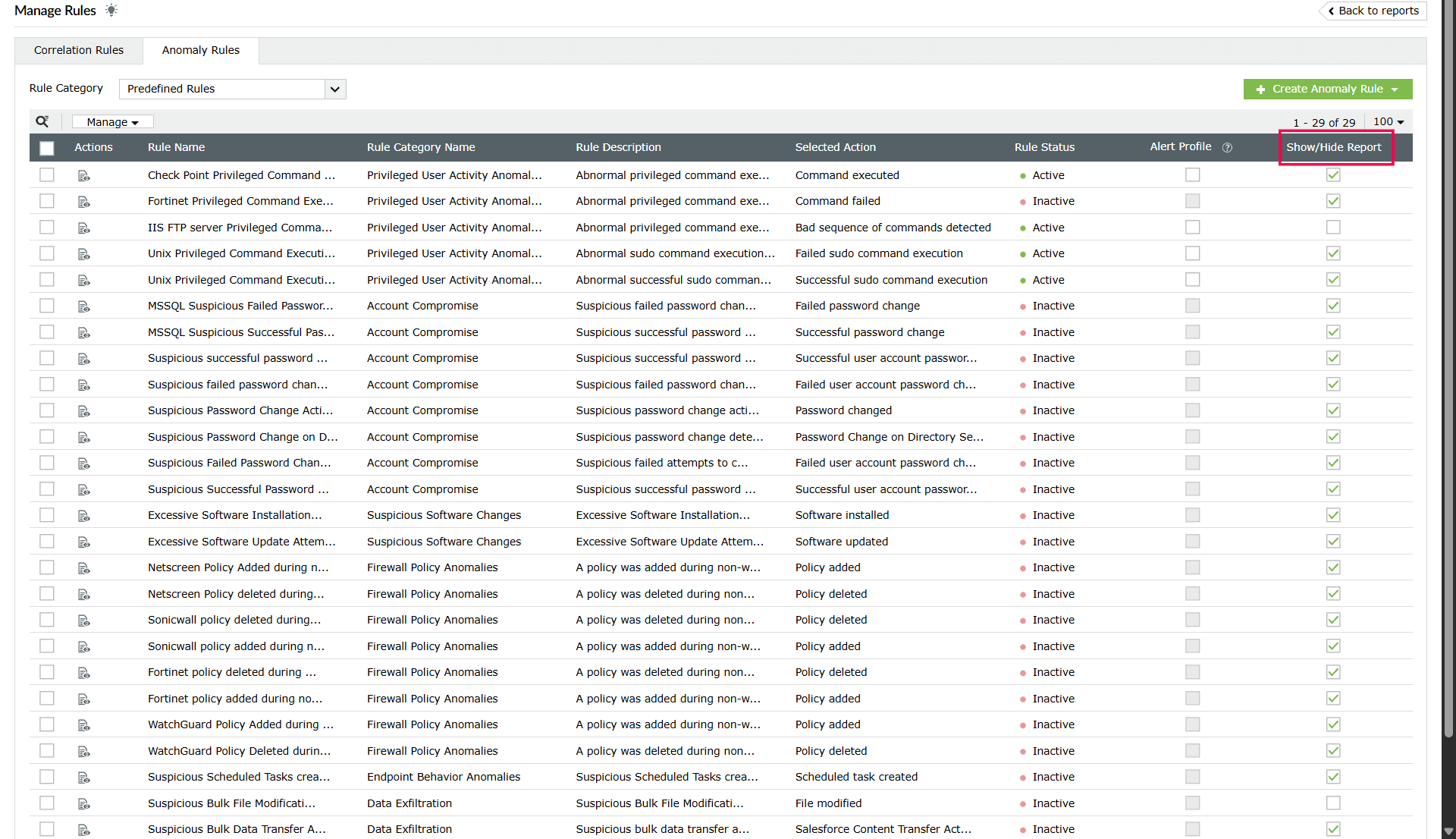
Image 7: Show/Hide anomaly reports in ManageEngine Log360 Cloud
 checkbox (which indicates that the specific report is hidden currently) into
  . You can choose multiple reports to be shown at once.
checkbox (which indicates that the specific report is shown currently) into . You can choose multiple reports to be hidden at once.
Alternatively, an option to hide a single report will appear as a confirm action pop-up while you are deactivating an anomaly rule, so that you can hide the report for its associated anomaly rule the same time you are deactivating it.

To learn how to deactivate anomaly rules, read Activating and Deactivating rules for both pre-defined and custom anomaly rules in Working with anomaly rules
Log360 Cloud's UEBA alerts the security admins whenever anomalies are detected in the network. By enabling this function, security teams can take a proactive approach towards network security monitoring by staying informed about unusual activities in real time and taking prompt action. Alerts can be enabled as in-product notifications and email alerts as well, and tailor them based on criticality and message contents.
For all the anomaly rules, the alerts are disabled by default, and the users have to manually activate them to get notifications.
Learn more about Creating alert profiles
To enable alerts for an anomaly rule in Log360 Cloud UEBA, that particular rule must be actively running already. To know how to activate anomaly rule(s) in Log360 Cloud UEBA, read Working with anomaly rules.

Image 8: Enable anomaly alerts in ManageEngine Log360 Cloud

Image 9: Enabling anomaly alerts in ManageEngine Log360 Cloud
checkbox (which indicates that alerts are disabled for that rule) into .Similarly, to disable alerts for any anomaly rule, click on the currently filled checkbox (which indicates that alerts are enabled) into and alerts are successfully disabled now for that particular anomaly rule.
Log360 Cloud alerts users both via:
Learn more about Setting up email notification for alerts
Users can manage or create custom alert profiles in Log360 Cloud to receive the notifications when anomalies are detected. They can define the alert name, set severity levels, choose delivery methods, and also tailor the alert messages to suit the enterprise's security and compliance needs.
For a more detailed guide on creating and managing alert profiles in Log360 Cloud, read the Alerts help manual.
Read also
This document elaborates how to access and utilize the anomaly reports for investigation and the setting up of alerts for anomalies for anomaly detection in Log360 Cloud's UEBA. For leveraging the capabilities of UEBA, refer the below articles: